Email Groups - Creation and User Management
Creating and Managing Google Groups
Creating a Group
- Go to https://groups.google.com/
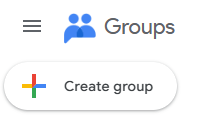
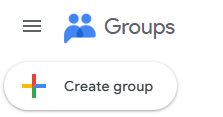
- Click "+ Create Group" in the upper left hand corner.
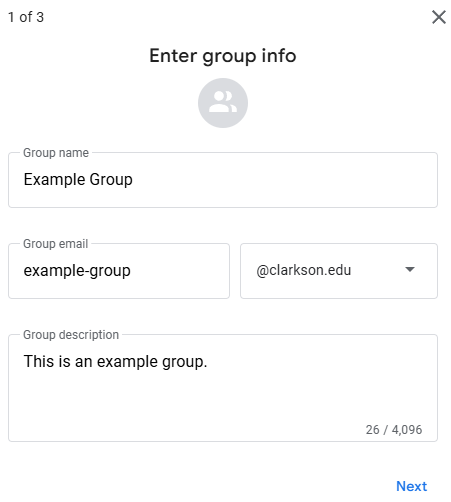
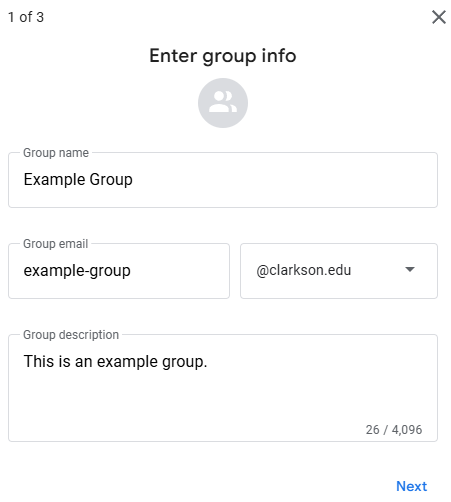
- Configure the Group Name and Email that you would like for the group, along with a description of the purpose of the group.
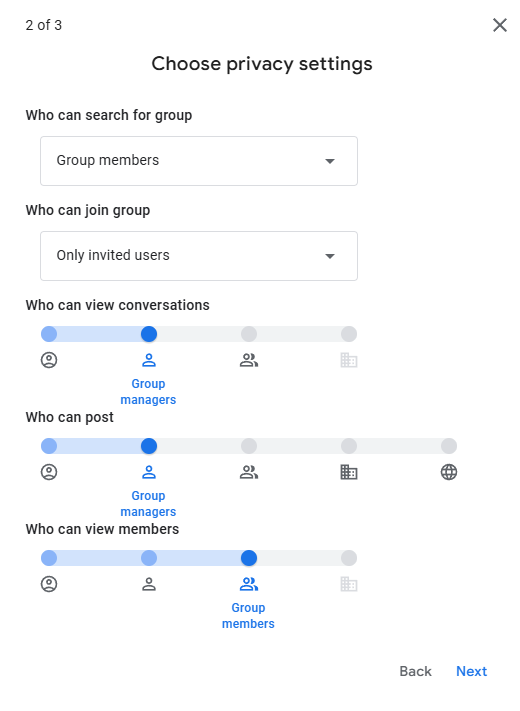
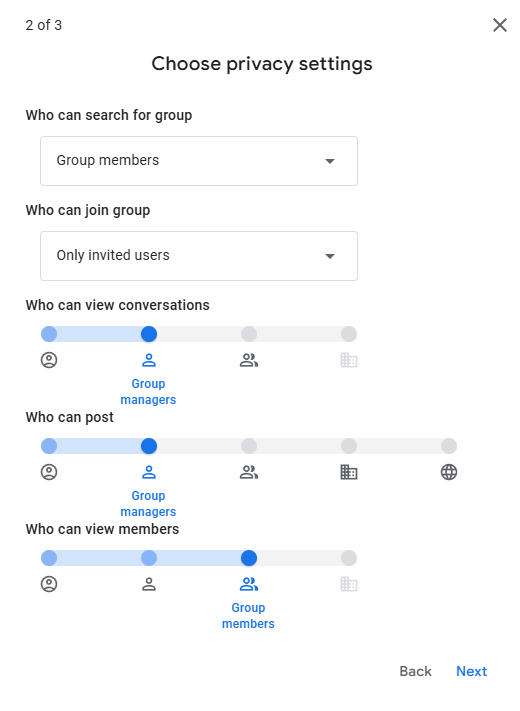
- Configure the privacy settings that align best with the needs of the group.
- Add any additional Group Members, Managers, or Owners then click Create.
Adding users to a Group you are the owner/manager of
- Go to https://groups.google.com/
- Click the group you would like to manage
- On the left hand side go to People -> Members
- Click Add Members and add the users you would like to add to the group.
Google Documentation Links
Creating Groups and configuring settings:
https://support.google.com/groups/answer/2464926?hl=en
Managing Users of a Google Group:
https://support.google.com/groups/answer/2465464?hl=en
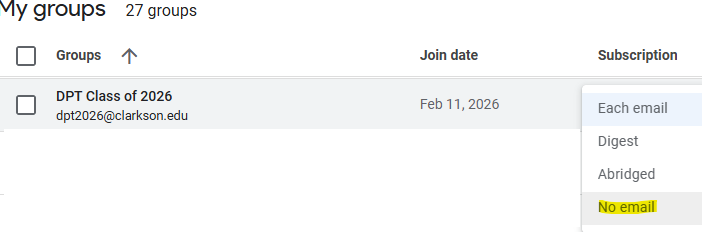
Group Owner: Prevent receiving emails sent to the group in their own inbox.
Use Case: A Group Owner wants to be able to manage/access a group without receiving emails sent to the group.
- Go to https://groups.google.com/
- From the list of groups shown to you find the list you wish to not receive email from.
- Click the dropdown in the Subscription column that says Each Email and change it to No Email.