Quiz: Saving a Quiz as a Text File for Importing into Moodle the Old Way
Prior to using Gemini to format our quizzes for import into Moodle, we manually eliminated Word formatting such as bulleted lists and then opened the file using Notepad to add the answers and change the file type for importing into the Moodle Question Bank. If you prefer the old way, follow the steps below. Note that this method is time intensive and must be strictly formatted.
Summary
Open Notepad (not Word or Wordpad) and open the quiz file in Notepad. Now follow the steps below to save the quiz as a special type of text file that can be imported into Moodle.
-
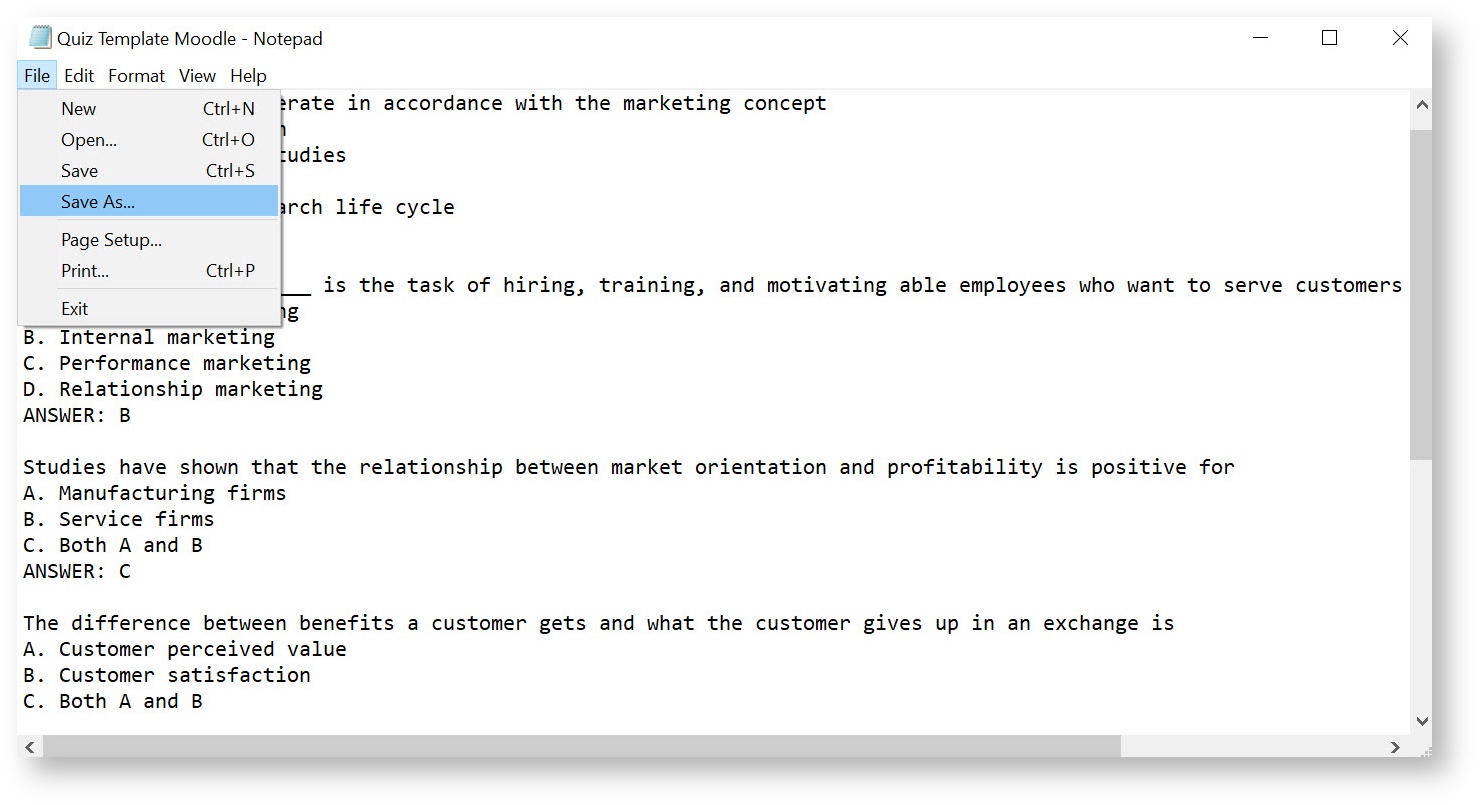
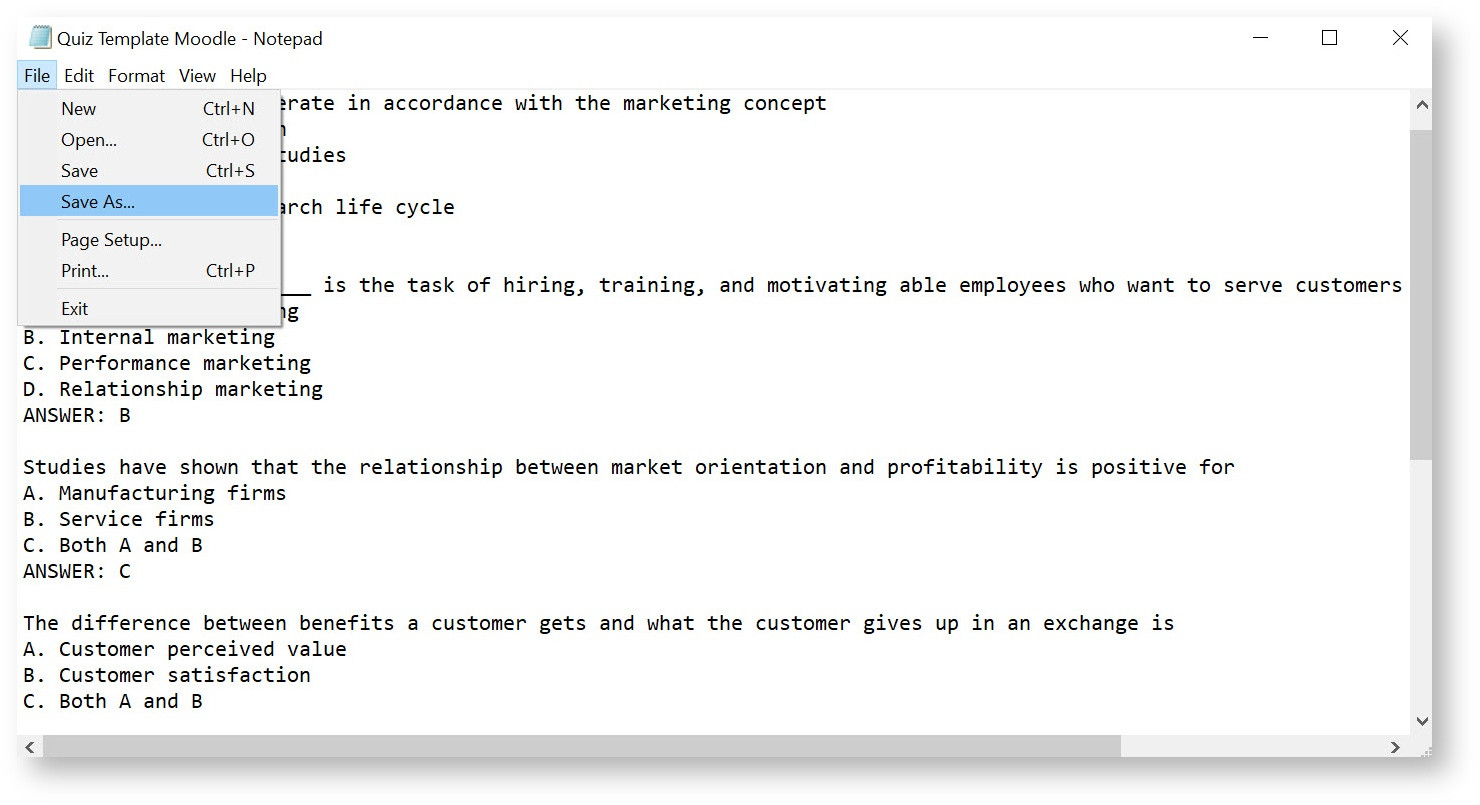
Click on "File", then "Save As"

-
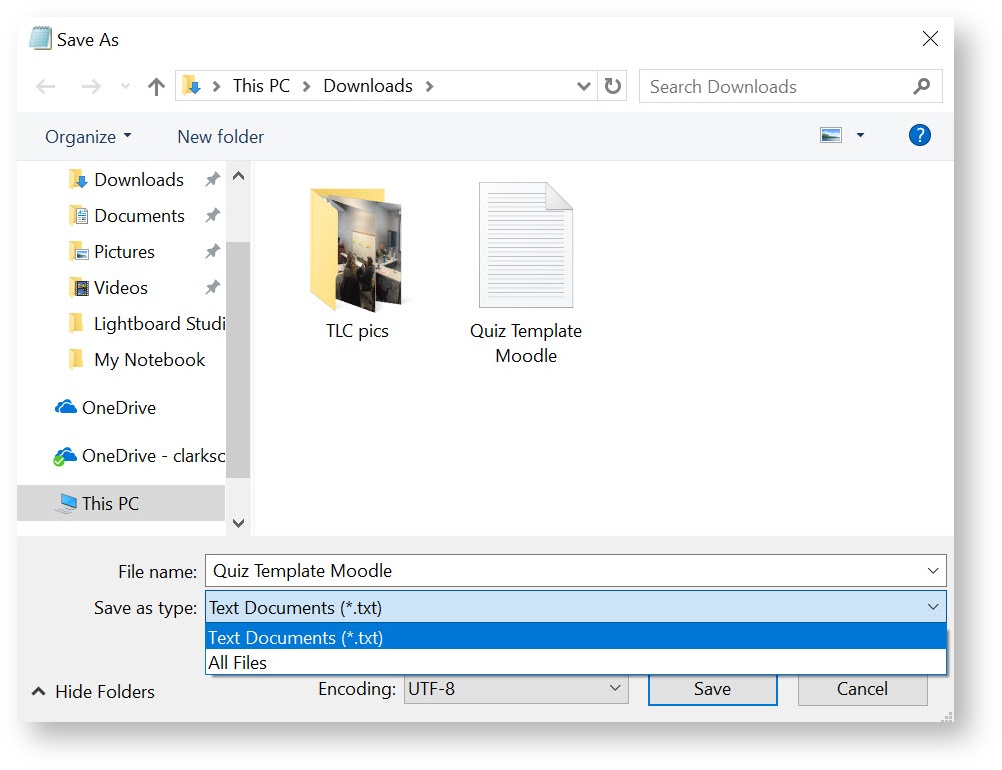
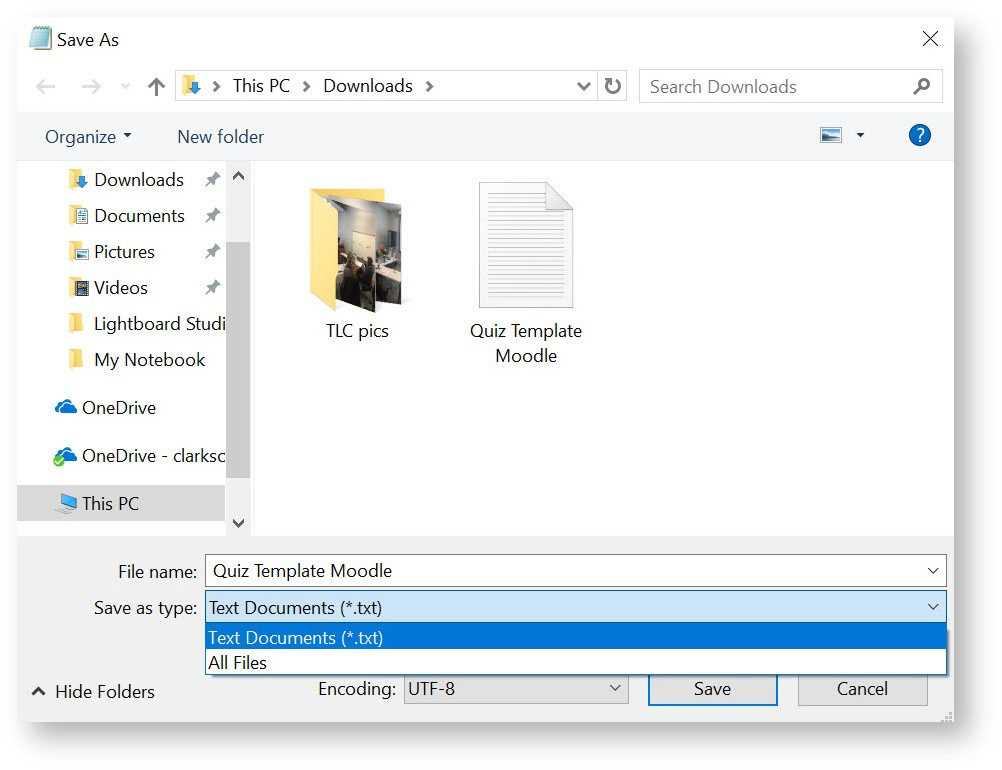
Click the "Save as Type" tab, a drop-down list will appear. Select "Text Documents (*.txt)"

-
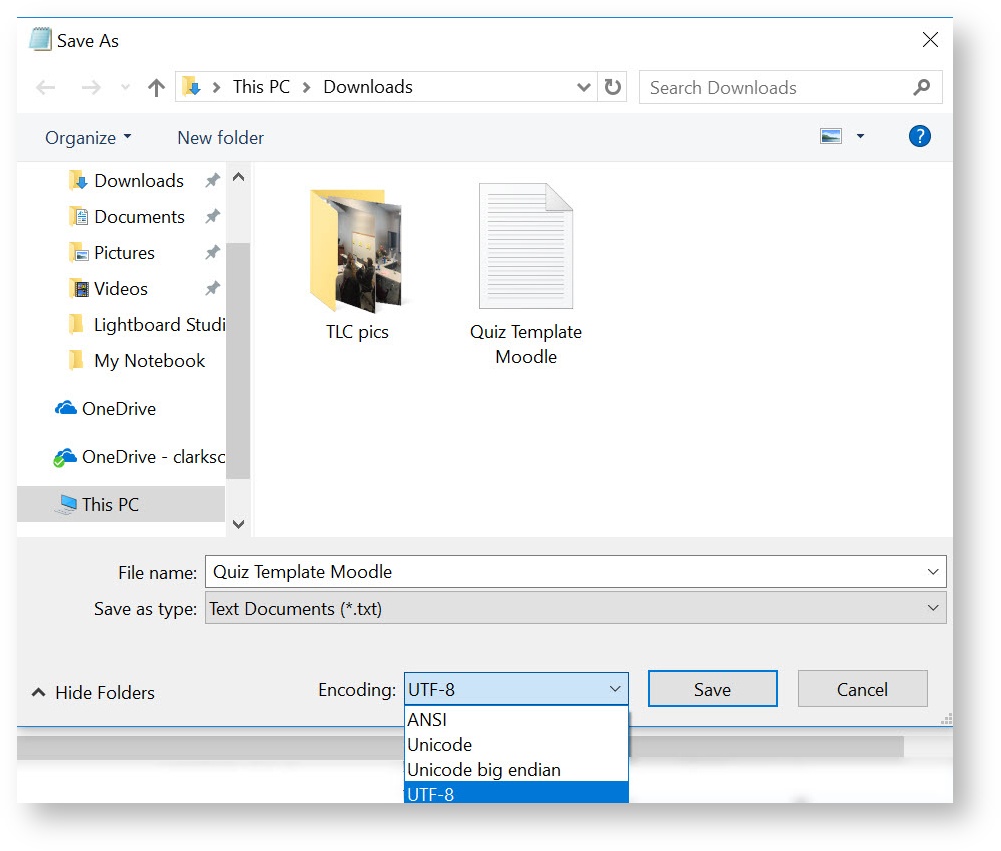
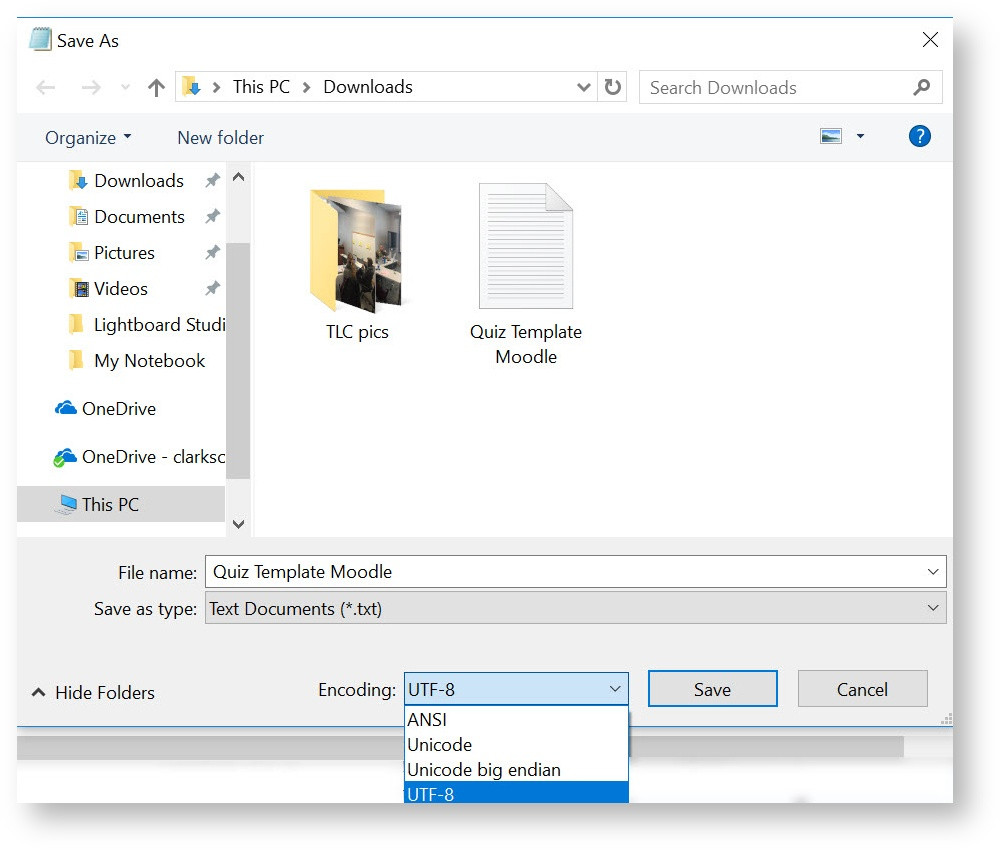
Then, Click on the "Encoding:" tab, and select "UTF-8" (the special Moodle type!)

-
Click "Save"
-
Review your file as it may now look different. Check for extra spaces where they don't belong. Eliminate any numbering or tab spaces.