
Move Videos to Echo360 to Save Moodle Server Space
Summary
Course sections in Moodle with videos that have been uploaded directly into the section as opposed to linking out to or embedding from an external source cause the course section to be unusually large which can slow down the Moodle server. OIT recommends that all video be moved to Echo360 and shared with the course either by link or embedded.
This Guide Will Help You to:
- Create a copy of the course with the videos
- Download the videos
- Upload videos into Echo360
- Remove All Copies of Unused Videos
- Link the videos from Echo360 into Moodle
Create a copy of the course with the videos
- Create a blank course in Moodle in the following category: Courses -> Miscellaneous -> Instructional Design -> Sandboxes -Clean_Course #_Term_ SB
- From the new course, import in the section that the instructor has chosen for the migration.
Download the videos
- Search through the course and download each video that has been uploaded directly into the Moodle course. Many times it will look like this:

- As you download a video, prepare to remove all copies of the video that may be in the course so you will not have to go back and remove them later.

Remove All Copies of Unused Videos
- Important: Follow these instructions to Remove All Copies of Unused Videos , delete any current .mp4 or other videos formats that are being replaced. or contact the HelpDesk for assistance.
Upload videos into Echo360
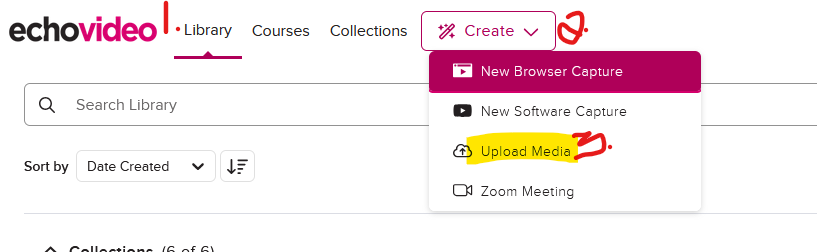
- Select the video(s) you downloaded to your computer and click Open to upload (you can upload one or more at a time by using the Ctrol+ Shift keys). The video will take a few minutes to upload and process, depending on it's size.
Link the videos from Echo360 into Moodle
You must be enrolled in the Moodle 3 course as a Teacher to complete these steps. When the videos have fully processed in Moodle, for each video that needs to be linked:
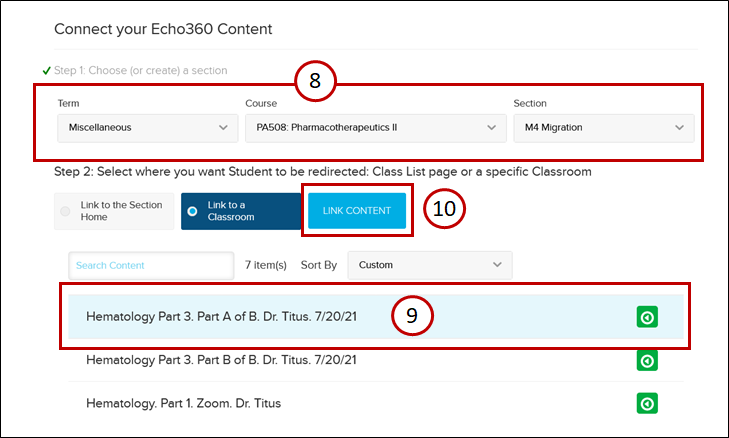
Videos can also be embedded from the library, See Bringing Video Embed Code from Echo to Moodle
Seek Further Assistance
For additional assistance please contact, Clarkson OIT Help Desk;
Online: Get Help
Email: helpdesk@clarkson.edu
Call: 315-268-HELP (x4357)