
Adding a Profile Picture to Moodle Archive
This article will demonstrate how to add an profile image to a User's Moodle profile, for students and instructors.
Head to the Moodle Website
- Log into Moodle
- At the Moodle welcome page, go to the top right of page and click the down are where your name/initials are displayed.

- A drop-down menu will appear, click on "Profile"- "Edit Profile".
- Scroll down on the page to the User Picture area.
-
-
-
-
-
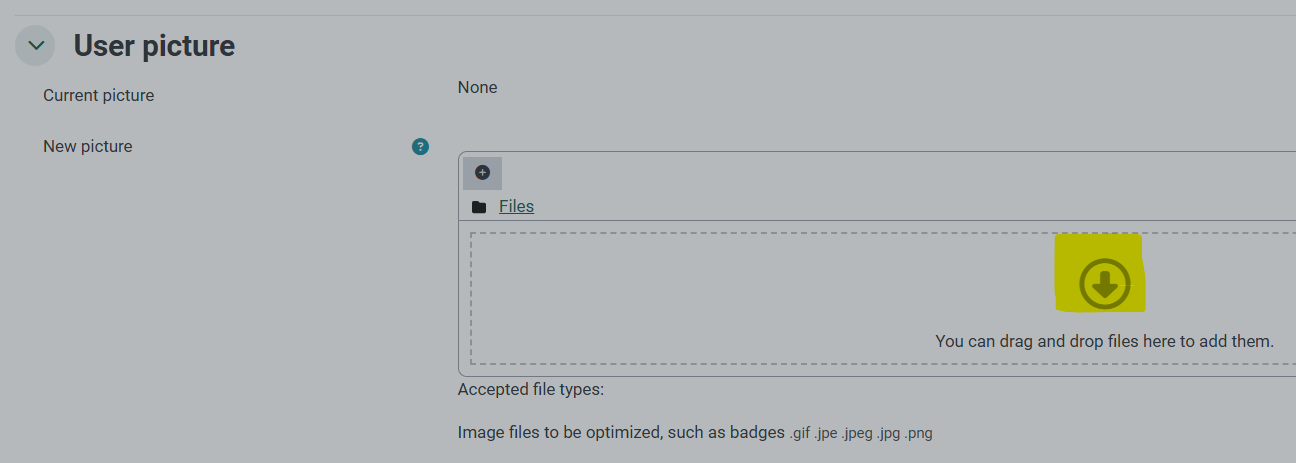
- Drag and drop your chosen profile image from your files to the Files area as shown below (or upload):
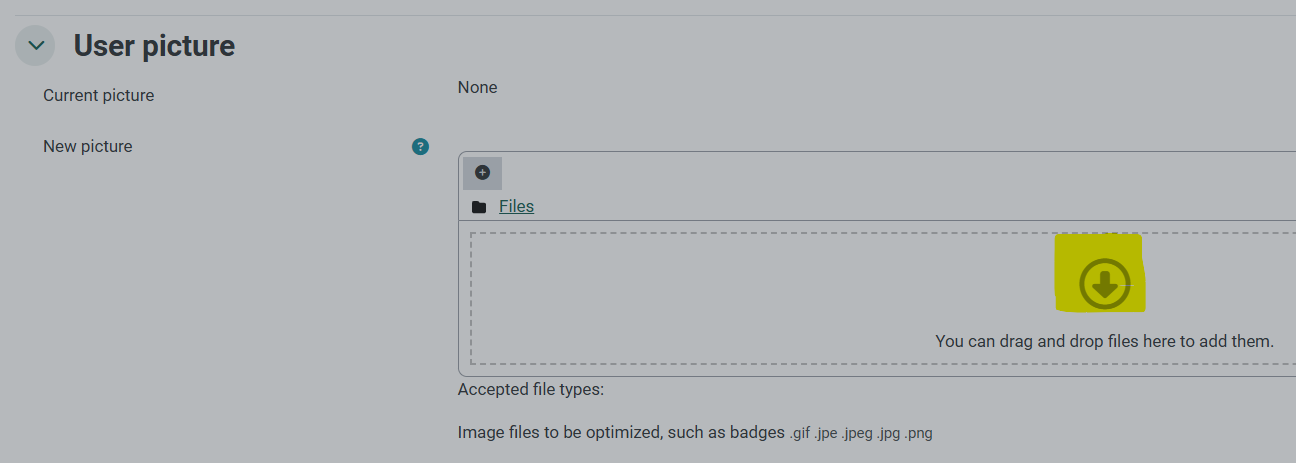

- Drag and drop your chosen profile image from your files to the Files area as shown below (or upload):
-
-
-
-
-
- Click "Update Profile" Your profile picture and is added to your Moodle account so it will display in all of your courses at various times including discussion forums.*
- To get back to your Moodle Dashboard, click Dashboard on the top left of the page.




*Instructors and peers can view information added to your profile by clicking on the Participants link in the top navigation bar of the course.
See User Profiles in the Moodle Docs