
NEW!! Add an Echo360 video to an H5P Interactive Video Activity
Summary
Good news for Moodle instructors! You can now use your Echo360 videos directly in H5P Interactive Video activities—without uploading another copy of the video to Moodle. This means you can take a video you’ve already created or uploaded to Echo360 and add interactive elements such as questions, prompts, and other activities to engage students as they watch.
Why is this exciting?
- No duplicate video uploads Your video stays in Echo360 rather than taking up additional space in your Moodle course.
- Add interactivity Turn a passive video into an active learning experience by adding questions and prompts throughout the video.
- Keep your Moodle course smaller Uploading videos directly to Moodle can significantly increase course size and may create storage and performance issues. Embedding your Echo360 video helps avoid that extra copy.
- One video, more possibilities If the video is already in Echo360, you can use it in an H5P Interactive Video activity without uploading it again.
Ready to try it?
A video doesn't have to be something students simply watch—it can become an opportunity to think, respond, and interact!
This guide will provide step-by-step instructions:
- Copy the H5P video link from within Echo360
- Insert the video link into the H5P Interactive Video activity in Moodle
Copy the H5P video link from within Echo360:
- Locate your video in Echo360.
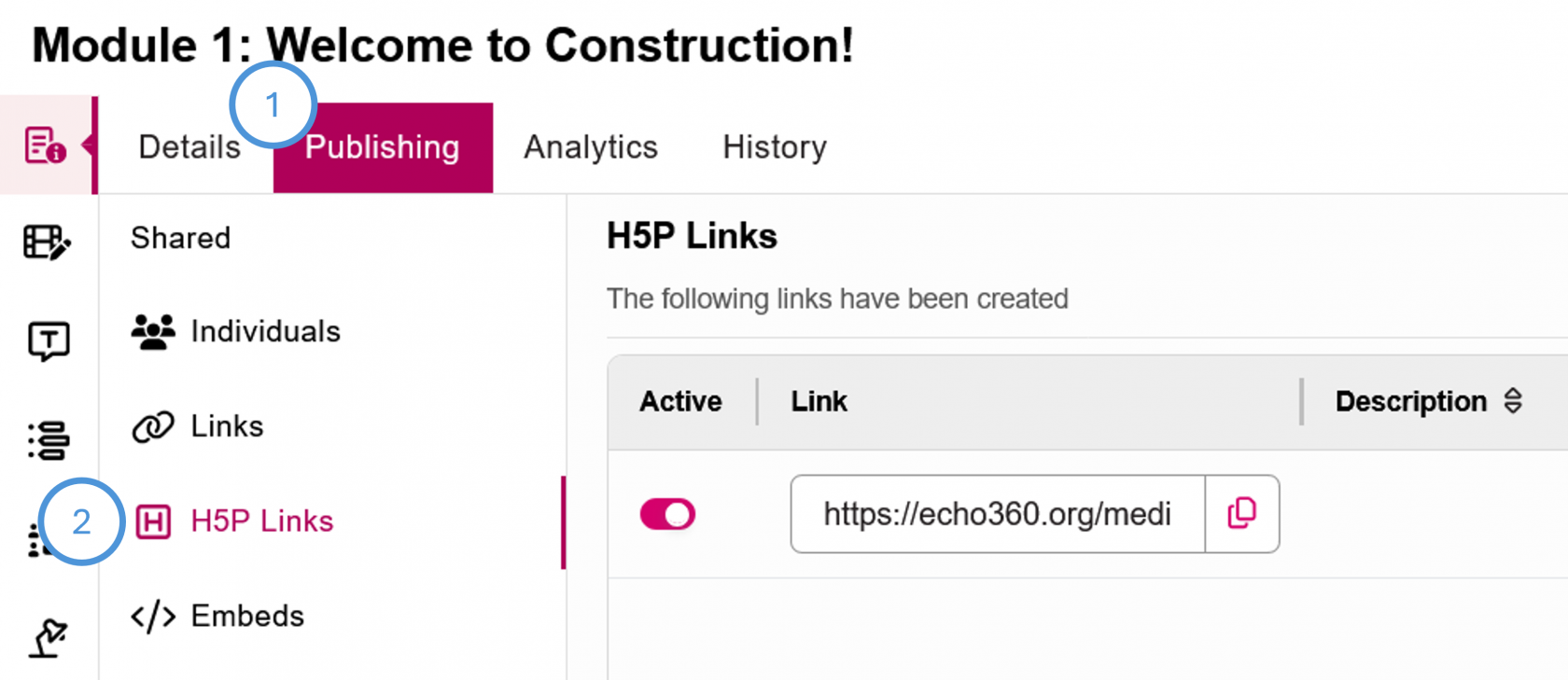
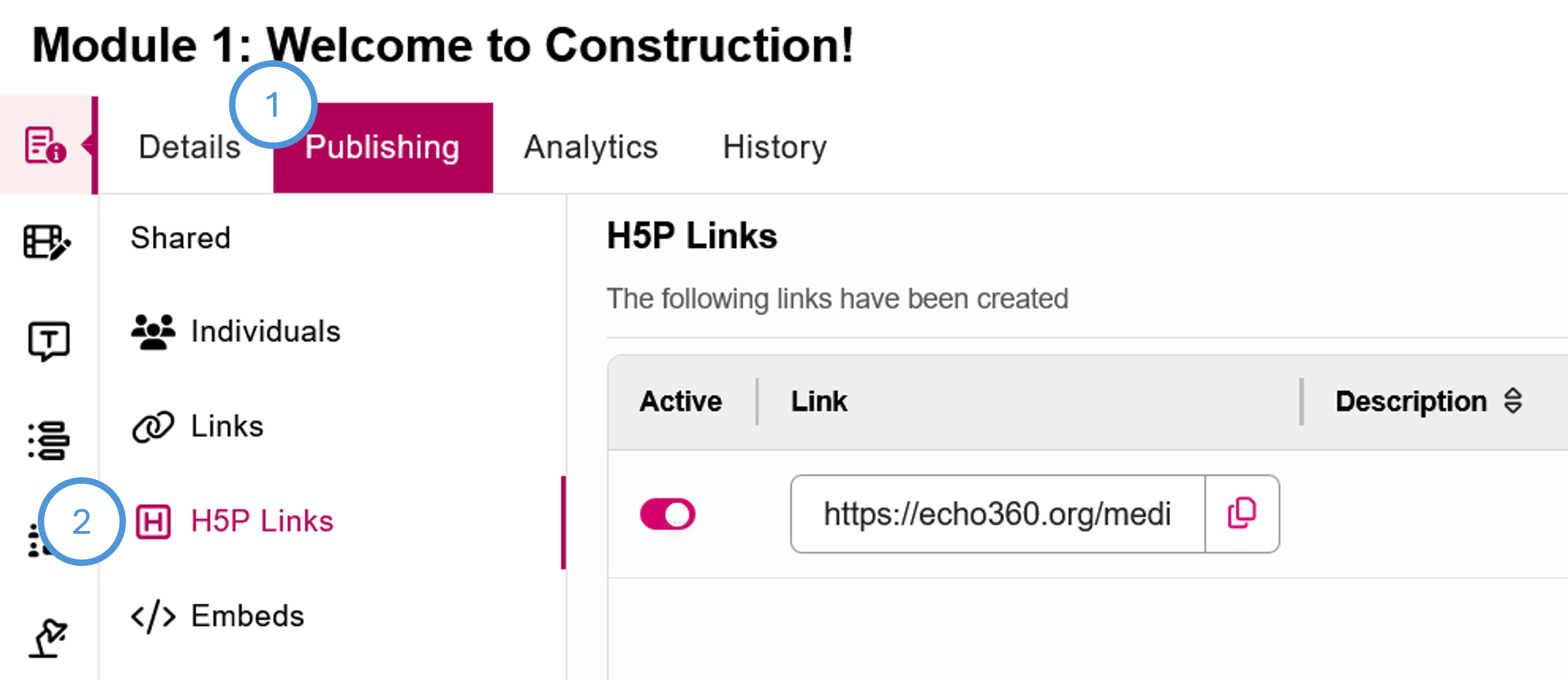
- Click the Publishing tab, then H5P Links. Note that the H5P link is different than the regular embed link, so be sure to click H5P Links first.
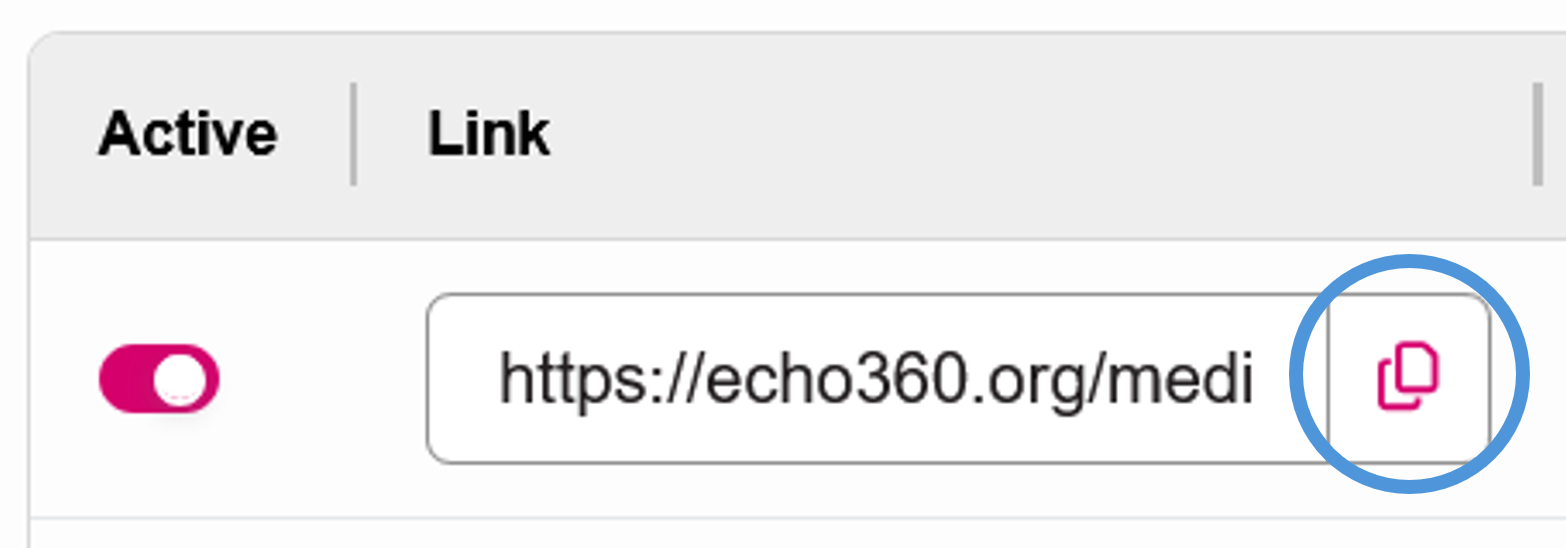
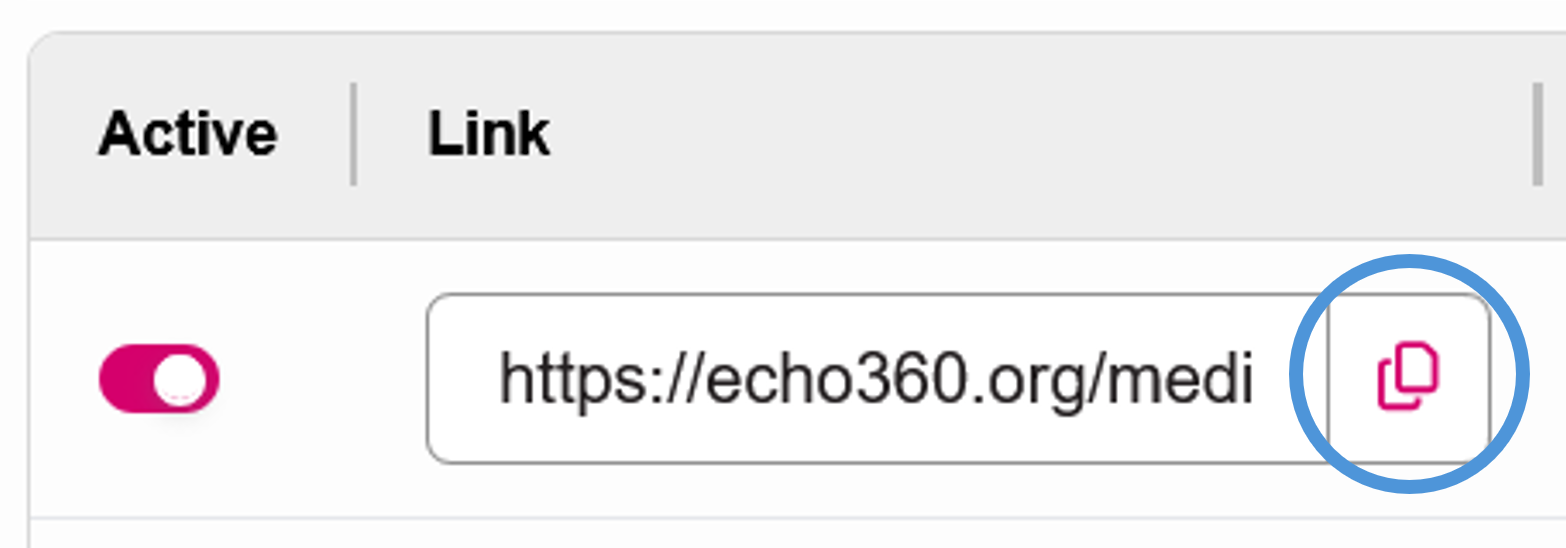
- Copy the link by clicking the Copy icon to the right of the link.
Insert the video link into the H5P Interactive Video activity in Moodle:
- From your course in Moodle, with Edit Mode turned on, click Add an activity in the module you would like to put the interactive video.
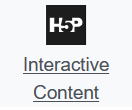
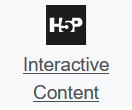
- Choose H5P Interactive Content.
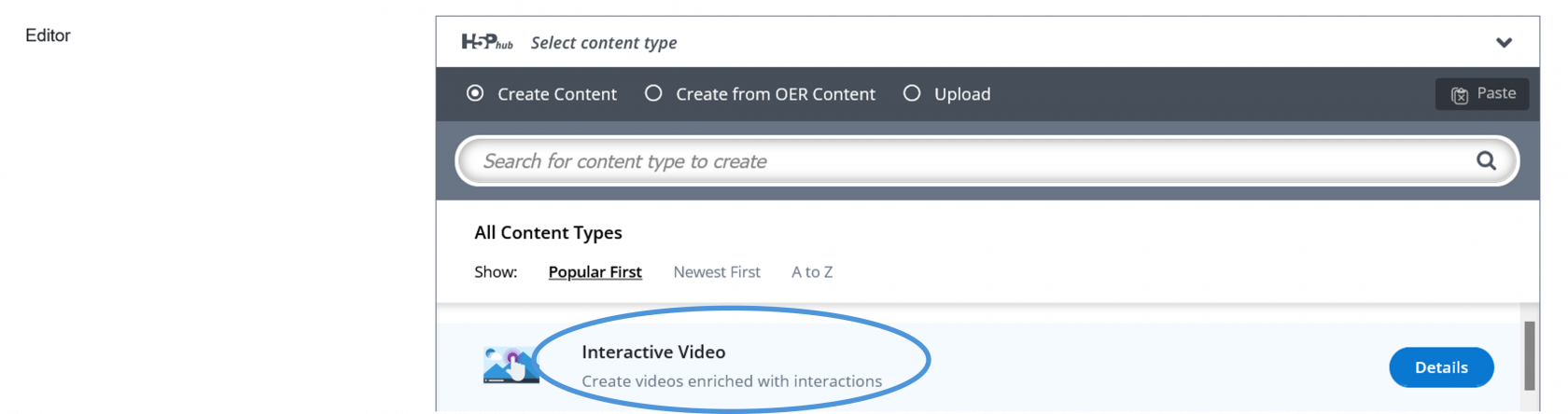
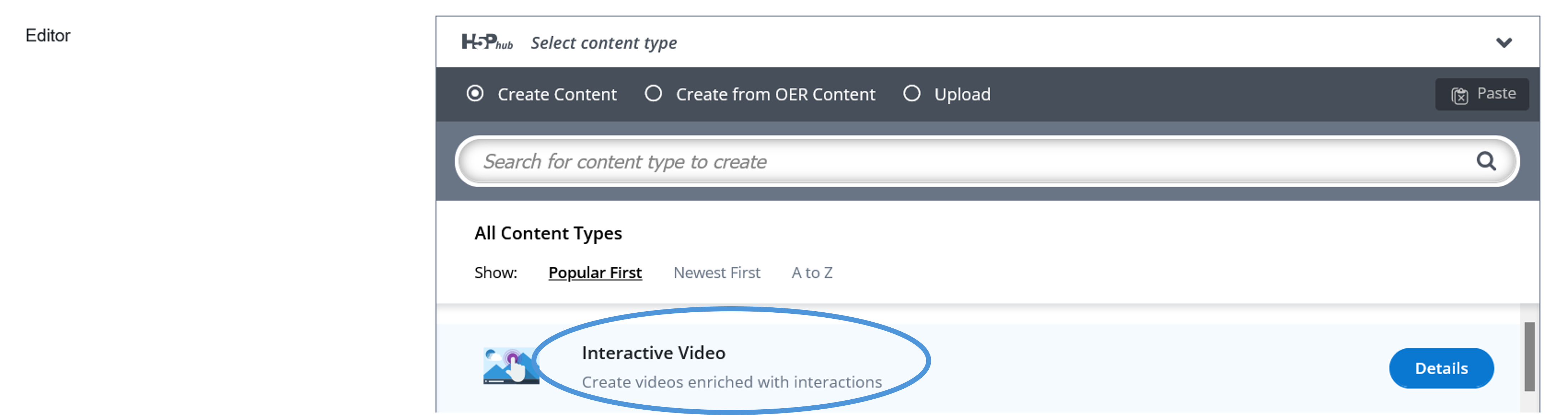
- In the Editor, choose Interactive Video as the content type.
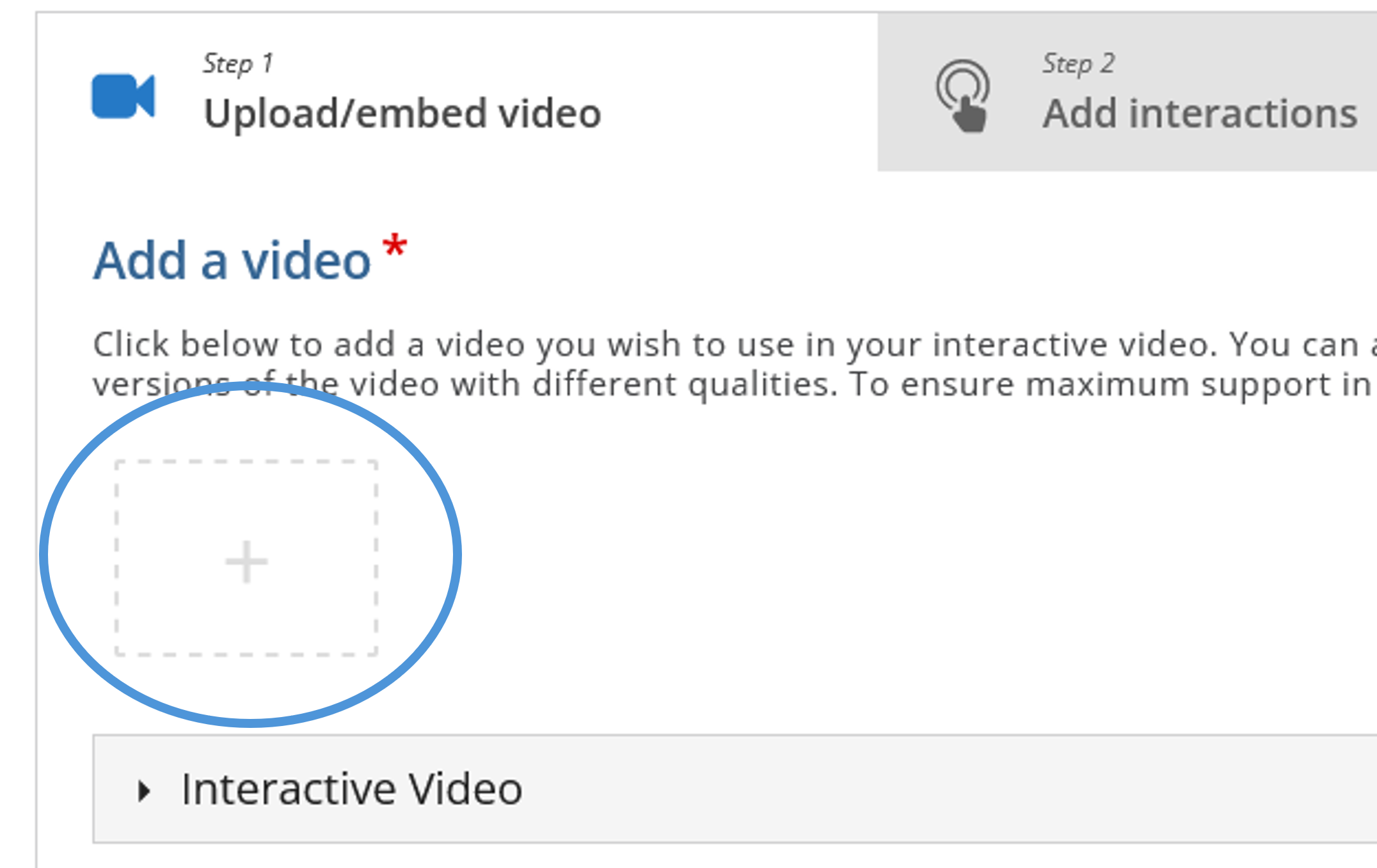
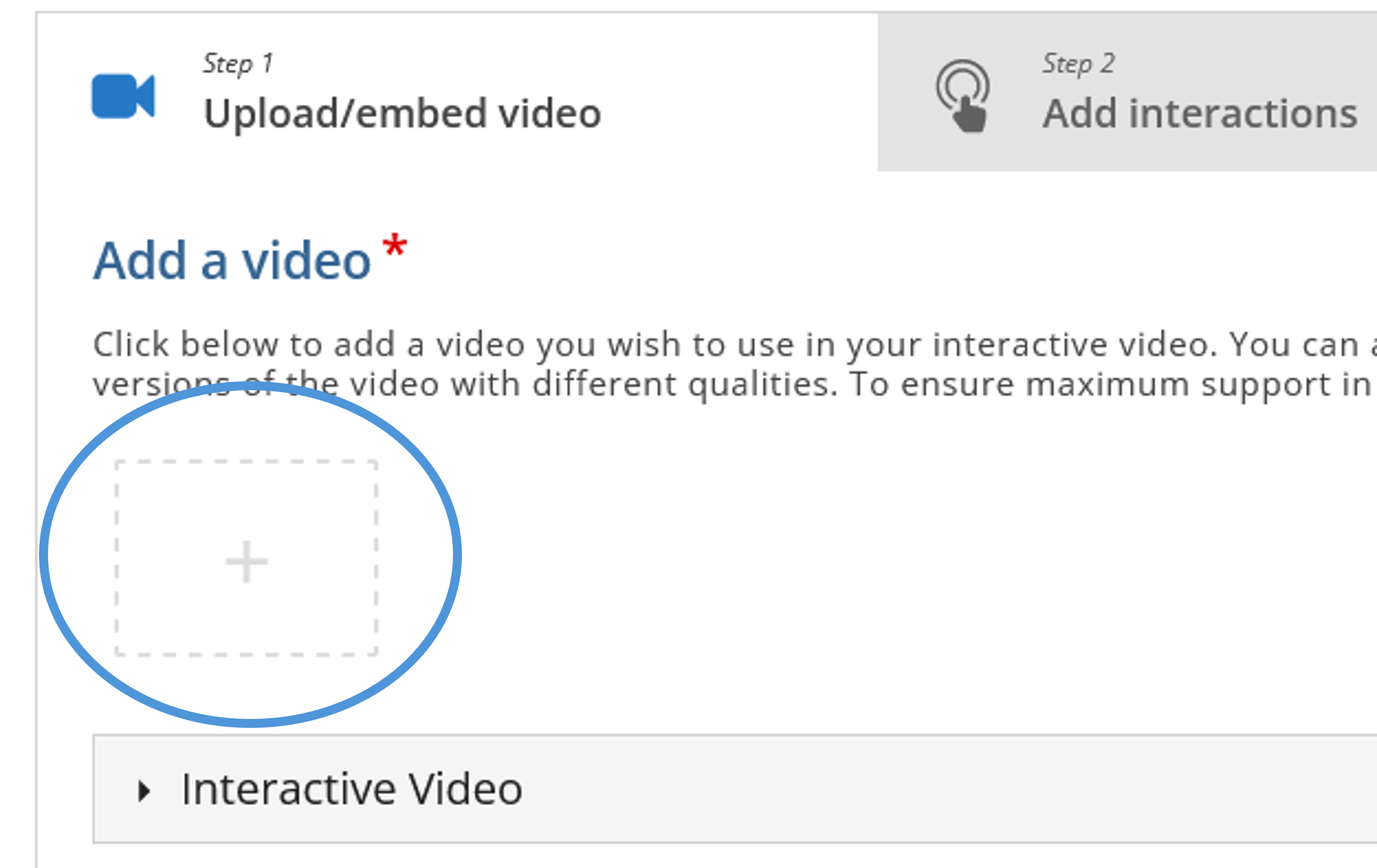
- Click the plus icon to add a video.
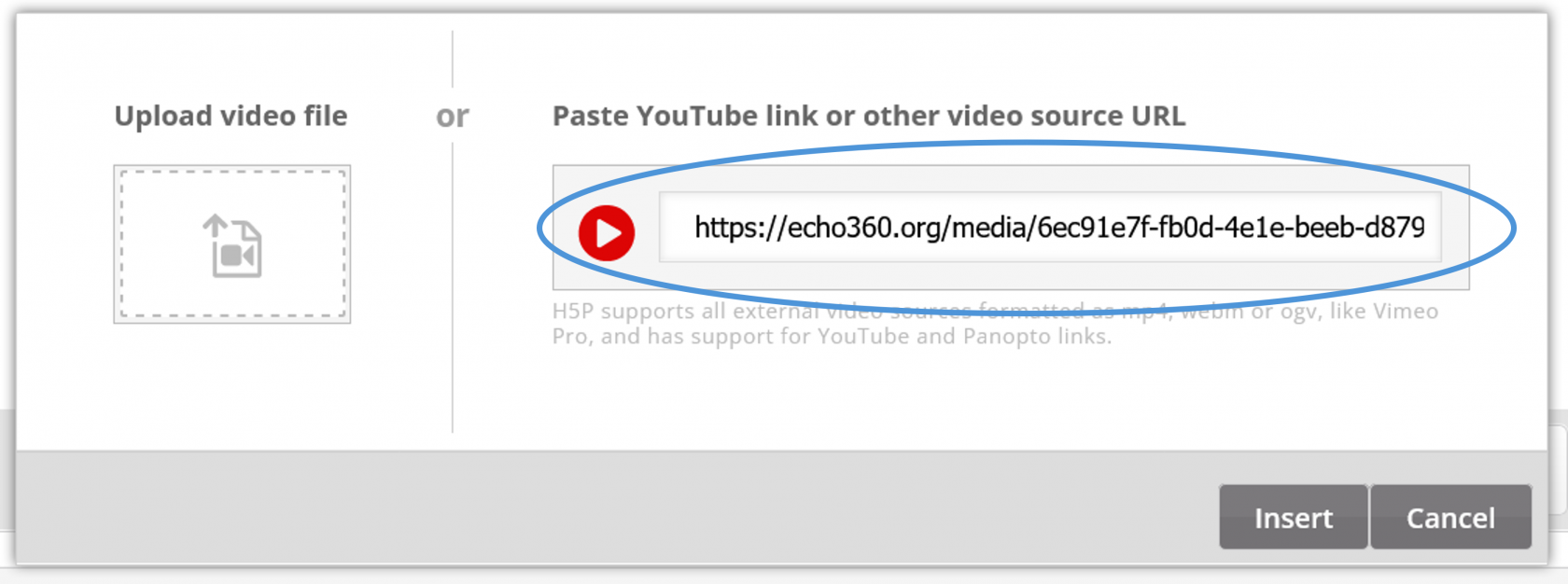
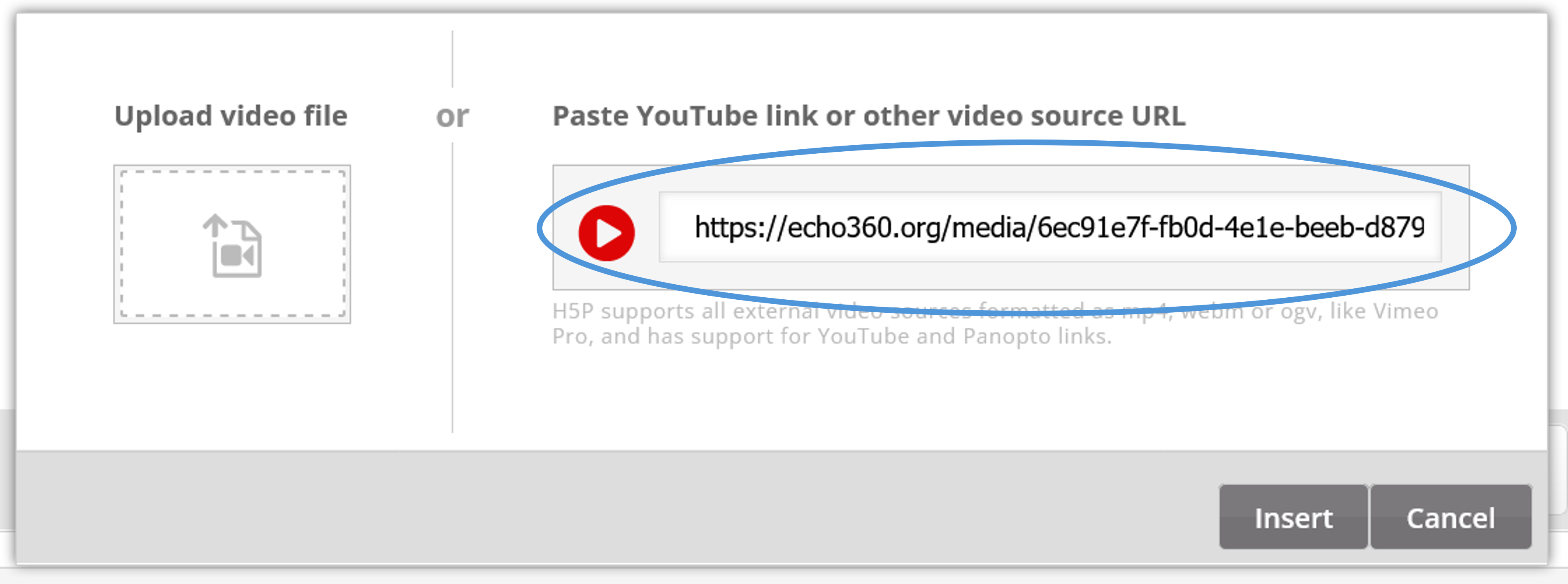
- Paste the link that you copied from Echo360 in the video URL area then click Insert.
- Continue building your Interactive Video!
What can you do to enhance learning with H5P Interactive Video? Spend a few minutes with the H5P interactive Video Tutorial and you will be amazed!
Seek Further Assistance
For additional assistance please contact, Clarkson OIT Help Desk;
Online: Get Help
Email: helpdesk@clarkson.edu
Call: 315-268-HELP (x4357)