
Setting Group Overrides
Summary
Courses can be meta linked into a mother course and divided into Groups in many ways. For example, a lecture course may have many sections or a course may have many lab sections that occur at different times. Often the course may provide students with the same course materials, however, assignments may have different due dates because the classes meet at different times. Group Overrides can help make setting due dates (for example) for various sections or groups efficient.
Group Override Video Tutorial
This video (4 minutes) will demonstrate how to set group override due dates.

Steps to Set up Group Overrides
1. Create Your Groups - Before setting an override, ensure the target groups are already created in your course (Create Groups in Moodle:
- Go to your Moodle course and turn Editing on.
- Navigate to Participants or the course settings icon to open Groups and create/populate your student groups.
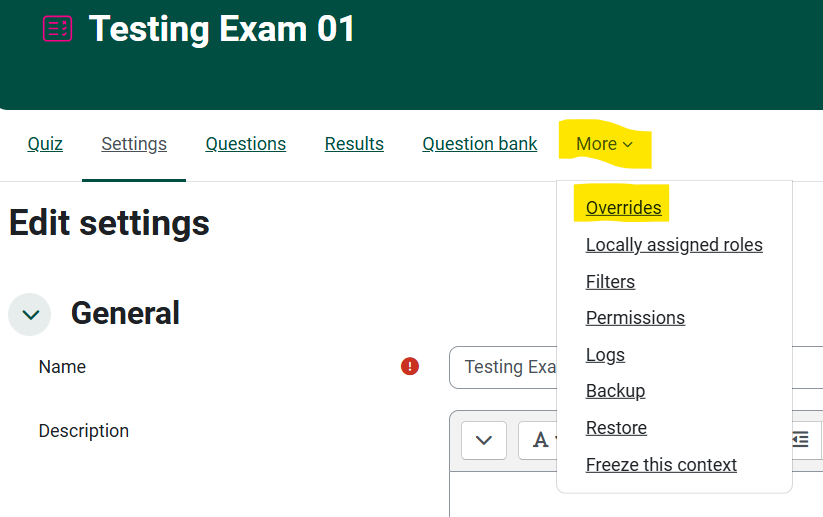
2. Access the Activity Overrides - Open your Moodle course and click on the specific Assignment or Quiz activity you want to modify.
- Click on the More menu (or the settings/gear menu depending on your Moodle theme).
- Select Overrides from the drop-down list.
3. Add and Configure the Group Override
- From the overrides page, click the Add group override button.
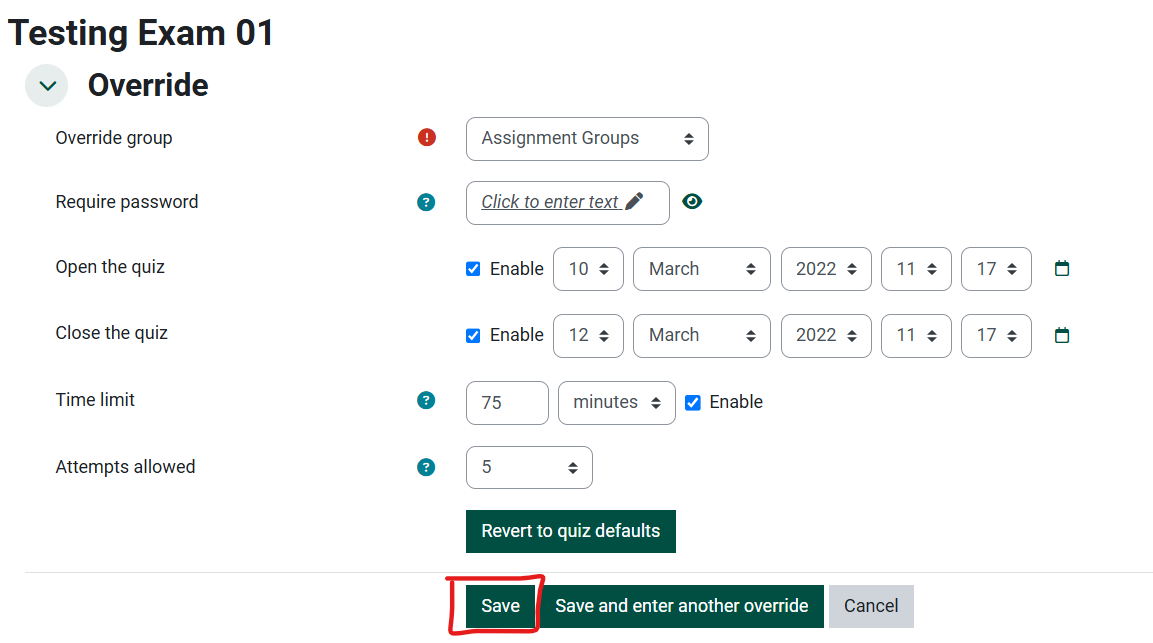
- In the Override group drop-down menu, select the target group you wish to adjust.
- Enable and customize only the settings you want to change (such as Allow submissions from, Due date, Cut-off date, or Time limit), leaving other fields blank to keep the default activity settings.
- Add an optional Reason for override note if needed.
- Click Save (or Save and enter another override if you need to set up rules for additional groups).
See the Moodle Doc Video for More
Seek Further Assistance
For additional assistance please contact, Clarkson OIT Help Desk;
Online: Get Help
Email: helpdesk@clarkson.edu
Call: 315-268-HELP (x4357)