
Help for Submitting PDF Files
Summary
This article explains how to save documents as PDF files using commonly used software listed below so that if students are asked to submit assignments, even handwritten assignments, as PDF files, provide these instructions to help them to submit a readable file.
The Portable Document Format (PDF) file format was designed to ensure that fonts and formatting look the same even when viewed on different types of devices. Thus many platforms and people will prefer or even require you to submit files as PDFs.
- Most software packages allow you to save or export files as PDFs.
- You can also print to PDF from any software that allows printing.
Save a File as a PDF
Google Suite (Drive, Docs, Sheets, Slides)
- Open the file in the appropriate Google app.
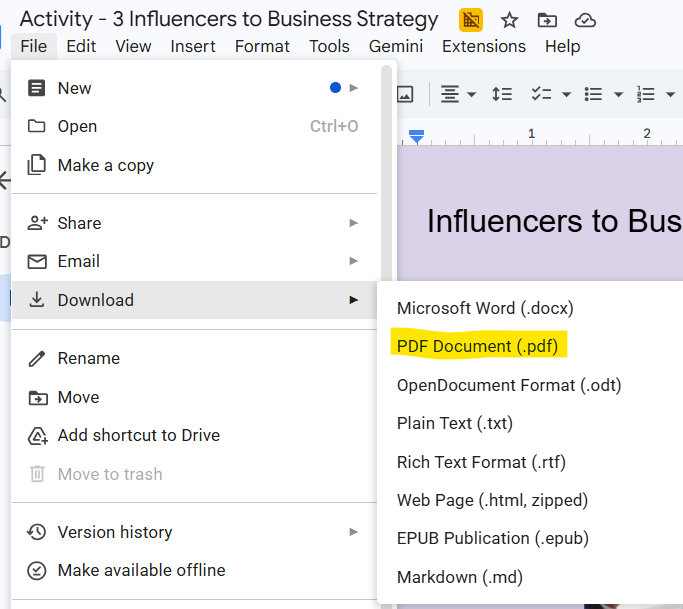
- Click File.
- Choose Download as…
- Choose PDF.
- Depending on your browser settings, the PDF will download to your default folder (such as Downloads) folder or show a dialog window prompting you to choose where to save it.
Microsoft Office/Office 365 (Word, Excel, PowerPoint)
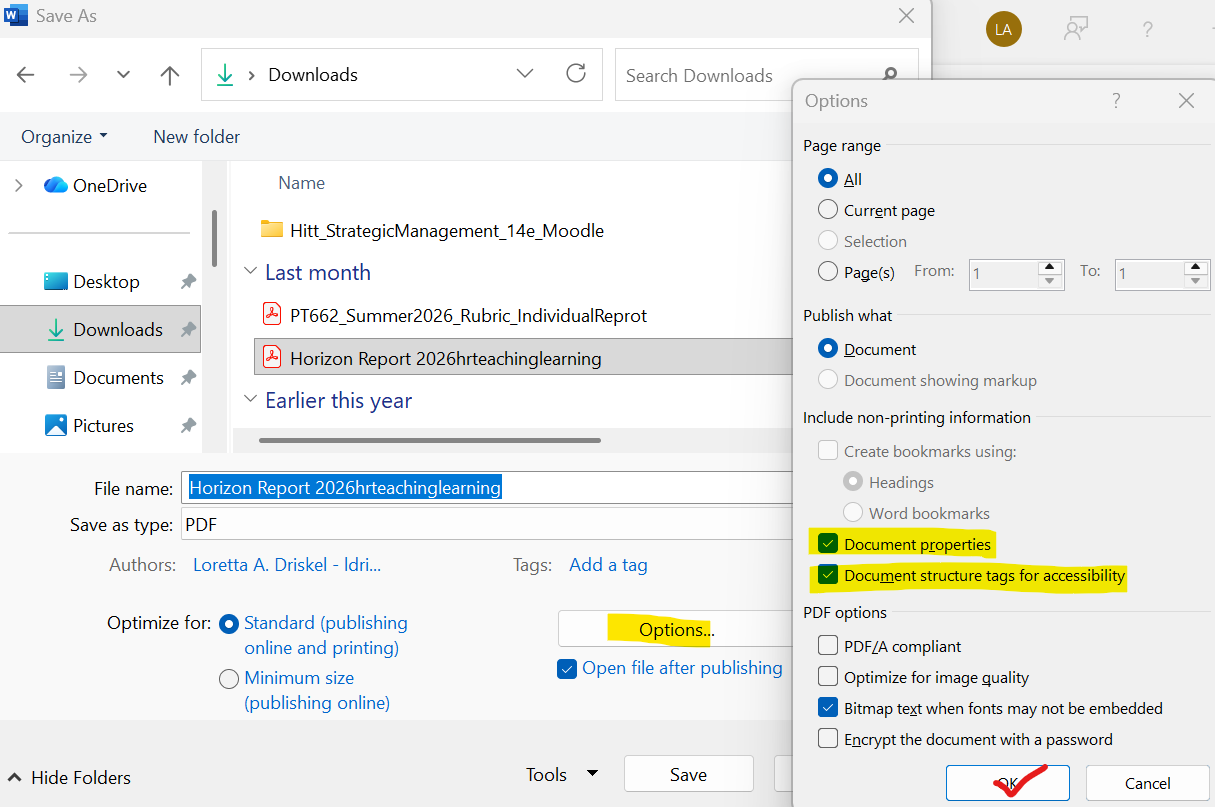
- Click File.
- Choose Save as PDF.
- Click More Options and then Options. In the window that appears make sure the check boxes for Document Properties and Document Structure Tags for Accessibility are checked, click OK.
- Choose where to save the file, edit the filename (optional), and click Save.
Note: The above instructions were current at the time this article was written. If your application isn’t listed below, do a web search for the app name and “save as PDF” for the most up-to-date instructions.
Help! My Professor Says My PDF is Too Large to Grade!
Another way: Office Lens- This app will scan papers or documents with your smartphone. This article explains how to use this free smartphone app to create multi-page PDF documents using the phone’s camera.
Seek Further Assistance
For additional assistance please contact, Clarkson OIT Help Desk;
Online: Get Help
Email: helpdesk@clarkson.edu
Call: 315-268-HELP (x4357)