
Pro Tips for a Professional Moodle Course Homepage
Students rely on the Moodle course that has a professional look and is easy to navigate. Use these article and the tips below as a guide to improving the look of your course.
Articles
- Moodle Best Practices
- Checklist for Instructors: Semester Term Start Up
- Add your own 'Getting Started' Information - Top of Course Homepage
Tips
- Welcome Your Learners and Provide Important Information
- Organize Your Course Topics and Provide Prompts/Instructions
- Even better is the example below! Give each item in the course a descriptive title.
1. Welcome Your Learners and Provide Important Information
The top of your Moodle course is the first thing students see when they access your course. Provide students with a description and the objectives for the course. Also provide other information to help orient them to the course. This is your chance to welcome your students to your course community.
Which course welcome would make you feel more welcomed and confident to begin the course? Before or After below?
Before |
After |
|
|
|


2. Organize Your Course Topics and Provide Prompts/Instructions
Adding headers and instructions so that the items in each module are organized can go a long way to ensuring students know what to do with those items. This presents an organized and professional front and makes each item within the module intentional.
Which of the examples below looks like the instructor took time and care in the items they're adding to their course? In which example would you know exactly what to do with the items? Before or After below?
Before |
After |
 |
 |
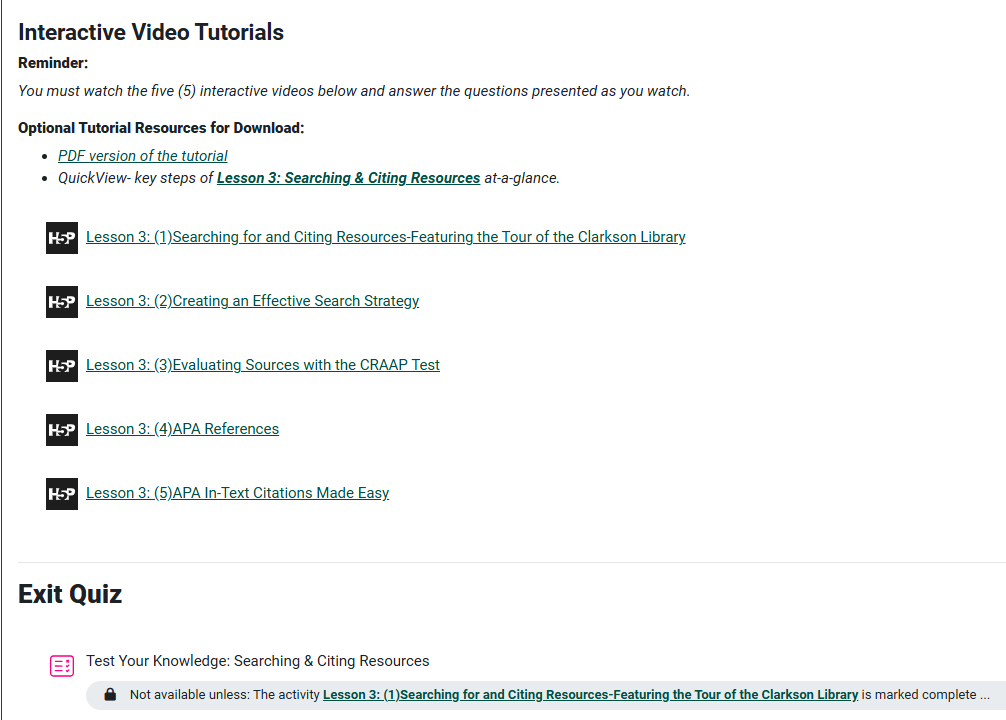
3. Even better is the example below! Give each item in the course a descriptive title. This helps students to remember where they've been and where they still need to go.
Seek Further Assistance
For additional assistance please contact, Clarkson OIT Help Desk;
Online: Get Help
Email: helpdesk@clarkson.edu
Call: 315-268-HELP (x4357)