
Forum Grading in Moodle: Whole forum vs Rating
Summary
In Moodle forums, In Moodle, instructors can grade forum participation in two main ways: Whole Forum Grading or Ratings. Whole Forum Grading allows instructors to assign a single grade for a student's entire forum activity (all posts and replies), whereas Ratings allow instructors to grade individual posts or replies within the forum. Each method works with Moodle’s Gradebook, but they serve slightly different instructional needs. This guide explains both options and helps you decide which approach fits your course goals.
This guide will help you to:
Choose between two options for grading forums in Moodle.
- Ratings — grade individual posts and replies as they happen
-
Whole Forum Grading— assign one grade for a student’s overall contributions in a forum
- Best Practices
✅ 1. Ratings: Grade Individual Posts
When to use:
Use Ratings when you want to award points or provide feedback on each individual post or reply a student makes in a forum. This method is useful if your rubric emphasizes quality or depth for multiple contributions.
How Ratings Work
-
Each student post and reply gets its own rating.
-
The ratings are automatically aggregated in the Gradebook based on your chosen method (e.g., sum, average, etc.).
-
Instructors can give detailed feedback while reviewing posts.
-
Students’ cumulative points are reflected in their Gradebook activity grade. (bookstack.clarkson.edu)
Setup (in Forum settings)
-
Expand the Ratings section in the forum settings.
-
Choose an Aggregate type (e.g., Sum of Ratings).
-
Set the Scale to Points (or another applicable grading scale).
-
Enter the Maximum grade to define the total points possible.
-
Save the settings.
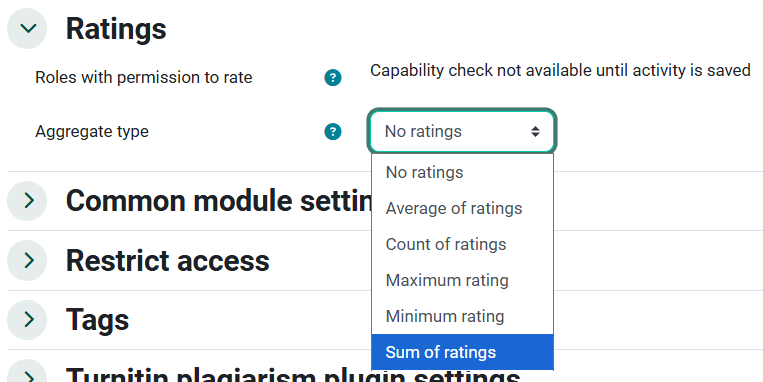
Grading with Ratings
|
Pros
|
Cons
|
✅ 2. Whole Forum Grading: One Grade for Overall Participation
When to use:
Choose Whole Forum Grading when you want to evaluate a student’s overall participation — looking at all posts and replies together — rather than grading individual contributions. This approach is similar to grading a single assignment that represents cumulative engagement.
Features
-
Provides a single grade per student for the entire forum.
-
Useful if your rubric emphasizes overall engagement, quality of thought, or breadth of participation rather than individual actions.
-
Often easier when you prefer grading after the entire discussion period ends. (bookstack.clarkson.edu)
Setup (in Forum settings)
-
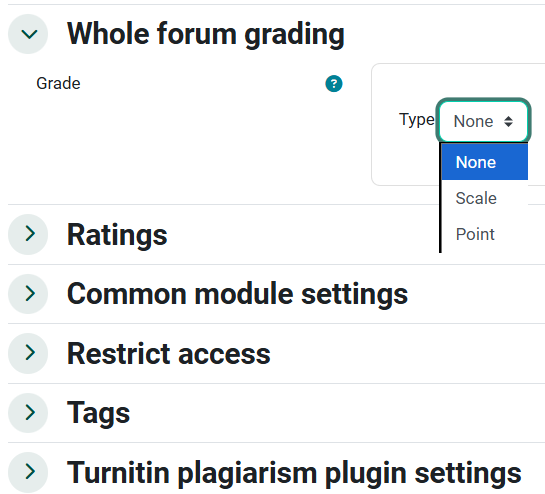
In the forum’s settings, find Whole forum grading and enable it.
-
Choose either Point or Scale as the grading type.
-
If using points, set the Maximum grade (e.g., 100).
-
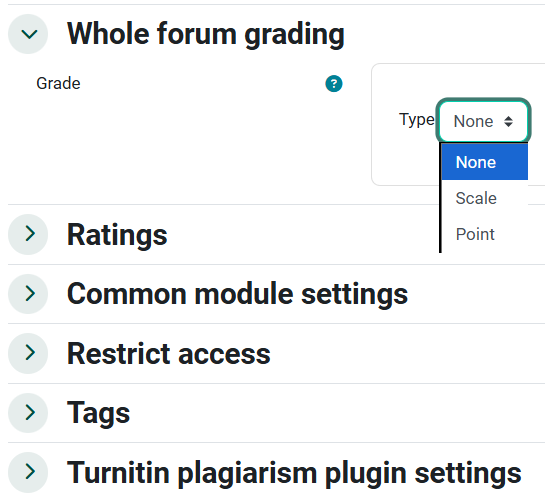 Save your settings.
Grading with Whole Forum
-
Enter the forum after the discussion period ends.
-
Click Grade users to open the grading interface.
-
You’ll see all of a student’s posts together and can assign a single grade based on your rubric.
|
Pros
|
Cons
|
3. Comparison: Ratings vs Whole Forum
| Aspect | Ratings | Whole Forum Grading |
|---|---|---|
| Granularity | Grades individual posts/replies | Single grade for all activity |
| Feedback detail | High — instructors can give private feedback or class feedback per post | Moderate — overall comments on a student’s participation |
| Timing | Can grade during the discussion | Usually after discussion closes |
| Gradebook integration | Automatic per rating and aggregate | Single Gradebook entry per student |
4. Tips for Choosing
-
Use Ratings if you want detailed scoring and feedback on each piece of student interaction.
-
Use Whole Forum Grading if your assessment centers on overall engagement or rubric-based synthesis.
-
Choose only one method per forum — using both will create duplicate gradebook entries.
5. Best Practices
-
Whatever method you choose, provide students with a discussion rubric that helps them to understand what is required for an exemplary forum participation including the minimum number of posts and criteria for posting. (A rubric can be easily integrated into the Grader )
-
Let students know how their forum will be graded (individual posts vs overall participation).
-
Use Private Reply in Ratings to offer targeted feedback on student posts.
Overall Grading Comparison
- Whole forum grading assesses the overall contribution, while ratings assess individual posts/replies.
- Ratings typically offer more detailed feedback options compared to whole forum grading.
- Both methods integrate with the Moodle gradebook,
- Ratings are automatically entered into the gradebook as they the posts are rated in the forum allowing the instructor to read and rate posts at anytime during the discussion.
- whereas Whole Forum posts must be graded after students have made all of their required posts, typically this means waiting until after the end date for the forum to grade.
- Whole forum grading provides a consolidated view of a student's participation, while ratings are applied to individual posts/replies.
Seek Further Assistance
For additional assistance please contact, Clarkson OIT Help Desk;
Email: helpdesk@clarkson.edu
Call: 315-268-HELP (x4357)