
Slate Faculty Reviewer Guide (Incomplete)
Once an application moves to the Program bins for evaluation it will need to go through the appropriate review and approval process. This guide is for anyone that is a Slate reviewer/approver.
How to Access and Log on to Slate
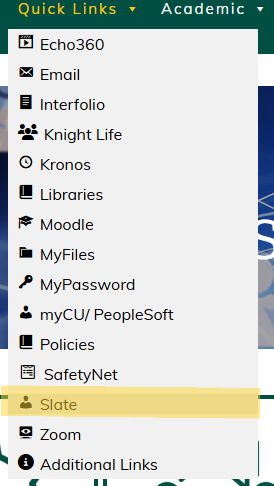
When you log into the Intranet, hover over the Quick Links drop down at the top of the page. From here, click Slate.
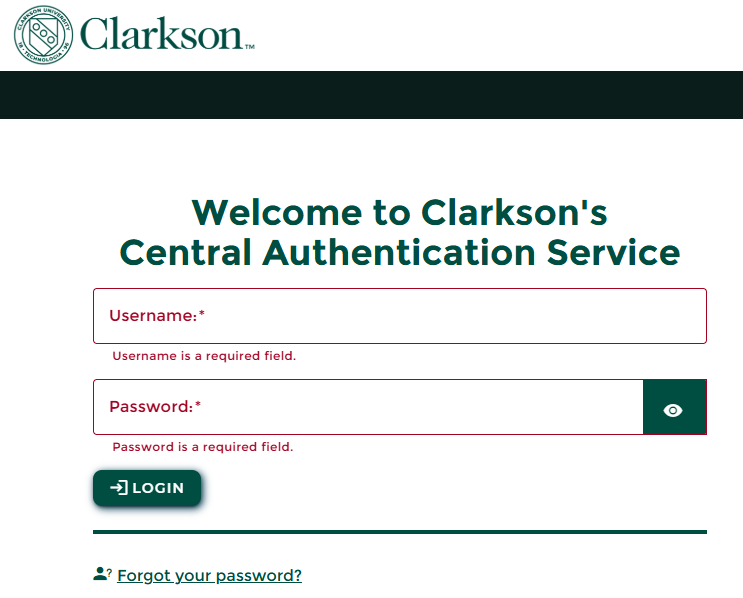
Input your Clarkson username (this is the first part of your email, what comes before the @clarkson.edu) and password (this is the same password you use to log into your computer).
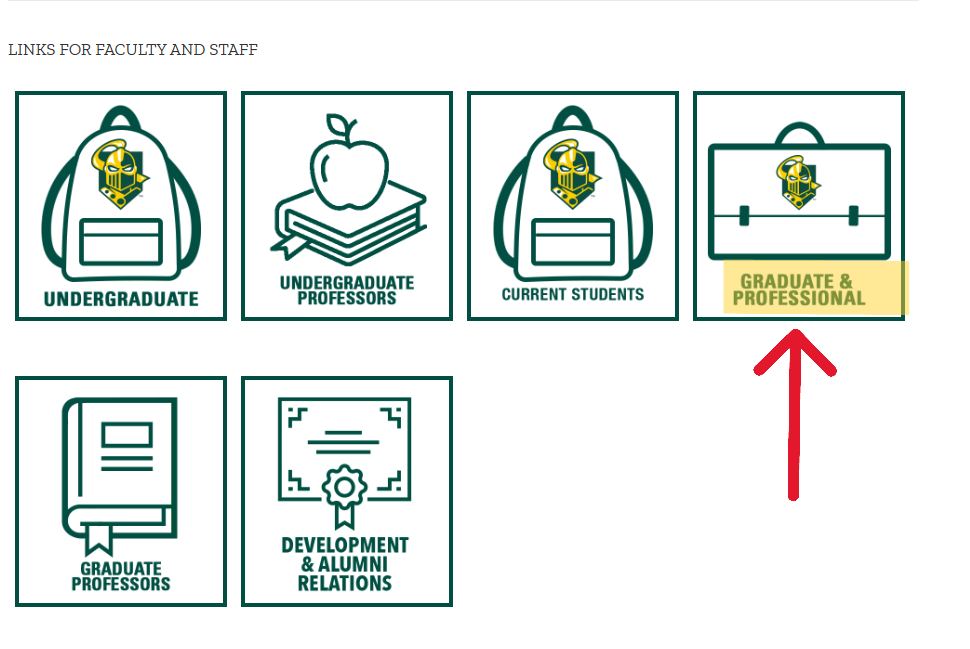
Scroll down to the Links for Faculty and Staff section, then select the Graduate & Professional tile
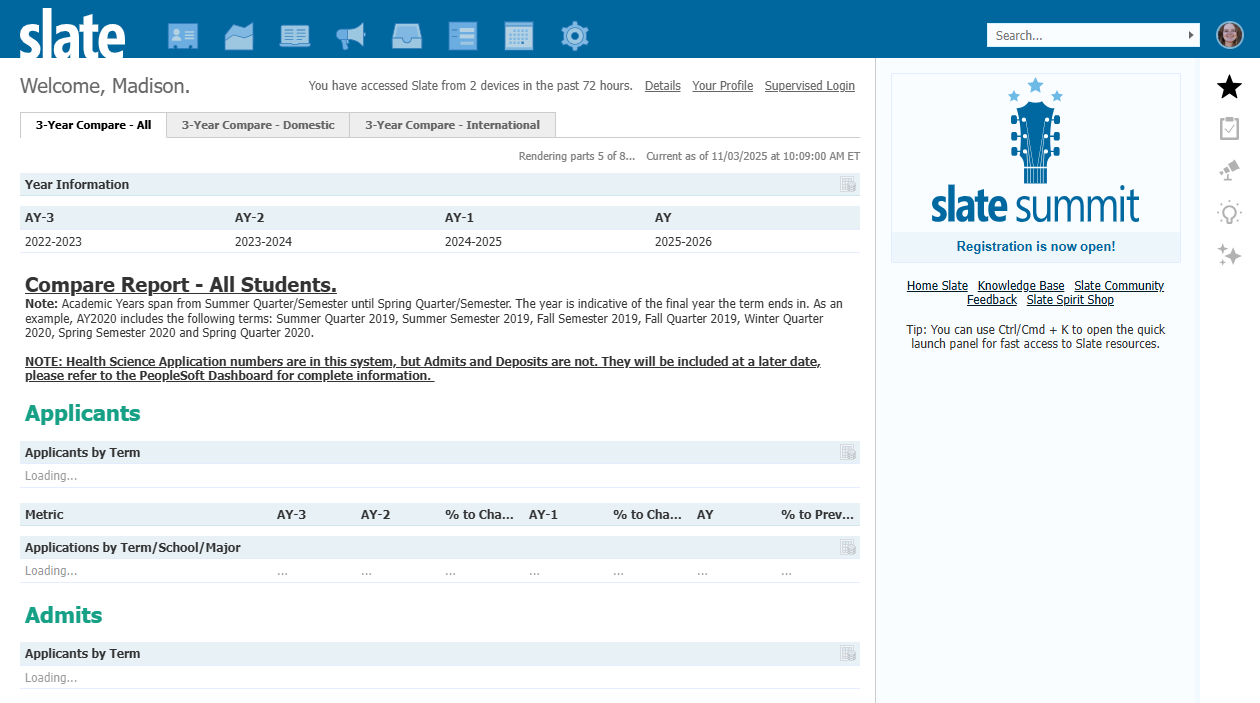
This will bring you to your Slate Dashboard
Access your Slate Applications
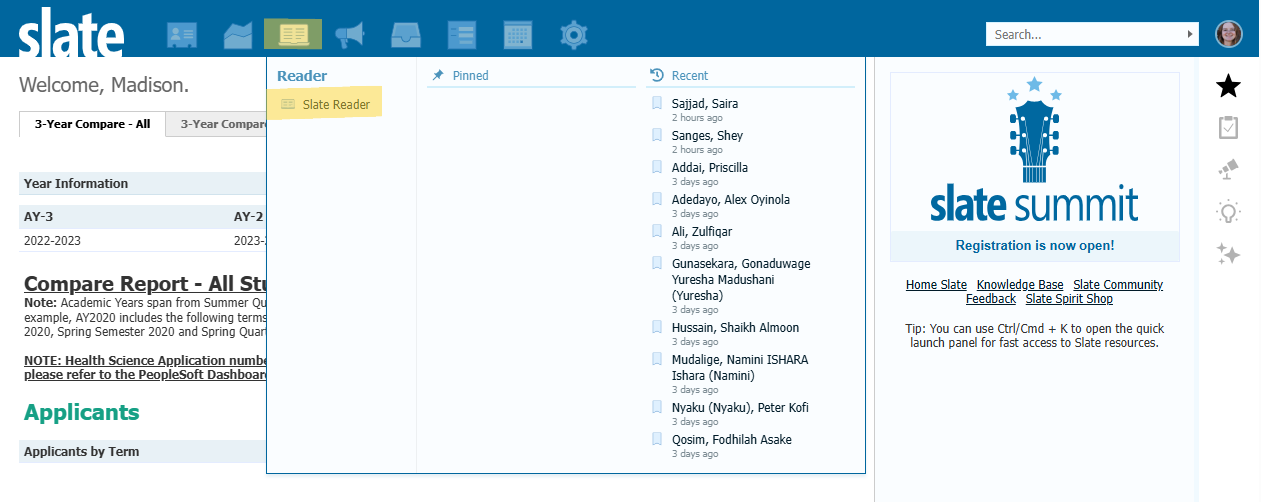
At the top of your screen, click the icon that looks like an open book. This will bring you to Slate Reader
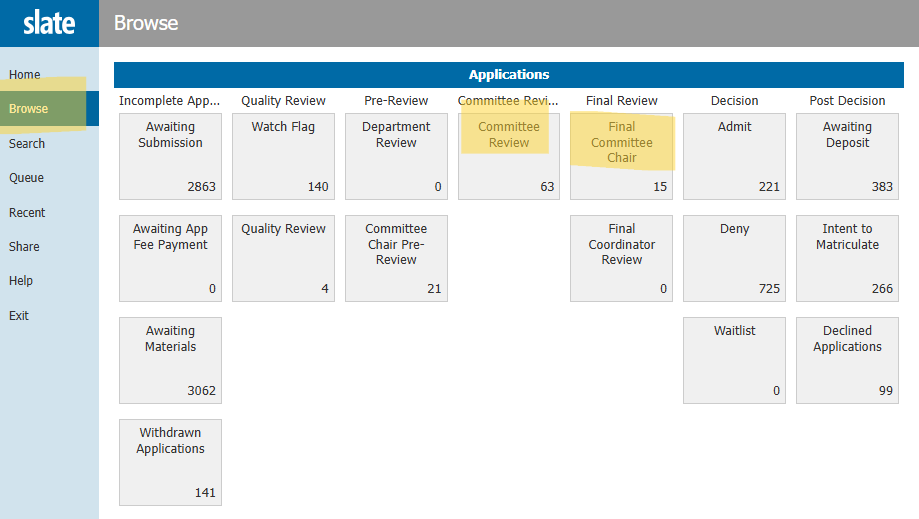
 Once in Slate Reader, click 'Browse' on the left-hand menu. You will then click on the appropriate bin based on your role in the review process:
- Faculty Reviewers: Select the Committee Review Bin
- Graduate Chair's: Select Final Committee Chair
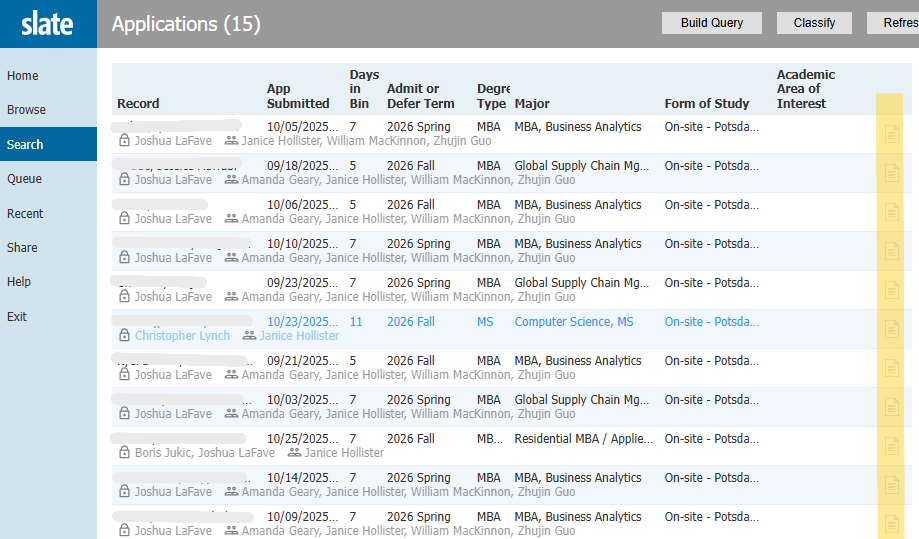
Once inside your bin, all applications awaiting your approval will populate. To select a file for review, you must first click the paper icon to the far right.
Tip: You only have to do this for the first application. If you review other applications after, without exiting reader, you will only need to click on the students name. Once you leave reviewer, you will then have to click on the paper icon again.
On the left hand side of your screen, you will see a menu that provides a link to all application items that have been submitted. The menu will include items available for review. If something is not available (ex: not appearing or not clickable in the menu) and you believe it should be, please contact your Graduate Coordinator.
-
Application
-
Recommendations
-
Materials (materials include resume, essay transcripts)
- Transcripts
-
Test Scores
-
Supplemental Material
-
Review
-
PeopleSoft Information
- App Comparison
- Decision Letters
PENDING FURTHER INFORMATION - INCOMPLETE