
Instructor FAQs
Moodle |
Echo360 |
Zoom |
Grades |
Announcements |
Groups |
LTI |
Moodle
When should I open my Moodle course to students?
Best practice is to show (open) your Moodle course for students two weeks prior to the official start date. Only the Homepage needs to be available along with Getting Started steps and a link to the course syllabus. Module content does not need to be available early. The reason for this practice is that students panic when they see they are enrolled in the course in MyCU but do not see the course on their Moodle Dashboard. See Show Course to Students.
Does Moodle have an attendance tool for F2F classes?
Teachers (and students!) can take attendance during class and then students are able to view their own attendance record and teachers can run attendance reports by using the Attendance Activity. The attendance activity can be linked to the Grader Report. Teachers can use the default markings for attendance status: "Present", "Absent", "Late", or "Excused" or customize the markings.
How do I switch my role to student so that I can see the course as they see it?
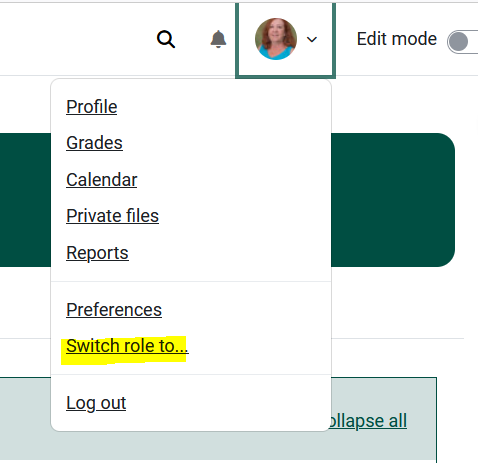
Locate the Switch Role to Feature
- From inside your course, click the profile icon in the top right corner of Moodle.
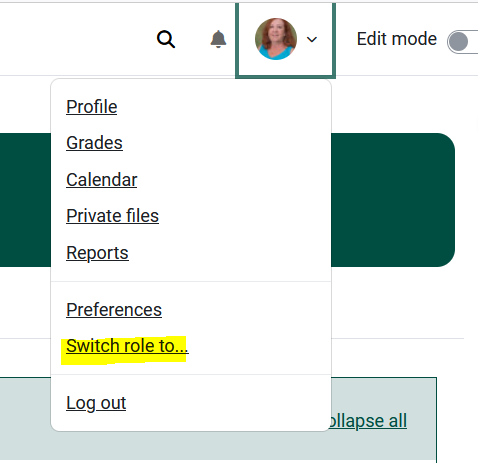
- Select Switch role to... student in most cases). Also see the Switch role to article.
What do I do if some students tell me that they could not access the course?
- Check to make sure the course is set to Show to Students.
- If so, view the Participant list in the Moodle course to see if they are enrolled.
- If so, send them this Dashboard and Course Overview in Moodle article via an email.
- If not, have them contact the HelpDesk:
Online: Get Help
Email: helpdesk@clarkson.edu
Call: 315-268-HELP (x4357)
Echo360
When should I set up my Virtual Class and Recordings link?
Set Up Virtual Class and Recordings no more than two weeks before the term's first day of class.
How do I add content from my Echo library to my course in Echo?
-
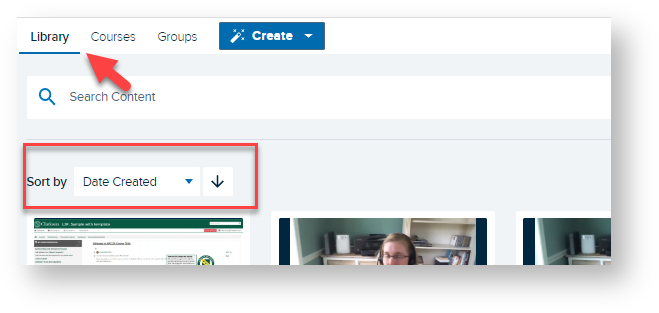
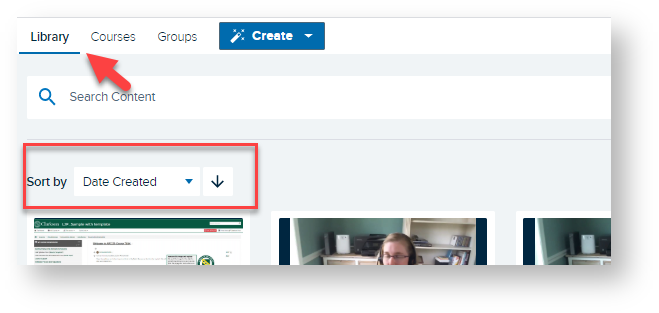
Log into Echo at go.clarkson.edu/echo
-
Click Library
-
Sort by or Search for desired recording

-
Click on desired recording
-
Scroll down until you see Info/Share Settings
-
Click Add to A Class
-
Select Course, Term, Section, New Class and Availability Settings - see full article Echo Cloud: Add Content from Library to an Echo Course
How do my students submit their video assignments to Echo?
Briefly, the steps for students to submit Echo360 video as an assignment in Moodle:
LTI questionsGrades
How do I set up my Moodle 
Groups
Announcements
- Do announcements get sent to students when the course is still set to Hide?
- I deleted the Announcements forum in my course, how can I get it back?