
Feature: Class Schedule Overlay
Goal
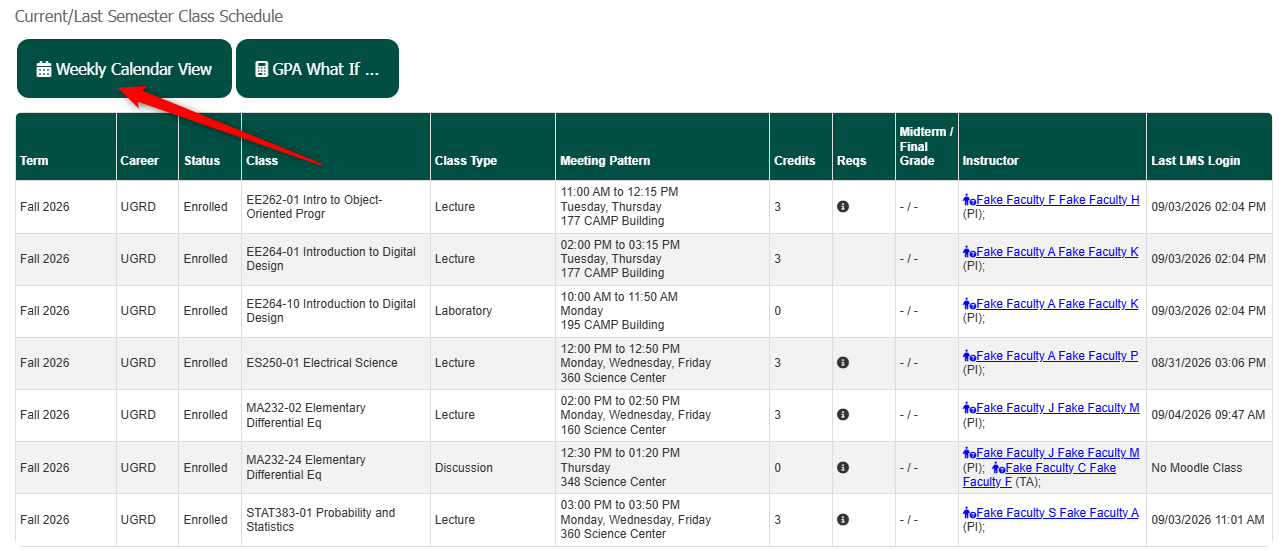
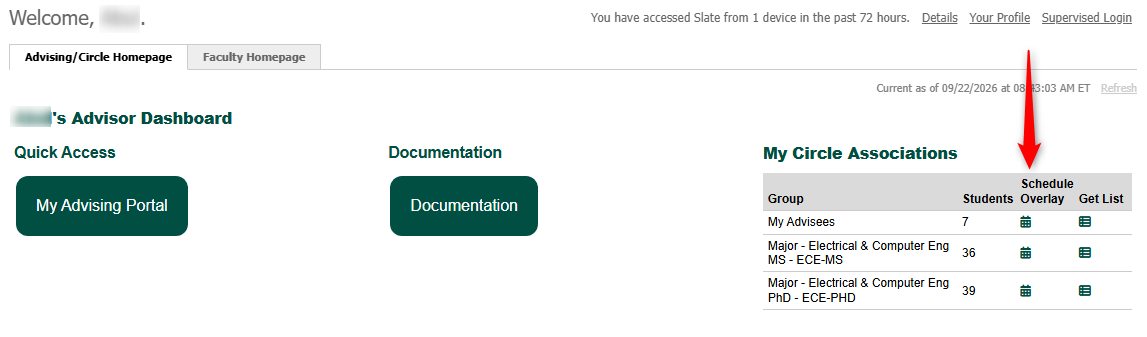
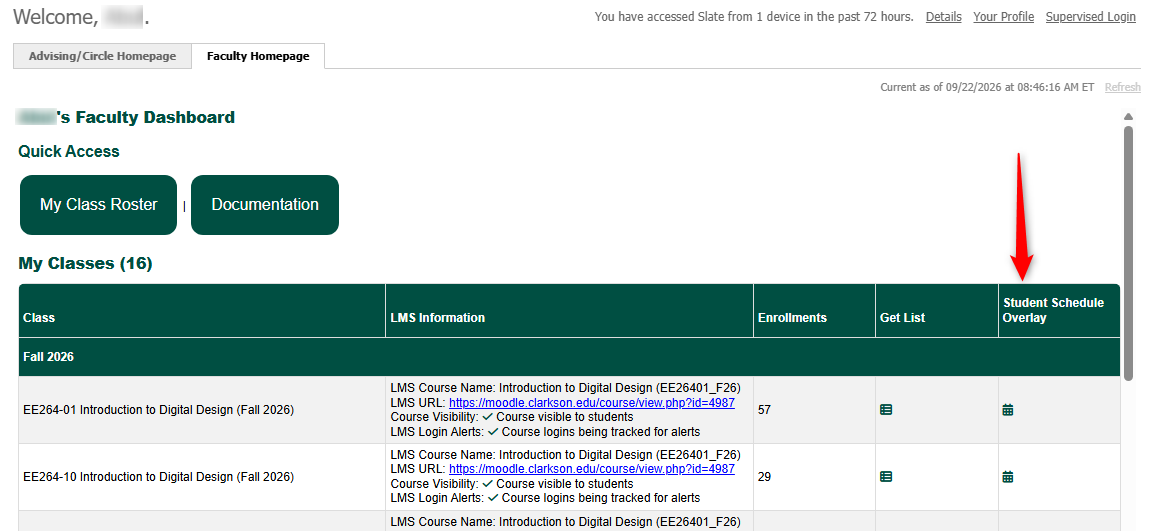
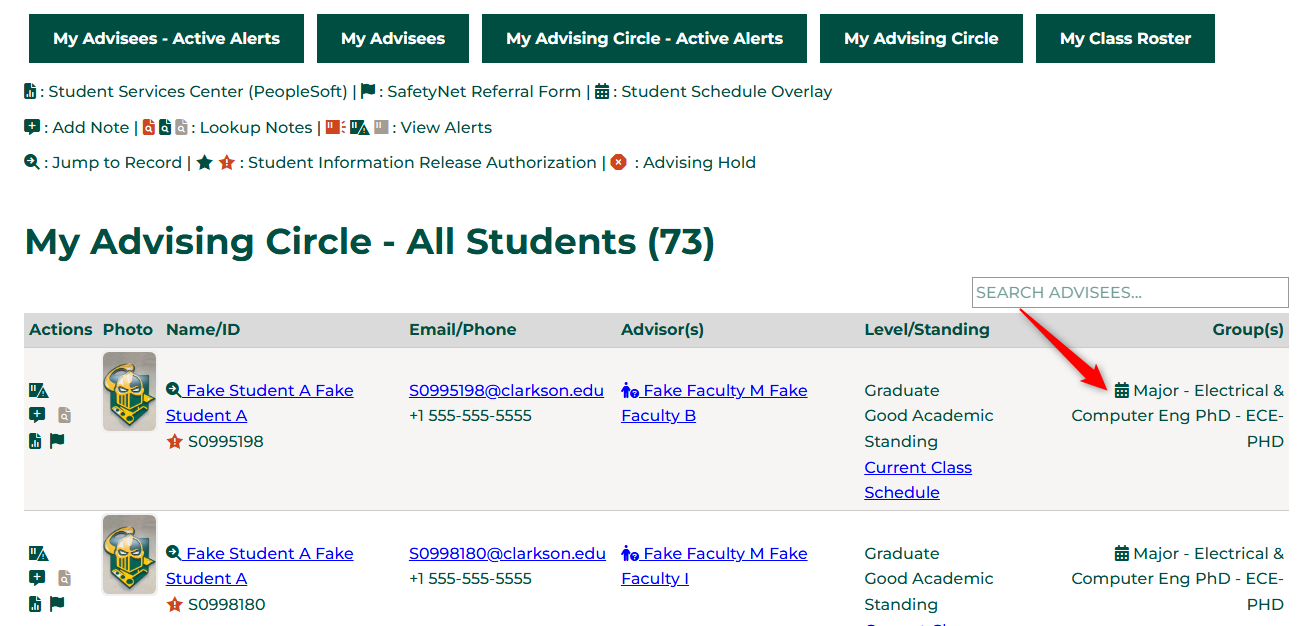
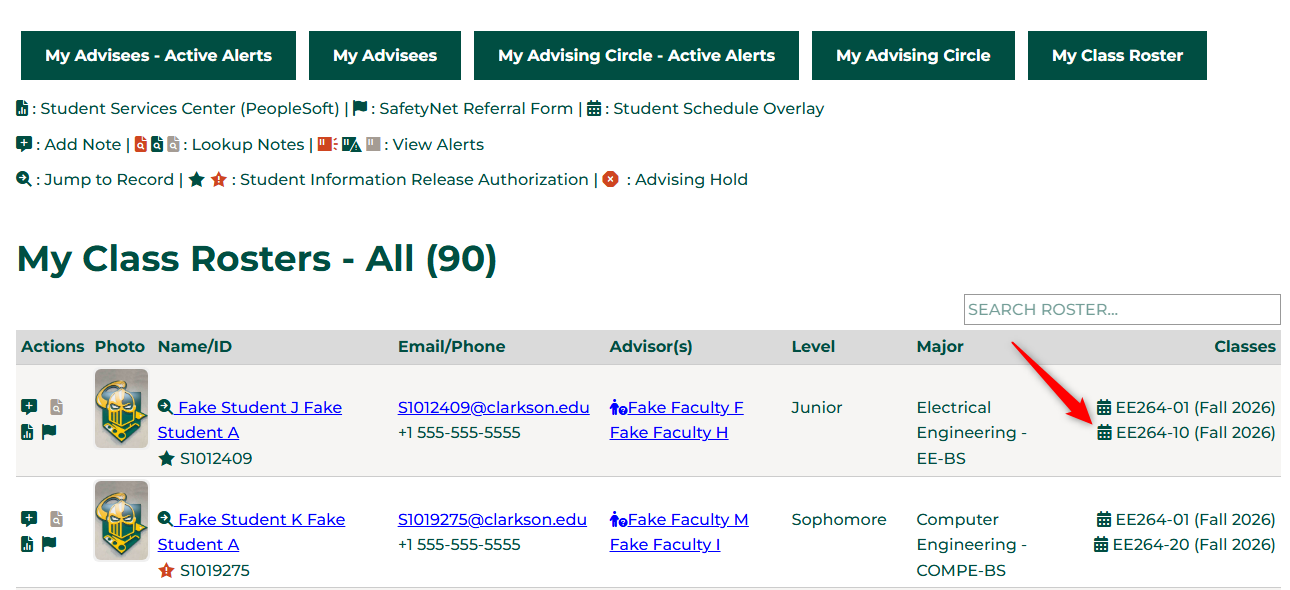
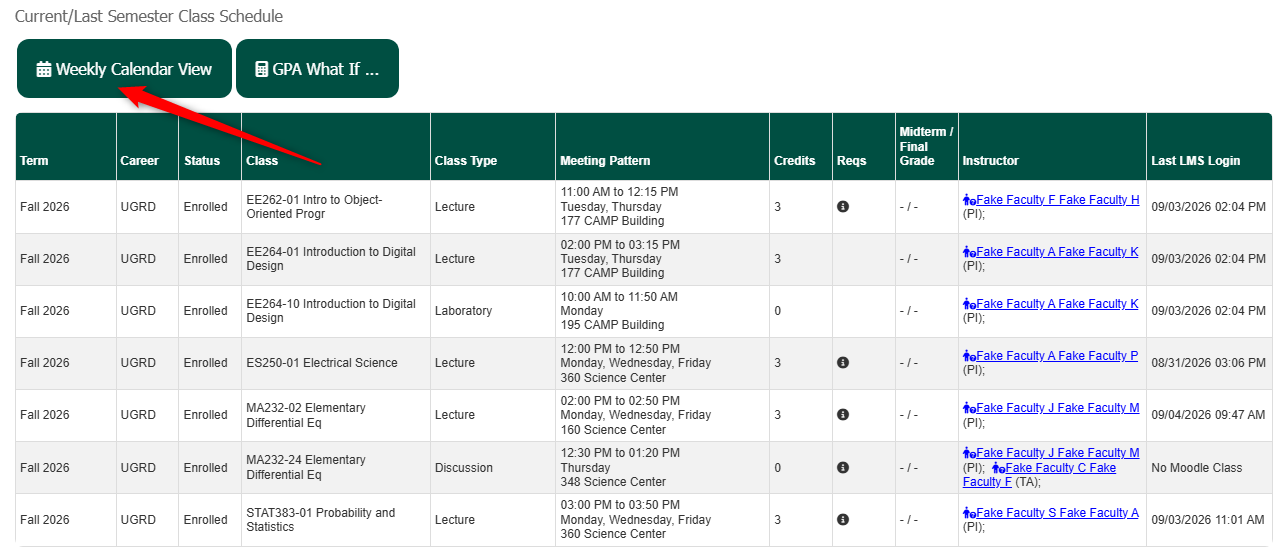
This feature is to help planning schedules around individual or groups of students. These groups could be a Class Roster, an Athletics Roster or even an Advising Roster. Look for the  icon throughout the system.
Access
The icon can be found on many screens. All are listed below:
- Your Advising/Circle Homepage Dashboard
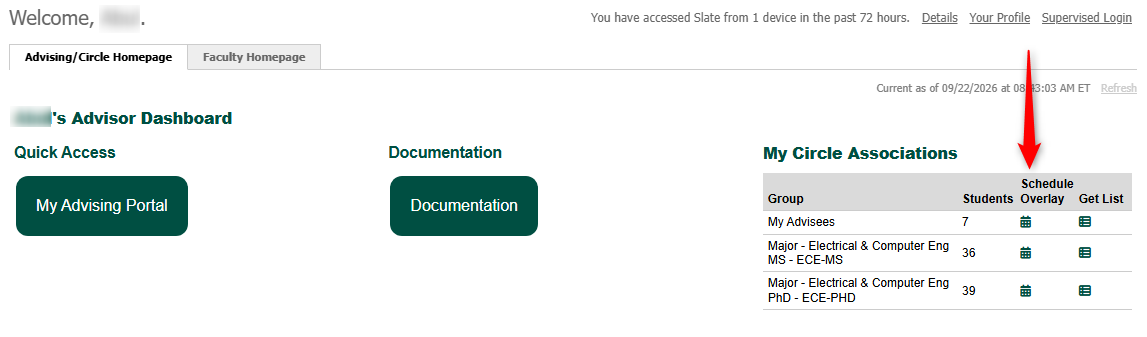
-
Your Faculty Homepage
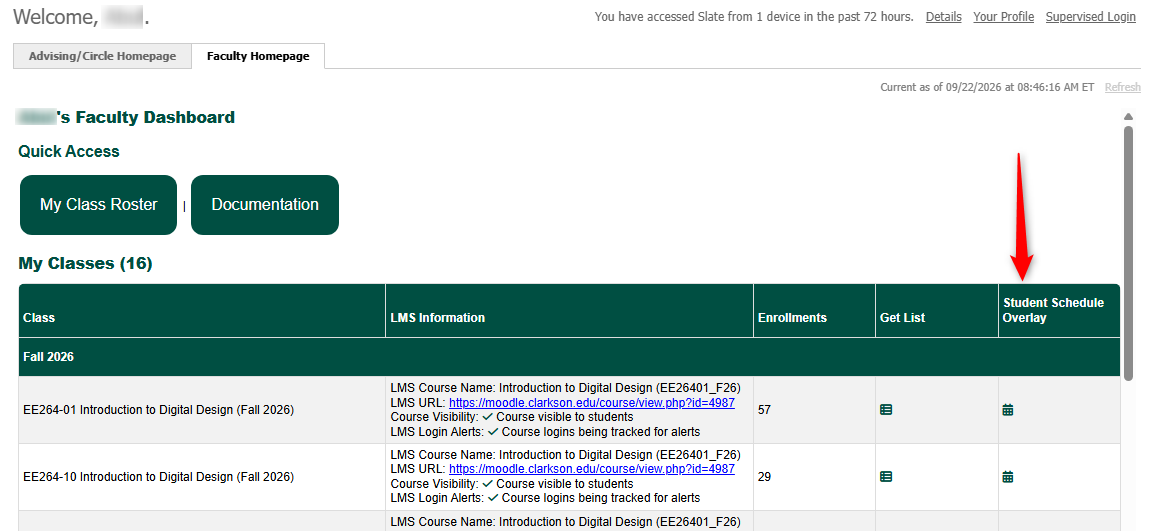
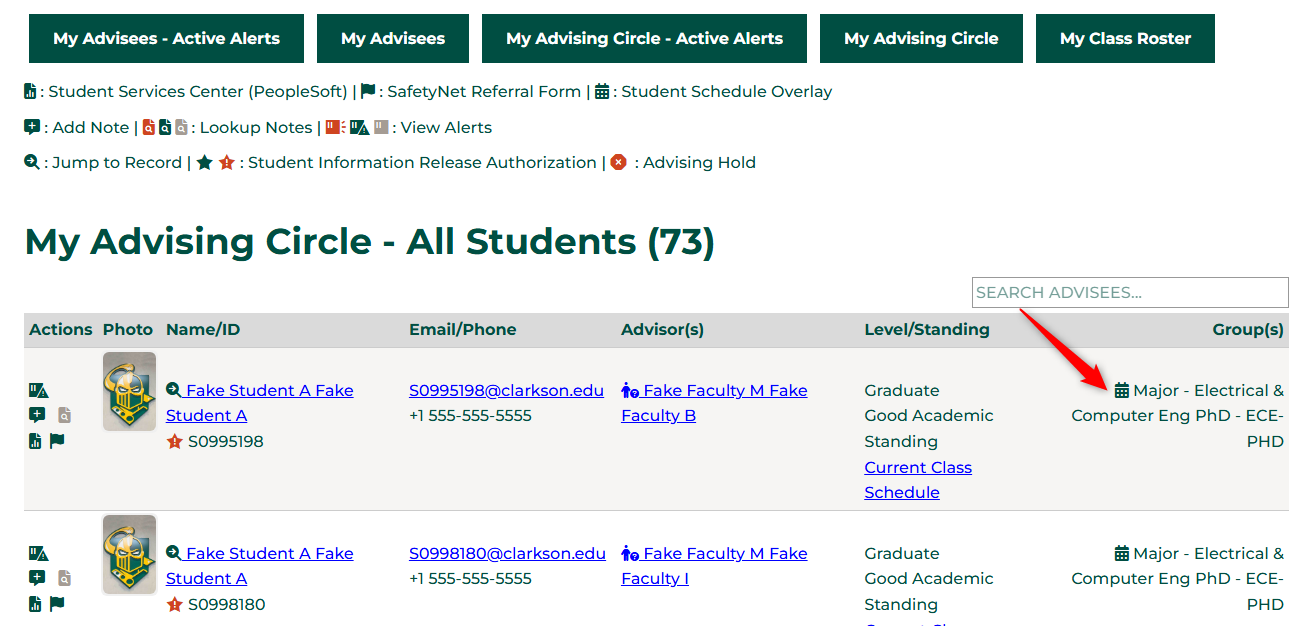
- Your Advising Circle Portal
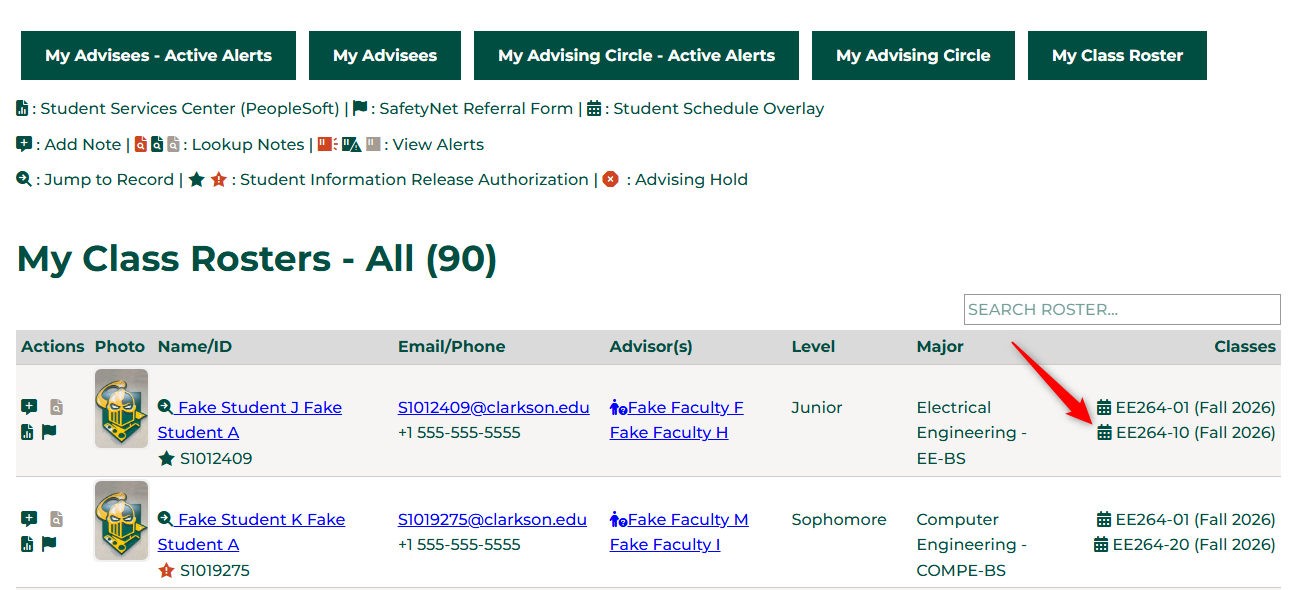
- Your Class Roster Portal
- On an individual student's record above their current semester schedule
Visuals
Clicking the icon an any of the screens will produce the following screen:
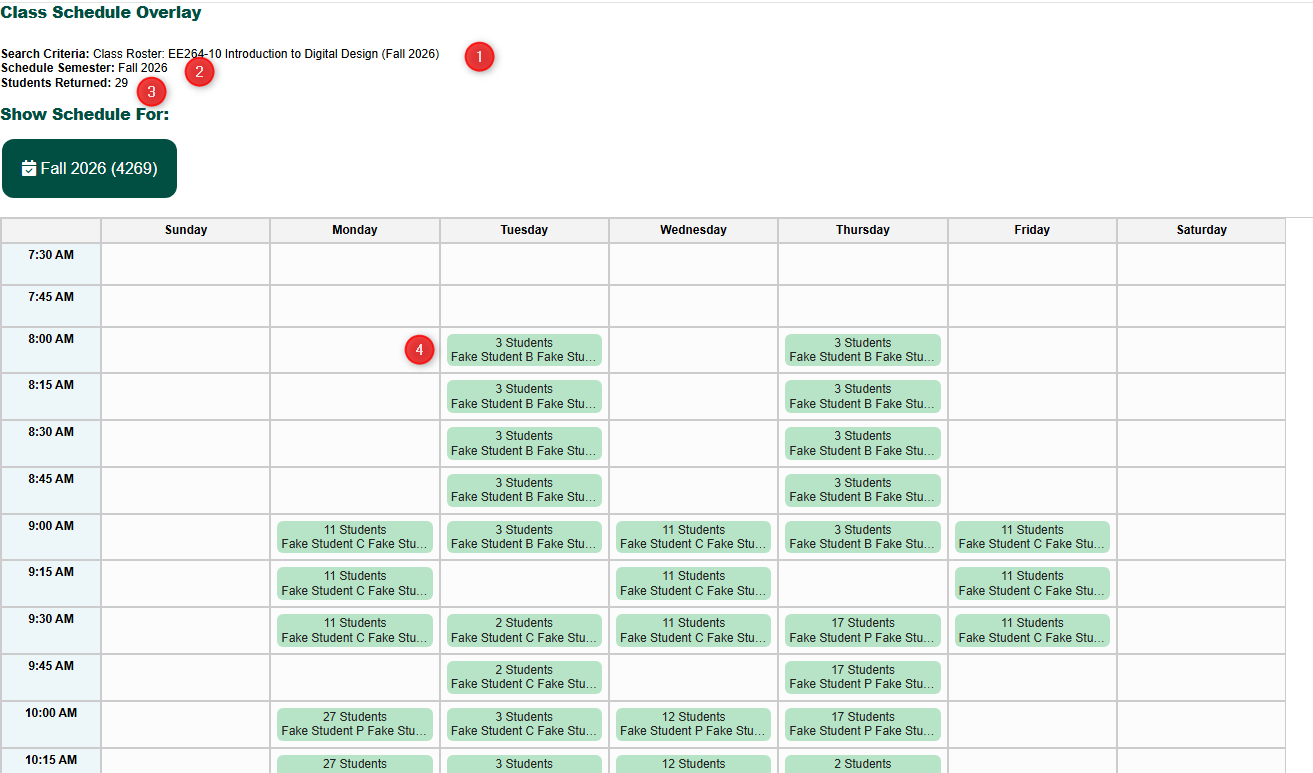
- Search Criteria: Indicates the search criteria used when you clicked the button so you have a reference of what you clicked to get to this screen.
- Schedule Semester: Indicates the semester you are viewing. As students enroll into future semesters, you will be able to swap to a different semester to look ahead by clicking the Green Semester icon (when more are present).
- Students Returned: A count of how many students were returned in the query
- This is a break down, in 15 minute intervals, of all the students and included in the query, and their schedules. Each slot indicates how many of the students are reflected by that time slot, and hovering over the box will show you what classes they are taking at that time.
Automatic Notifications
There are no automatic notification as part of this process.