
Zoom/Echo Set up without Zoom PlugIn
Overview
Find below the steps for Instructors and Instructional Designers to create a Zoom Meeting Room and then set up the link for recordings to post to the Echo360 Recordings link inside the Moodle course. This is a work around to using the Zoom Plug In.
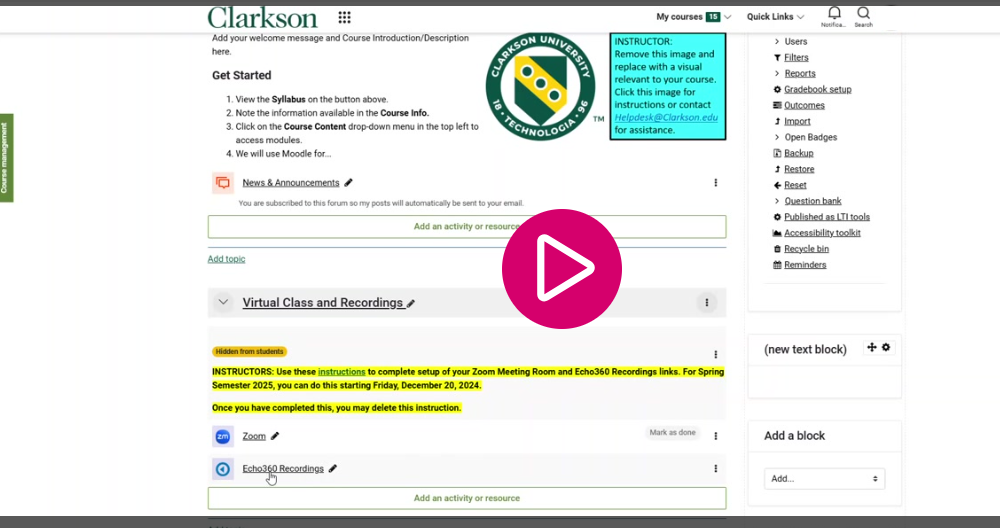
Video
This TutorialGuide (6will min)help
you to:
Step 1 - Set up Zoom Meeting
Step 2 - Link your Moodle course to Echo course. Step 3 - Map your Zoom Meeting Room ID to course in Echo Step 4 - Post Zoom meeting room link in Moodle course Step 5 - TestVideo Tutorial (6 min)
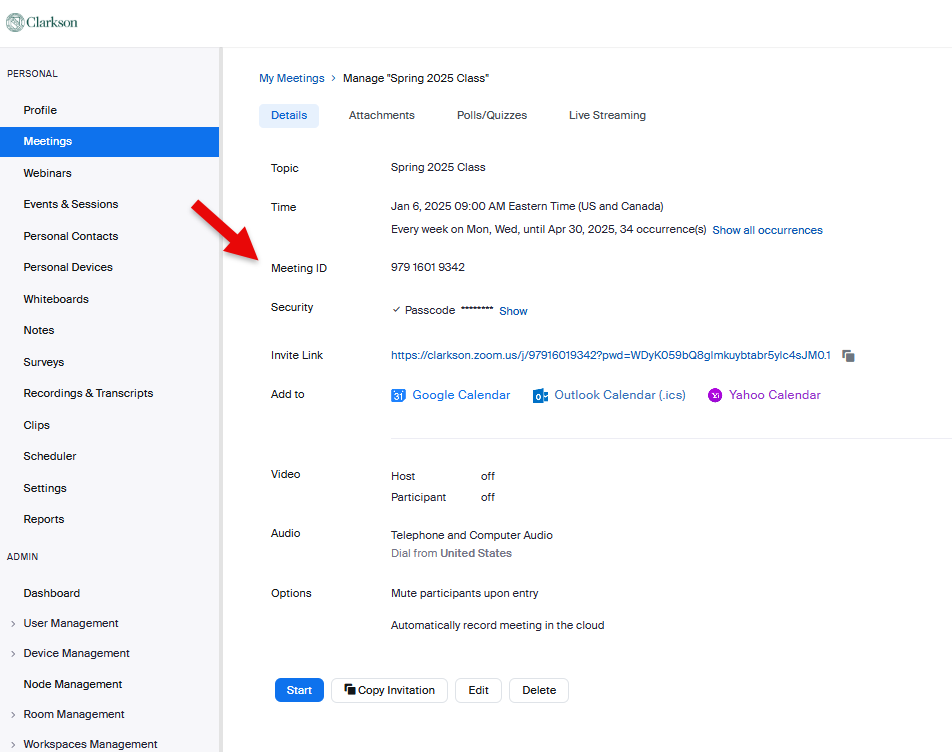
Step 1 - Set up Zoom Meeting
- Login to your Clarkson Zoom account: clarkson.zoom.us
- Create new Meeting room. Set up recurring schedule. Options, Automatically record meeting, In the cloud.
- Note Meeting ID.
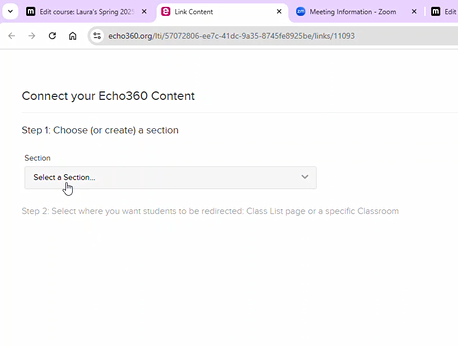
Step 2 - Link your Moodle course to Echo course.
- Go to course in Moodle. Click Echo link and Connect your Echo360 Content
Step 3 - Map your Zoom Meeting Room ID to course in Echo
- In Echo, click Account Settings (wheel)
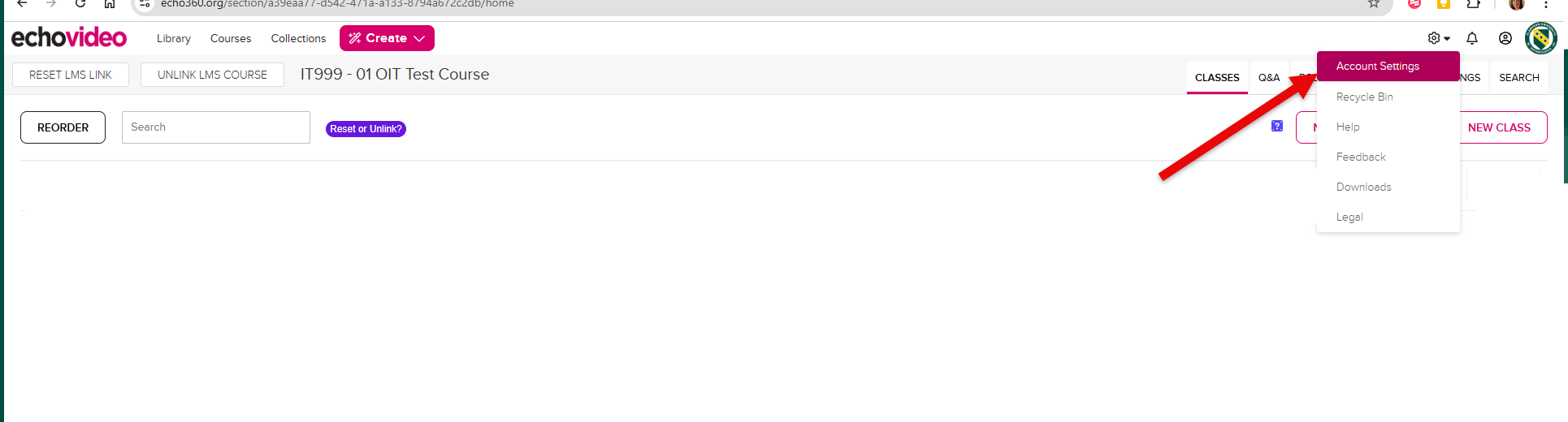
- Locate Zoom Meeting ID from list and Select course in Echo from drop down
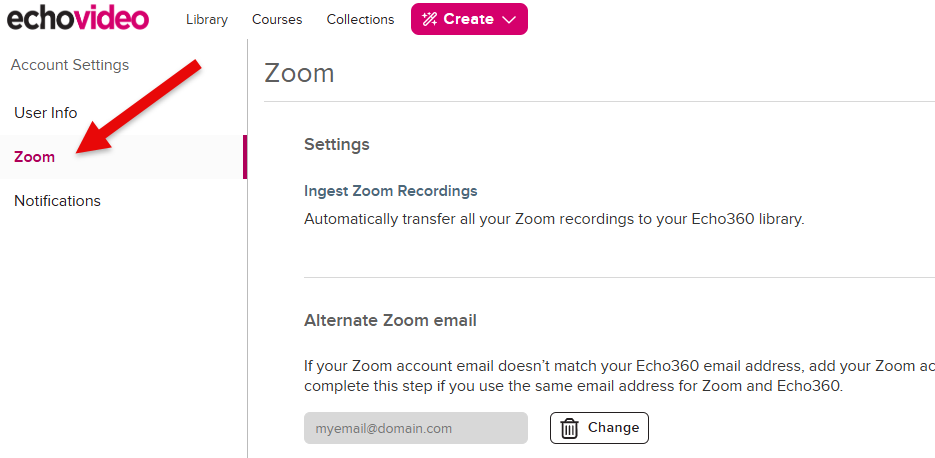
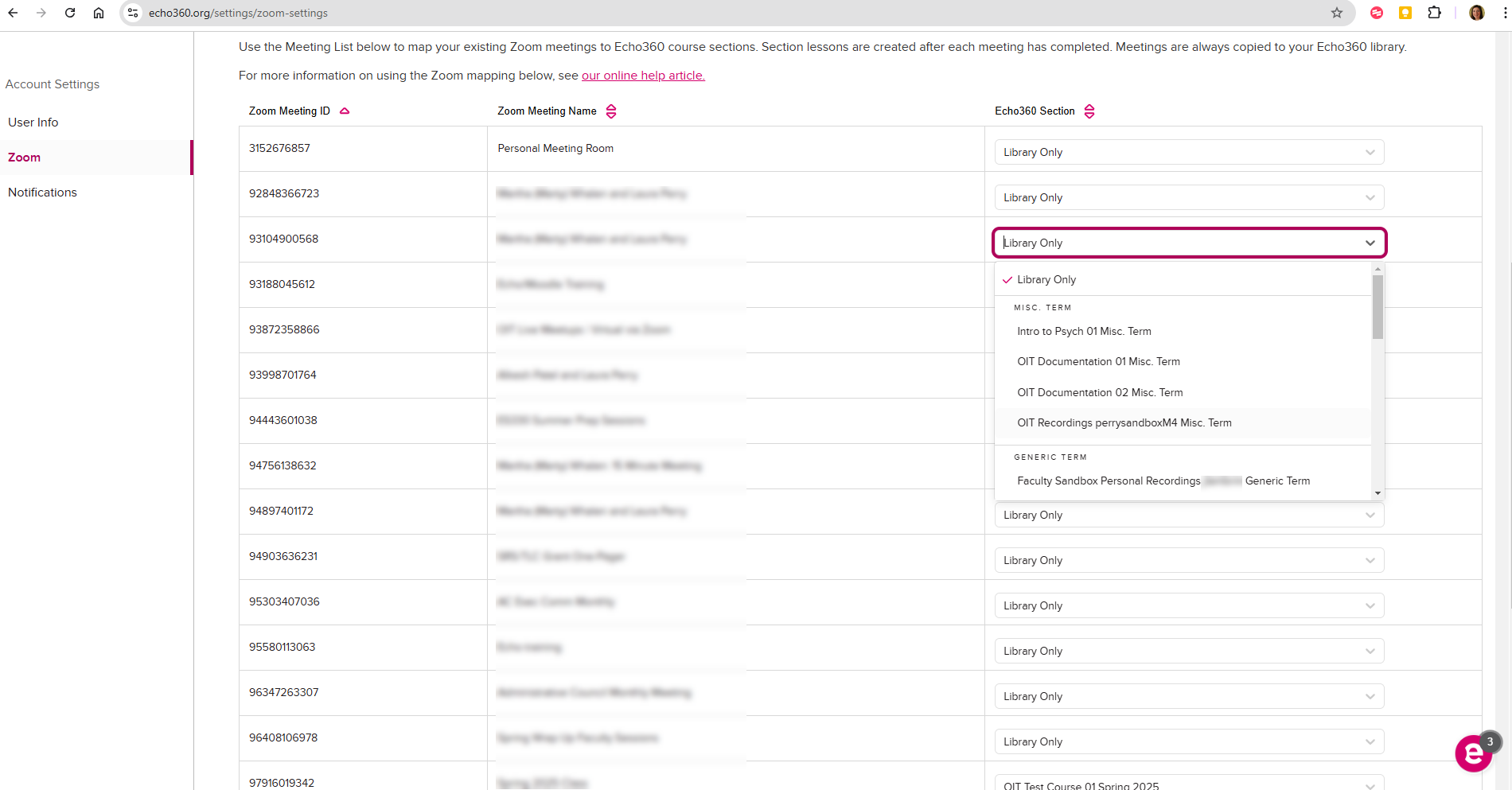
- Save
Step 4 - Post Zoom meeting room link in Moodle course
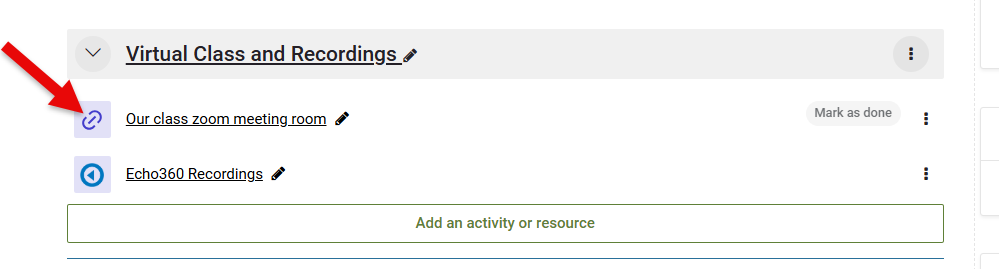
- In Moodle, Add Activity, Select URL
- Paste URL from Zoom Meeting Room.
Step 5 - Test
Launch the Zoom meeting you just linked in your course. Let it run 10 minutes, then End Meeting. A few hours later, check back in your Moodle Course at the Echo link to see that your TEST recording is successfully posted.
Seek Further Assistance
For additional assistance please contact, Clarkson OIT Help Desk;
Online: Get Help
Email: helpdesk@clarkson.edu
Call: 315-268-HELP (x4357)