
Show Moodle Course to Students
Summary:
AtIn theorder beginningfor ofStudents eachto term,access your course in Moodle, teachers must change thetheir CourseMoodle Visibilitycourse visibility from 'Hide' to 'Show' toat students.the beginning of each term. This will make your course appear for students and allow them to access the course from the Course Overview block on their Moodle Dashboard.
Note that you can easily hide any sections you do not want students to see yet:
But please Post the Course Syllabus provide a welcome message and getting started steps on your homepage so that students know they are in the right place and what they need to do.
This guide will help you to:
- Change the Course Visibility setting on your course from 'Hide' to 'Show'.
Go to your course from the Moodle Dashboard.
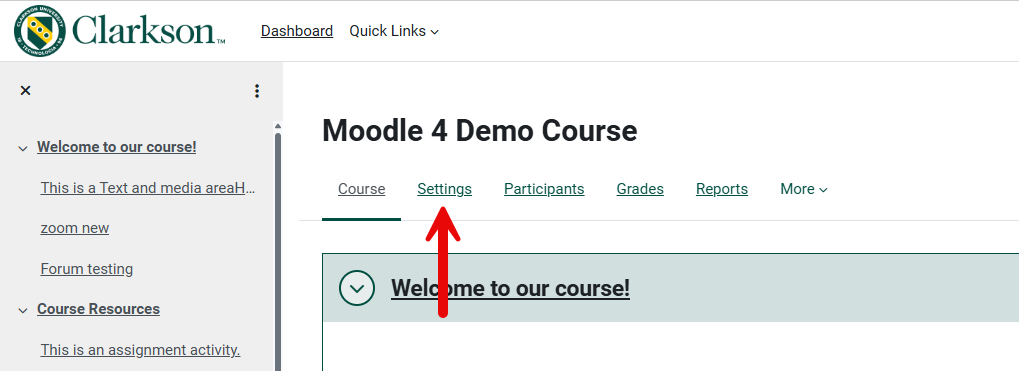
1) From the course start page, turngo Editingto On.Settings tab.
2) FromIn theSettings, Administrationunder block,General, selectCourse Settings.Visibility, change to Show, then Save.
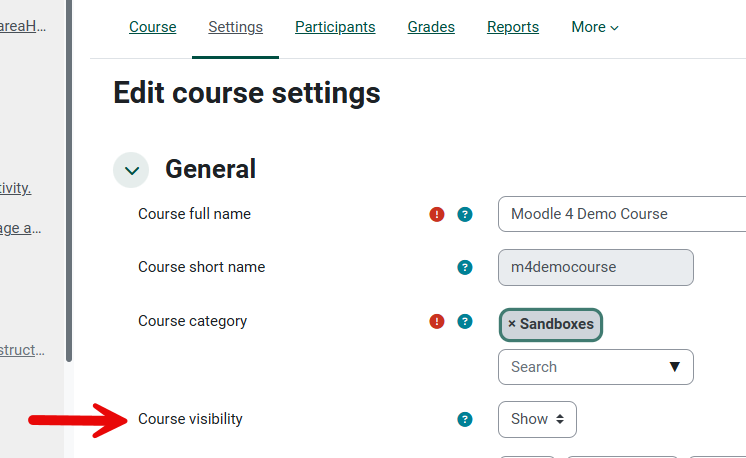
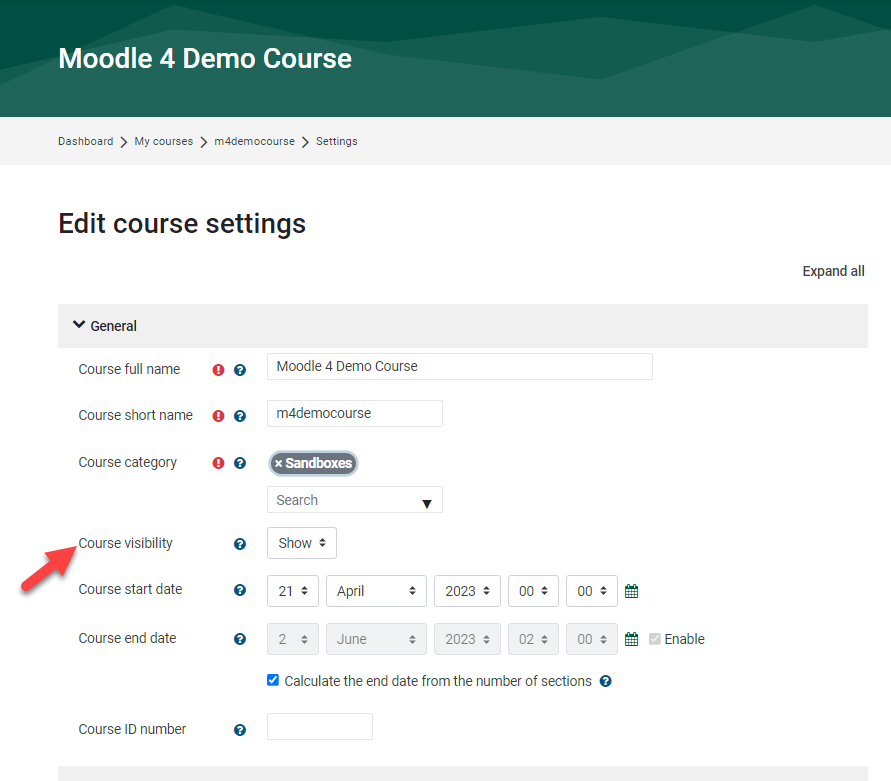
3) From your course's Settings, locate Course Visibility, select 'Show' from drop down menu. Scroll down and click Save.
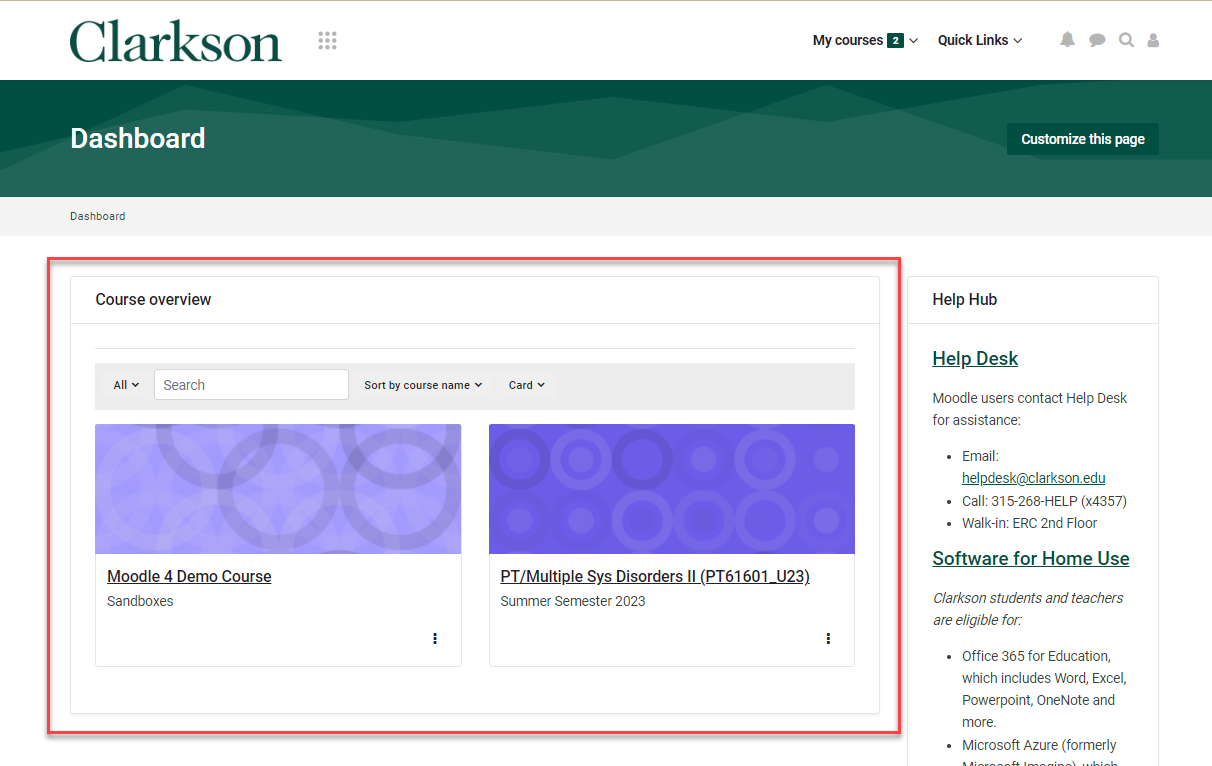
Your course is now visible to students. Students will be able to access the course on their Dashboard in the Course Overview area as shown below. Students will also receive any announcements you send.
Seek Further Assistance
For additional assistance please contact, Clarkson OIT Help Desk;
Email: helpdesk@clarkson.edu
Call: 315-268-HELP (x4357)