
Quiz: Prepare a Word Quiz for Import into the Moodle Question Bank
Moodle has an excellent quiz tool with plenty of options that make it very efficient for both you and your students. And if your questions/test are located in a Word document, you can easily reformat them them for import into the Moodle Question Bank by partnering with Google Gemini.Note: you might save yourself some time by requesting the Moodle Question Bank cartridge from your textbook publisher as these tests are already formatted for import into Moodle but using Gemini makes the process of importing seamless. |
|---|
Word documents MUST BE formatted in EXACTLY the manner described below. You can attempt to skip these rules but you can expect missing parts or an error message and then you will have to redo it all again. We used to manually convert Words docs to the .txt files required for import, a very tedious process. Thanks to AI, we can now have the converted file in seconds! If you have a quiz that is already created as a Word document, Gemini can remove formatting, you will copy and paste the resulting text, paste it into Notepad and save your file as a text file instead of a Word file. Follow the steps below.
Step 1: Prompt Gemini

Step 2: Paste the Gemini Text

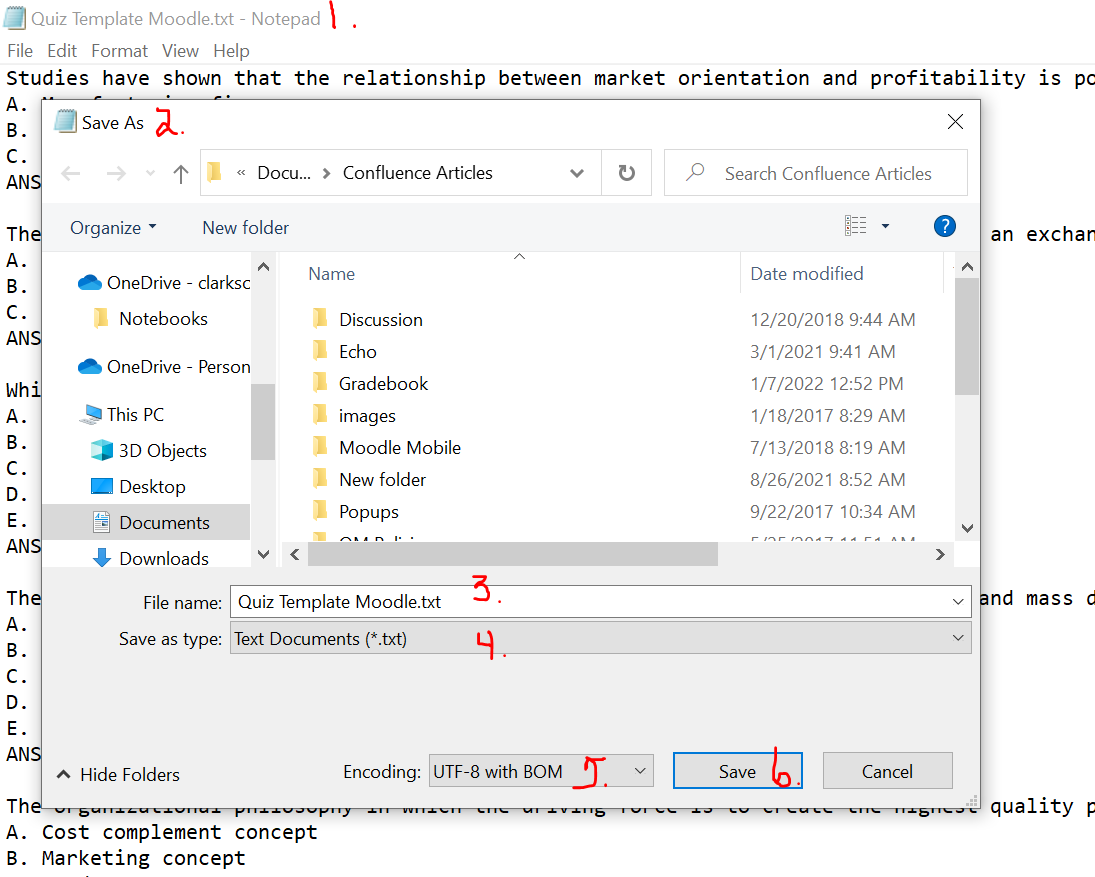
application on your computer.
Follow the 5 steps below to Save the file with a .txt extension, ensuring your file encoding is set to UTF-8: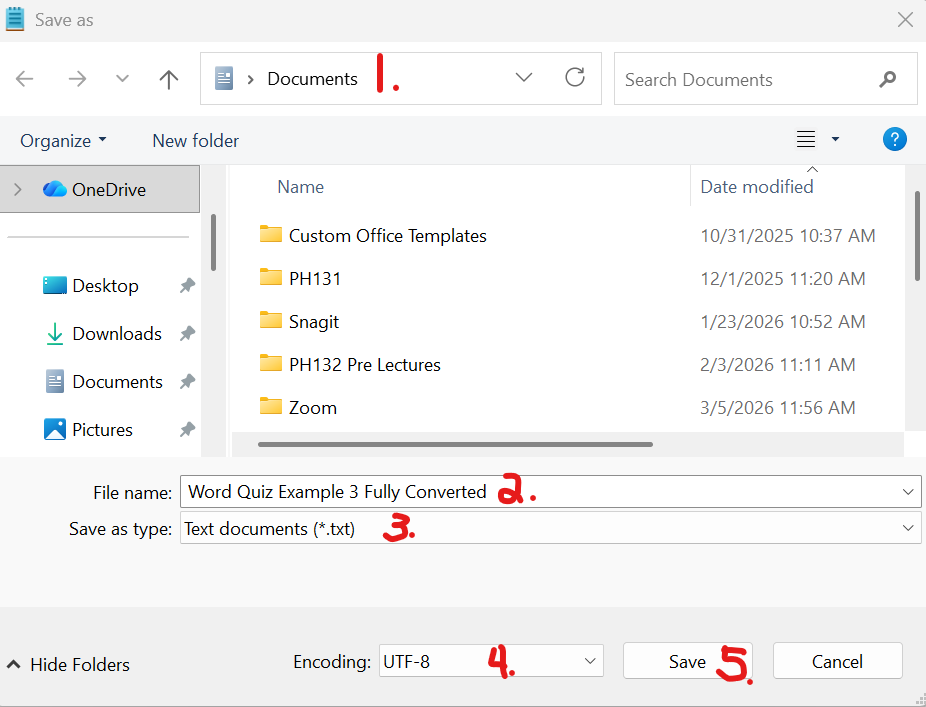
Step 3: Import into the Moodle Question Bank!
Correct Formatting
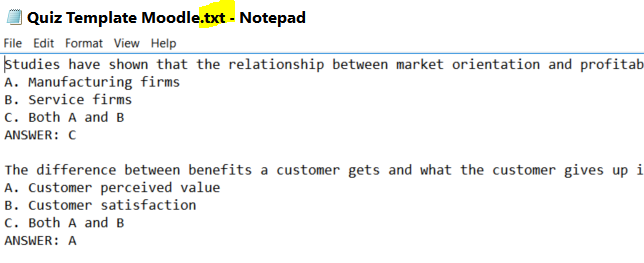
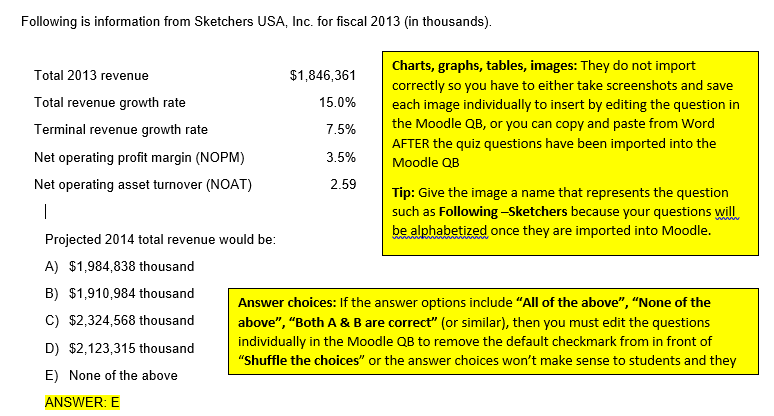
Below is a screenshot of exactly what your quiz file should look like when it is ready for importingQuiz into the Moodle Question Bank (QB). Below the screen shot is a tutorial of how to format your quiz. .
Here is a Quiz Template you may use-replace the questions with your questions or revise your current Word quiz exactly as shown. The template was developed following the rules below:
Rules
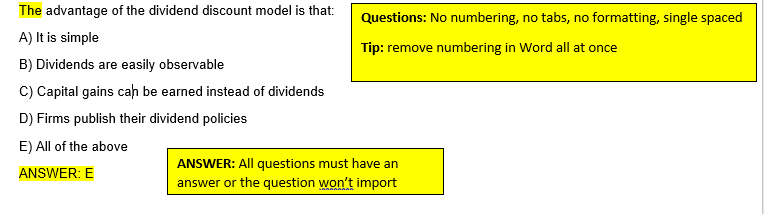
NO numbered questions - Moodle numbers your questions upon import
Questions have no formatting (you can add bold, etc. after you have imported the quiz into the Moodle QB
No images-save your images as separate files and insert/copy and paste into the question after the quiz has been imported to the Moodle QB.

Example Question 1

Example Question 2

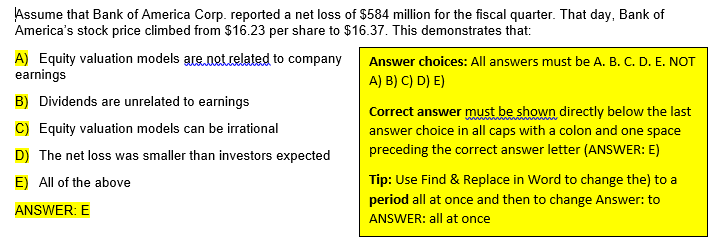
Example Question 3

Step 2: Save Quiz as Text File for Importing into Moodle

Step 3: Import a Quiz into Moodle
Once you have prepared your quiz properly as described above,
Step 4: Create Quiz Shell in Moodle
Quick Steps to use a quiz from your Question Bank in your course
- Go to the Topic area where you want to place the quiz
- Click on Add an activity or resource and scroll down in the drop down menu to Quiz- add
- Click on Edit Settings for the quiz and choose quiz options-save the quiz
- Click the link to the new quiz-Edit Quiz-**Add-**Add questions from question bank (or random)-done!
Prior to AI Directions for Converting a Word Quiz for Import into Moodle
Detailed Steps and Video Tutorial
View more information about the Quiz Activity on Moodle Docs
Seek Further Assistance
For additional assistance please contact, Clarkson OIT Help Desk;
Online: Get Help
Email: helpdesk@clarkson.edu
Call: 315-268-HELP (x4357)