
Moodle: Insert an Image
Summary
Often you can copy and paste an image into a Moodle topic, page, forum, etc. See the example below to see how an image can enhance your words. Add an image by using the editor in Moodle, follow the Step-by step guide under the example below.
Example
An image in the description area to enhance the activity
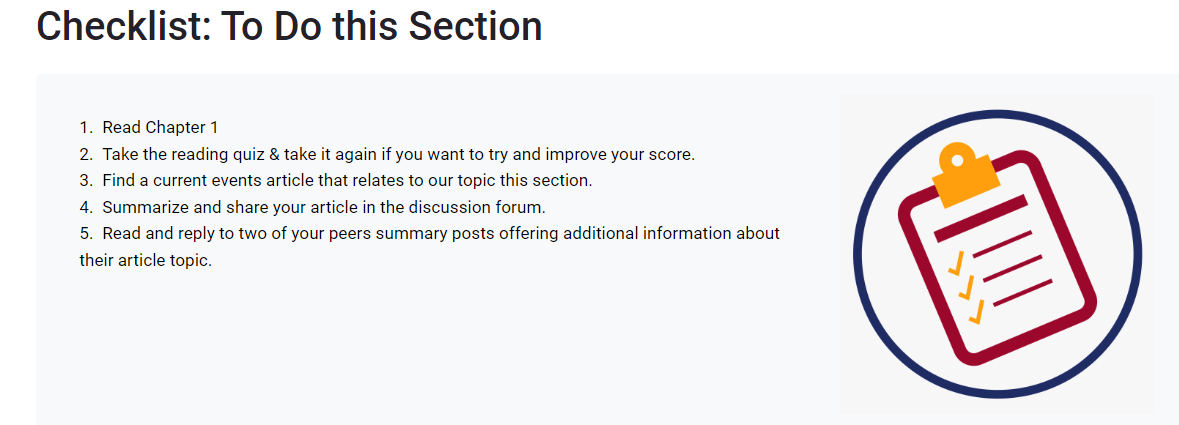
This Guide Will Help You to:
- Find an image
- Determine which editor you are using
Before
1. youFind start!
an - Do you have the image? If you need to find the image, or to take a screenshot of the image, do that first.
IfWhen you have an image follow the steps below. - If you need to find or create an image, save the image by downloading to your computer or right click on the image and choose Save as Image (or picture). Or use the Snipping Tool on your computer to take a picture of the image. Note where you saved the image so you can find it in Step 3 below.
- Find an image. Find free images that may or may not need citing? See Moodle Choosing Resources & Media
Example
An image in the description area to enhance the activity
2. Determine which editor you are using/strong
Step-by-step "how to" guide
If you are using the Atto editor you will see the tools below. If your editor looks different from the one below, you are probably using the Tiny MCE editor. Adding an image is similar in both. Images can be added almost anywhere you have a text editor.
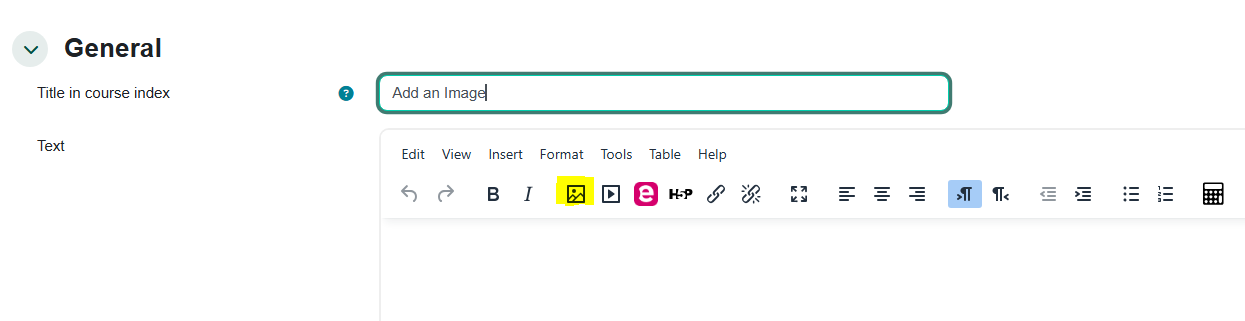
3. Insert an Image
Click on the Image icon in the editor, highlighted in yellow above.
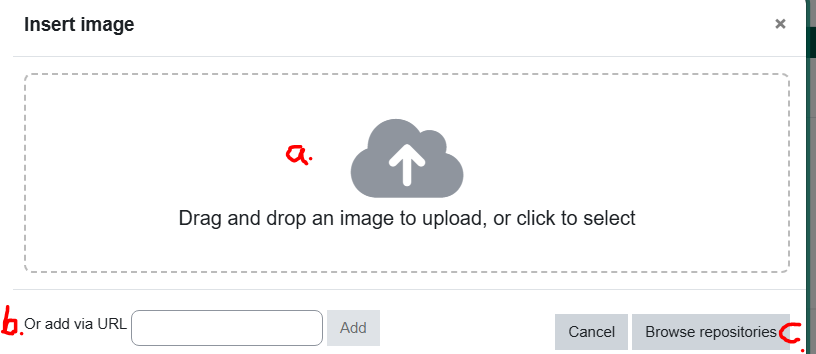
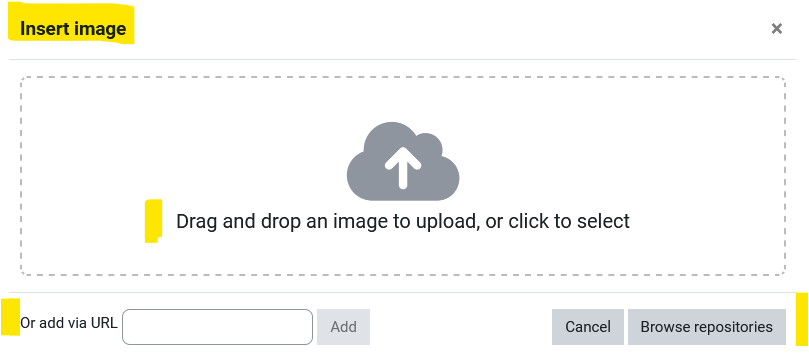
Depending on the location of the image file, follow one of the three options shown below to insert the image:
4.  Fill in any information about the image if prompted, give the image a descriptive name. (Or if the image is not important to the content of the course add double quotes "")*
4. Help with Alignment/Spacing
5. If your image is too large, or you want it to be aligned on the left or right of the text, or leave some space between text or bullets and the image, please contact the HelpDesk and one of the TLC team will help.
*If you want to make changes to the appearance of an image after inserting, edit the settings of the label/page where the image is located. Click on the image to select it, click on the image tool (or right click on the image and choose edit image from the drop down menu.
Seek Further Assistance
For additional assistance please contact, Clarkson OIT Help Desk;
Online: Get HelpEmail: helpdesk@clarkson.eduCall: 315-268-HELP (x4357)
Step-by-step "how to" guide
If you are using the Atto editor you will see the tools below. If your editor looks different from the one below, you are probably using the Tiny MCE editor. Adding an image is similar in both. Images can be added almost anywhere you have a text editor.
Click on the Image icon in the editor, highlighted in yellow above.
Depending on the location of the file, follow one of the three options to insert the image:
4. Fill in any information about the image if prompted, give the image a descriptive name. (Or if the image is not important to the content of the course add double quotes "")*
5. If your image is too large, or you want it to be aligned on the left or right of the text, or leave some space between text or bullets and the image, please contact the HelpDesk and one of the TLC team will help.
*If you want to make changes to the appearance of an image after inserting, edit the settings of the label/page where the image is located. Click on the image to select it, click on the image tool (or right click on the image and choose edit image from the drop down menu.
- See information on changing Text Editor Toolbar Preferences
- See more information in this Moodle Doc About Images
Seek Further Assistance
For additional assistance please contact, Clarkson OIT Help Desk;
Online: Get Help
Email: helpdesk@clarkson.edu
Call: 315-268-HELP (x4357)