
Editing Template - Maddy
Summary
BeforeBrief youstatement begin,describing checkwhat can be found on this article and target audience. One-two lines.
This Guide Will Help You to:
Main hastitle a
Use Aidnumbered Yearor established.bullets You can find the instructions on howlists to checkstep ifcommunity anmember aidthrough year is established, and how to add an aid year, by clicking to this guide here. If the student has an aid term established, you can proceed.processes.
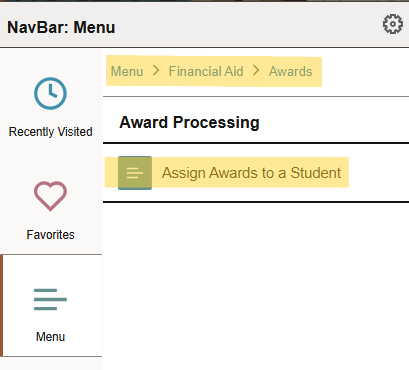
LogInline intoscreenshot PeopleSoft,images thenshould clickaccompany intosteps. myCU. Once in myCU, follow the navigation chart below:
Navigator Bar (the compass icon in the top right corner of your screen) -> Menu -> Financial Aid -> Awards -> Award Processing -> Assign Awards to a Student
Input
Seek Student'sFurther IDAssistance
For theadditional IDassistance box,please ifcontact, youClarkson doOIT notHelp know the students ID, you can search them by first and last name in the indicated boxes. Type the aid year into the box, then click 'Search'.Desk;
Online: 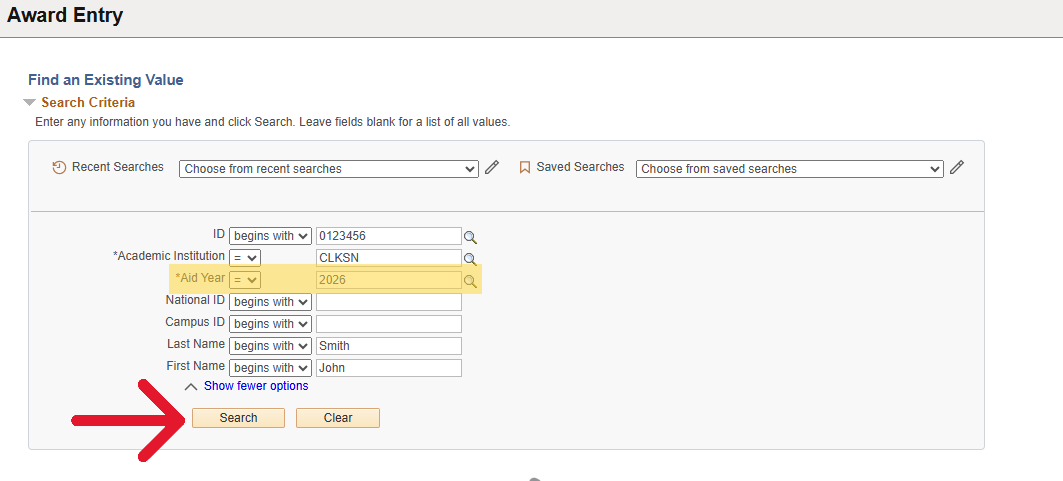
Email: helpdesk@clarkson.edu
Call: 315-268-HELP (x4357)
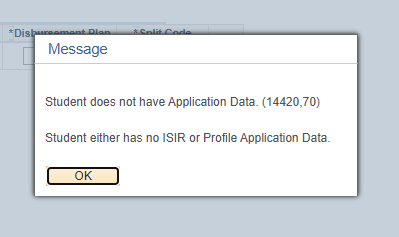
This warning message may pop up, click 'OK'
Applying the scholarship Pt. 1:

Applying the Scholarship Pt. 2:
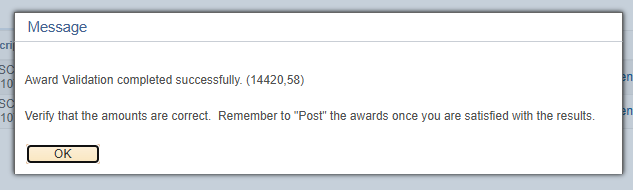
After clicking Validate, if the validation is successful, you will receive the following message, click 'Ok' to continue.
Once you have validated the amounts, a blue Disbursement button will appear at the end of each row. Click the button to verify that the disbursement is correct for each semester.

The following pop up will appear, showing how the award has been split. Since the split code was *EV, the amount will be split between the Fall and Spring semesters evenly. If you need to adjust this split, click the Custom Split box at the top. You will then be able to adjust the dollar amounts in the Offered and Accepted boxes. Once the adjustments are correct, click Ok.

Note: The disbursed column at the far right lets you know if the funds have been released or not. If there is a number in the column, that is how much has been disbursed. If the amount is 0.00, no funds have been disbursed for that semester.
Click Save at the bottom of the page and you are done!