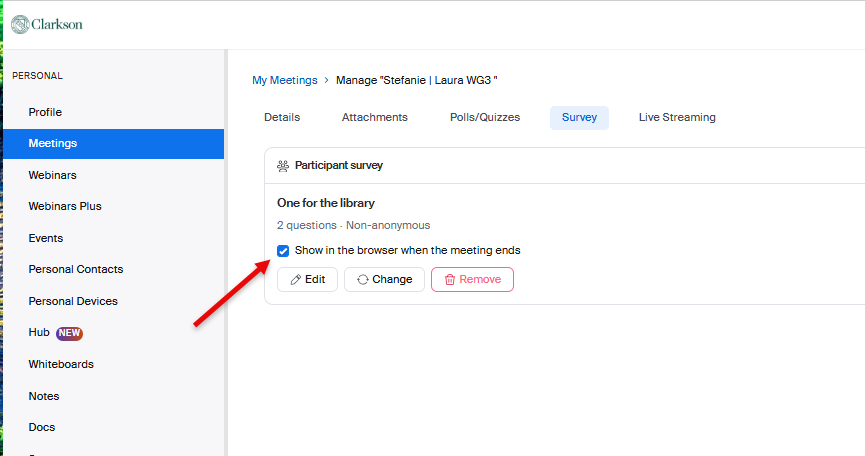
Zoom: Survey
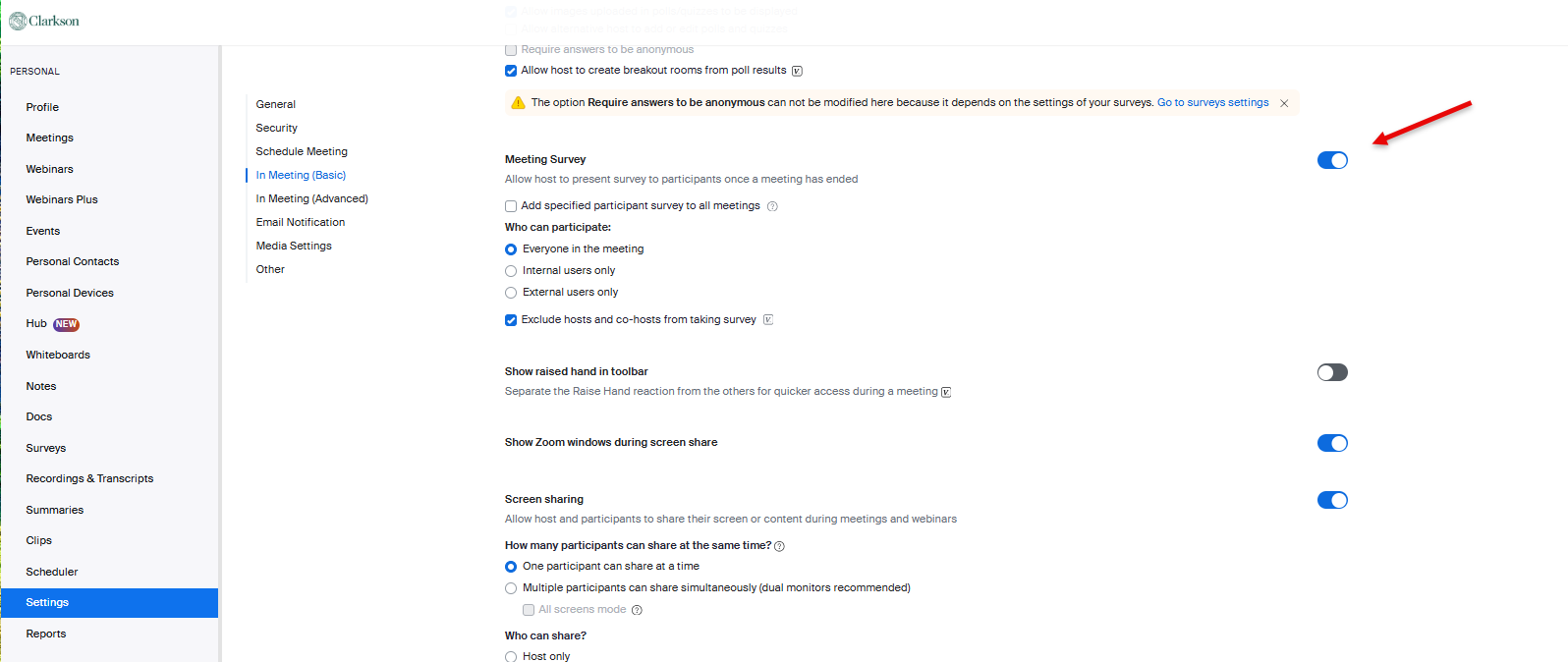
Step 1 - Turn Surveys on in Your Account:
In your account, go to Settings, Meeting, In Meeting (Basic). Locate Meeting Survey. Turn toggle on to allow host to present survey to participants once a meeting has ended. (Ctrl F Survey helps to locate this quickly)
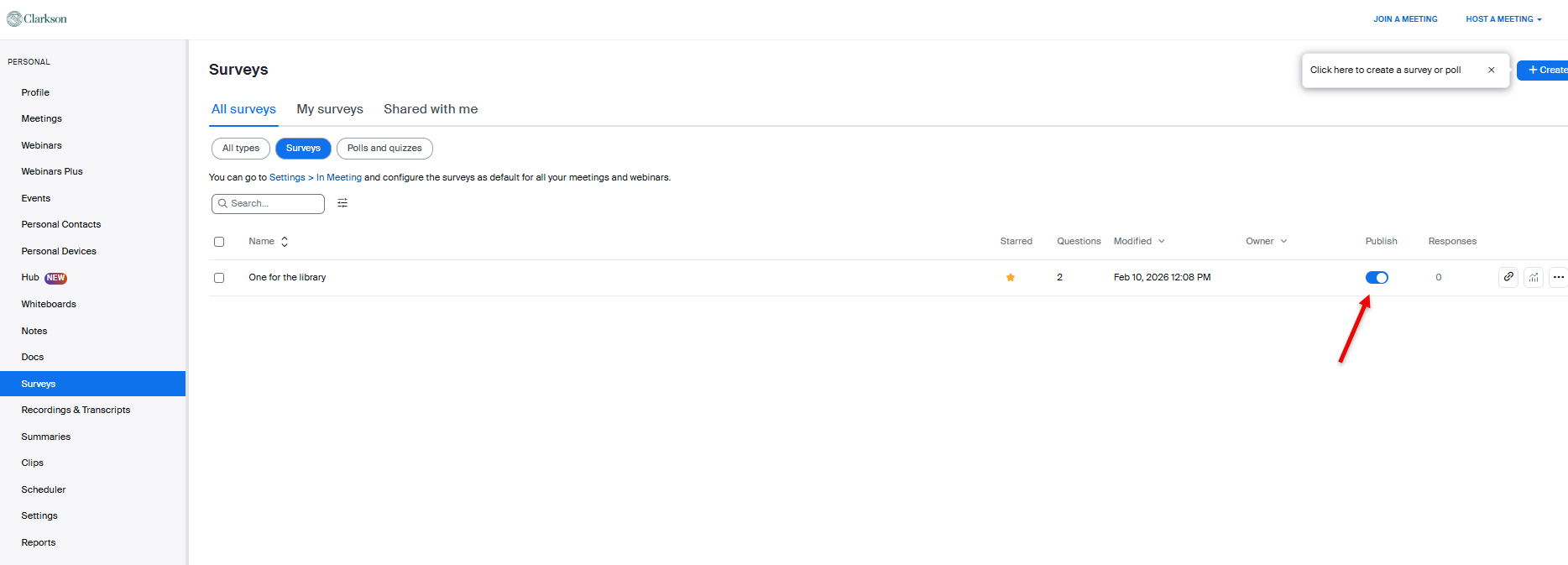
Step 2 - Create a Survey in Your Library
In your account, click the Surveys area. Create a survey in your library. Be sure to Publish.
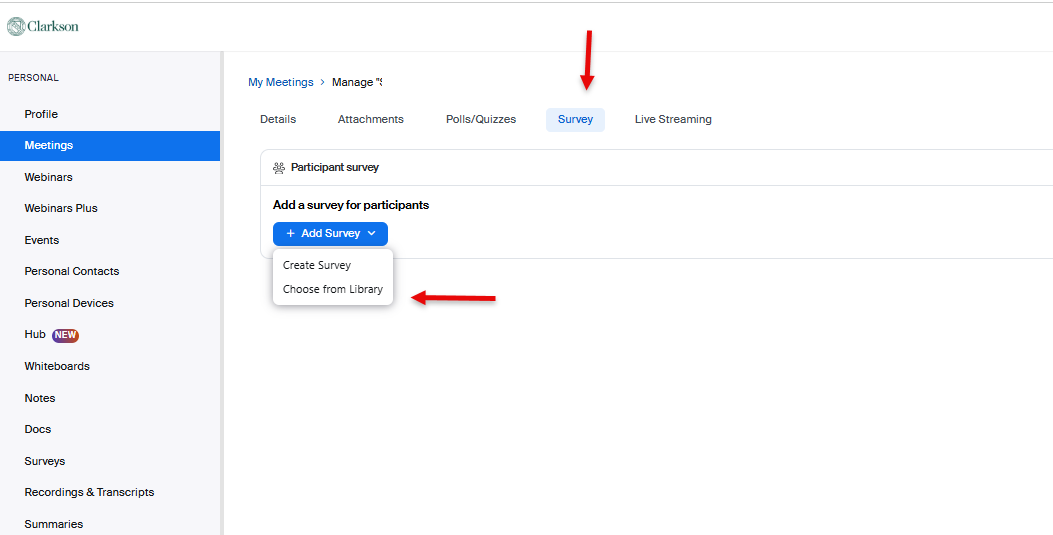
Step 3 - Add to a Meeting
Only works for your future meetings. Go to Meetings, select a future meeting, click into the meeting, go to the Survey tab, Add Survey, Choose from Library
Once you add the Survey, you can select/deselect to show in the browser when the meeting ends.