
eduroam is secure WiFi for Clarkson Campus Community
SummaryWiFi at Clarkson University:

Clarkson Students / Faculty / Staff connect to eduroam WiFi:
Set-up eduroam WiFi on your device ANYTIME before or after you arrive on campus:
-
- Use your laptop, smart phone or other wireless device you wish to connect to eduroam WiFi.
- To set up, simply download the eduroam Configuration Assistant Tool (CAT) or get geteduroam app, launch the installer and complete the prompts.
-
- When prompted for username, you must provide Clarkson email (username@clarkson.edu) and password when prompted for username.
-
Click to access installation links and steps:
Guests use public WiFi with ClarksonGuest
The ClarksonGuest network is available with no authentication for general and guest network access. However performance on this network will be limited, and since it is open, it is NOT considered secure. Only use this network to connect to eduroam CAT, or if your device cannot use eduroam.
Guest and General Access
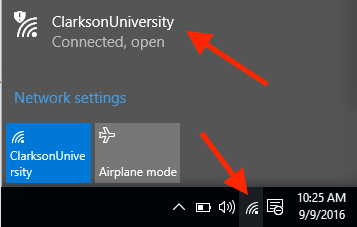
Turn on Wi-Fi and connect to the network (SSID) ClarksonUniversity.

Seek Further Assistance
For additional assistance please contact, Clarkson OIT Help Desk;
Online: Get Help
Email: helpdesk@clarkson.edu
Call: 315-268-HELP (x4357)
Pro Tip : The CAT (Configuration Assistant Tool) is required in order to connect to eduroam. This allows eduroam to install the certificates needed to validate the eduroam SSID and authentication servers.
eduroam Configuration Assistant Tool (CAT):
Download eduroam CAT here or scan QR code below:

Pro Tip #2: You must provide your username as: username@clarkson.edu when prompted. If you do not include @clarkson.edu, eduroam will not work. This is because eduroam has more participants than just Clarkson, so it needs to know which university to authenticate against.

Pro Tip #3: Be VERY CAREFUL entering your password! An incorrect password here may repeatedly lock your Clarkson accounts until you remove and re-install eduroam with the correct password. Copy-paste from your password manager if you use one.
You are now connected to eduroam!
Eduroam will appear as a WiFi network option on your device's settings and it will choose eduroam as the default network whenever it is available.