Feature: Faculty/Advising Portal - My Advising Circle
Goal
ThisThe isMy Advising Circle view in the Faculty & Advising Portal allows a user documentationto monitor all of the participants in a program or group that they oversee from one view. It also also quick access to a list of all group members with active alerts.
Steps
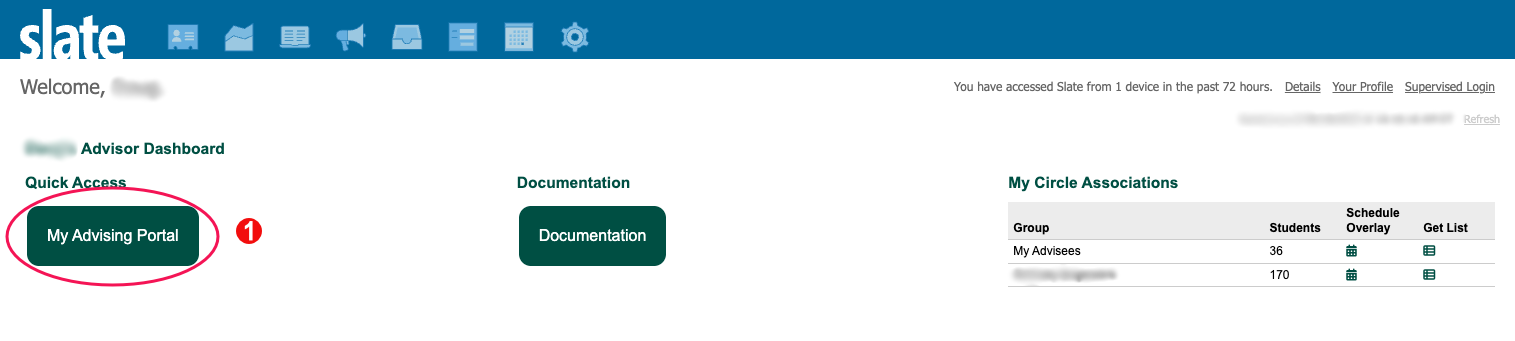
After logging into Slate, click on the
featureMy "Faculty/Advising
Portal"Portal link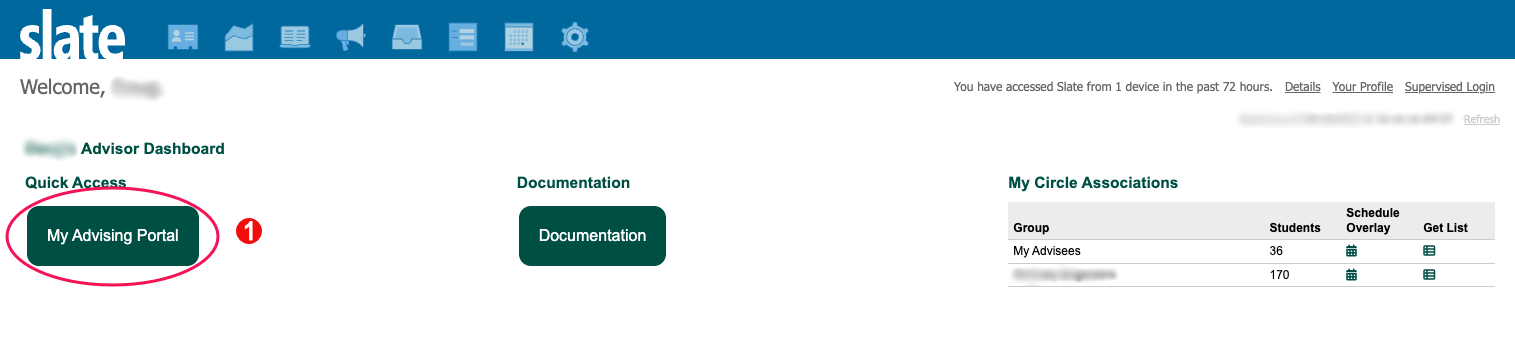 Select the My Advising Circle - Active Alerts navigation button at the top of the screen. This will bring up your caseload of students with active alerts.
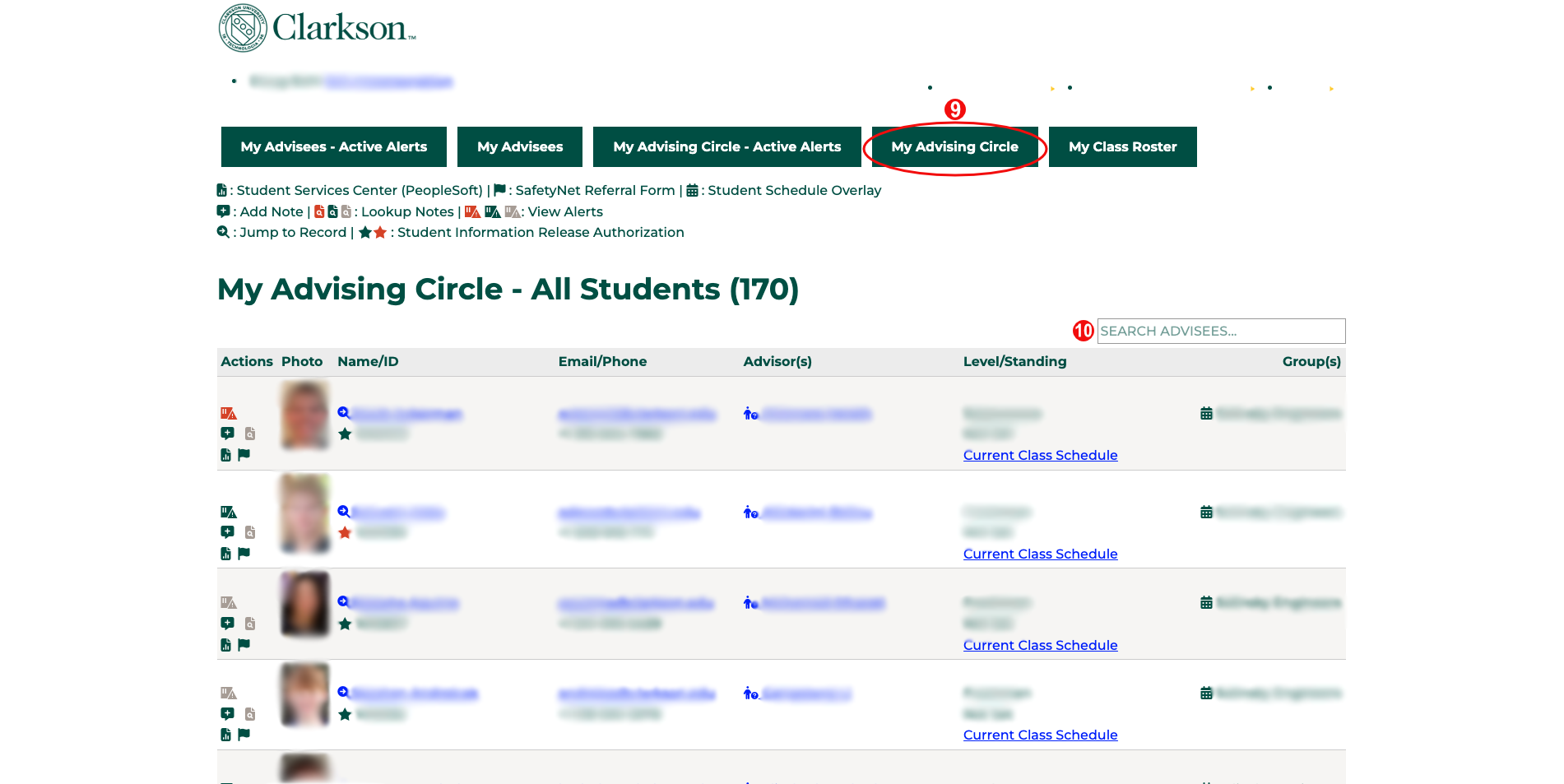
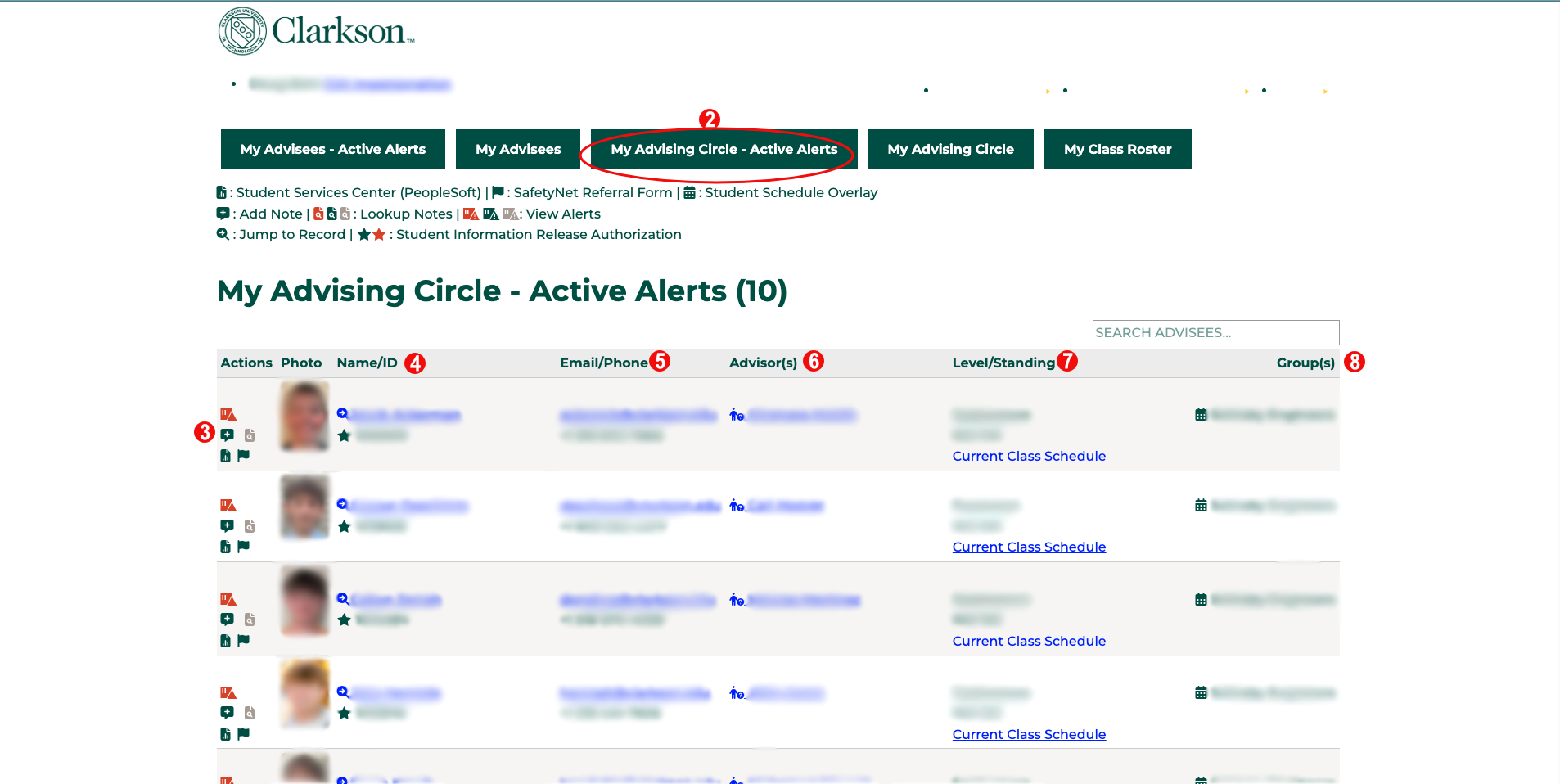 In the left column are buttons for actions you can take. A key for the meaning of these icons is at the top of the page below the navigation buttons. The top three are actions you can take on the student record:
View Alerts: information about alerts can be found at Feature: Alerts
Add Note: instructions for adding an advising note can be found at Feature: Advising Notes
Lookup Notes: view a listing of all advising notes on the student's record
Student Services Center: opens a opens the student's record
In the left column are buttons for actions you can take. A key for the meaning of these icons is at the top of the page below the navigation buttons. The top three are actions you can take on the student record:
View Alerts: information about alerts can be found at Feature: Alerts
Add Note: instructions for adding an advising note can be found at Feature: Advising Notes
Lookup Notes: view a listing of all advising notes on the student's record
Student Services Center: opens a opens the student's record in
Slate.the PeopleSoft Student Services Center in a popup window
SafetyNet Referral Form: opens a new window to submit a SafetyNet referral
Clicking on the student's name will take you to their record in Slate
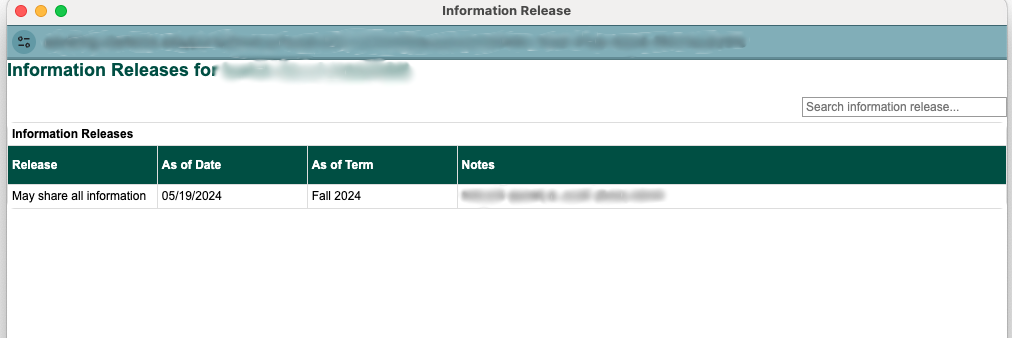
Below the student's name is an indicator for their Student Information Release Authorization. A green star means students have given permission to share information, a red star means they have not. Clicking on this will bring up a box with details about who student information may be shared with.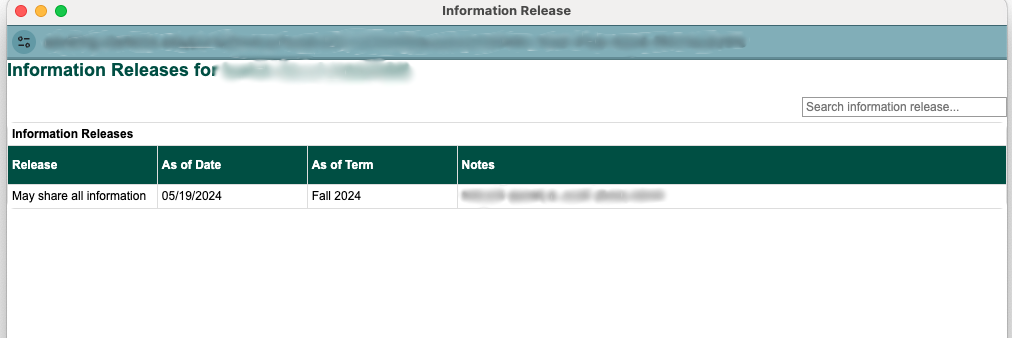 Clicking on the student's email address will bring up a popup allowing you to email the student directly
This email will be visible on the student's timeline, able to be viewed by anyone who has access to the system. With this in mind, do not share any private or sensitive information through this Slate email.
Any replies from the student to this message will be sent directly to your Gmail inbox.
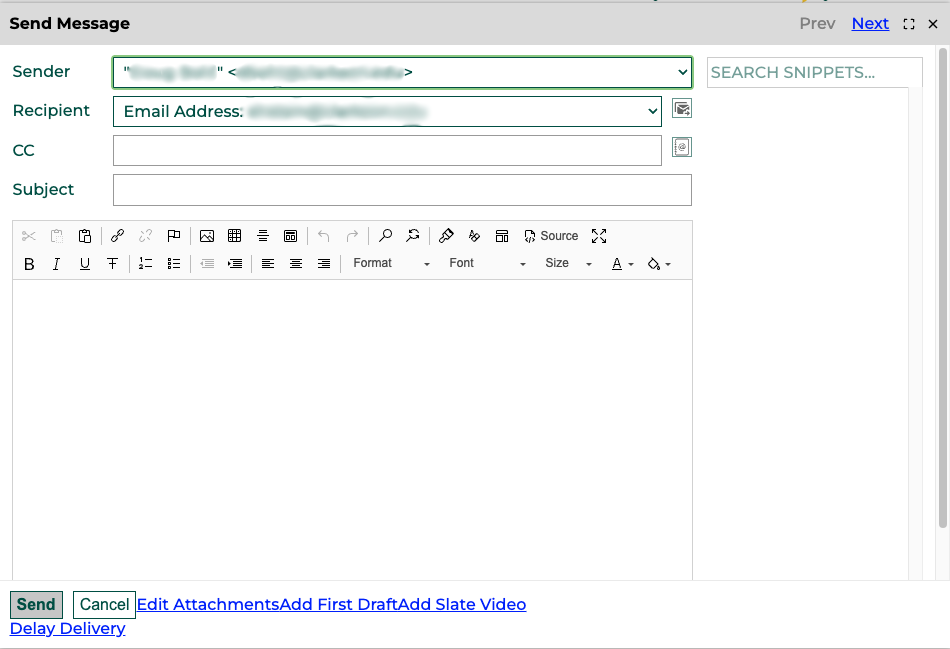
Clicking on the student's email address will bring up a popup allowing you to email the student directly
This email will be visible on the student's timeline, able to be viewed by anyone who has access to the system. With this in mind, do not share any private or sensitive information through this Slate email.
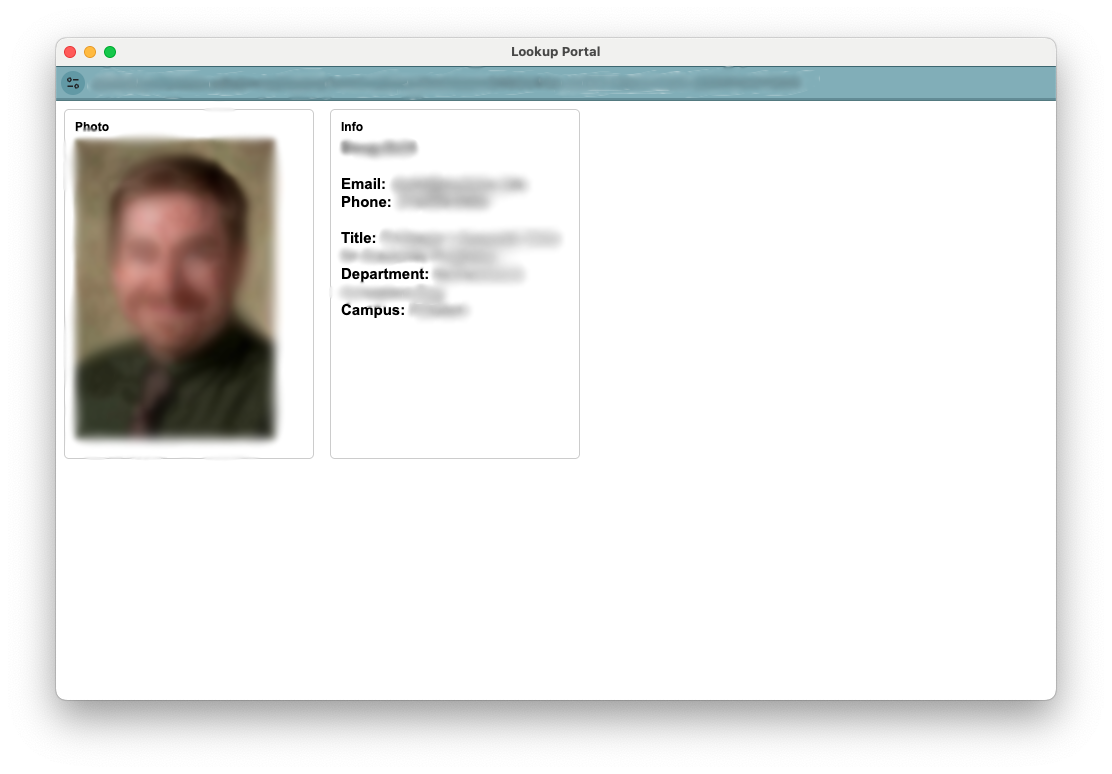
Any replies from the student to this message will be sent directly to your Gmail inbox.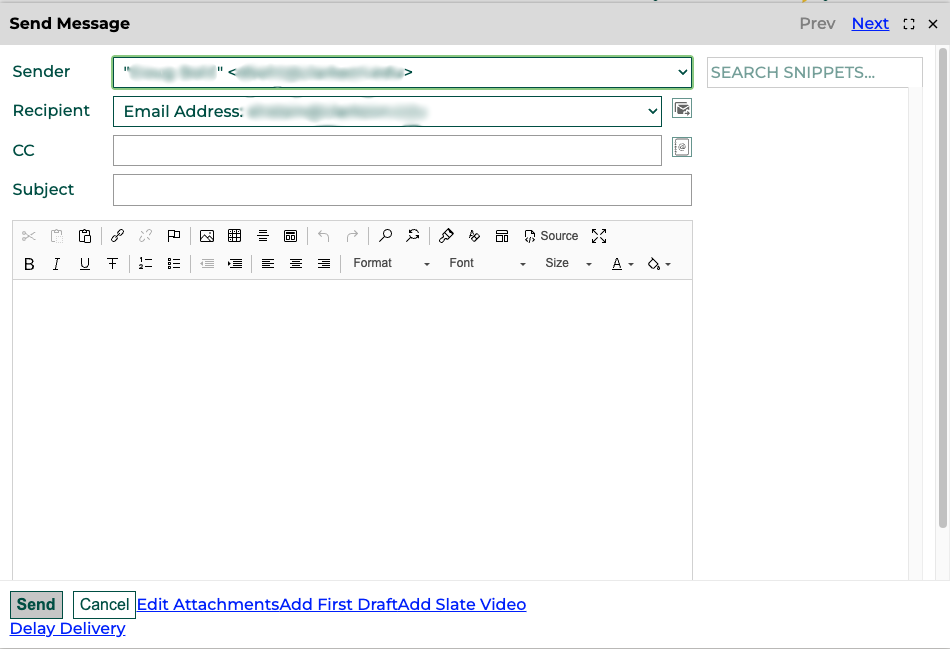 To see information about any academic advisor(s) that the student has, click on the advisors name.
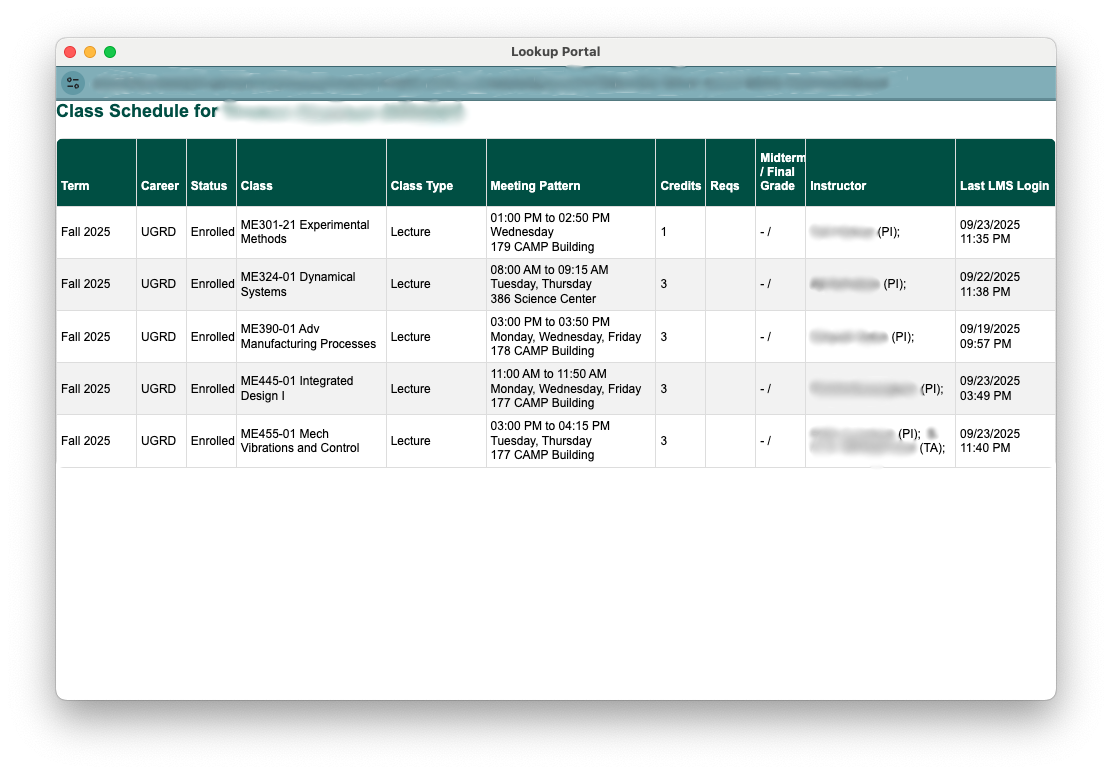
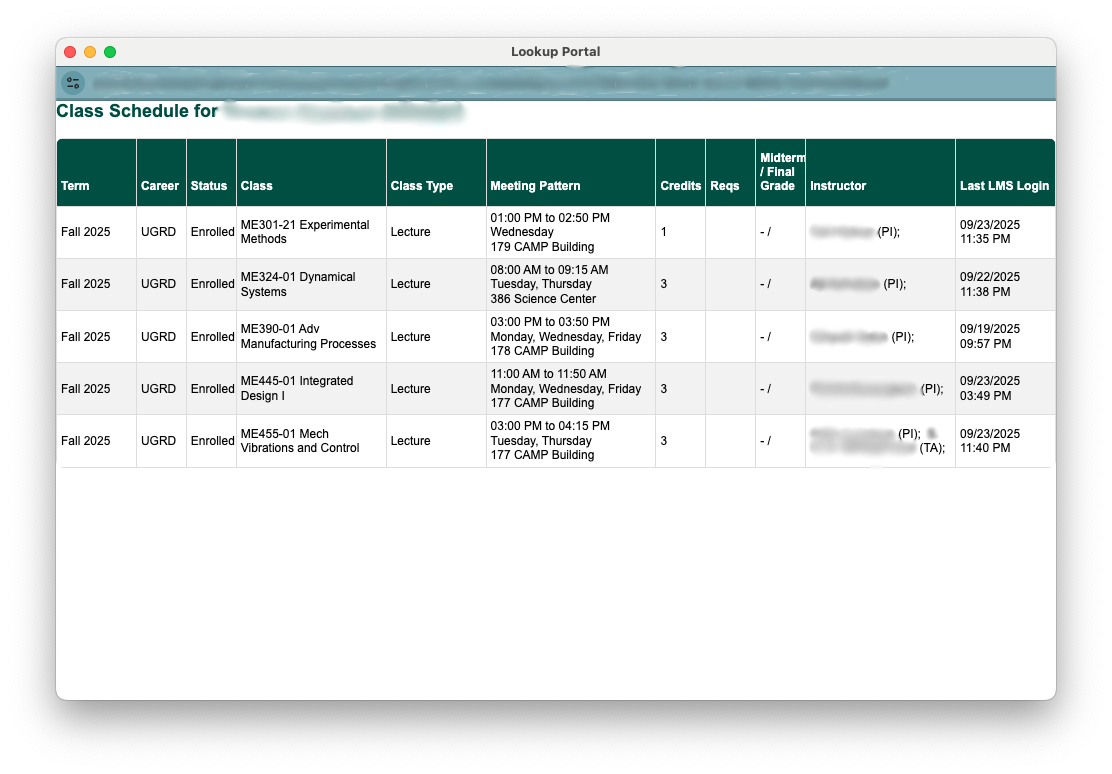
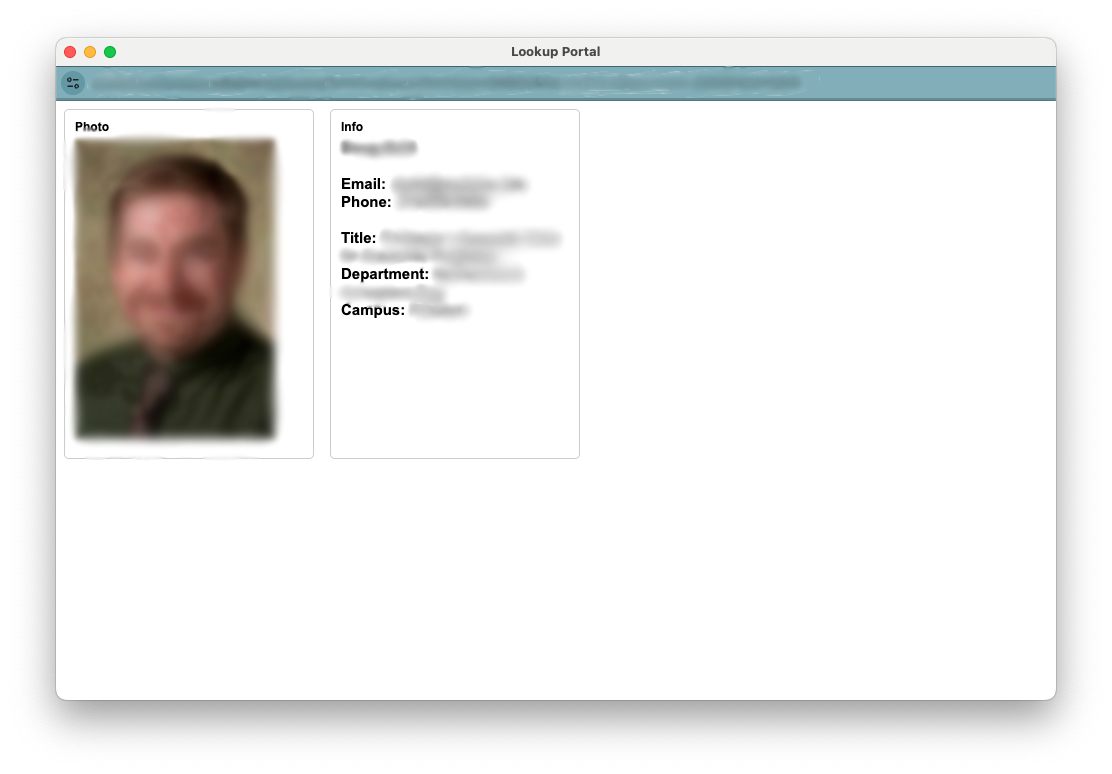 The student's level and current academic standing are displayed. Clicking on the Current Class Schedule link will open a popup with information about the student's current classes.
 The final column shows the group(s) that the student is in that adds them to your advising circle.
Clicking on the calendar icon next to the group name will bring up a class calendar overlay of all students in that particular group. You can learn more about the schedule overlay at Feature: Class Schedule Overlay
To see a list of all members of your advising circle, click on the My Advising Circle navigation button at the top of the screen
All actions and information will be identical to those in the My Advising Circle - Active alerts view.
The final column shows the group(s) that the student is in that adds them to your advising circle.
Clicking on the calendar icon next to the group name will bring up a class calendar overlay of all students in that particular group. You can learn more about the schedule overlay at Feature: Class Schedule Overlay
To see a list of all members of your advising circle, click on the My Advising Circle navigation button at the top of the screen
All actions and information will be identical to those in the My Advising Circle - Active alerts view.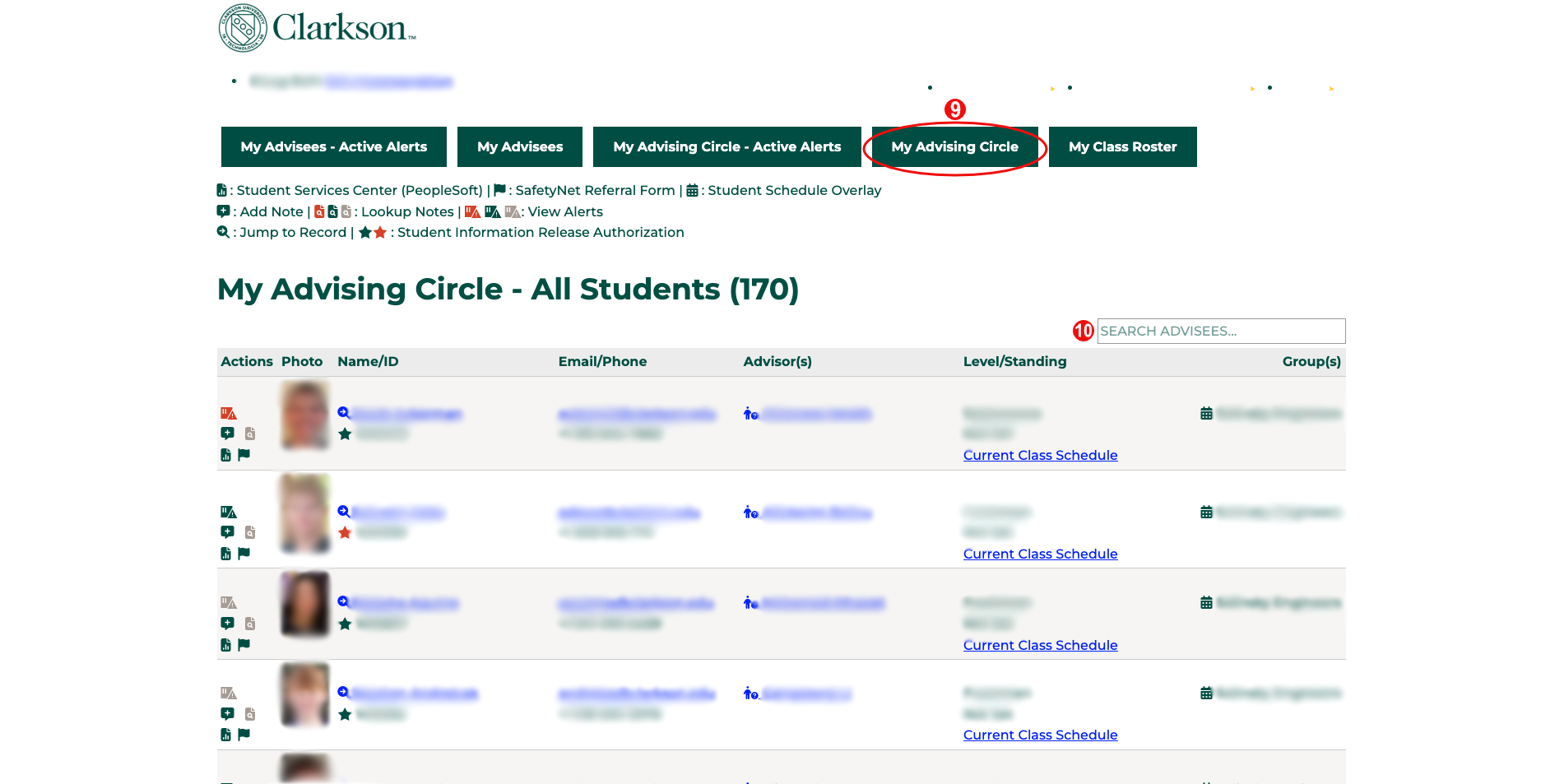 All screens are searchable
Any text that is displayed on the screen (name, standing, level etc.) can be searched
You can search for multiple elements (ex: sophomores with a specific advisor) as well
All screens are searchable
Any text that is displayed on the screen (name, standing, level etc.) can be searched
You can search for multiple elements (ex: sophomores with a specific advisor) as well
Automatic Notifications
There are no automatic notification as part of this process.
Automation Notes
Are there automations happening in the system when something from this feature is submitted or updated? This might need to be updated by the Slate Developer for the feature.

 Select the My Advising Circle - Active Alerts navigation button at the top of the screen. This will bring up your caseload of students with active alerts.
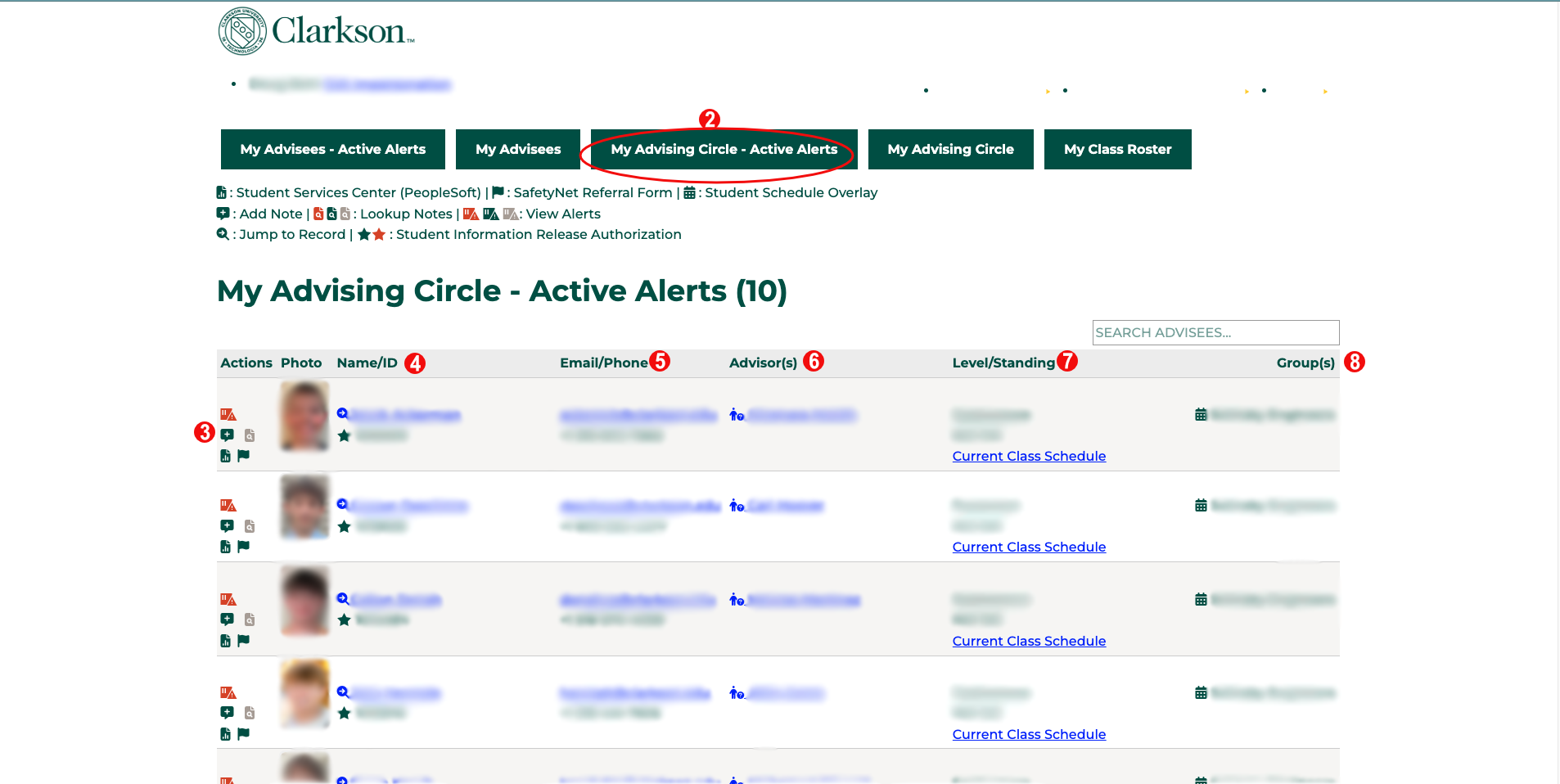 In the left column are buttons for actions you can take. A key for the meaning of these icons is at the top of the page below the navigation buttons. The top three are actions you can take on the student record:
 Clicking on the student's email address will bring up a popup allowing you to email the student directly
 To see information about any academic advisor(s) that the student has, click on the advisors name.
 The student's level and current academic standing are displayed. Clicking on the Current Class Schedule link will open a popup with information about the student's current classes.
 The final column shows the group(s) that the student is in that adds them to your advising circle.
 All screens are searchable