
Feature: Faculty/Advising Portal - My Advisees
Goal
ThisThe isMy Advisees view in the userFaculty documentation& Advising Portal allows an academic advisor to monitor all of their direct advisees from one view. It also also quick access to a list of all advisees with active alerts.
Steps
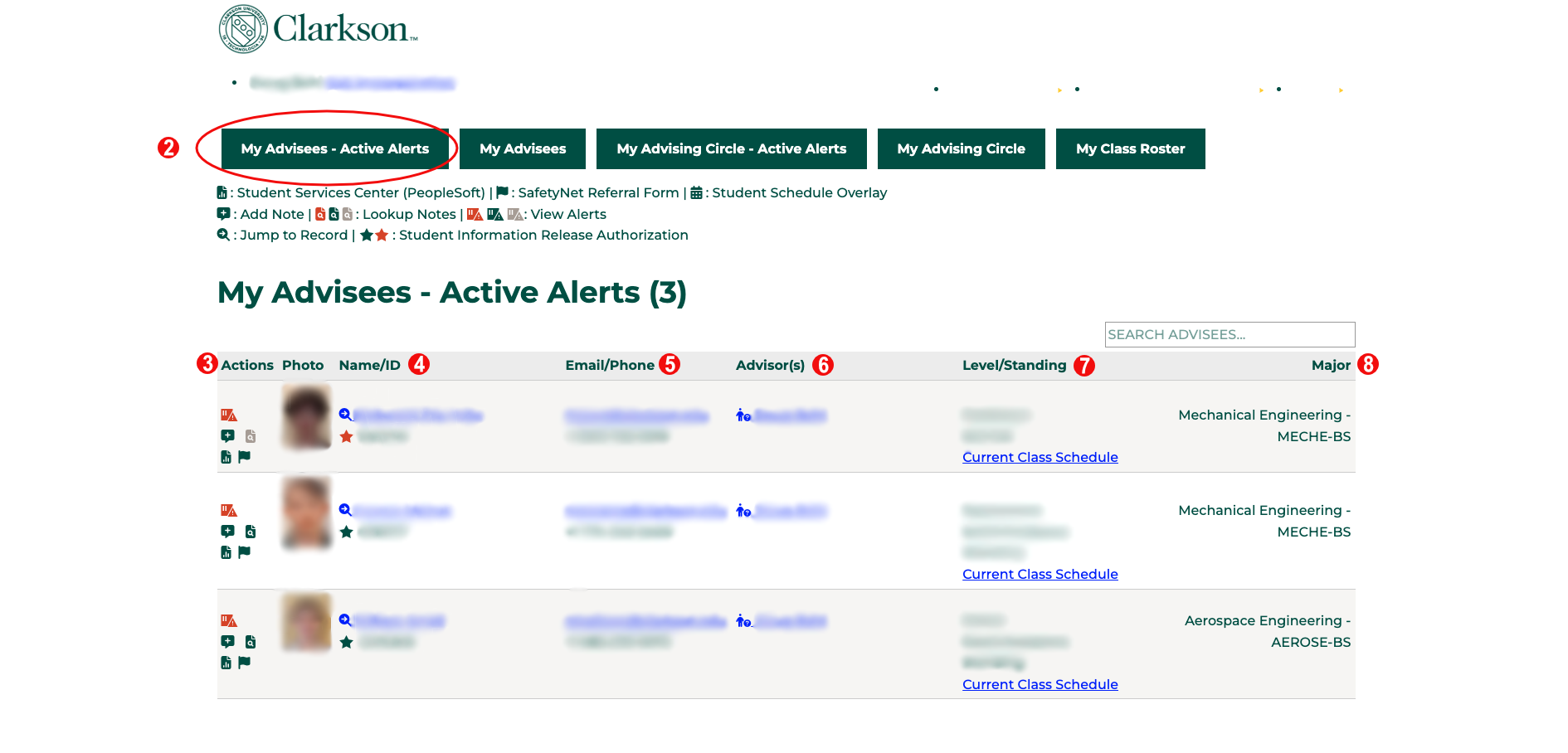
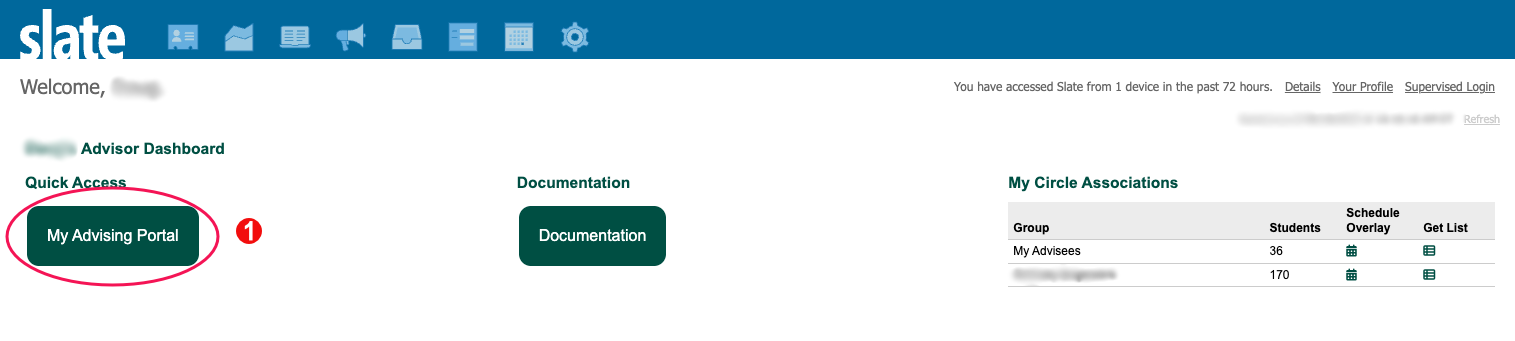 Select the My Advisees - Active Alerts navigation button at the top of the screen. This will bring up your caseload of students with active alerts.
In the left column are buttons for actions you can take. A key for the meaning of these icons is at the top of the page below the navigation buttons. The top three are actions you can take on the student record:
Select the My Advisees - Active Alerts navigation button at the top of the screen. This will bring up your caseload of students with active alerts.
In the left column are buttons for actions you can take. A key for the meaning of these icons is at the top of the page below the navigation buttons. The top three are actions you can take on the student record:
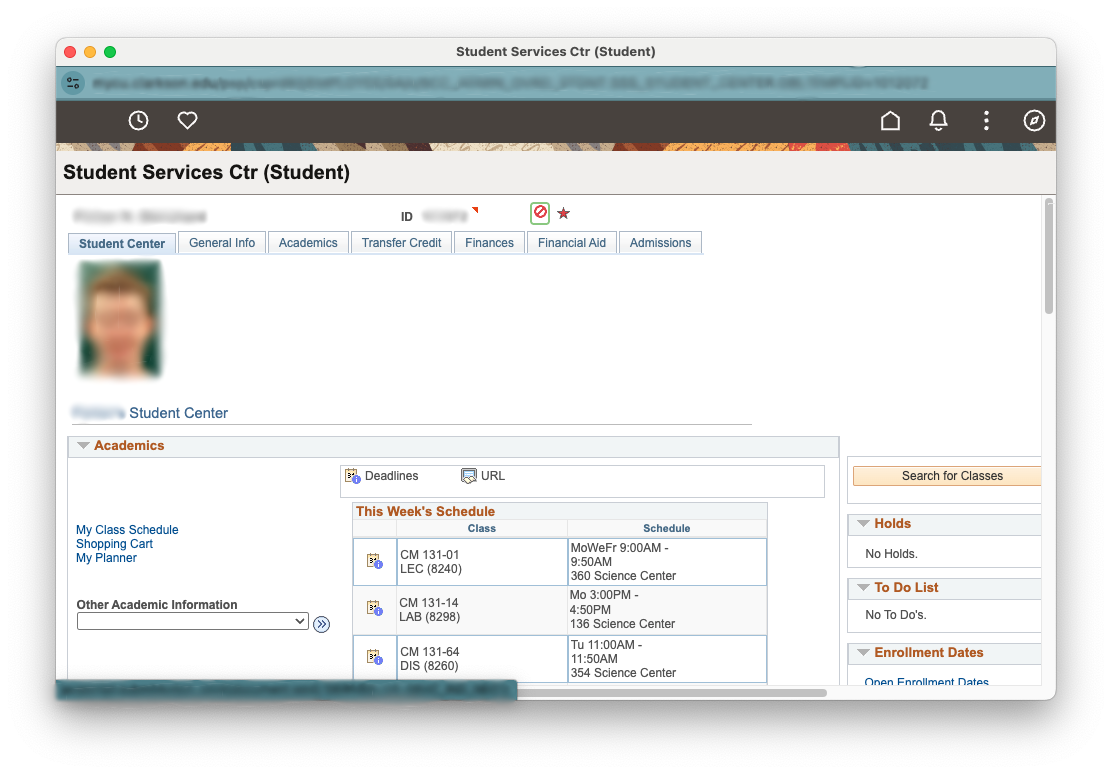 SafetyNet Referral Form: opens a new window to submit a SafetyNet referral
Clicking on the student's name will take you to their record in Slate
SafetyNet Referral Form: opens a new window to submit a SafetyNet referral
Clicking on the student's name will take you to their record in Slate
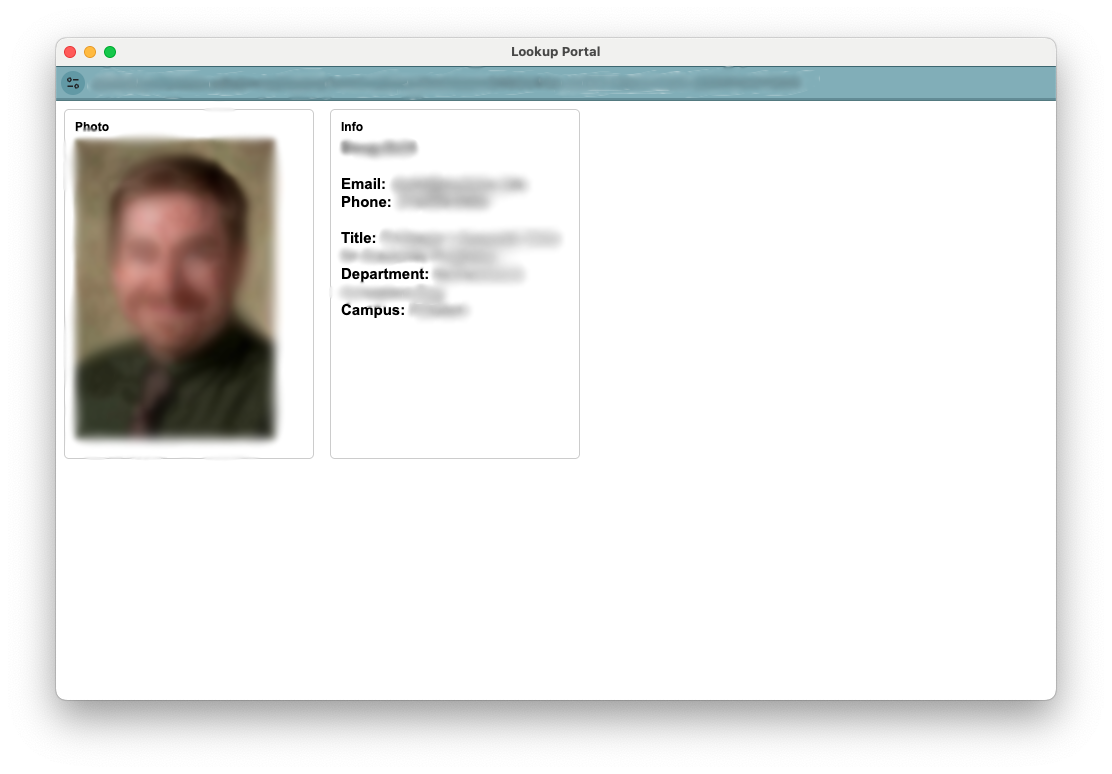
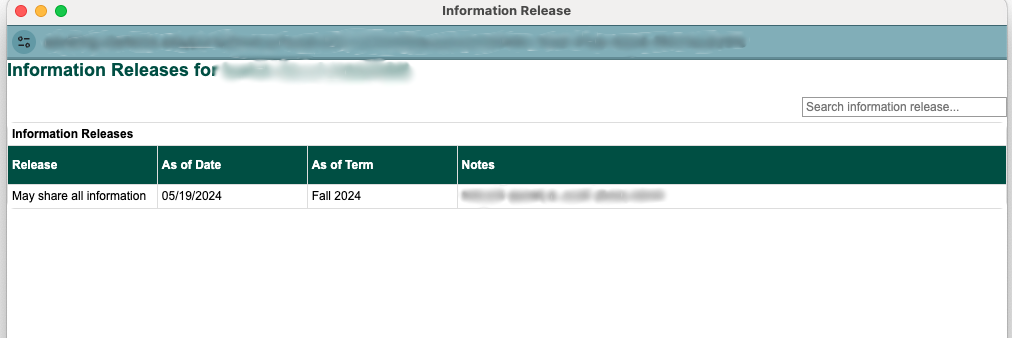 Clicking on the student's email address will bring up a popup allowing you to email the student directly
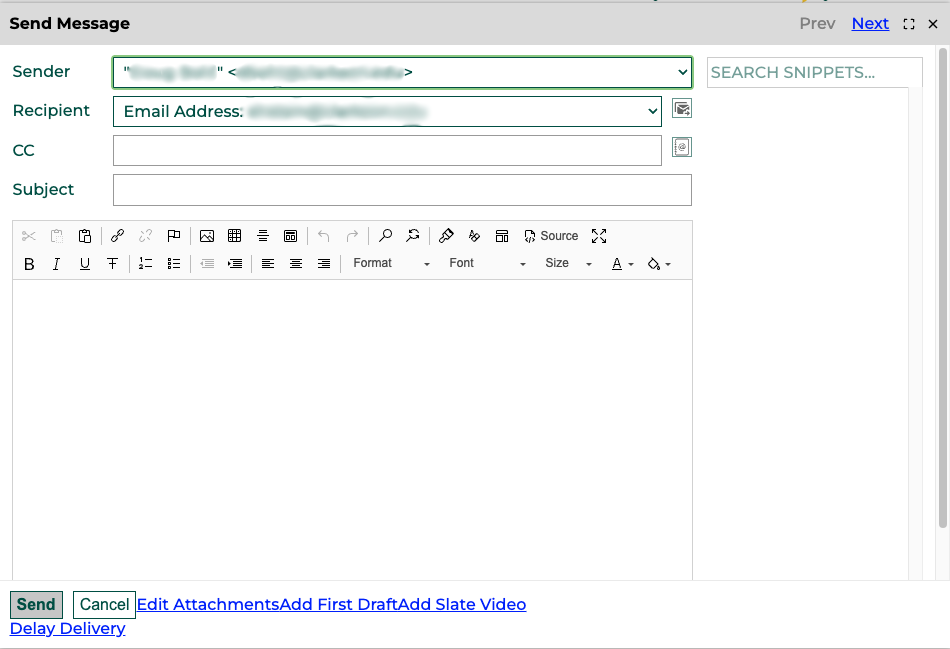 To see information about any advisor (besides yourself) that the student has, click on the advisors name.
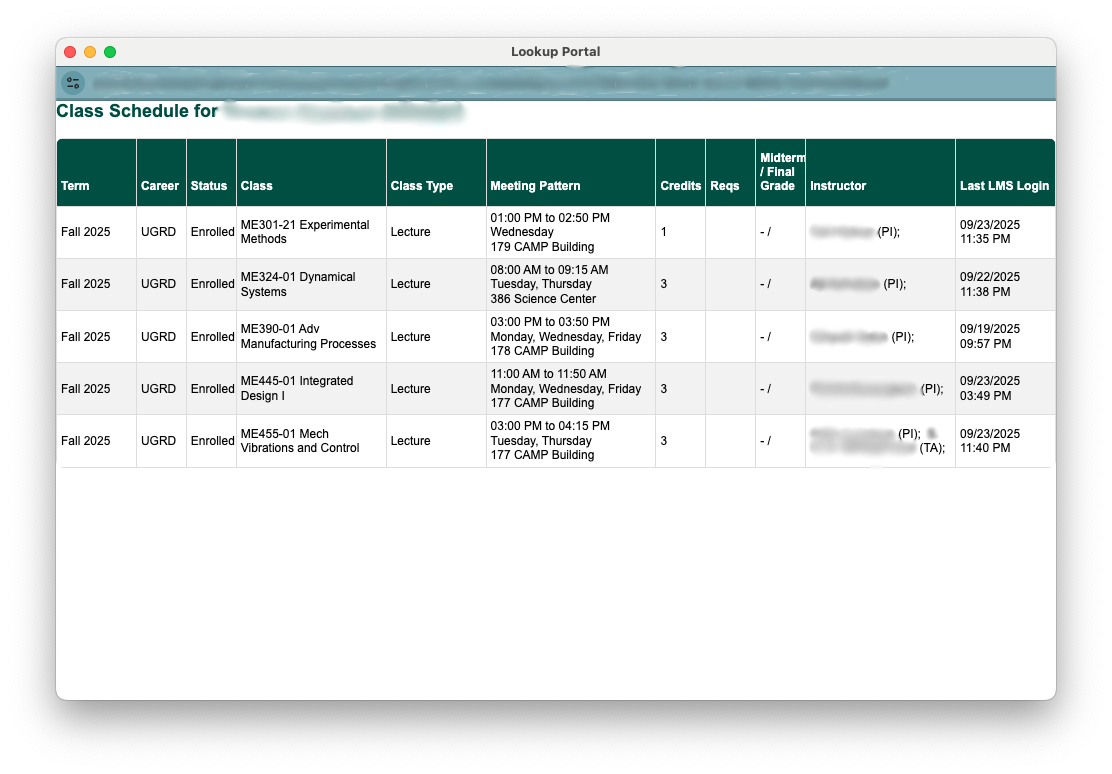
 The student's level and current academic standing are displayed. Clicking on the Current Class Schedule link will open a popup with information about the student's current classes.
 The final column shows information about the student's major(s). These are shown both with the full title and the major code.
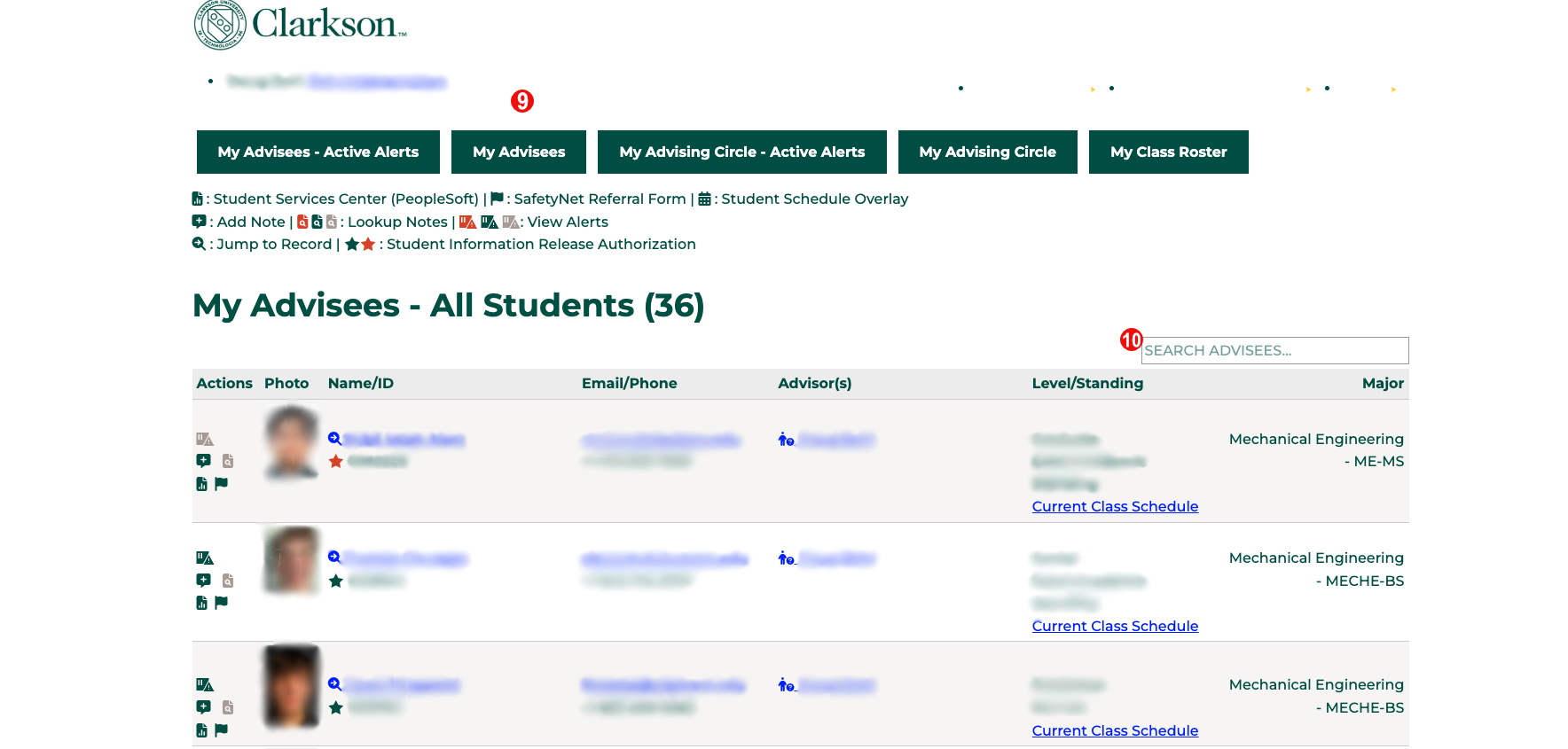
 To see a list of all advisees, click on the My Advisees navigation button at the top of the screen
Automatic Notifications
There are no automatic notification as part of this process.
Automation Notes
Are there automations happening in the system when something from this feature is submitted or updated? This might need to be updated by the Slate Developer for the feature.