
Salary / Wage Detail - Project / Grant
-
Select the Budget Management homepage

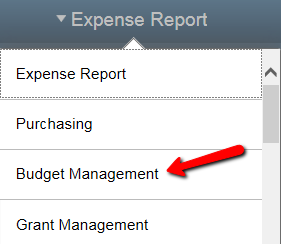
 Choose the Query Viewer tile
**  **
**
-
Enter the beginning of the Query Name, hit Search
-
Click on Favorite to add this/these as a favorite query

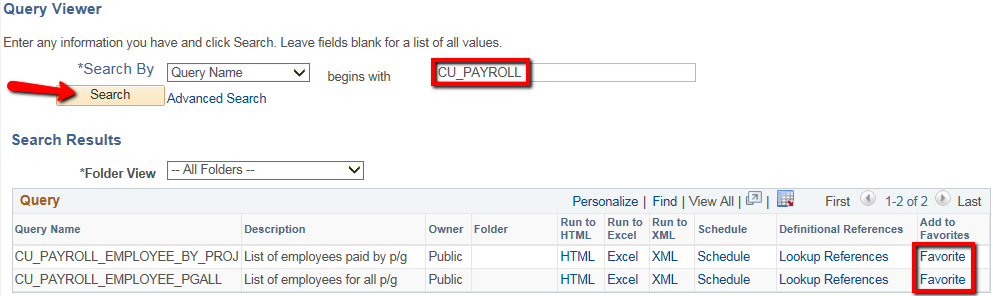
CU_PAYROLL_EMPLOYEE_BY_PROJ will display the payroll information for a specific project/grant number
CU_PAYROLL_EMPLOYEE_PGALL will display the payroll information for all the projects/grants you have the ability to access
-
Choose HTML to run the query to your screen or Excel to download the query


-
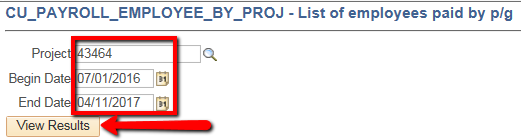
If prompted, complete the following fields:Enter a Project / Grant
Enter a Journal From Date and Journal To Date
Hit View Results
You may encounter a pop-up blocker when trying to execute a query. 
 Choose
If prompted, complete the following fields:
Enter a Project / Grant
Enter a Journal From Date and Journal To Date
Hit View Results
**  **
**
The resulting screen should look similar to this example.

-
The journal dates can be entered several different ways:
-
Using the calendar icon

 to select the dates
 -
Using slashes


-
Entering all the digits (including zeros) without slashes


-
You can use a "t" as a shortcut for today's date
-


-
If you chose HTML, you can still opt to download the results to Excel using the Excel Spreadsheet hyperlink
Missing Access? Have Questions? Contact Controllers_Office@clarkson.edu