
Text Editor Toolbar Preferences
Summary
Moodle users may choose to customize their text editor options to their preferences. The features of each editor are nuanced to give you the option of displaying text and symbols in various ways, so it is helpful to try out the options before settling on a favorite. For example, TinyMCEthe HTMLAtto editor (legacy)now allows you to change font, font size,color font color,and highlight, etc,TinyMCE quiteis similarcurrently tothe Word; TinyMCEdefault is popular for its powerful text and numeric editing abilities. AttoIf editoryou (default)want doesto notuse havecolor, switch the colorDefault option.to Atto as shown below:
Please note: Sometimes color can be appropriate for emphasis. If you use color in your course, just be careful how you use it, because not everyone can see color. To learn more about the use of color on the web, review this WebAim article on colorblindness.
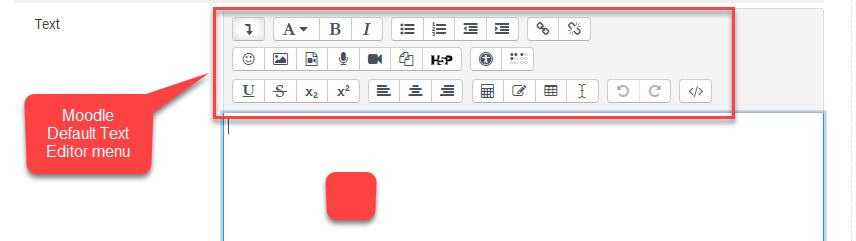
Example: Moodle Default Text Editor Expaned (Atto)
This Guide Will Help You to:
- Set your preferences on the Text Editor Toolbar in Moodle
Step-by-step guide to switch editors
- Go to the top right of your Moodle Dashboard, click your profile (person icon).
- Click Preferences, and then choose Editor Preferences from the User account menu on the left.
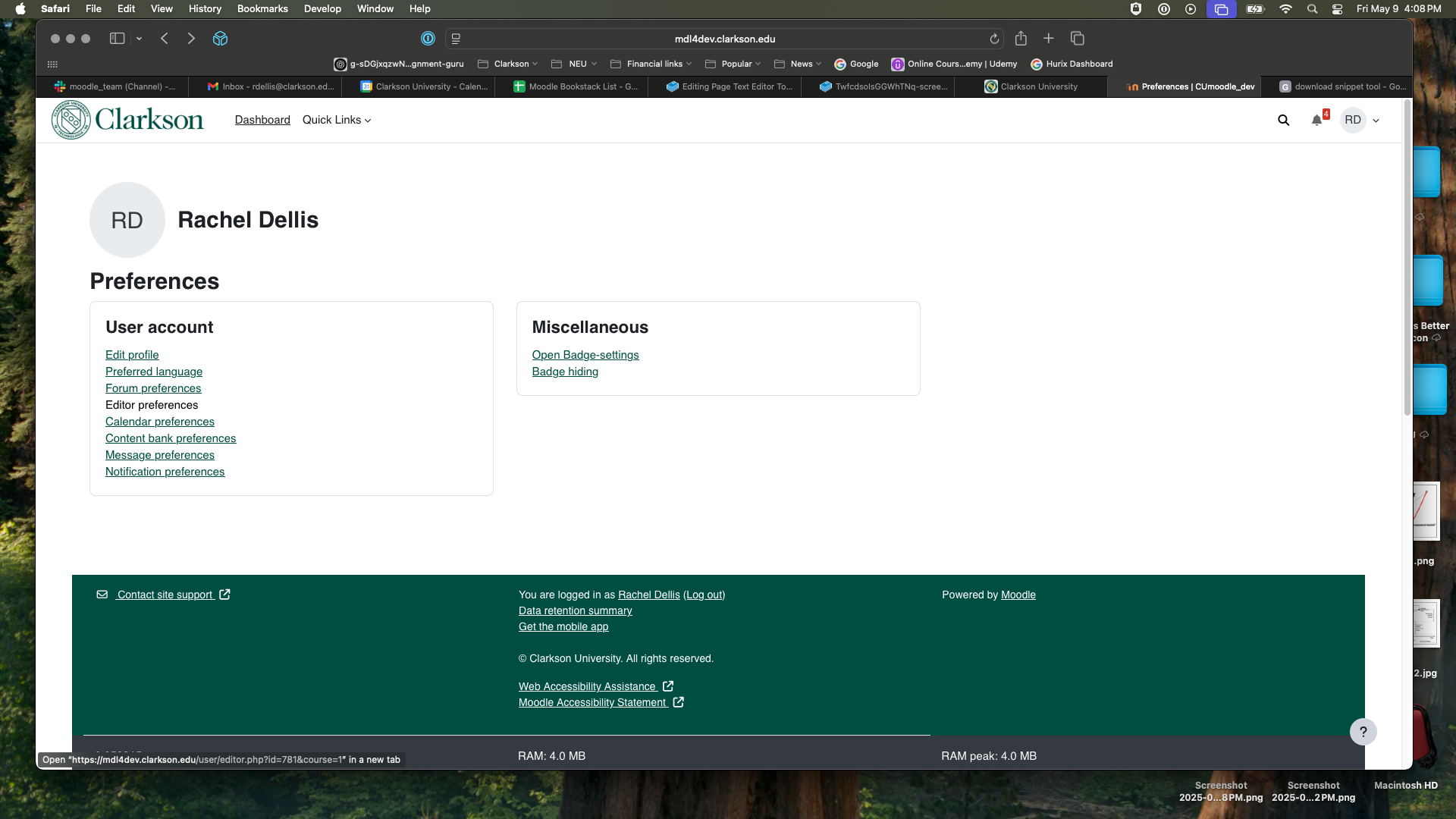
3. Click on the drop-down menu to choose the editor you wish to use and click Save changes.

Seek Further Assistance
For additional assistance please contact, Clarkson OIT Help Desk;
Online: Get Help
Email: helpdesk@clarkson.edu
Call: 315-268-HELP (x4357)