Start a Quality Matters Self-Review using the CRMS
If you would like to start a Quality Matters Self-Review using the Course Review Management System (CRMS), follow the instructions below.
Step-by-step guide
To start a Quality Matters Self-Review using the CRMS:
- Go to MyQM and
login.login to your account. - Choose Higher Education

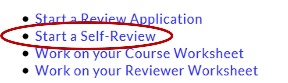
 Select Start a Self-Review.
 Enter the Review Title (course) and work on the self-review.
At the end of each General Standard section, there is a button to
 You can take as long as you'd like to work on your self-
To return to work on a self-review after it has been created:
- Go to MyQM and login.
- Choose Higher Education
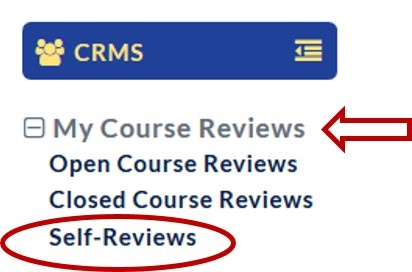
 Click My Course Reviews from the left and select Self-Reviews.