
Q & A Discussion Forum (2 types)
Moodle has two different discussion forum tools, and each has their own Q & A sub-type. It is important to understand how each functions before deciding which to use.
What is the difference? (read below for more details):
Forum Tool Q & A: Students are able to both make original post and see others' original posts all the time. Students cannot see other students' reply posts until they have posted at least one reply of their own.
Open Forum Tool Q & A: The instructor is the only one that can make an original post. All students must reply to the instructor's original post. They cannot see other student's reply posts until they have posted at least one reply of their own.
Forum Tool Q & A


In the Forum Tool Q & A, students are able to make a post by using the button Add a new question. This first type of post is called a question post. Any student can add a new question post at any time and all students can see all question posts. The question posts display stacked in order of post date/time.

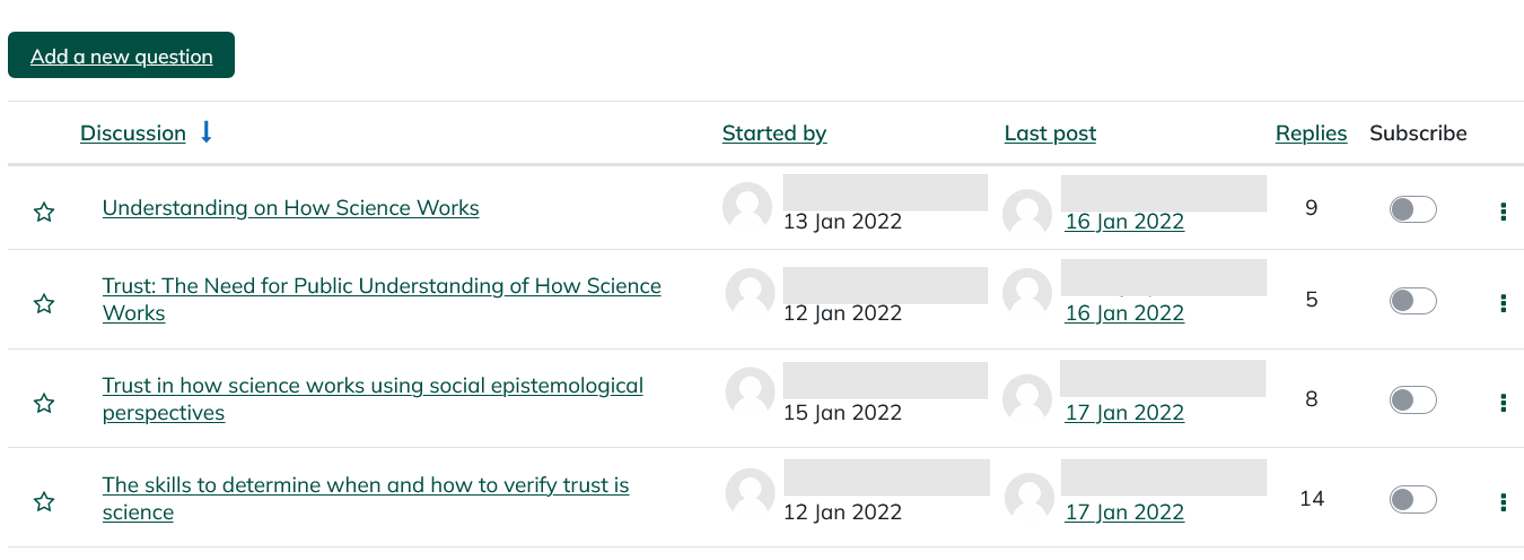
While any student can read any question post at any time, they cannot read any reply posts until they have posted their own question post. For example, if a student, had not posted a question post yet, they would be able to view the Understanding on How Science Works post in the screenshot above, but wouldn't be able to view any of the 9 replies. Upon clicking on the post, they could view the first post which is the question post, but would see the message below in place of the replies:




Once the student posts a new question post, they will be able to see reply posts for the entire discussion forum within 30 minutes.
Also note that with any of the Forum tool sub-types, they will not be linked to the gradebook so that grading can be done within the discussion itself and automatically transferred to the gradebook. Use the Open forum tool for transfer to the gradebook.
Step-by-step guide
- Create a forum by clicking
 .
.

- Choose
 .
. - Enter the Forum name and any Description that you would like, with Description being the instructions/prompt/question for the students.
- From the Forum type dropdown menu, choose Q & A forum.
- Edit any other settings that are needed for this forum (Grade, Restrict access, etc.).
- Click
 .
.



Students will now be able to make their question post by clicking  .
.
Open Forum Tool Q & A


In the Open Forum Q & A tool, only instructors with the Teacher role are able to make original posts. Students can only make replies to the instructor's original post(s). Students can only see replies from other students once they have posted a reply themselves first. When a student who has not yet replied clicks on the instructor's post, this is what they will see. Note that they receive a message at the top and bottom stating that they cannot see any other students' replies until they have replied at least once themselves. They only have the option to Reply to the instructor's post.

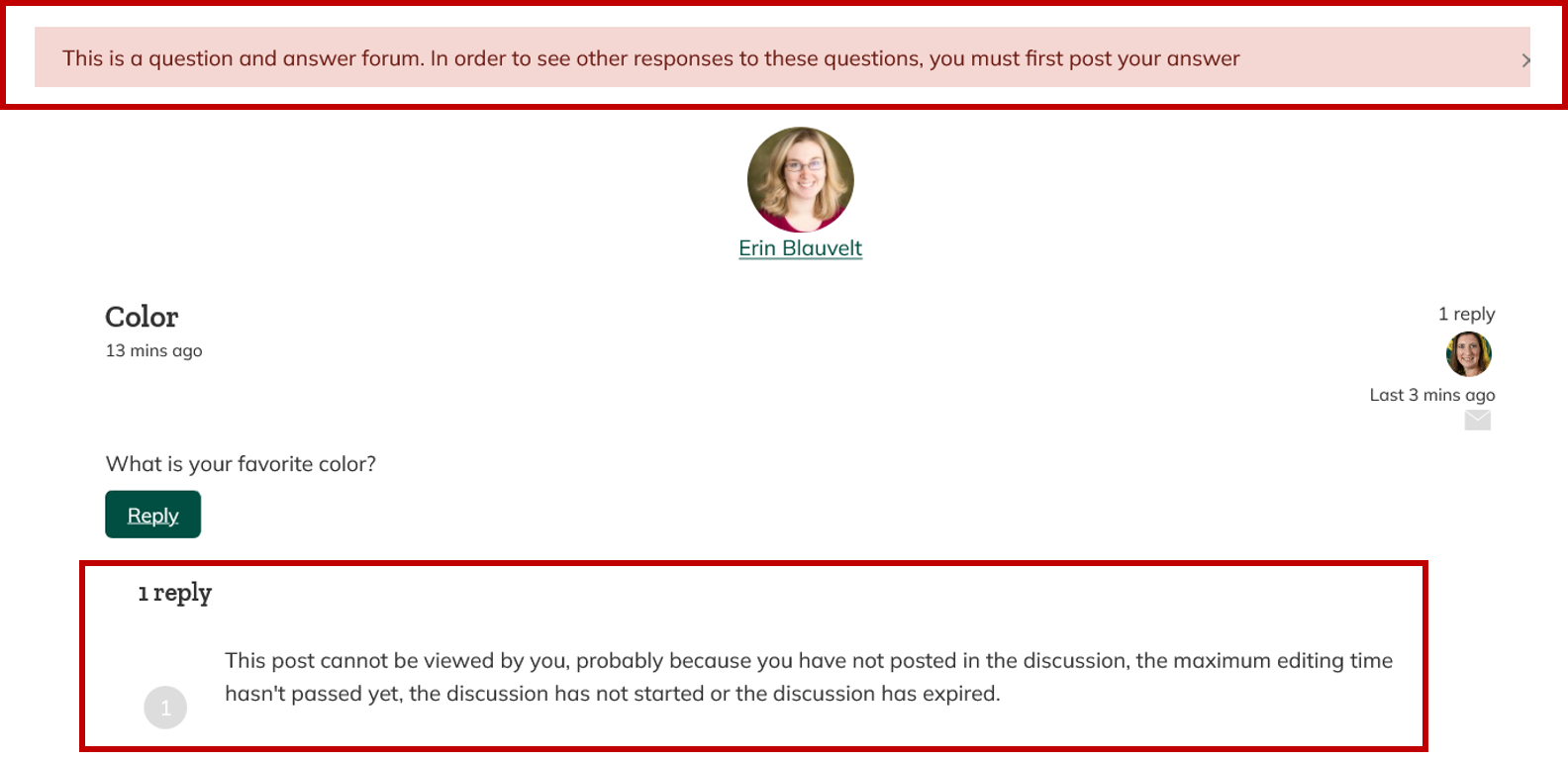
After posting a reply, the student will be able to view others' replies within 30 minutes.
Important: The instructor must post their discussion question or prompt before students can reply. If there is no discussion post by the instructor, students will see an empty discussion board with no button to post. The instructor must post first to begin the discussion. One way to get started is to make a list of your discussion questions and add them to each week at the start of the semester.
Step-by-step guide

- Create an open discussion forum by clicking .

- Choose .
- Enter the Forum name and any Description that you would like. Remember that you will be adding the first post to the discussion, so that may be where you want to place your actual discussion question or prompt.
- From the Forum type dropdown menu, choose Q & A forum.
- Edit any other settings that are needed for this forum (Grade, Restrict access, etc.).
- Click .

- In the discussion area, click
 .
.
- Copy & paste (or type) the title of the discussion forum into the Subject area of your post. (ex. Questions: Two Major Fuel Energy Concerns) Note: Use Ctrl Key + V key to paste in Moodle!
- Copy and paste, (or type) the text of the question into the description area. (ex. **Discuss the impact of the following on the use of coal for the generation of electric energy?)
- Click
 .
.




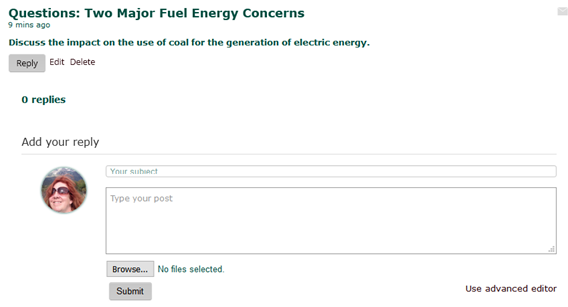
Students will now be able to reply to your post. Your post will look like the following to students:


Students can click on the Title of the forum (above) which is linked to the questions and an area for them to reply. They will see the following and enter their responses.

PDF Version of ADD A NEW DISCUSSION to a Q & A Forum
Want to know more? See this article about using Open Forum in Moodle from Open LMS