
Releasing Grades from Blind Grading
This article will go through how to turn off Blind Grading. Blind Grading is used to hide the identity of students to graders. Some instructors may accidentally turn this setting on, which will lead to the assignment grade not showing up in the gradebook. To make grades appear in the grade book, changes will need to be applied in the gradebook.
Steps
Is Blind Grading Turned on?
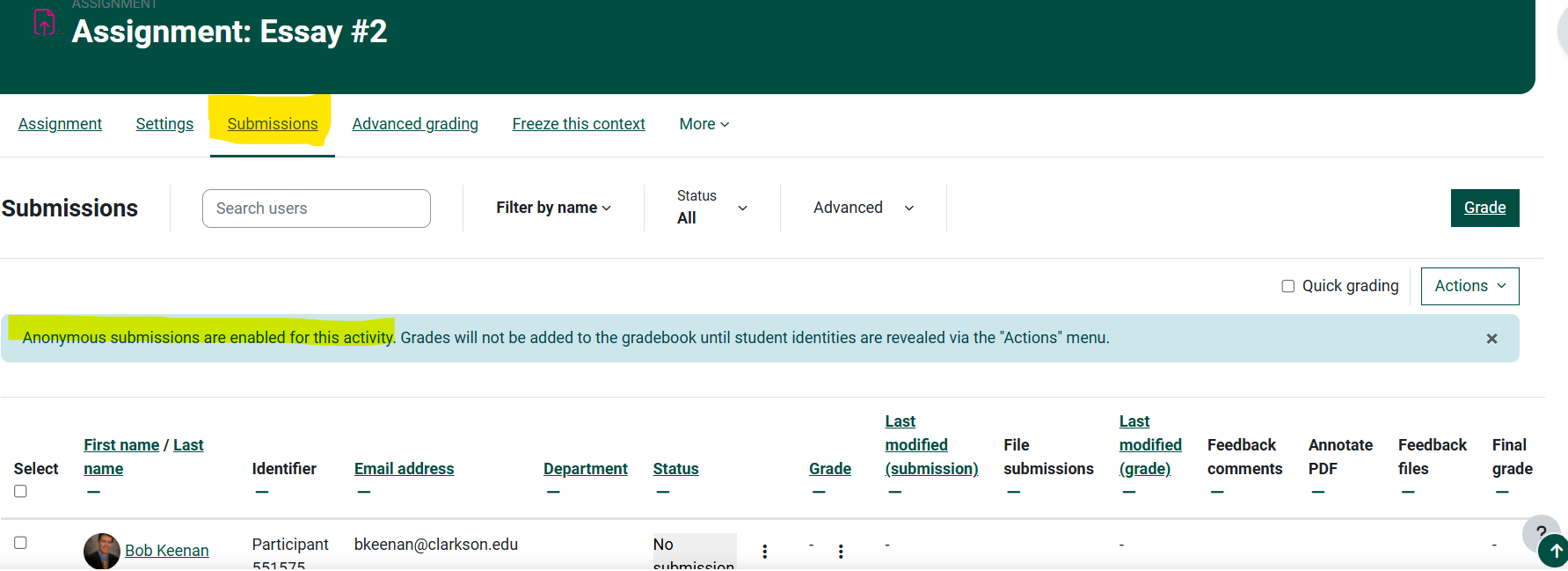
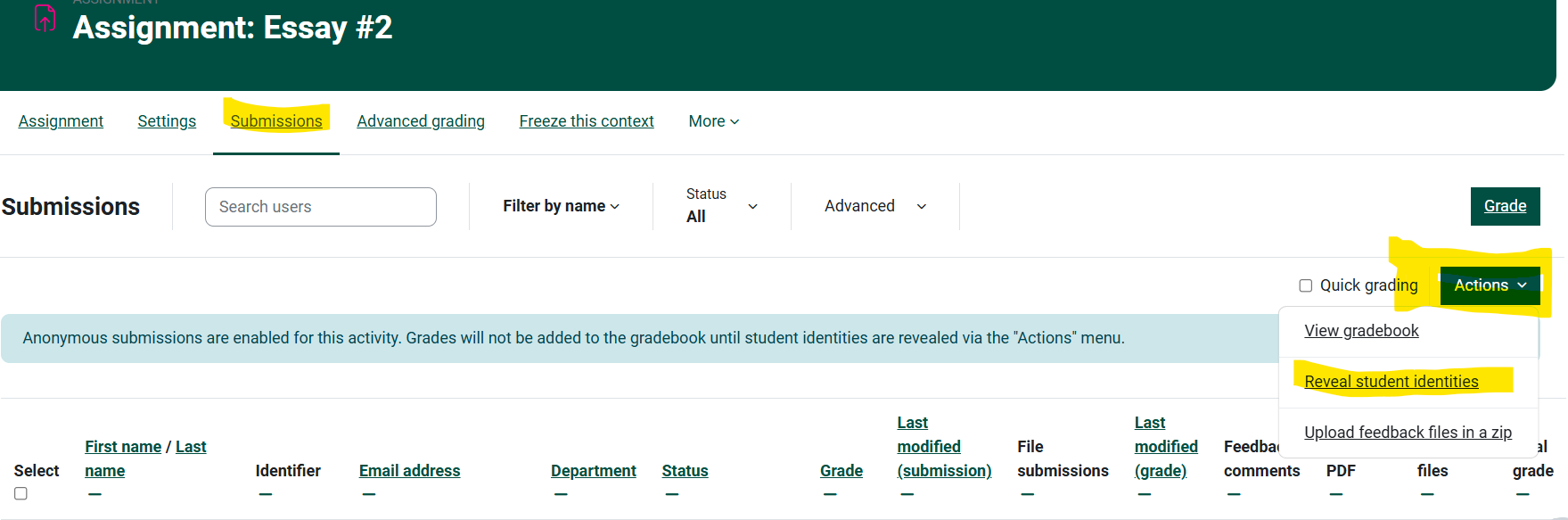
- To see if blind grading is on go to the assignments page. Select an individual assignment. If the assignment has blind grading on it will have the same message as the screenshot below highlighted in yellow.
Setting Blind Grading to On or Off

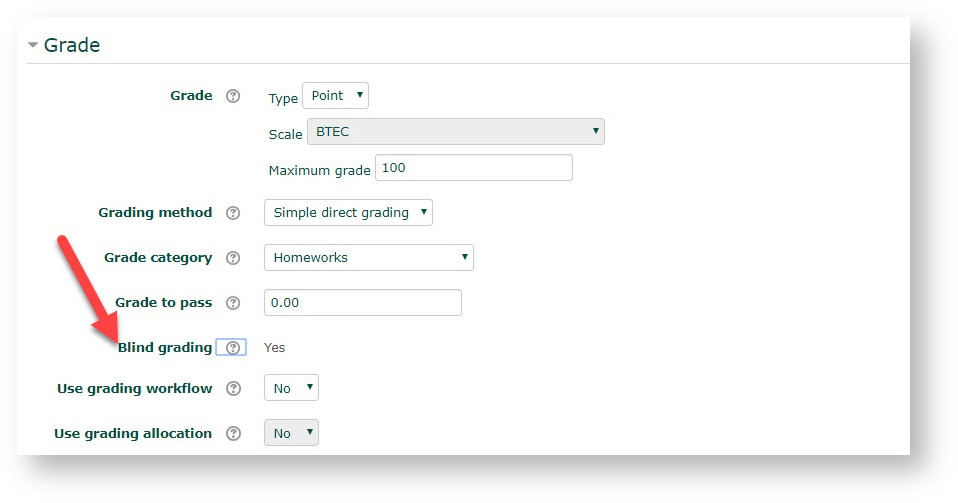
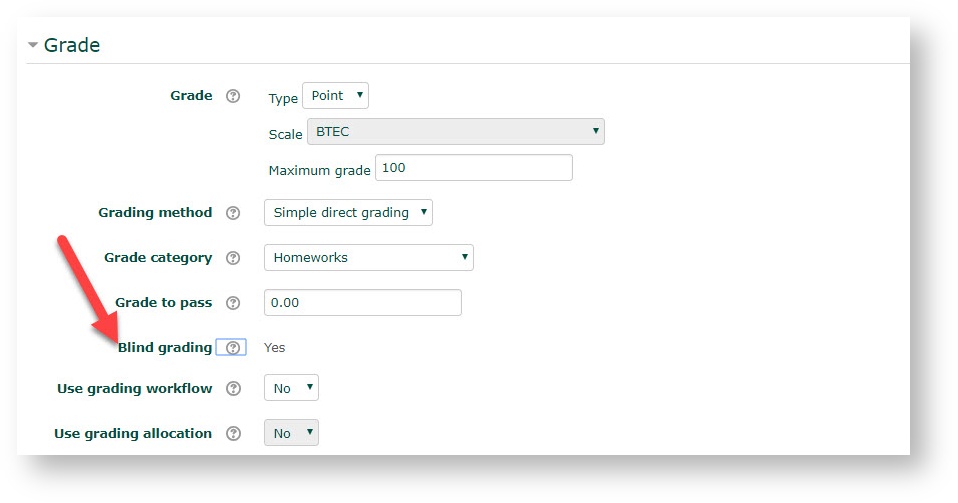
- Blind Grading is found in the Grade section of the Assignment Activity Settings. At activity set up, this is a Y/N drop down, default is No. The example below shows Blind Grading turned on and locked because student submissions have been received into this assignment.

 Reveal Student Identities
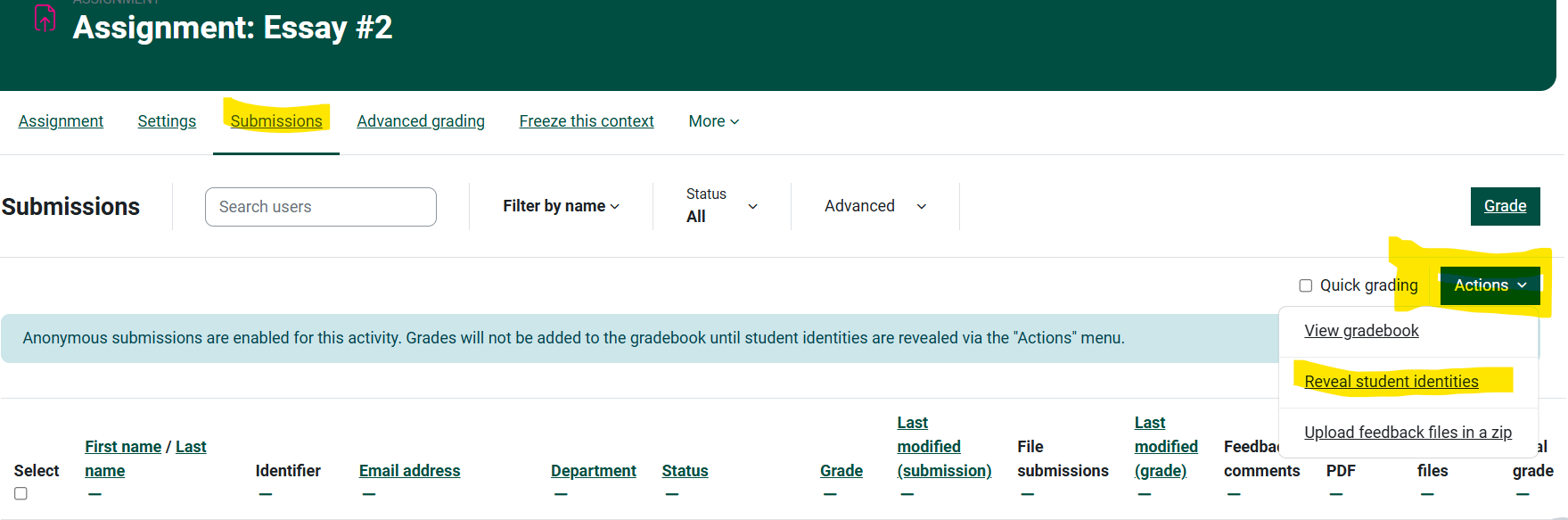
 - Go back to the assignment Submissions and select the drop down menu next to "Action, and select "Reveal Student Identities". This will release the blind grading and reveal the grades into the gradebook.

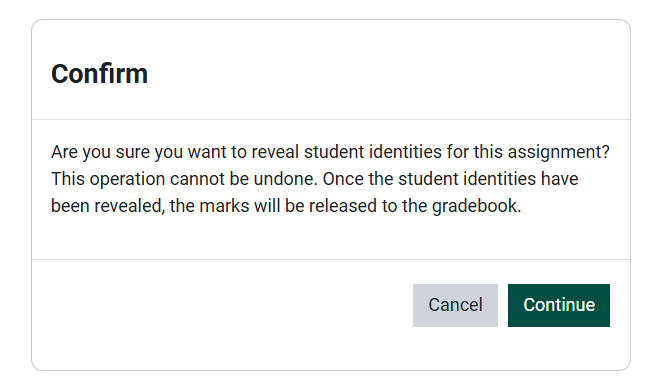
- A pop-up message will appear asking if you are sure you would like to release the blind grading. If you are ready, select Continue.



Seek Further Assistance
For additional assistance please contact, Clarkson OIT Help Desk;
Online: Get Help
Email: helpdesk@clarkson.edu
Call: 315-268-HELP (x4357)