
NEW!! Echo360: Automatic Closed Captioning and Transcripts
Summary
Echo360 video uses Automatic Speech Recognition (ASR) to automatically generate text transcripts and closed captions (CC) for all media uploaded or recorded to the platform. This feature ensures digital course content is accessible to all students right away, with no extra steps required from instructors!
How it Works Behind the Scenes
- Automatic Processing: When you publish a lecture capture or upload a video via Moodle, Echo360 processes the audio file in the background to build a time-synced transcript.
- Auto-Generated Captions: If the system detects clear audio, it will automatically push that transcript onto the video's active Closed Caption (CC) track.
- Processing Time: While shorter videos process within minutes, full-length lecture recordings may take up to a few hours after uploading.
HowEasy toEditing Editof Transcripts and Captions via Moodle
Because the text is machine-generated, technical jargon, proper nouns, and acronyms may sometimes contain errors but instructors can easily fix these mistakes using the built-in editor:
Step 1: Access the Video Details
- Go to your Moodle course site and click on your Echo360 block or activity link.
- Locate the specific recording or media tile you wish to
edit.edit (perhaps in your library). ClickDouble-click on the videotitletooropen o alternatively, click the three dots (...) menu on the media tile, then selectDetailsAccessibility.
[Screenshot Placeholder 1]:A view of a Moodle course page highlighting the Echo360 block/link, followed by a close-up of an Echo360 media tile with the three-dots menu expanded, highlighting the "Details" or "Edit Transcript" option.
Step 2: Open the Transcript Editor
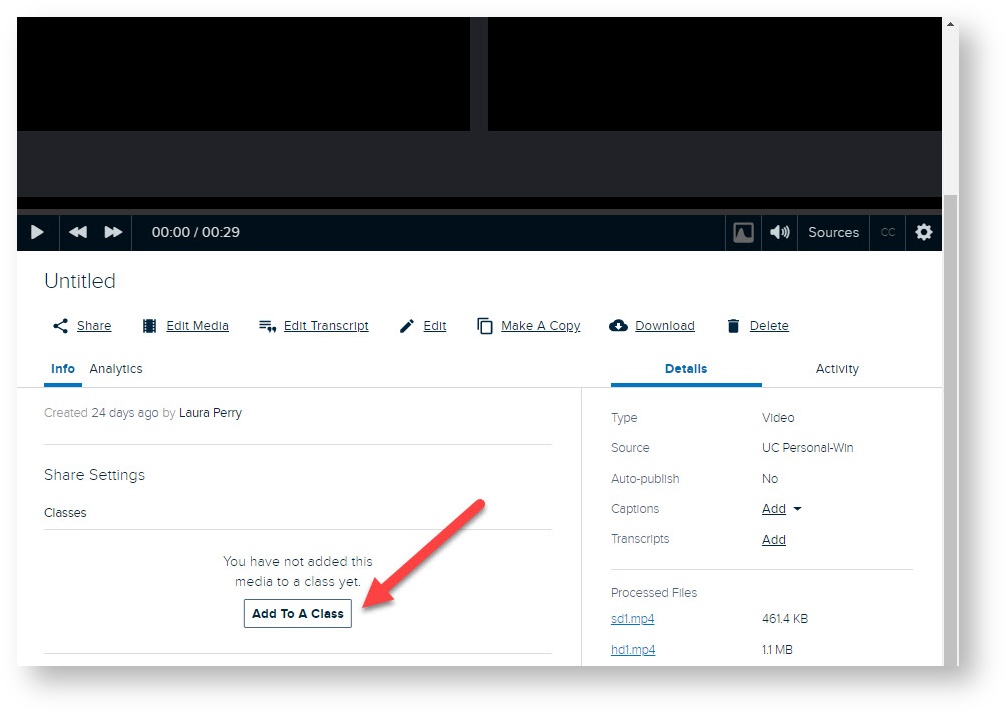
- On the media details page, click the Accessibility tab under the video window.
- Next to the Transcripts row, click the three dots (...) icon and select Edit Transcript.
(Note: If the automated transcript is still processing, the entry will read "Add" instead).
[1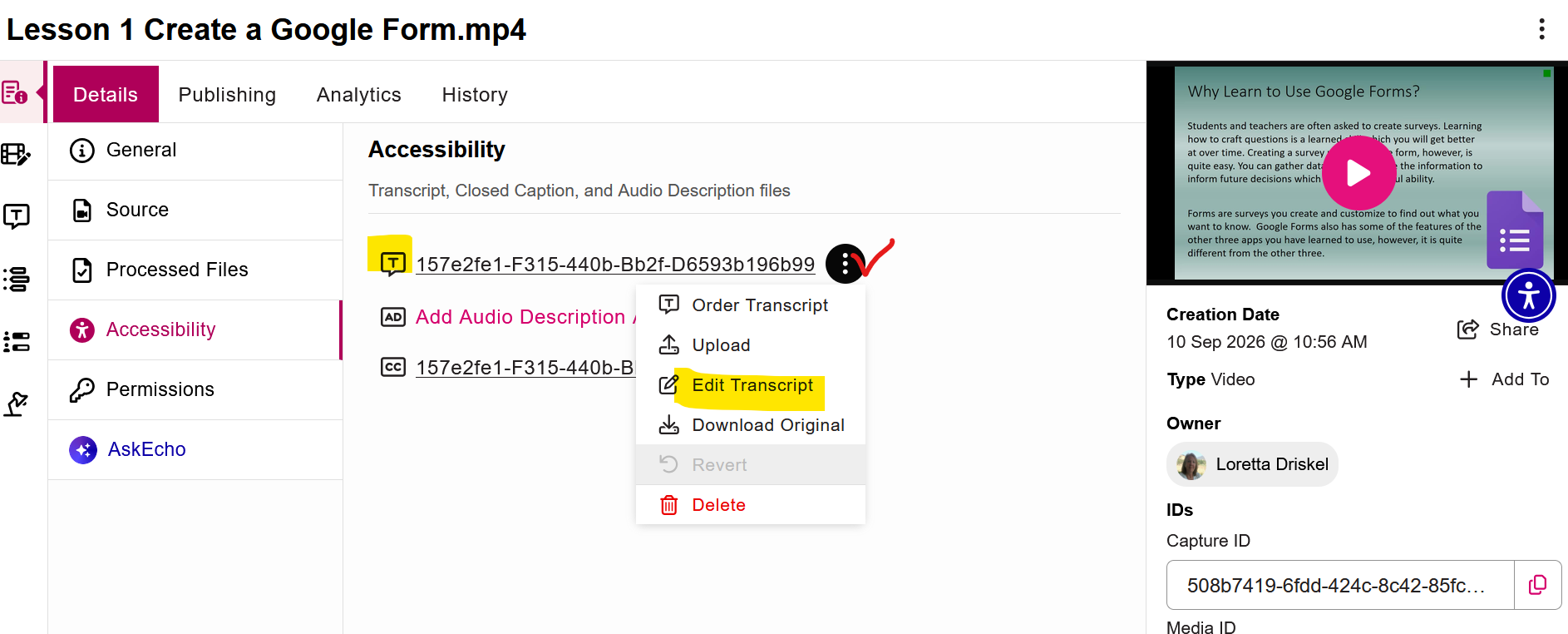
,2]
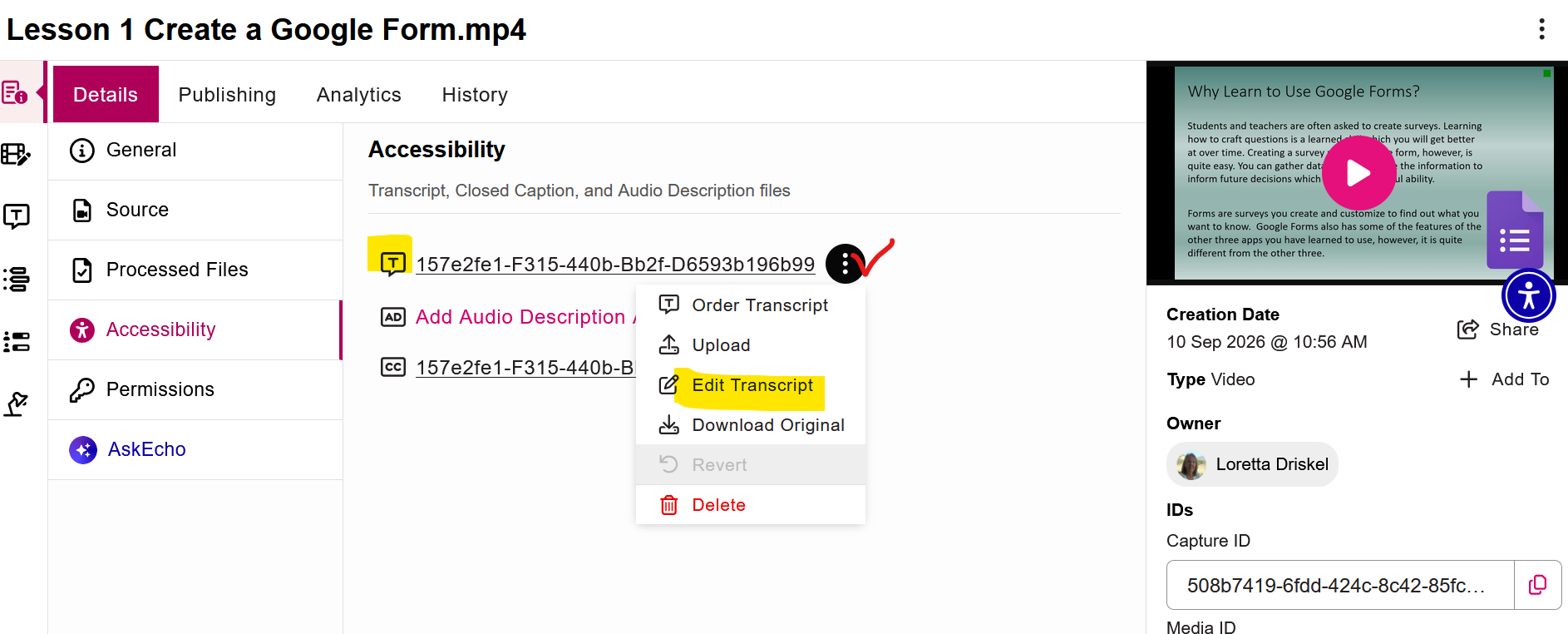
[Screenshot Placeholder 2]:The Echo360 Media Details screen showing the "Accessibility" tab selected, pointing an arrow toward the three dots next to the Transcript entry and highlighting "Edit Transcript."
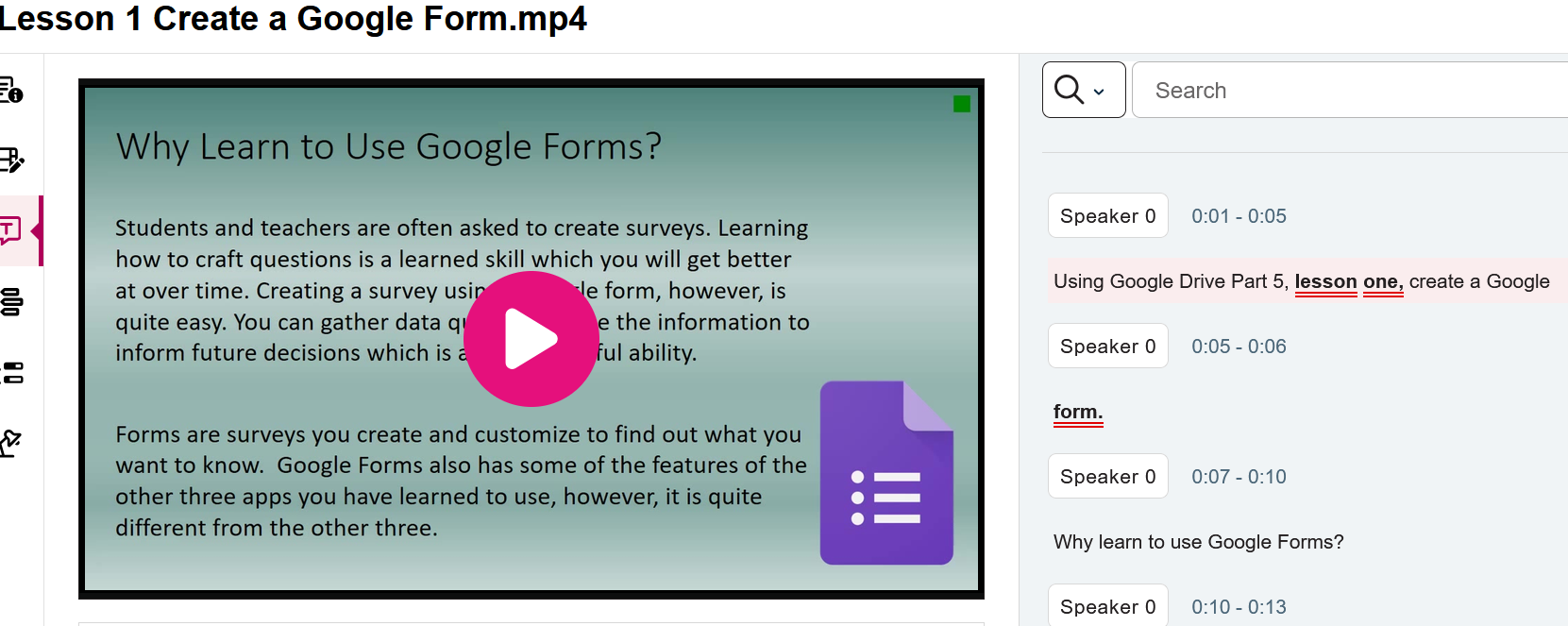
Click the Edit Transcript button along the top menu to enter editing mode.mode and c
1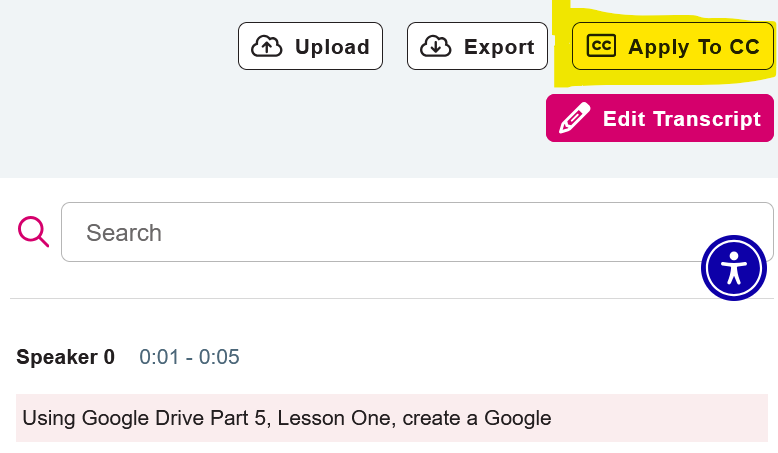
,
[Screenshot Placeholder 3]:The inside of the Echo360 Transcript Editor interface. Highlight the "Edit Transcript" button at the top, a sample text cue box being edited, and the "Save as New Version" and "Apply to CC" buttons in the top right corner.
Best practices for high-quality captions
To help the automated system achieve the highest accuracy, we recommend using a high-quality external microphone, minimizing background noise, and speaking clearly during your recordings.
- Pause briefly before speaking if you are moving away from the podium.
- Minimize environmental background sound like loud fans or office chatter.
Formerly and Currently
Another new tool in Echo360! See the Echo360 Support document for Study Aids
Seek Further Assistance
For additional assistance please contact, Clarkson OIT Help Desk;
Online: Get Help
Email: helpdesk@clarkson.edu
Call: 315-268-HELP (x4357)