
NEW!! Add an Echo360 video to an H5P Interactive Video Activity
AGood news for Moodle instructors! You can now use your Echo360 videos directly in H5P Interactive Video activities—without uploading another copy of the video to Moodle. This means you can take a video you’ve already created or uploaded to Echo360 and add interactive elements such as questions, prompts, and other activities to engage students as they watch.
Why is this exciting?
Ready to uploadtry theit?
A video directlydoesn't intohave Moodleto makesbe yoursomething coursestudents sizesimply large, whichwatch—it can createbecome issues.an opportunity to think, respond, and interact.
Copy the H5P video link from within Echo360:
- Locate your video in Echo360.
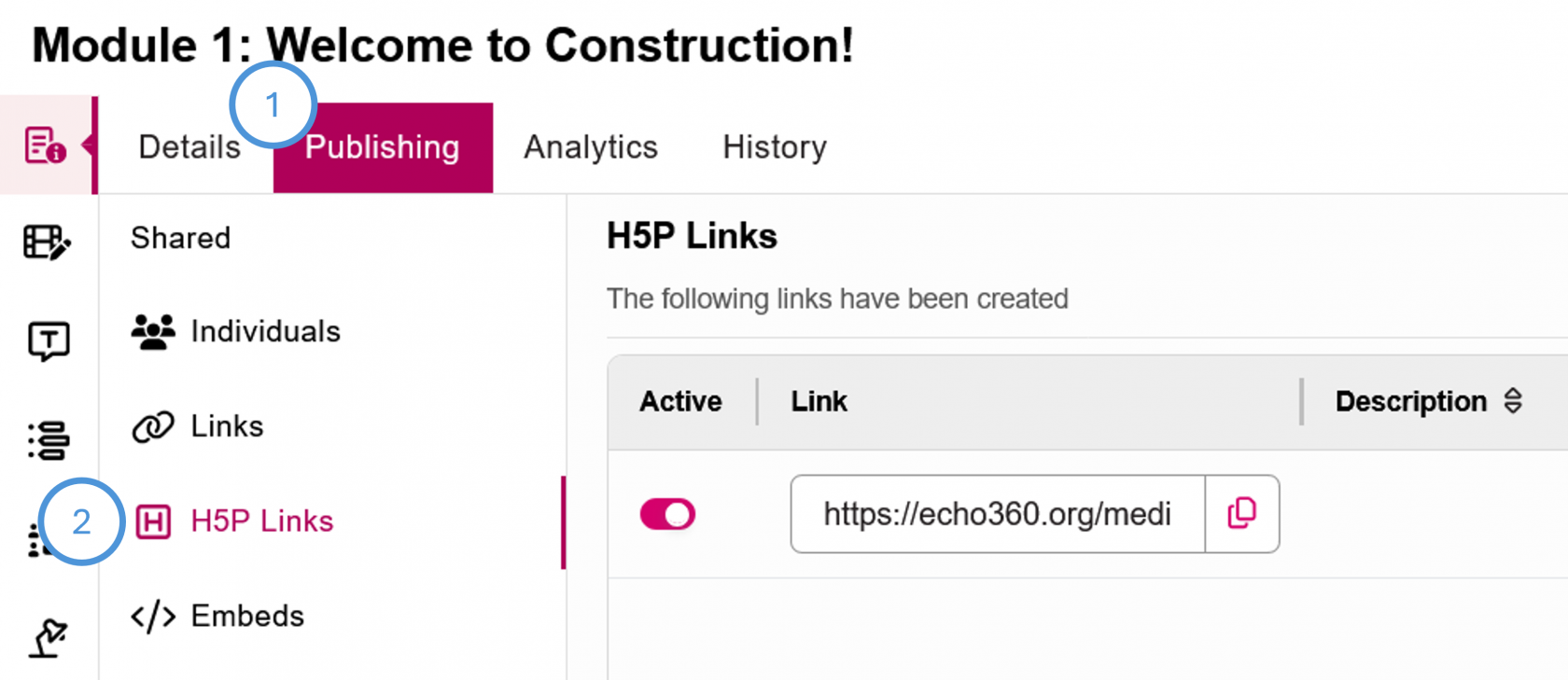
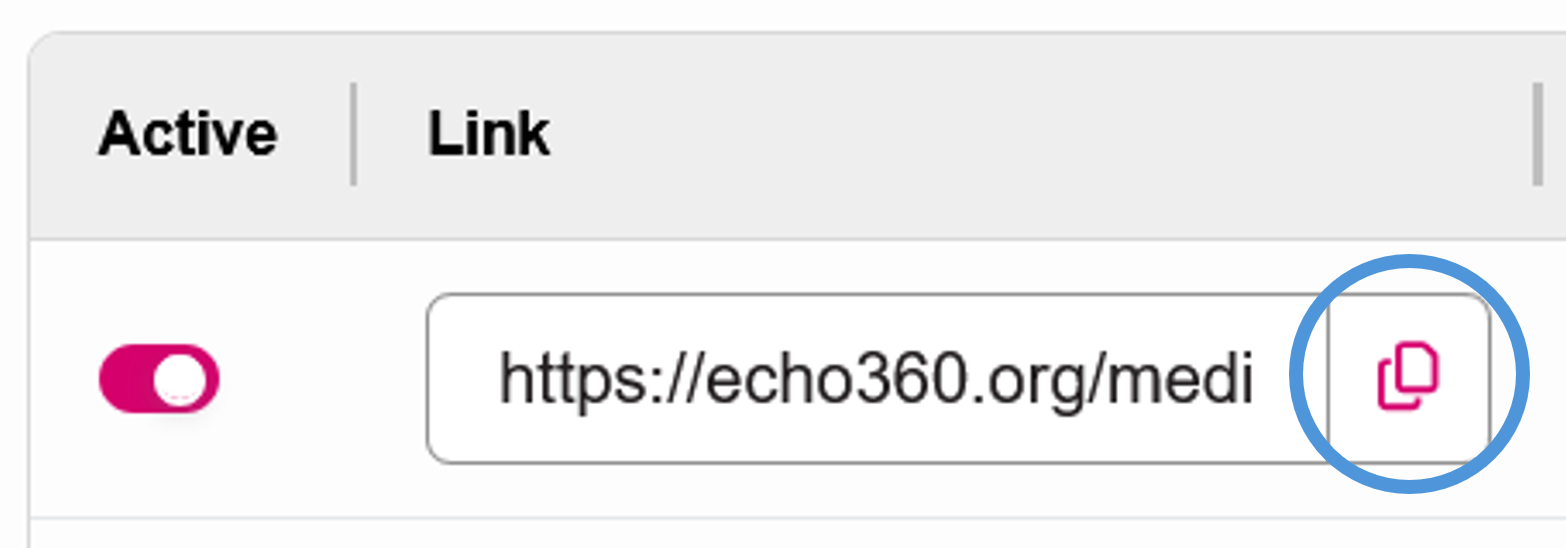
- Click the Publishing tab, then H5P Links. Note that the H5P link is different than the regular embed link, so be sure to click H5P Links first.
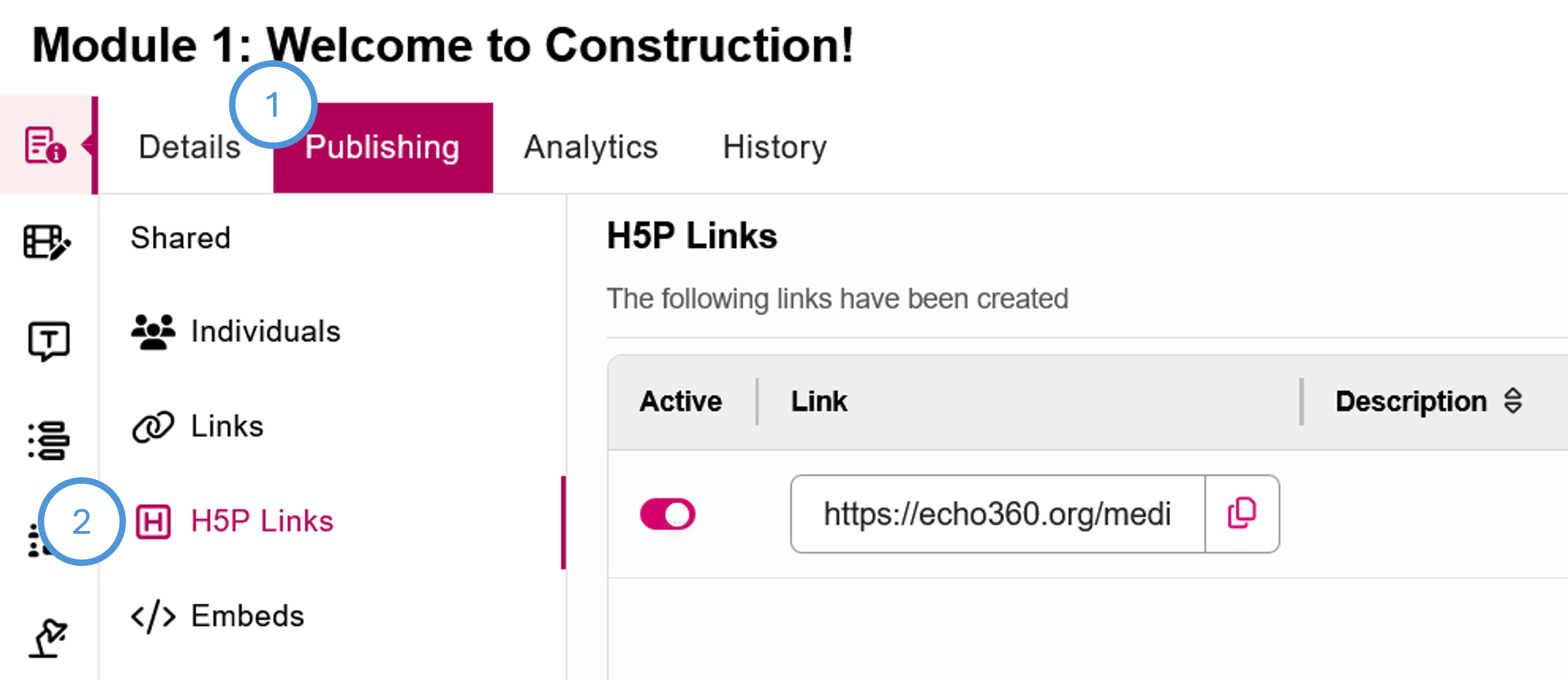
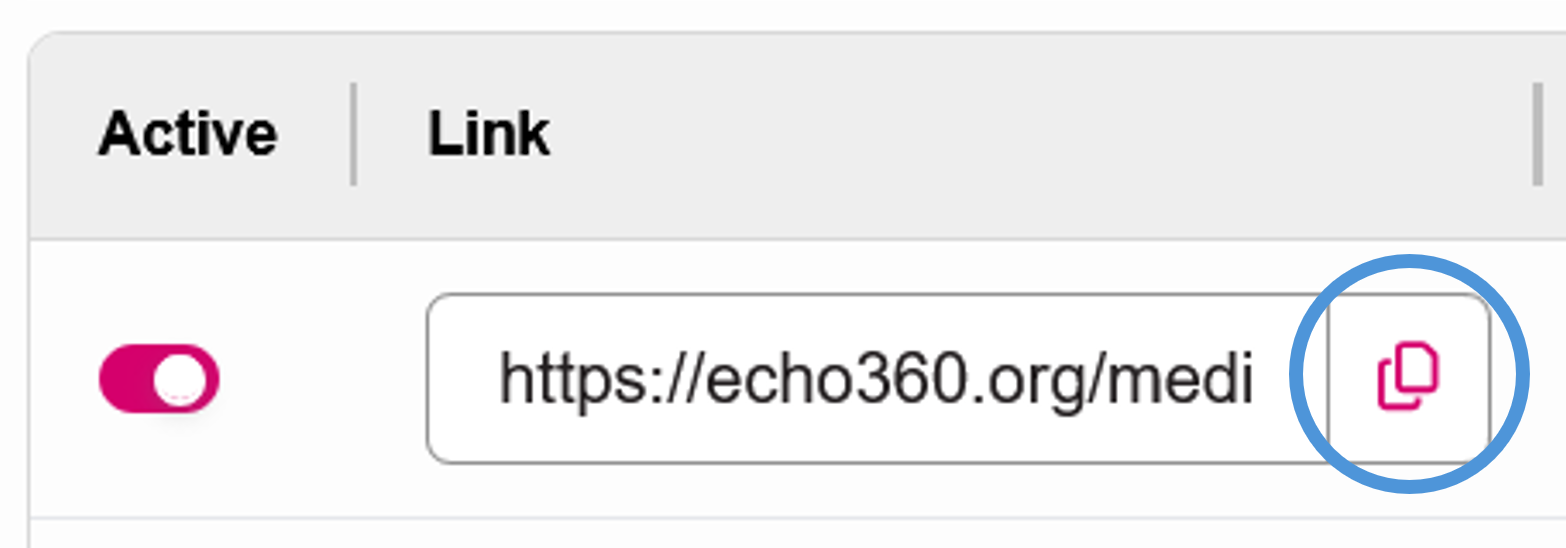
- Copy the link by clicking the Copy icon to the right of the link.
Insert the video link into the H5P Interactive Video activity in Moodle:
- From your course in Moodle, with Edit Mode turned on, click Add an activity in the module you would like to put the interactive video.
- Choose H5P Interactive Content.
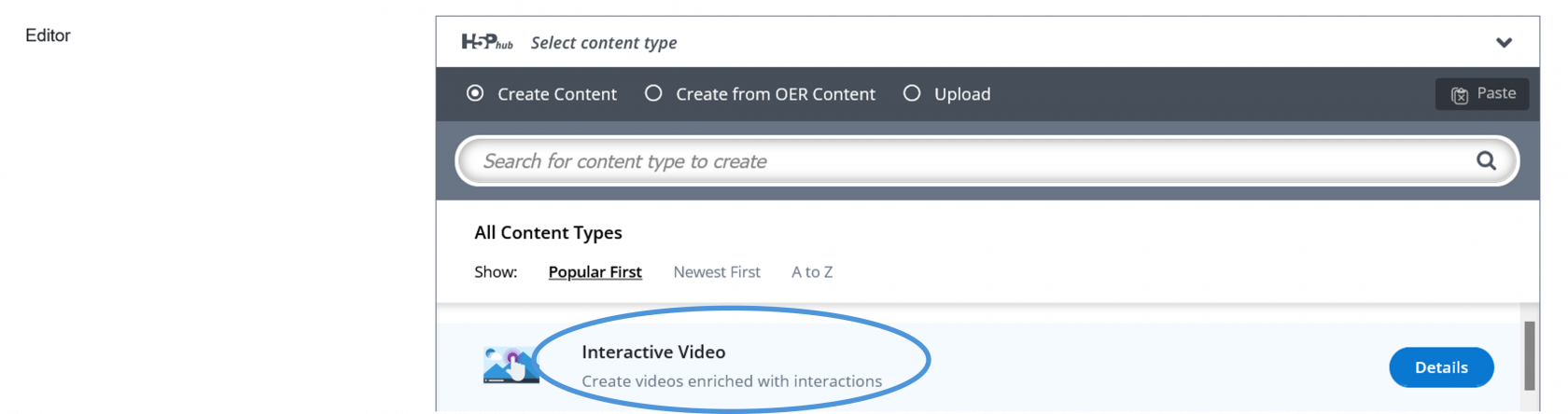
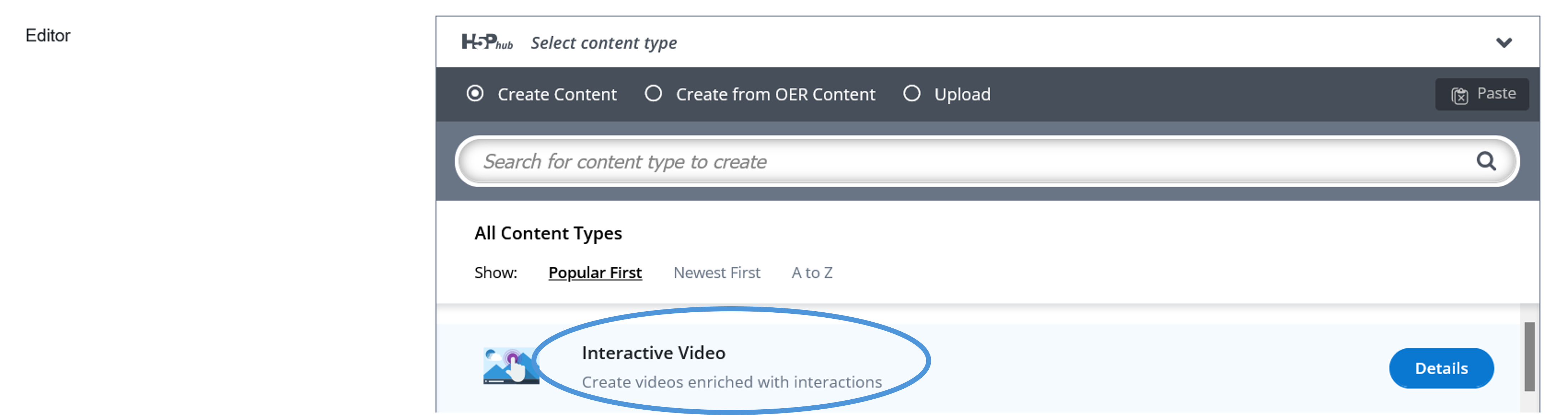
- In the Editor, choose Interactive Video as the content type.
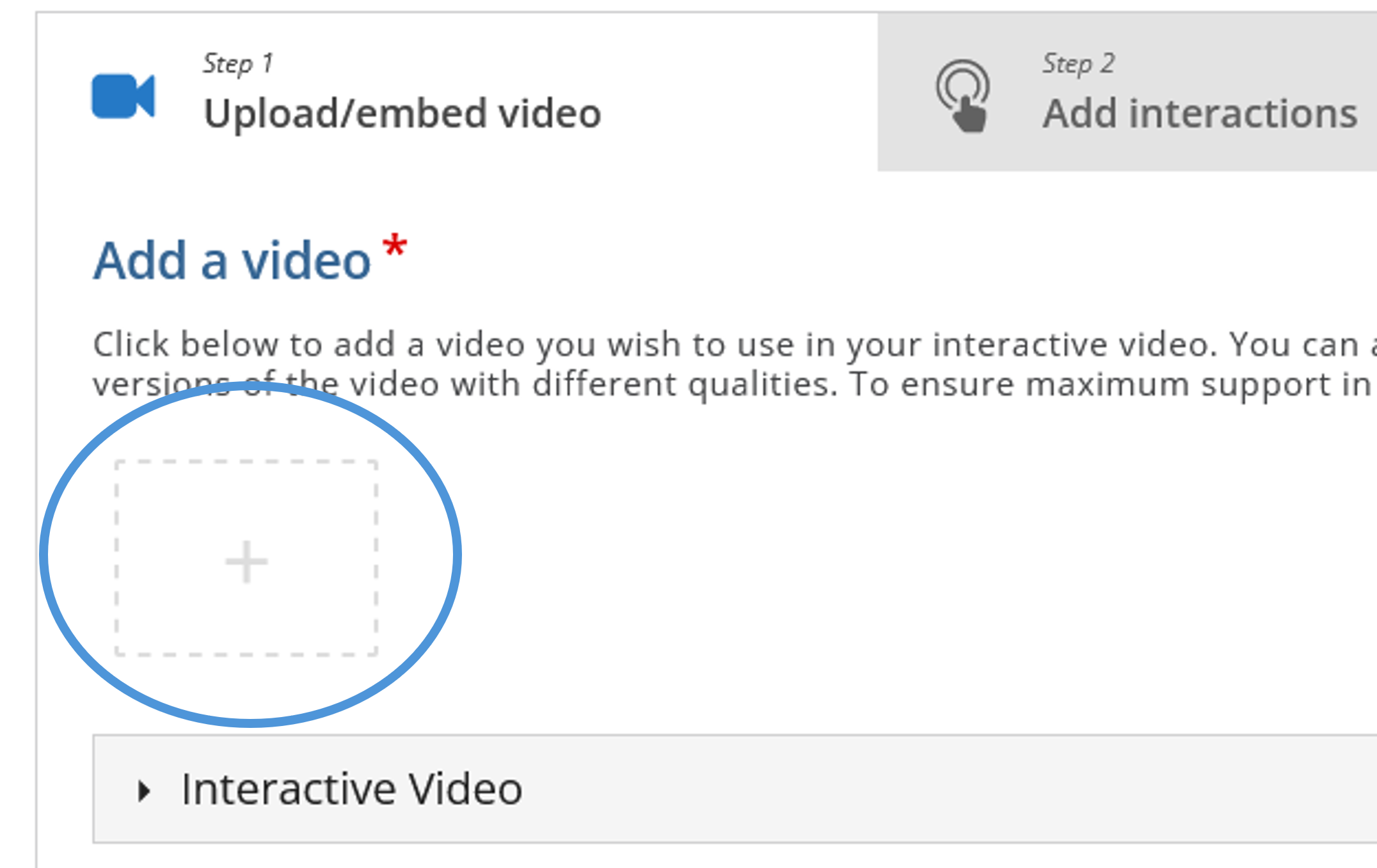
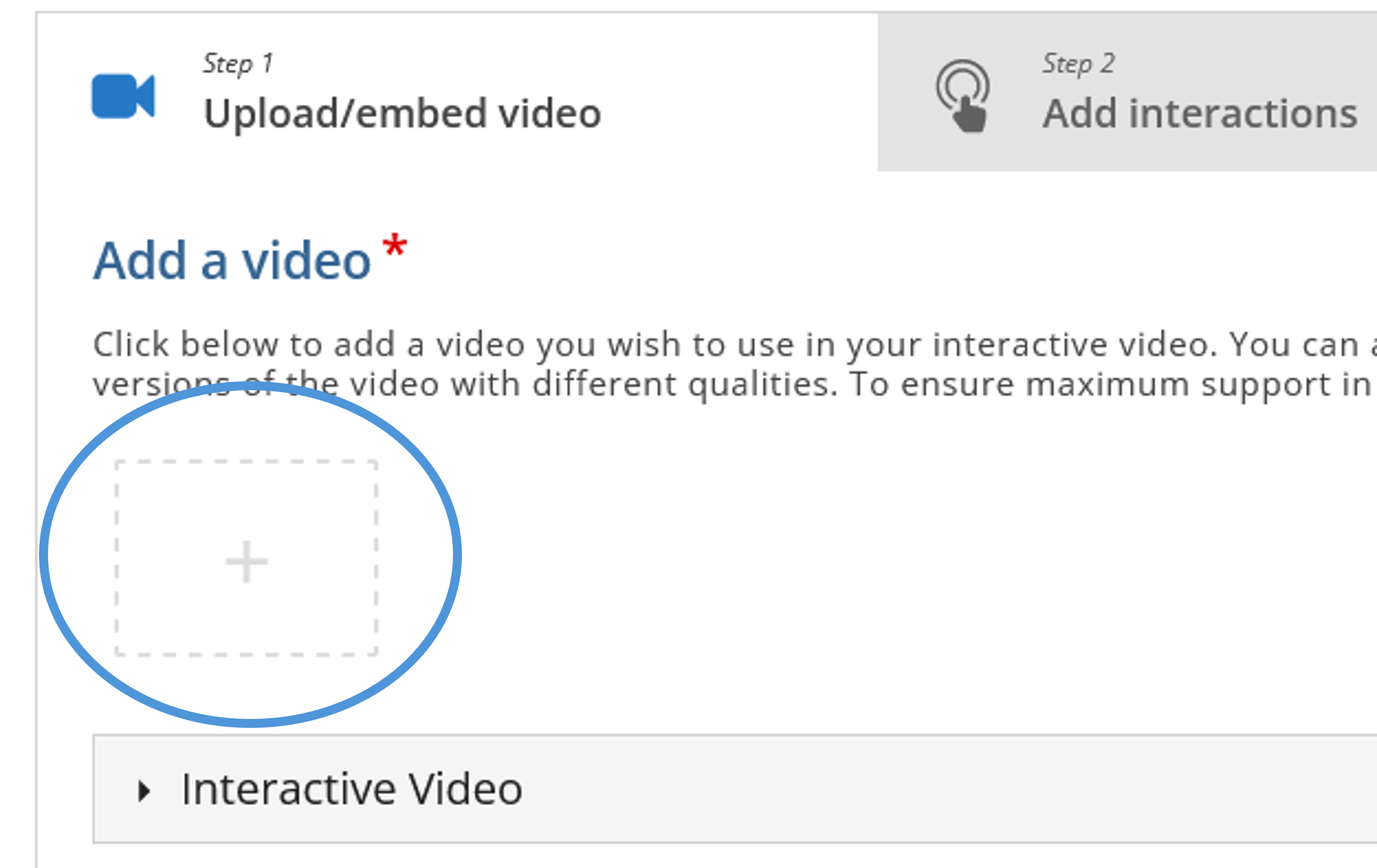
- Click the plus icon to add a video.
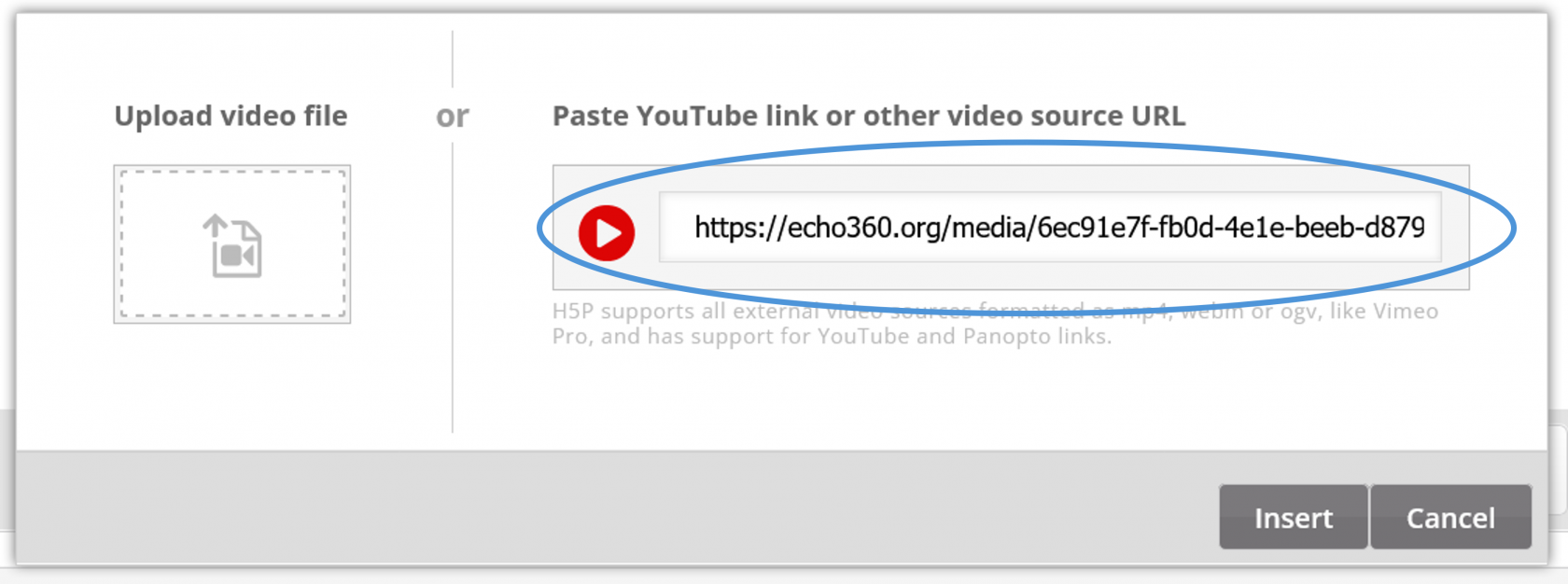
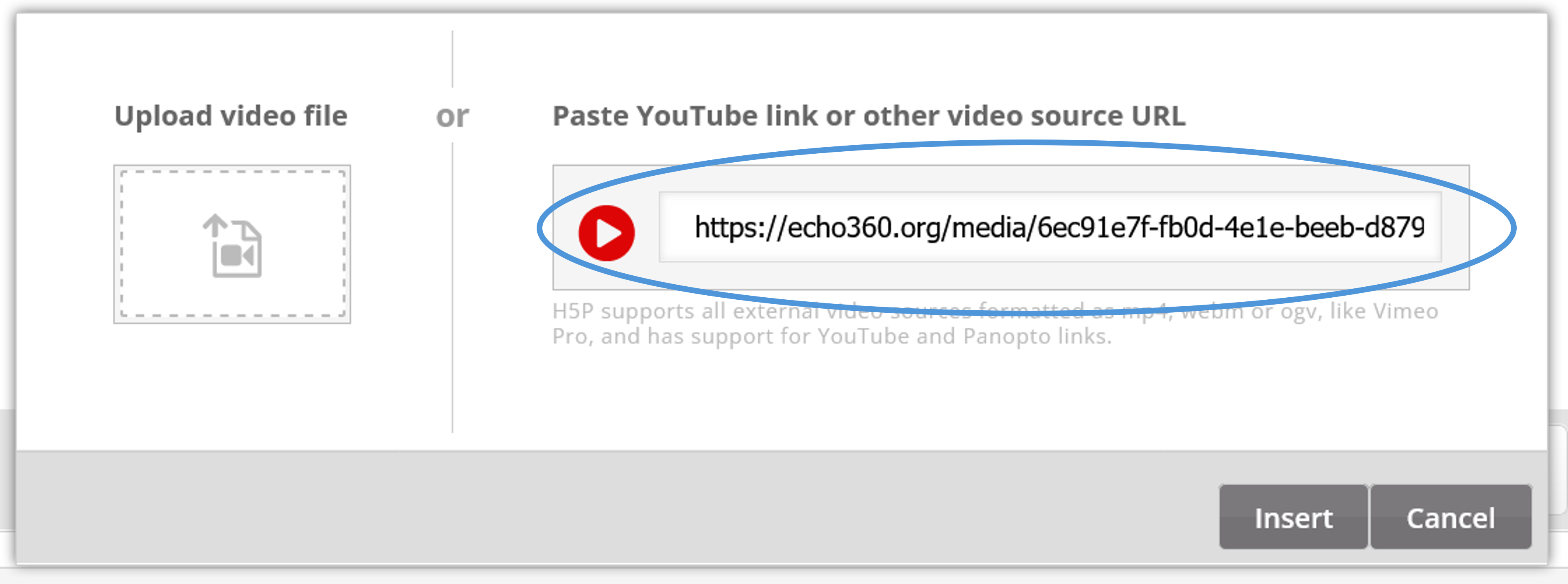
- Paste the link that you copied from Echo360 in the video URL area then click Insert.
- Continue building your Interactive Video!
What can you do to enhance learning with H5P Interactive Video? Spend a few minutes with the H5P interactive Video Tutorial and you will be amazed!