Move videos to Echo360 for Migration Prep
Course sections in Moodle that have videos that have been uploaded directly into the section as opposed to linking out to an external source can cause the section to be unusually large. To reduce file size of the backup for the Moodle 4 migration, it is recommended that the videos be moved to Echo360 and re-linked.
Create a copy of the course with the videos
- Create a blank course in Moodle in the following category: Courses -> Miscellaneous -> Instructional Design -> Sandboxes
- Use the following naming convention:

- Use the following naming convention:
- From the new course, import in the section that the instructor has chosen for the migration.

Download the videos
- Search through the course and download each video that has been uploaded directly into the Moodle course. Many times it will look like this:


Set up a new section in Echo360
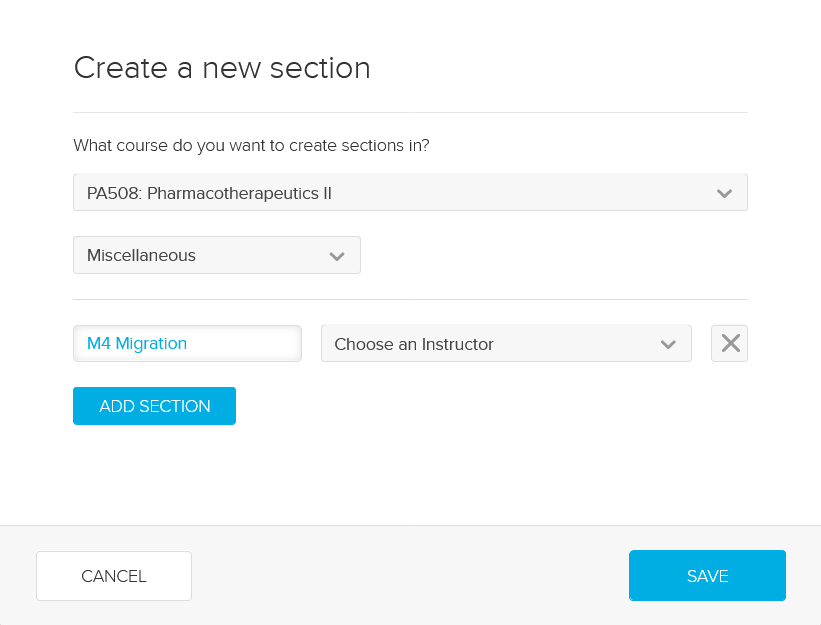
- As an admin in Echo360, go to Courses, then click New Section.
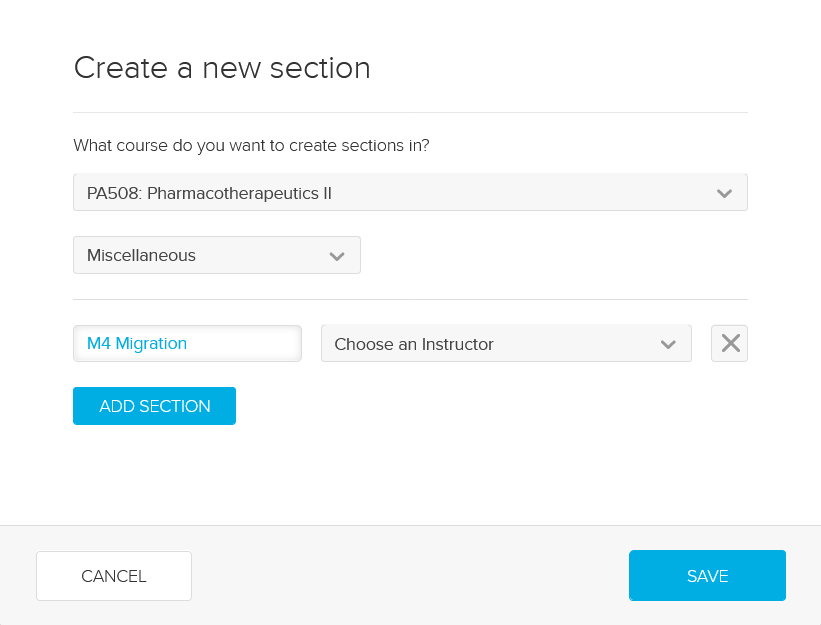
- When the Create Section box displays:
- Search for and select the course.
- Choose Miscellaneous for the term.
- In the section box, type M4 Migration.
- Assign yourself as the instructor for the course.
- Click Save.
Upload videos into Echo360
Link the videos from Echo360 into Moodle
You must be enrolled in the Moodle 3 course as a Teacher to complete these steps. When the videos have fully processed in Moodle, for each video that needs to be linked:
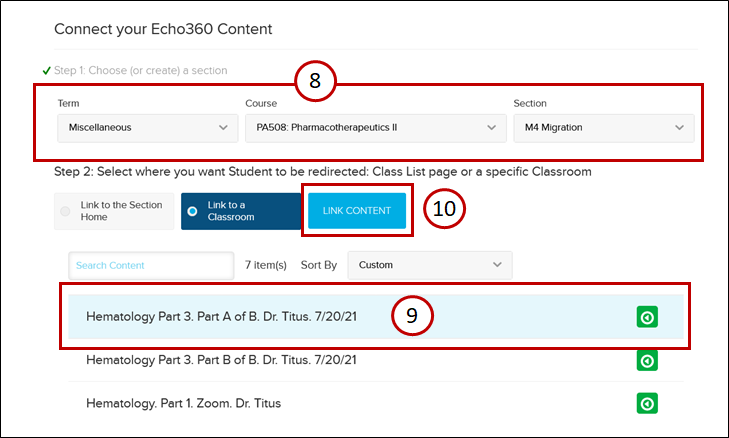
Choose Link to a Classroom. Click to select the appropriate video then choose Link Content.