
Moodle: Remove All Copies of Unused Videos from a Course
Summary (almost ready!
Course sections in Moodle with videos that have been uploaded directly into the section as opposed to linking out to or embedding from an external source cause the course section to be unusually large which can slow down the Moodle server. OIT recommends that all video be moved to Echo360 and shared with the course either by link or embedded. If you have not yet moved videos to Echo360, please follow the steps in this article Move Videos to Echo360 to Save Moodle Server Space prior to continuing with the steps below.
The process for removing videos from Moodle to save server space varies depending upon where the video was uploaded in the first place. Sometimes video has been uploaded as a simple file, other times the files have been uploaded to a folder and often instructors use the Insert media tool on the HTML editor tool bar. Sometimes all of these methods are used within a course so tracking them all down can be an adventure!
This Guide Will Help You to delete:
- Videos Uploaded as Files
- From Folders
- From Tools with an HTML Editor (Pages, Lessons, etc.)
Videos Uploaded as Files Loretta Check the server if possible.
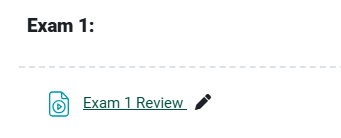
- Delete the file.
- Delete the file from the Recycling Bin.
From Folders: LORETTA CHECK SERVER ON THIS ONE
- With editing turned on, choose Edit Settings for the folder.
- Under Content, click the video you want to delete.
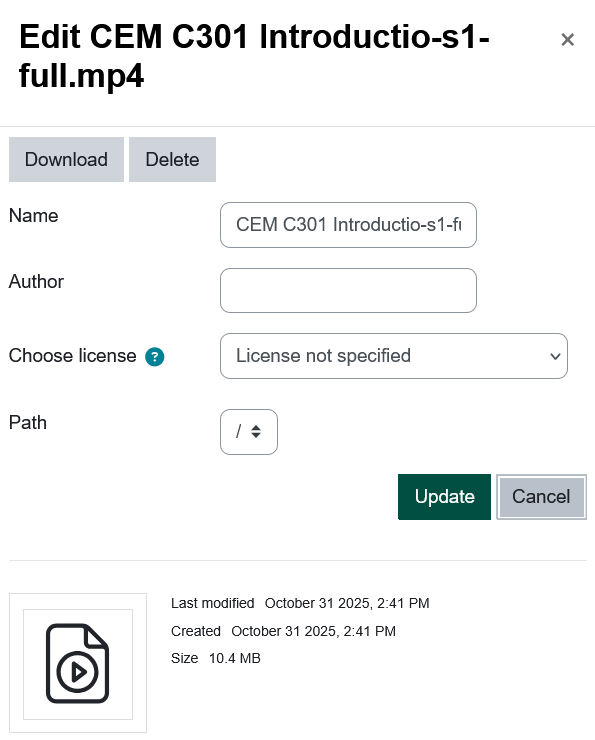
- In the box that pops up, click Delete.
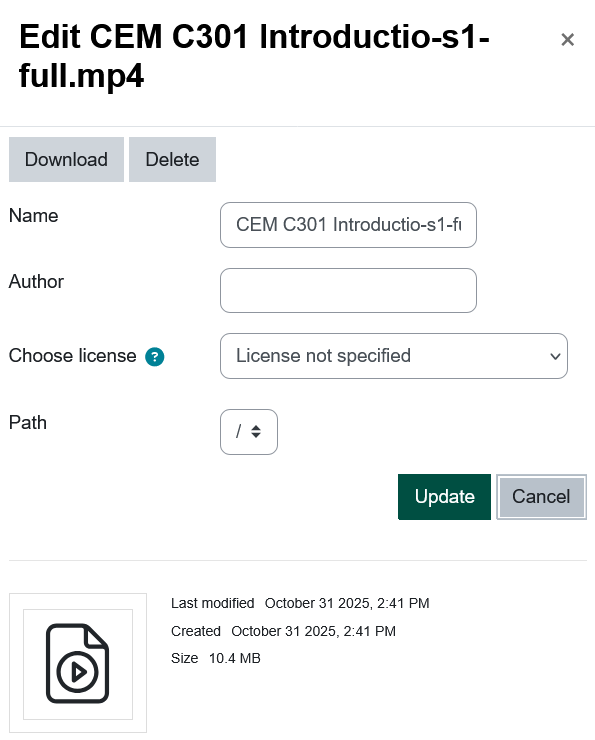
- When you are asked if you want to delete the file, choose Yes.
- Click Save and return to course.
From Tools with an HTML Editor (Pages, Lessons, etc.):
-
- With editing turned on, choose Edit Settings for tool (like a page).
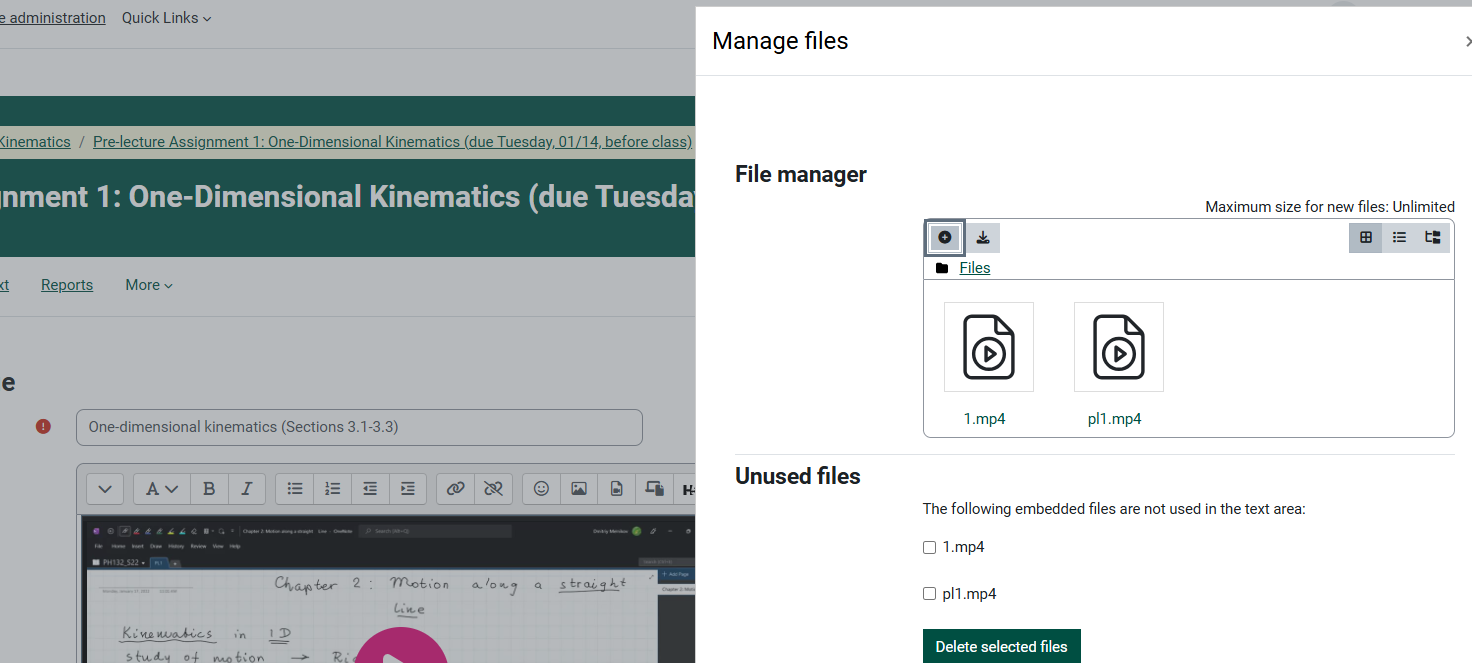
- If using the Atto Editor, click the Manage files icon.
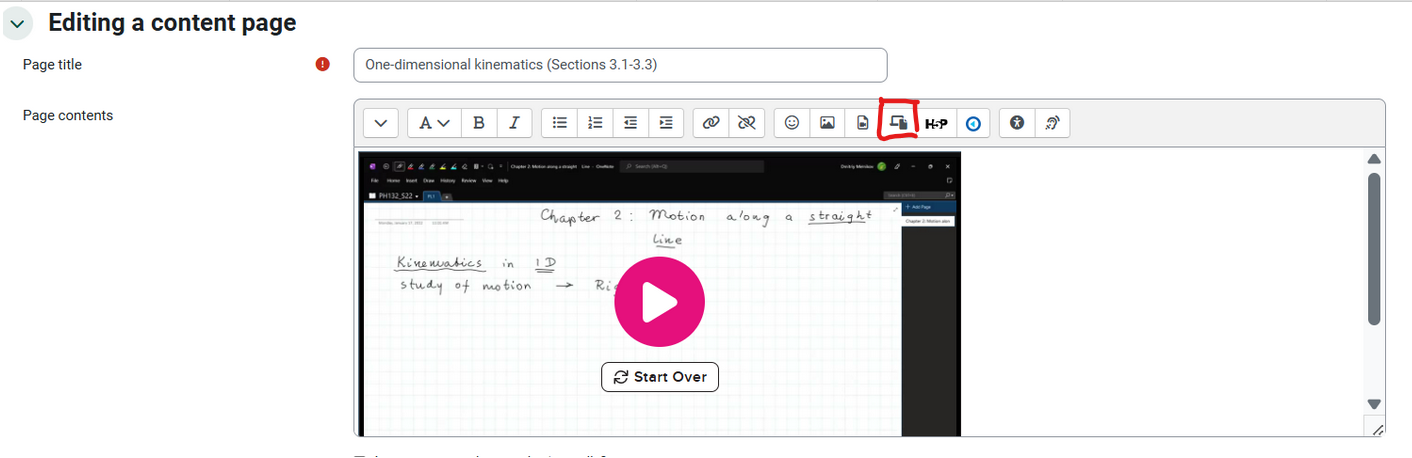
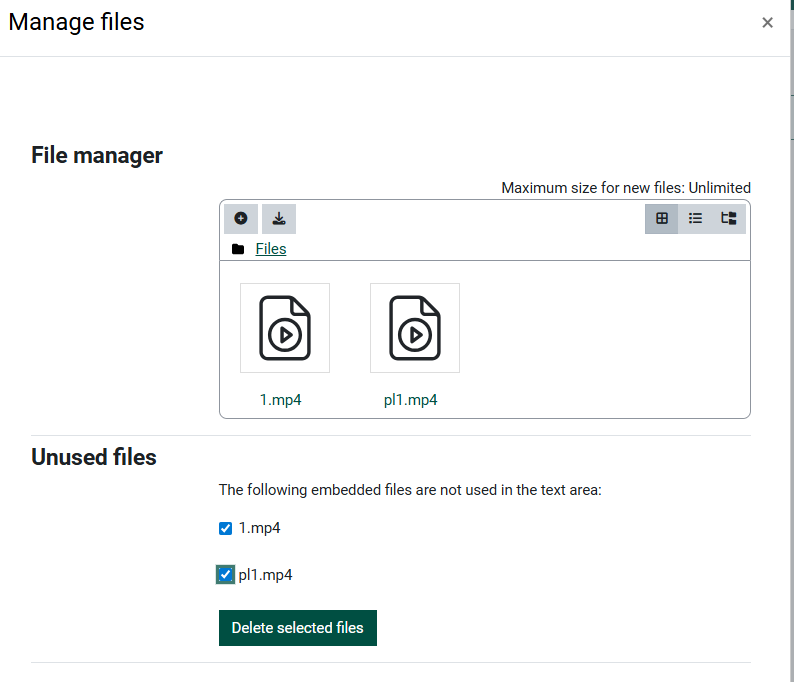
- In the File Manager pop up, click the video(s) you want to delete. However...
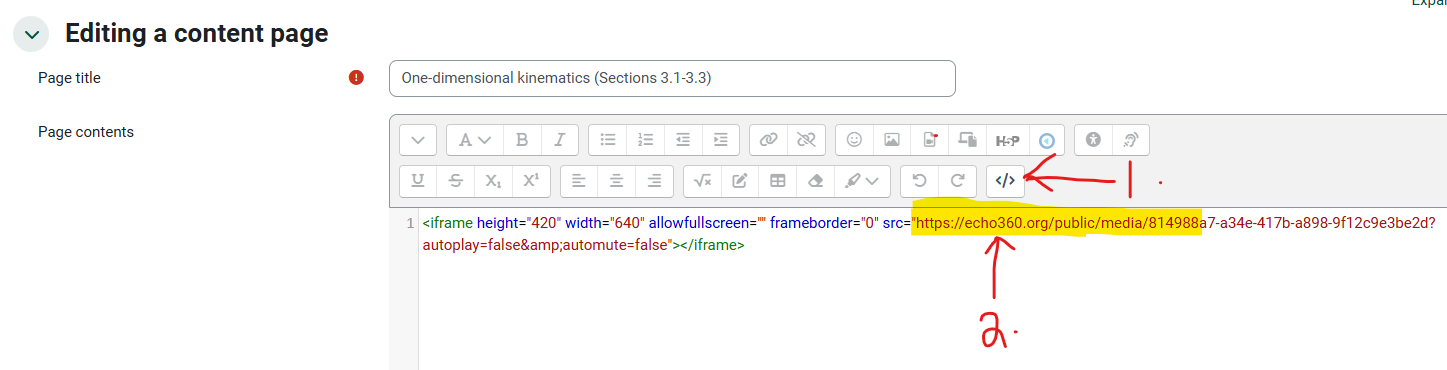
- Before deleting, you can tell if the video has been linked or embedded from Echo by clicking on the HTML tag icon on the second row of the HTML editor toolbar. Note the location here is echo360.org...this is what you want to see.
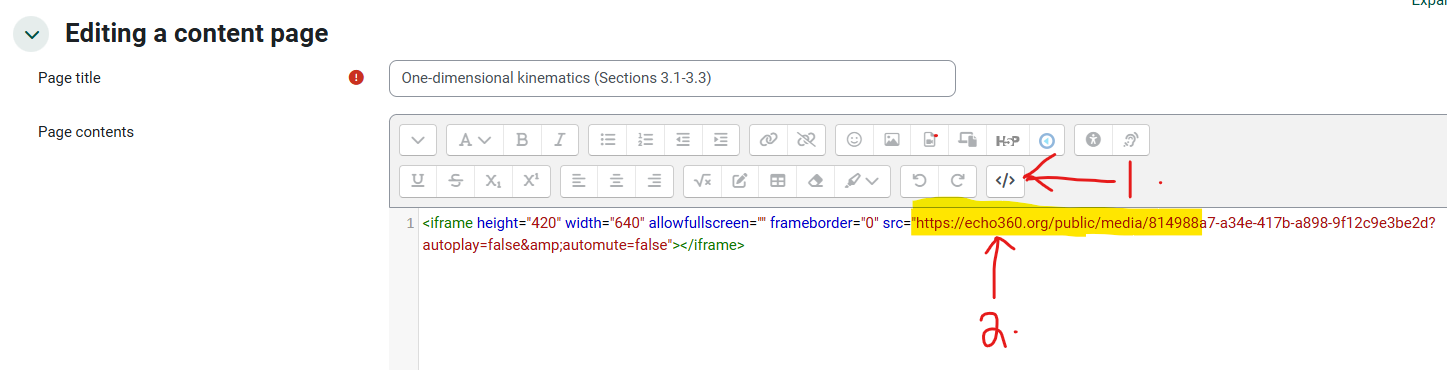
- If you see the above then the box that pops up when you click the File Manager icon you are safe to Delete selected. Delete any files that show up here, whether they are showing as "Unused" or not.
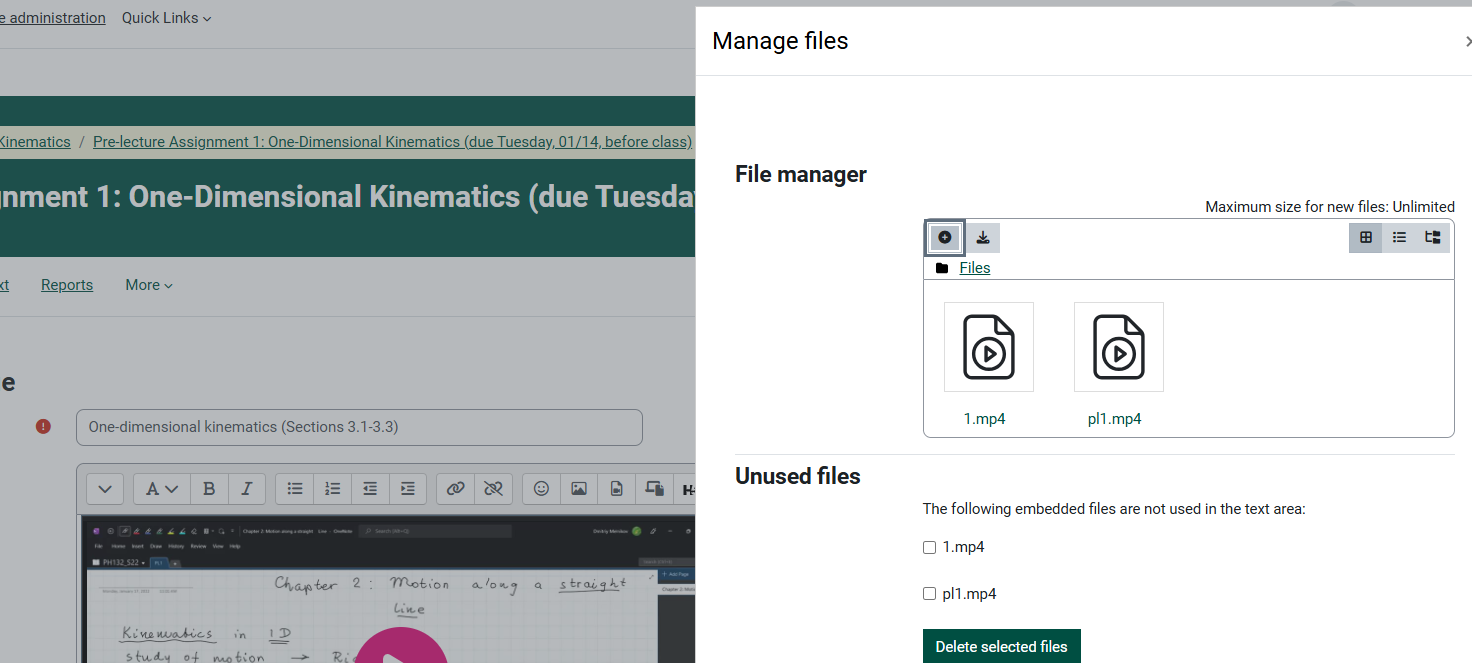
- HOWEVER! If you do not see that the video has been shared from Echo360, you will download the video that is in use and delete any files that are not in the text area. You should then go back to the Move Videos to Echo360 to Save Moodle Server Space article and proceed to follow Step 3.
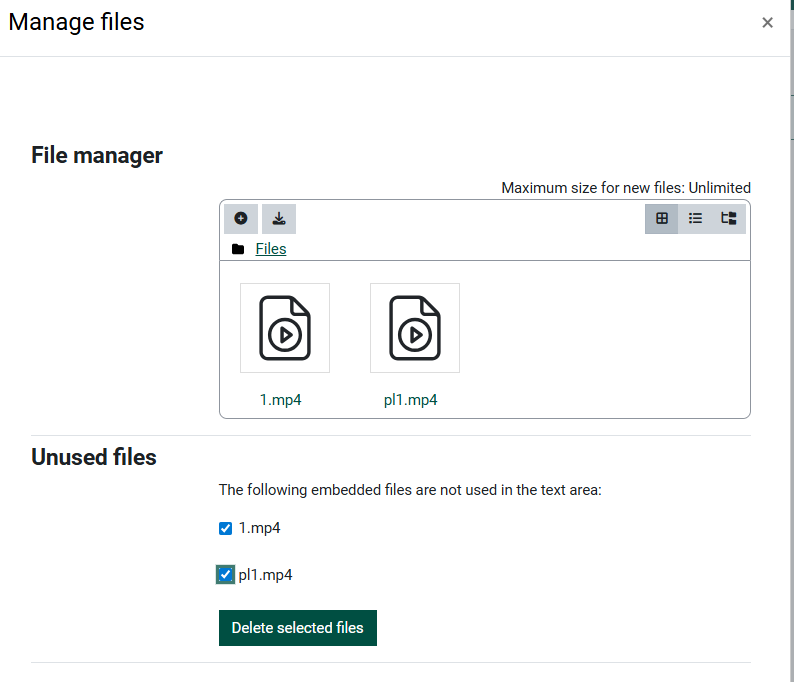
- Click Save and return to course.
- With editing turned on, choose Edit Settings for tool (like a page).
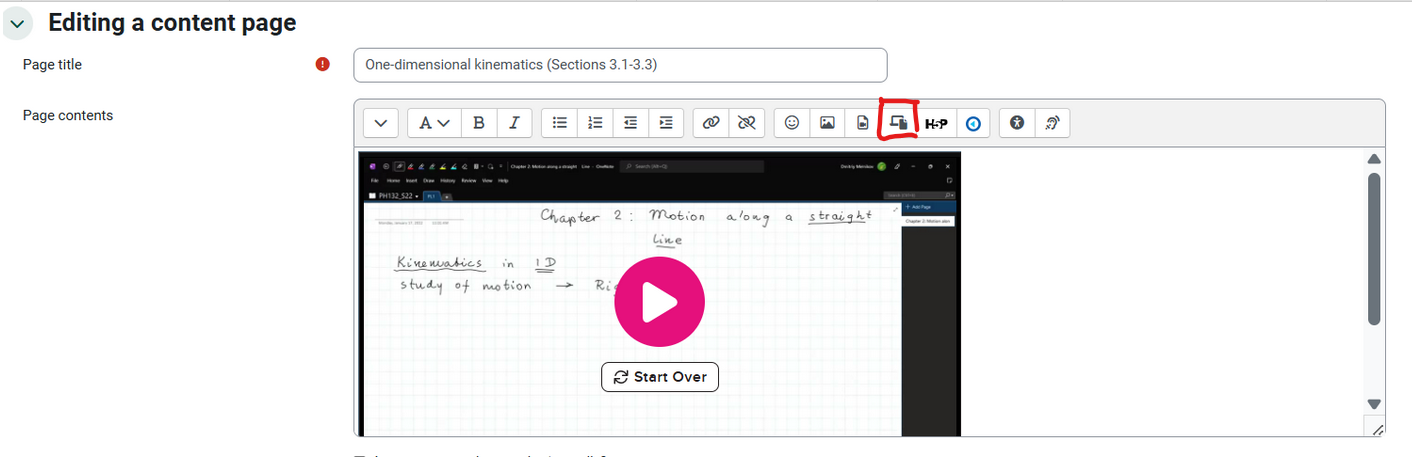
Note files deleted from the Files Manager will NOT be in the Recycle Bin, they are deleted from the server.
Final Check
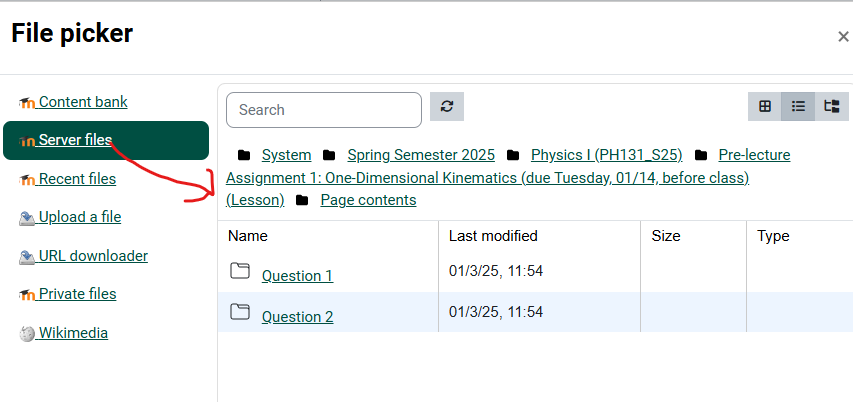
A final check for video files is to check the Server Files in the File Picker. In this case we can see that the mp4s were deleted. Any videos that are found in the server files must be removed from the course first as users cannot delete files from the server.
Seek Further Assistance
For additional assistance please contact, Clarkson OIT Help Desk;
Online: Get Help
Email: helpdesk@clarkson.edu
Call: 315-268-HELP (x4357)