Moodle: Remove All Copies of Unused Videos from a Course
Summary
Course sections in Moodle with videos that have been uploaded directly into the section as opposed to linking out to or embedding from an external source cause the course section to be unusually large which can slow down the Moodle server. OIT recommends that all video be moved to Echo360 and shared with the course either by link or embedded. If you have not yet moved videos to Echo360, please follow the steps in this article Move Videos to Echo360 to Save Moodle Server Space prior to continuing with the steps below.
The process for removing videos from Moodle to save server space varies depending upon where the video was uploaded in the first place. Sometimes video has been uploaded as a simple file, other times the files have been uploaded to a folder and often instructors use the Insert media tool on the HTML editor tool bar. Sometimes all of these methods are used within a course so tracking them all down can be an adventure!
This Guide Will Help You to delete:
Videos Uploaded as Files
From Folders:
When you are asked if you want to delete the file, choose Yes. Click Save and return to course.
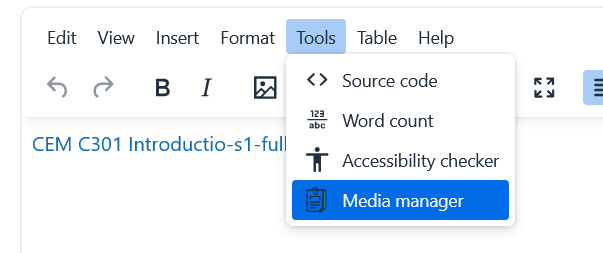
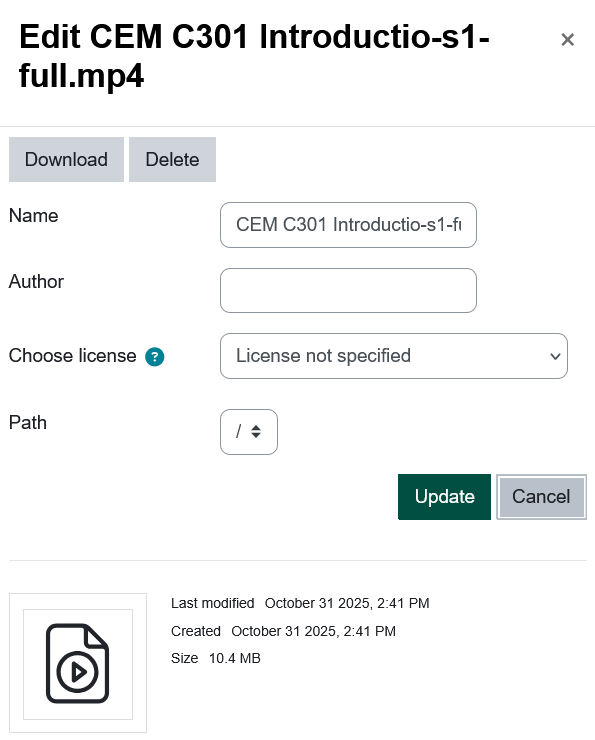
From Tools with an HTML Editor (Pages, Lessons, etc.):