
Moodle Best Practices
Summary
Students tell us they want accuracy and consistency are important when it comes to course content in Moodle. Instructors can make a great first impression with students by following these easy Best Practices in MoodleMoodle.
beginning May 13, 2025:
7 Steps to Achieve (minimal best practices)
1) Customize the Welcome to name
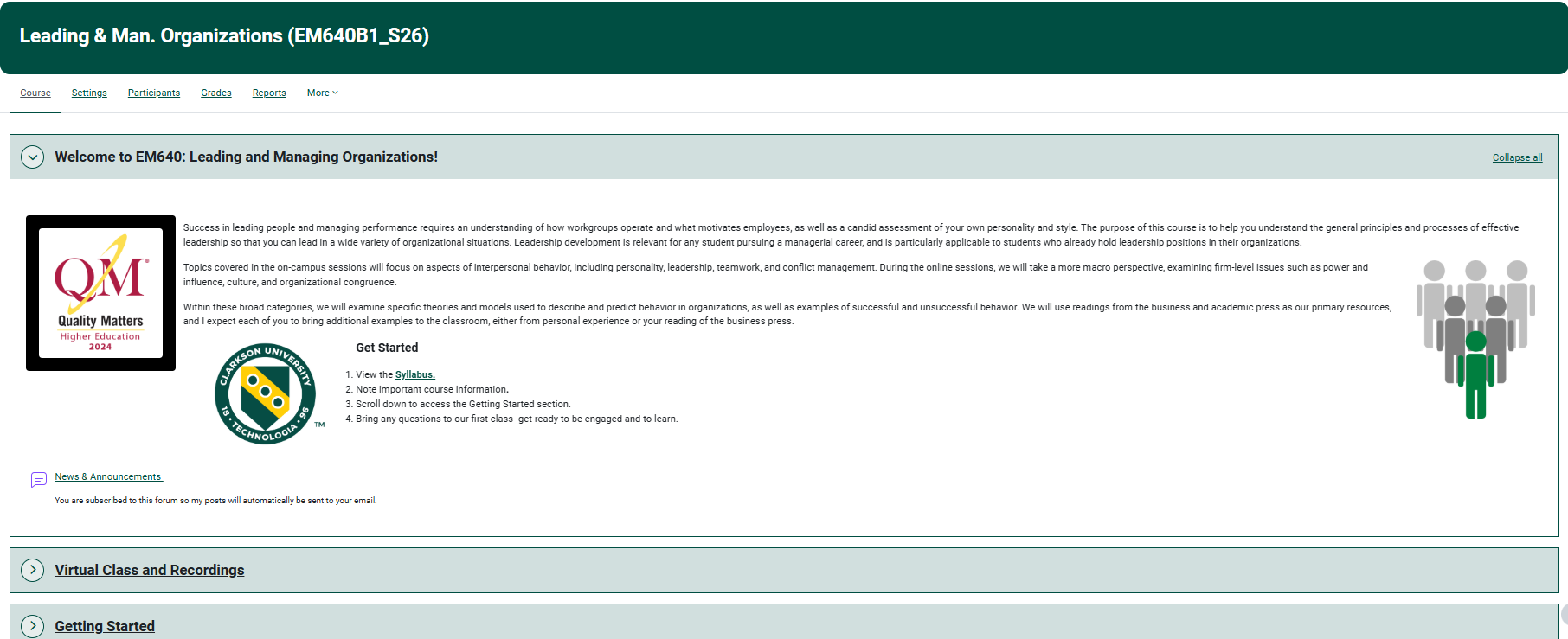
With edit mode on, change the title of the first orsection your Welcome Topicto area. Example: Welcome to IA640: Information Visualization!

2) Post the course syllabus
Somewhere within the first or Welcome Topic area. area, create an active link to the Syllabus or add an activity link or text and media page and link to the syllabus document.
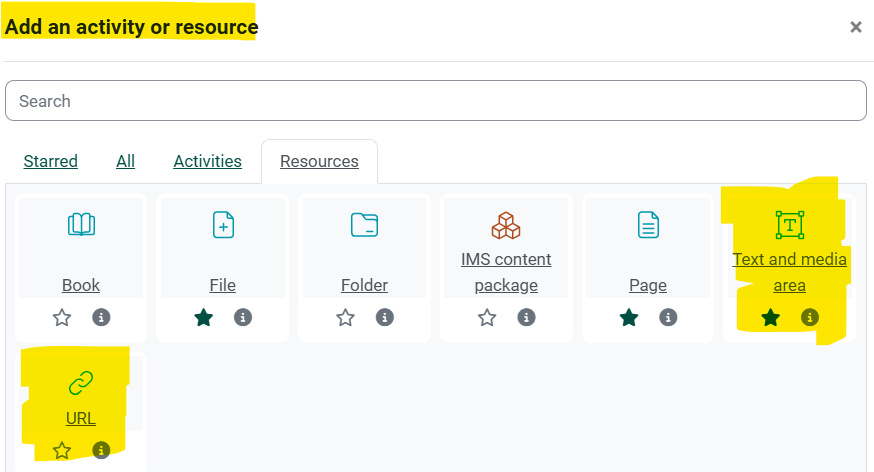
Hint: Check that itthe syllabus is the correct version. Errors often occur as previous versions are imported.
3) Enter a brief description and explanation of how you will use Moodle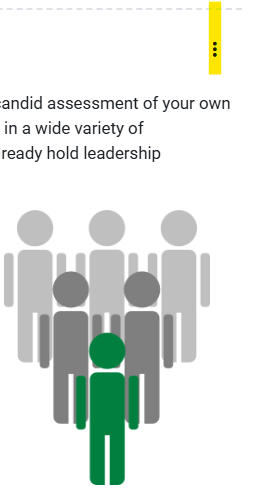
Explain in a welcome paragraph.paragraph Toneusing is important, message should bea friendly tone and being concise. Provide steps with details in Getting Started to help students know what to do next.
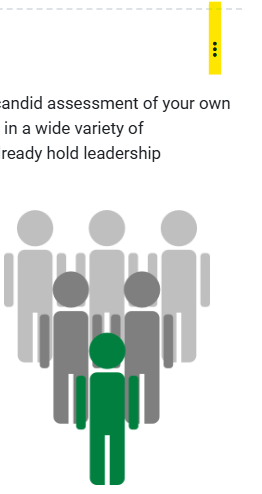
with editing on, click on the three dots in the upper right corner of the section to be edited.
4) Insert an Image to Engage Students
Choose a picture that is visually relevant to your course inand add it to the Welcome Topic area. Remove/deletearea anywith oldthe orGetting defaultStarted templatesteps. images
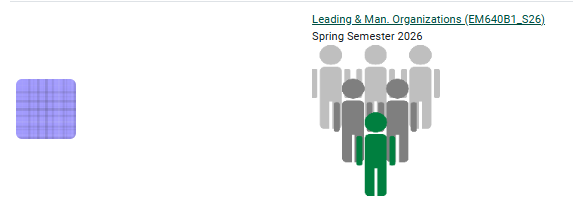
5) Optionally: Add a Course Image to your Course Settings for Display on their Dashboard
This can be the Dashboardsame image as on your Welcome section or a different image. Students appreciate this image because they can easily find the course on their Dashboard.
5)
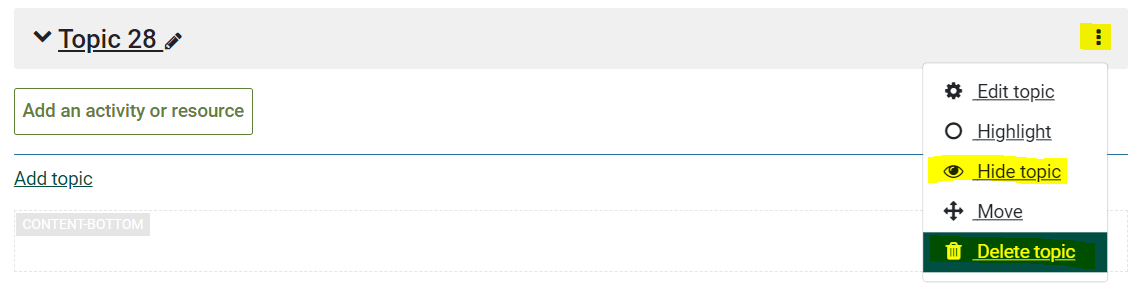
6) Delete or Hide any sections not in use.
How to: With editing turned on, click the ellipse to the right of theany section. section you do not want students to see.
6)
7) Use Moodle Gradebook
Set up the categories so you are ready to publish grades and feedback to students. They will thank you later!
Important Note: PLEASE remove/delete any old or default template images or information.
If you need any help designing or setting up anything in Moodle, please reach out to the TLC by sending an email to HelpDesk@clarkson.edu.
See also Moodle 4 & More: Where to Go for Self-Help