Key Moodle Tools: Grades, Blocks & Quicklinks
Grades
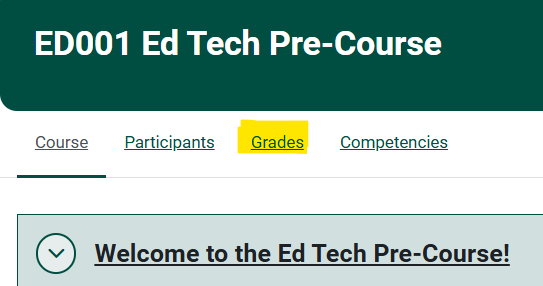
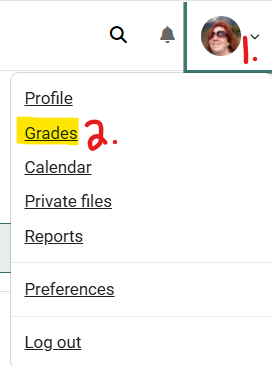
Students can find their grades in Moodle by navigating to the "Grades" link in the user menu (top-right corner) for an overview of all courses, or by selecting the "Grades" link within specific course navigation menus. This user report provides a detailed view of grades, feedback, and assignment weights.
Key Ways to Access Grades:
User Menu (Dashboard): Click on your name in the top right corner and select "Grades" to see an overview of all courses.
Blocks
Blocks are used on the Dashboard and Sidebar to organize your courses and content. You can add and move blocks by clicking the edit more button in the top right corner next to your profile icon.
Below are suggested blocks that will may help you to navigate Moodle better:
Latest Announcements
Any messages from your professors will appear here. Add this widget to the top of your Dashboard so you don't miss anything!

Private Files
If you uploaded any files or work submissions you will be able to to view them here.
You can add and manage files by clicking 'Manage Private Files' below.

Recently Accessed Courses
This block is recommended because it is small in size and it moves the most recently accessed course to the front each time.

Recently Accessed Items
This block allows you to see any of the items you recently opened within in a course. This can be helpful when trying to quickly visit past assignment or current one.

Custom Text
This block is great for those who want to write custom text to have on their dashboard. You can add reminders of assignment due dates, keep track of labs, and link outside media.


Upcoming Events
This section is a more concise version of 'Recently Accessed Courses'. You will the most recent due assignment instead of a few items.

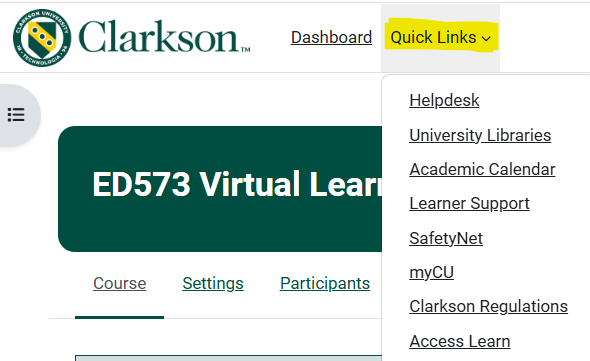
Quicklinks
AtSidebarthe top of every page in Courses
Moodle, Thisuse sectionthe only appliesQuicklinks to coursesget wherequick instructors uploaded links or other class related information.
Activities Sections
The 'Activities' section of your sidebar can change depending on the course, but includes links to assignments, forums, quizzes, and more.