Importing a SCORM file

Use the steps below to import a SCORM file into a Moodle course.

Step-by-step guide

To import a SCORM file into a Moodle course:

  1. ClickGo turn_editing_on.jpg?version=1&modificationDate=1498672331000&api=v2to fromthe Moodle course where you want to add the SCORM package.
Turn editing on by clicking the pencil icon in the top right corner of the course.course page. 
ClickScroll add_activity_or_resource.jpg?version=1&modificationDate=1498672398000&api=v2atto the bottom of the topicsection where you would like to add the SCORM file.file and click Add an Activity or a Resource.
Select SCORM_package.jpg?version=1&modificationDate=1498672790000&api=v2SCORM package from the list of activities and resources then click add.jpg?version=1&modificationDate=1498672951000&api=v2.resources.
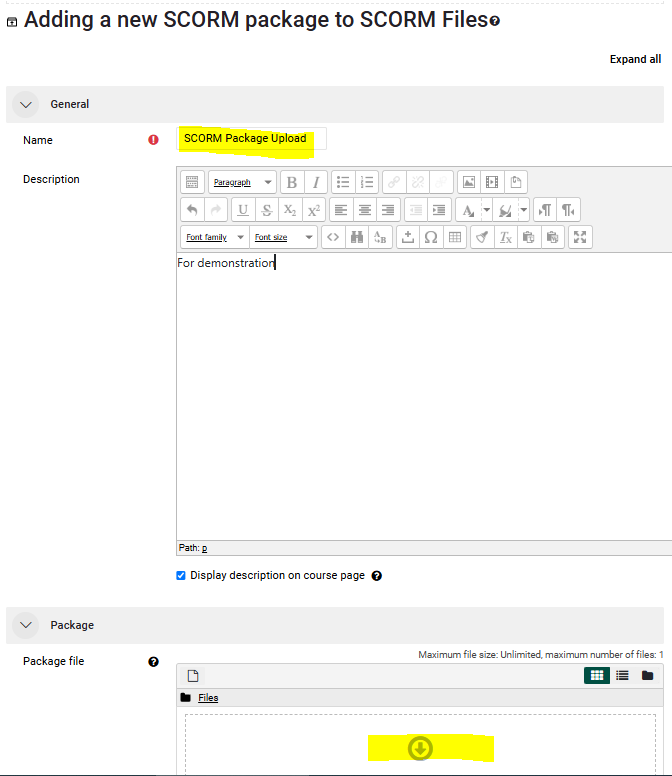
Enter the Name of the SCORM package as you would like it to display to your audience. In the PackagePackage  area, click upload.jpg?version=1&modificationDate=1498677887000&api=v2 then upload_a_file.jpg?version=1&modificationDate=1498678270000&api=v2drag and browse.jpg?version=1&modificationDate=1498678403000&api=v2drop toSCORM locatepackage file (or upload the SCORMfile).

file.

image.png

Once you've located and chosen the SCORM file, click upload_this_file.jpg?version=1&modificationDate=1498679047000&api=v2.
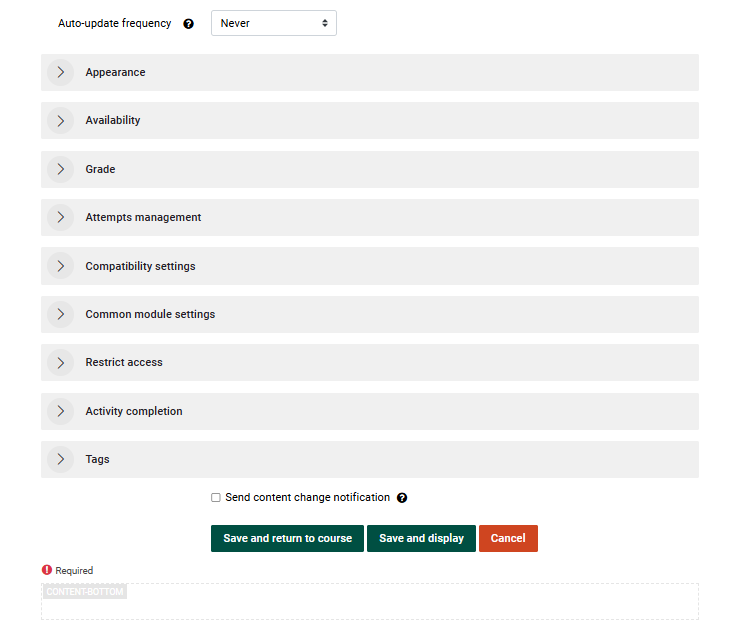
Make any other changes to settings that are appropriate (none are necessary) and clickSave save_return_to_course.jpg?version=1&modificationDate=1498679197000&api=v2and Display.

image.png


The SCORM package will display. It is recommended that you test the file to make sure that everything is working properly.