
Import Grades
Summary
This Guide Will Help You to:
- Export a stable data source file
- Import the desired grades into your Moodle gradebook
Video: How To Import Grades (4:30 min)
Note this video demo is Moodle 4 so the screens will not match newer versions of the LMS. The key piece to get started is to click the link to Grades on the top navigation bar in the course and click Export. The steps below show Moodle 4.5 screenshots.
Steps
1) Create a stable source data file that Moodle will accept on import by exporting a copy of your current gradebook.
To Export:
TurnOn the top navigation bar clickediting1.onGrades- 2. Export..
Inthe Administration block, click to expandGradebook setup. LocateExport.Select desired file type (Excel spreadsheet is most common).Alternatively, if you are in Gradebook setup, you will see a drop down menu with the same options as shown below:

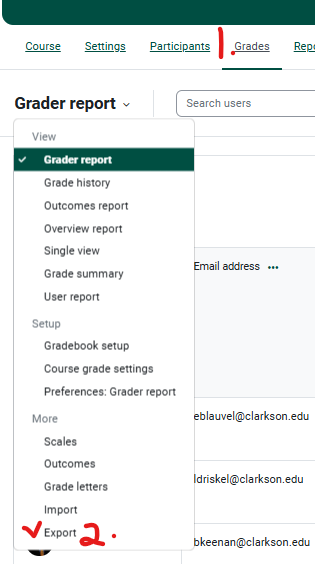
- Select desired grade items to export. There is a Select All/None button at the bottom.
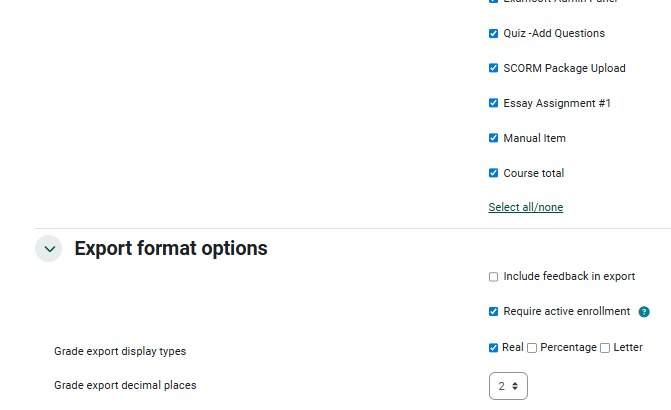
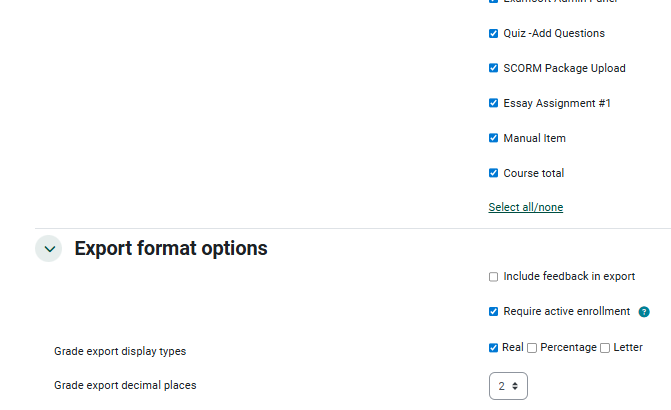
SelectClickExport format optionsDownload. The defaults are preferred in most cases.- Save the file as a .csv to a desired destination folder.
2) Populate Grade Data into the source spreadsheet file.
- Copy/Paste grade data to the desired columns.
- AVOID altering the Column Headings or the student identification information in the original file.
3) To Import:
- Click Import in the Grades
Administrationdropdownblock.menu. - Choose file to select to upload. Defaults are preferred in most cases.
- Click Upload Grades.
- You can preview the import to check that the selections are correct.
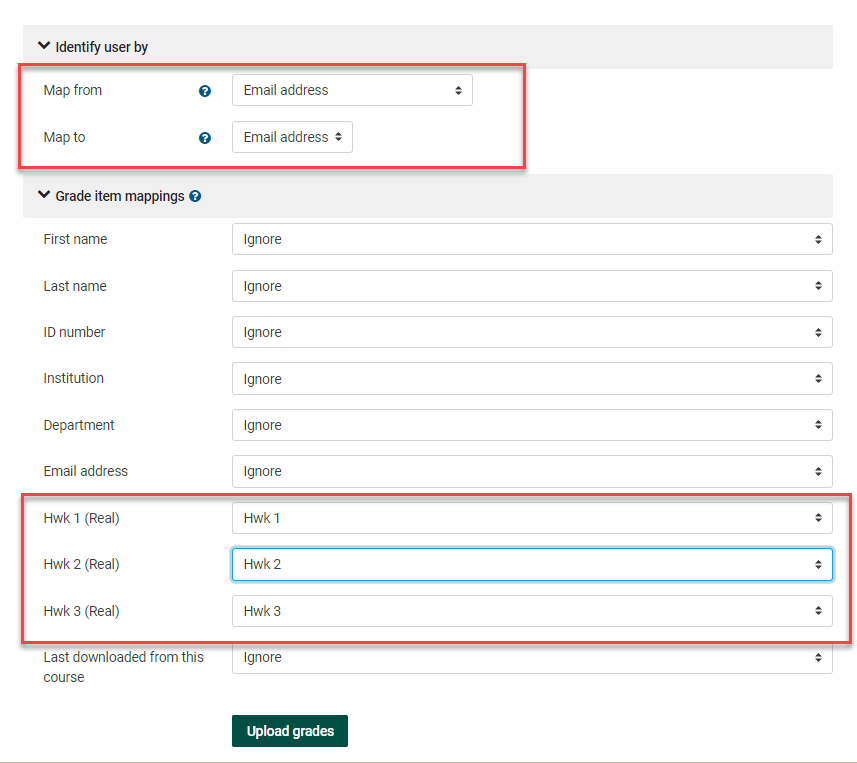
- Identify user by:
- Select the desired fields to map. Recommend mapping Email address to Email address.
- Grade item mappings:
- Select the grade items you wish to map.
- Click Upload Grades.
See more about how to Import and Export in Moodle Document for Grade import; Grade export.
Seek Further Assistance
For additional assistance please contact, Clarkson OIT Help Desk;
Online: Get Help
Email: helpdesk@clarkson.edu
Call: 315-268-HELP (x4357)