
Download Student Submission Files
Summary
This Guide Will Help You to:
- Download student assignment submissions in a single folder. Watch the video below or skip to the steps below.
How To Video:

Download Student Submission Files (1.15 min.)
Steps:
To download submissions as files in one folder:
1) From the Moodle course page, locate desired assignment and click the Submissions link.

2) Select All or Desired Student Names to download submissions.
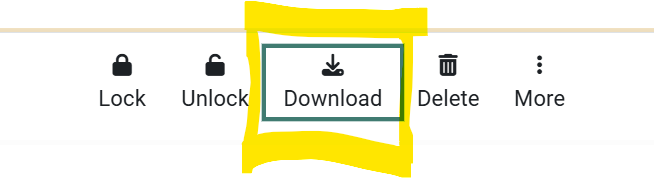
 4) Scroll to the bottom and click Download - Download submissions in folders
5) Student submissions are downloaded as individual files in a folder. *
Alternatively, Grade Assignments Using Annotate PDF
Seek Further Assistance
For additional assistance please contact, Clarkson OIT Help Desk;
Email: helpdesk@clarkson.edu
Call: 315-268-HELP (x4357)