
Create Custom LTI with Third Party Provider with the External Tool Actvity in Moodle
Instructors may have occasion to bring content directly into your Moodle course from an outside content provider, often a publisher, i.e. Cengage, Pearson, Perusal, Wiley Plus, etc. This requires a custom LTI using the External Tool activity in Moodle. Instructors can add the tool by following the steps below.
Steps to Add an External Tool with LTI
Example: Cengage
- Turn Editing On
- Click on Add an Activity or Resource at the bottom of a section:

- Search for the Tool you want to add:


4. Give the activity an appropriate name and click Select Content.
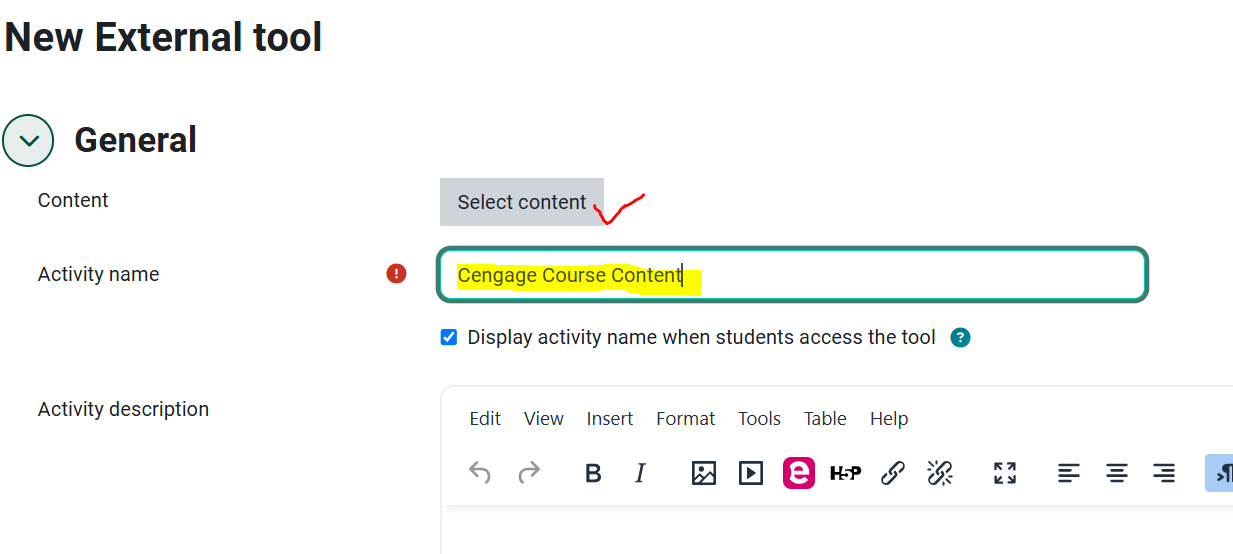 Note: if you do not see the tool in the Activities and Resources, contact the HelpDesk, they may be able to add it.
5. Follow the steps provided to you by your 3rd party provider:
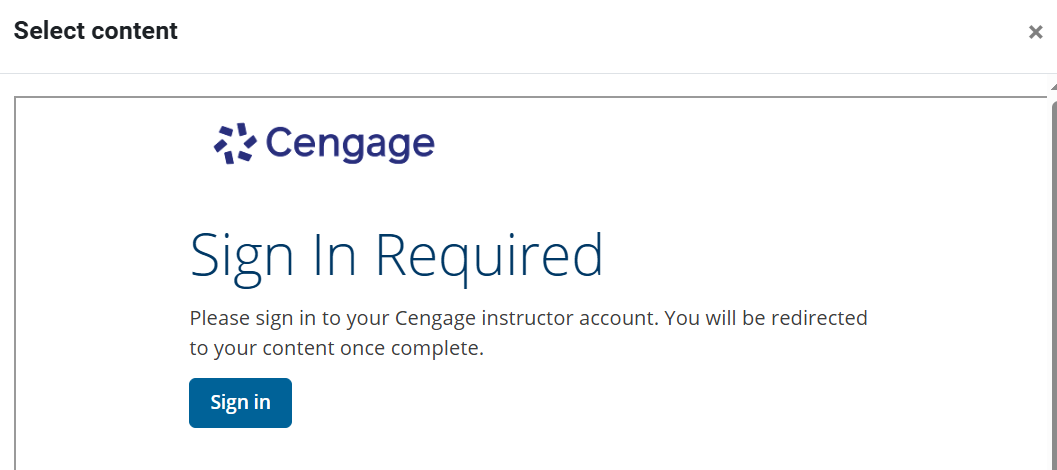
6. Save and return to course.
Notes from Specific 3rd Party Providers:
|
If you are using |
Steps for Wiley Plus Integration
Cengage website