
Create A Quiz in Moodle
Summery
Th steps below will first show you how to create a quiz shell in the Learning Modules area of your Moodle course. Secondly, you will see how to add questions from your course question bank to the quiz shell.shell Orand finally preview the quiz before sharing with students. You may also choose to watch this 6 minute Quick Quiz Start-up video from Moodle Docs:
Steps:
In
I.this article you will:
Step 1. Create Athe Quiz:Quiz Shell


From
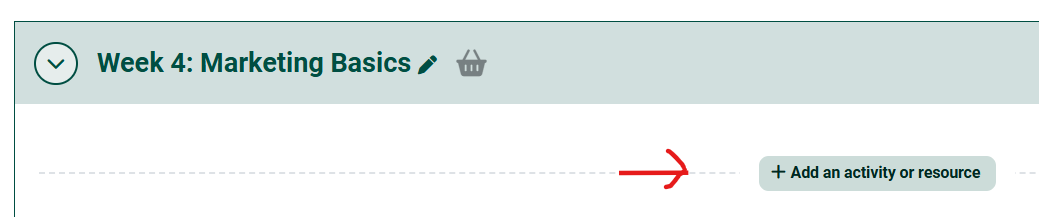
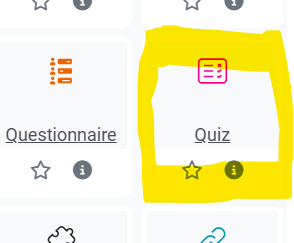
II.2.
Step 2. Add Questions to the Quiz:Quiz
- Click on the Quiz activity.
- Select the Edit Quiz button.
- Click on the the Add question button as shown below.

- And then on the little Add link on the right:

 Two Options:
- Create a new question or

- if you are adding questions previously created in your course question bank, click on + from question bank
- Select the drop down menu under Select a category. Locate the category where you uploaded questions for this quiz (example: Chapter 1)

- Click the box to select all the questions in the category
orOR check just the questions you want to add to the quiz. - then click on Add selected question to the quiz (alternatively you can add a random number of questions)
- Select the drop down menu under Select a category. Locate the category where you uploaded questions for this quiz (example: Chapter 1)


- Adjust the points accordingly. No matter how many questions, you can set the grade to be 100 and Moodle will calculate the correct percentage achieved by the students.

Step 3. Preview the Quiz and Check the Settings
UseClick Quiz at thebreadcrumbtoptrail to go back to the homepage or, in theQuiz Administrationblock to the right, click onPreviewnavigation to see how the quiz will look to students.This is where you can alsoOr adjust the quiz by clicking on Settings:

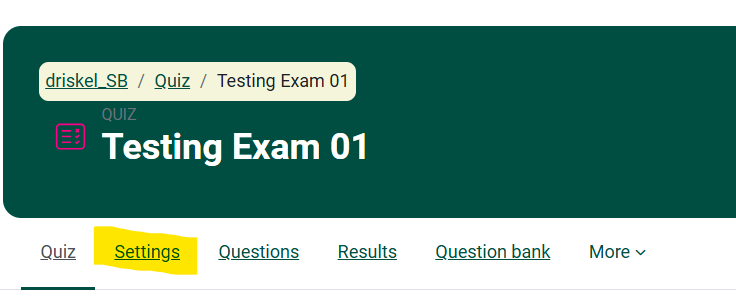
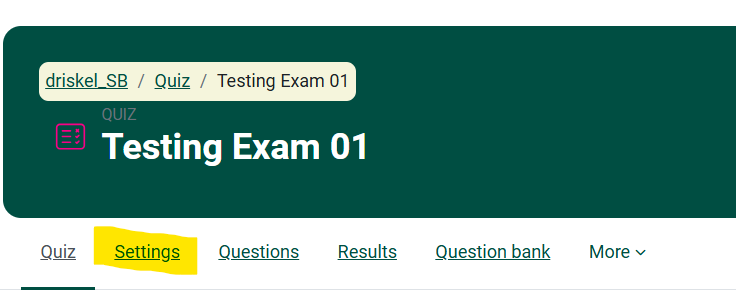
For more about Quiz, check the Bookstack article list of related topics.
Seek Further Assistance
For additional assistance please contact, Clarkson OIT Help Desk;
Online: Get Help
Email: helpdesk@clarkson.edu
Call: 315-268-HELP (x4357)