
Backup a Course in Moodle
Summary
Course instructors may create a backup copy of their course in Moodle. The backup copy can be saved to the individual's storage location for later use. Backup copies can be restored into a Moodle course shell at a future time.
This Guide Will Help You to:
Steps for completingComplete a course backup.
Steps
Teachers and Administrators open the Moodle course that you want to backup.
Step
1. Turn Edit mode
Step 2. Use the check boxes besideto the list ofchoose resources/activities you wish to include in the back up.up (or see Step 3).
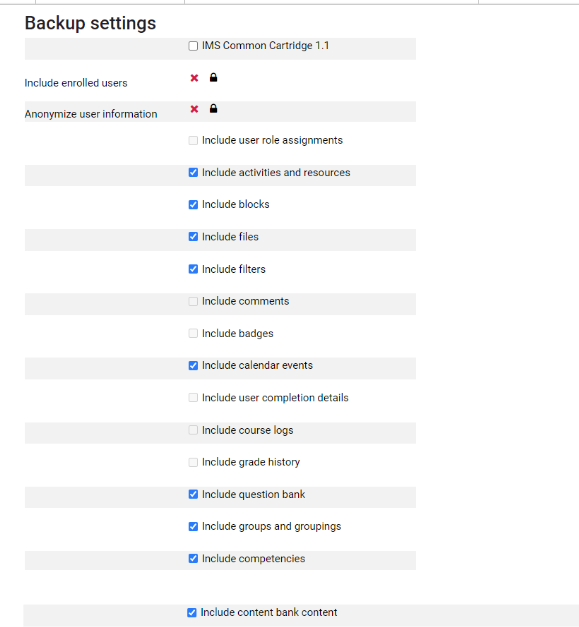

Step 3. If you are including all of the Course Content is to be included in the back-up, choose Jump to final step. If you want to pick and choose which content to have in the back-up, click Next

- If you clicked Jump to final step, the download file is now available.
- Otherwise, choose which items to include as you scroll through the Topics:

4.. Confirm that your selections are correct and click "Perform backup and then click "continue".
5. Your course has now been backed up and will be saved on the Moodle server. To store a local copy of the back up on your computer, click on the "download"download" button next to applicable back up that is listed. 
Seek Further Assistance
For additional assistance please contact, Clarkson OIT Help Desk;
Online: Get Help
Email: helpdesk@clarkson.edu
Call: 315-268-HELP (x4357)