
Alternative to Grading/Annotating PDFs with MS Edge or Mac browser (Assignment Feedback)
Step-by-step guide
How to Annotate a PDF Document
The good news is that most of the focus is on annotating PDF documents because it is the most shared format. Annotation is also a default feature set of common tools found on both Windows and MacOS. Let’s look at what’s built in.
Step-by-step guide
This guide will show you how to:
1. Annotate a PDF on Windows 11
Microsoft Edge became the first browser to allow PDF annotations natively. The Windows 10 Fall Creators Update brought inincludes PDF annotation and with highlights and notes. The Inking feature also another key tool that allows you to annotate PDFs, websites, and even EPUBs. Though, inking works better on touch screens.
- Right-click a PDF document and select Open with > Microsoft Edge.
- Highlight the text to display the annotation menu with
fourvariousoptions.optionsChooseincluding thecolor for the highlighter, add a note, copy the piece of text, or click the Cortana buttonability toopenAska flyoutCopilot to research the word or text.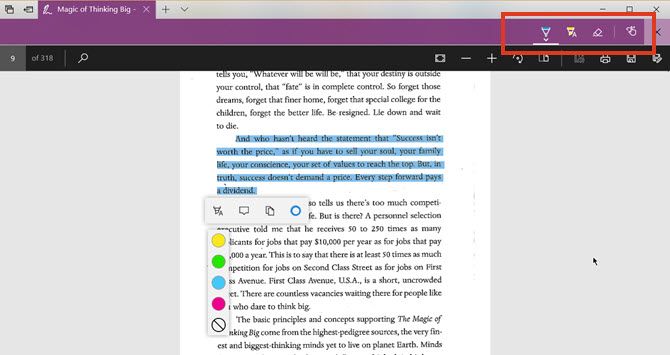
To use theInkingoptions click the Add Notes button on the menu (to the left of the Share button). Select the Ballpoint Pen, Text Highlighter, Eraser, or the Touch Writing tool to mark up the PDF.Choose the colorfromfor thepalettehighlighteravailableandundertools,theaddBallpointapentexticon.
The annotation capability is just another reason tonote, use the Edgedraw browsertool.
as a secondary browser on your machine.
2. Annotate a PDF on Mac
The Preview app on your macOS is one of the underrated tools. The markup menu in Preview is one of its more useful features. You can use it to leave information for yourself or suggest changes to a PDF document while collaborating.
- Go to View > Show Markup Toolbar or click the (sketch pen) icon on the top right.
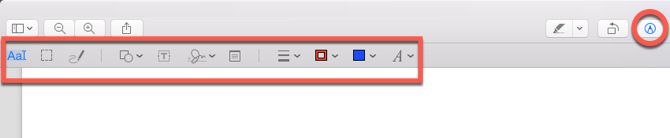
- Use the selection and the markup tools annotate the PDF. You can use type, sketch, draw, use shapes, add notes, sign, and change the format for all.
- Click Done after you finish marking up the PDF.
The Preview app has all the bells and whistles. You can even create, merge, and split PDF documents with it.
How to Create, Merge, Split & Markup PDF Documents on a Mac How to Create, Merge, Split & Markup PDF Documents on a Mac
Don't pay for PDF software! Convert documents, merge or split PDFs, and annotate and sign forms for free on your Mac.
How to Annotate an Image
Image annotation tools are dime a dozen on the web. So, we won’t cover them in great detail here. Any good screenshot tool would allow you to annotate the image. You can go back to Apple Preview on macOS and Paint on Windows
More Resources:
The Simple Guide to Annotations: How to Annotate PDFs, Ebooks, Images, and Websites has a robust list of information about annotation that may suit your annotation needs.
Seek Further Assistance
For additional assistance please contact, Clarkson OIT Help Desk;
Online: Get Help
Email: helpdesk@clarkson.edu
Call: 315-268-HELP (x4357)