Samsung Flip WM75A User Guide
1Quick Start2Introduction3What's a 'Roll'?4Drawing5Erasing6Saving your Roll7Importing Content from another source8Connecting to a PC9Connecting via the Wireless Display function10Connecting via SMARTVIEW+11Importing from a USB Device12Connecting to Internet13Connecting to SAMSUNG WORKSPACE
This is a work in progress.
Quick Start
Welcome to the Samsung Flip. Turn the unit with the power button on the lower right-hand corner of the screen bezel. The unit should power up in less than 3 seconds. Here some general use.
- Draw with the included Pens (should be magnetically attached to the side of the screen)
- Thin end is Drawing, Thick end is a highlighter
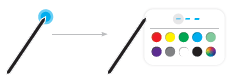
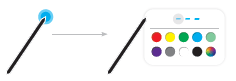
- Tap and hold the screen to select different colors
- All "Pens" must use the same colors at the same time.
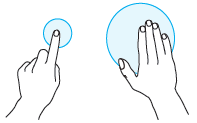
- Erase with your hand (finger, palm, etc)
- Easiest way to save your work is to internal storage or a USB drive.
Introduction
The Samsung Flip is essentially a "smart whiteboard." When you first turn the unit on, it defaults to the standard white board, in pen (drawing) mode.
A new file, called a "Roll" is created each time the unit is turned on.
What's a 'Roll'?
- A 'roll' is a file with multiple pages (up to 20) linked together.
- You can open only one roll on one screen.
- BRUSH MODE supports one page only
Drawing
- You can use the supplied pen/stylus to write anything you
want.- Thin Tip (A ): Pen Type
- Thick Tip (B ): Highlighter Type


- You can change the pen/highlighter thickness and color by touching and holding the screen with the pen.


Erasing
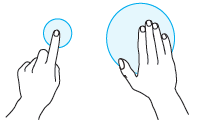
- You can use your finger or palm to erase your writing.

Saving your Roll
- By default, the Samsung flip has internal storage that you can save your Roll to.
- Press the menu option at the bottom of the screen


- You should see options for
- NEW - Create a new roll.
- SAVE - Save the current roll.
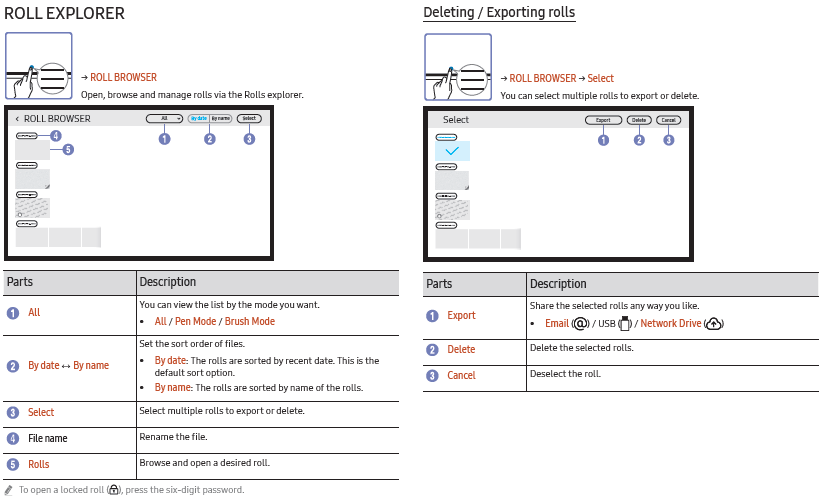
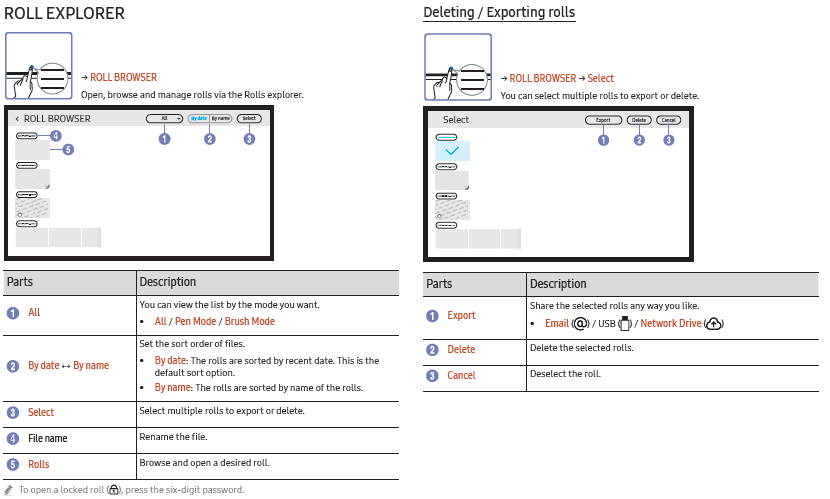
- ROLL BROWSER - Open, delete or export saved rolls.

- FORMS - Change the background of the whiteboard.
- This menu is only visible in PEN MODE mode.
- ROLL LOCK /UNLOCK
- ROLL LOCK: Press a six-digit password to lock the current roll.
- UNLOCK: To unlock a locked roll, press the six-digit password you set when locking the
roll. - Once unlocked, the current roll remains unlocked until it is locked again.
- SETTINGS - You can see the configuration menu.
- HOW TO USE - You can view How To Use.

Importing Content from another source
-
-
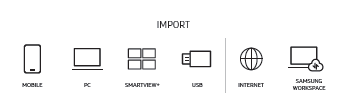
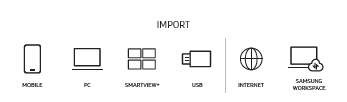
Tapping on the Side navigation button will bring a menu, select IMPORT

-
The native FLIP format (.iwb) refers to files that are directly saved from the device and only
supported by FLIP devices. -
Supported video file formats: avi, mkv, asf, wmv, .mp4, mov, 3gp, vro, mpg, mpeg, ts, tp, trp,
flv, vob, svi, m2ts, mts, .webm, .rmvb -
Supportable image file formats: JPG, BMP, PNG, MPO
-
Supported document file formats: DOC, PPT, PDF, XLS, XLSX
 Displays the screen from a mobile device by using Smart View or Screen
Mirroring function.
| Displays your PC screen using HDMI, DisplayPort, OPS connection or Wireless
Display. You can display the screen shared from your PC, mobile, or tablet.
  Import videos, images, native FLIP files, or document files from a USB device.
 Connect the network to access the Internet from the product like accessing
the Internet from a computer. Access to remote PC and your work resources with this function. |
-


Connecting to a PC
- Connecting using a cable
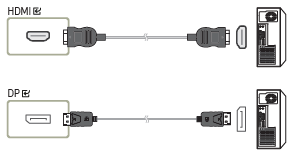
- Connect the product to the PC using an HDMI or DP (Display Port) cable.
- HDCP (High-bandwidth Digital Content Protection) contents will not show on the screen if PIP Capture is set to On.
- When the screen is black, turn off PIP Capture because some graphic cards can support HDCP automatically.

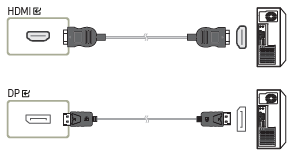
- Select IMPORT → PC → HDMI, DisplayPort from the top of the screen.
- To control the PC from the touch screen, connect the supplied USB A to USB B cable to the TOUCH
port on the product. - If used in a multi-screen setup, make sure you have configured FLIP as the main display.
- Connect the product to the PC using an HDMI or DP (Display Port) cable.
Connecting via the Wireless Display function
- This function is only available for laptops running Windows 8.1 or newer that supports the Wireless Display function
- Select Action Center or Devices in the taskbar notification area of the laptop
- Click Connect or Project and select a [Flip] Samsung WMA Series device to complete the
connection - The connection procedure may vary depending on the laptop
- After the Wireless Display connection is made, you can control the laptop screen from the
product screen
Connecting via SMARTVIEW+
- IMPORT → SMARTVIEW+
- You can display the screen shared from your PC, mobile, or tablet
- Select SMARTVIEW+
- Once SMARTVIEW+ starts, follow the onscreen instruction to connect with the desired
device. - The CA certificate installation is required for the PC Client, and you can download the CA
certificate from the URL provided in the initial screen of SMARTVIEW+ - If the Client device’s screen aspect ratio differs from the Flip, the Client device may
transmit a partially cropped screen. You may experience a partially cropped image of the
Client device’s screen on Flip since it displays according to the signal received from the
Client device - SMARTVIEW+ supports the following browsers: Chrome / Safari / Edge / Firefox
Importing from a USB Device
- IMPORT → USB
- Connect an external HDD or a USB storage device.
- You can import videos, images, native FLIP files (.iwb), or document files
Connecting to Internet
- IMPORT → INTERNET
- Connect the network to access the Internet from the product like accessing the Internet from a
computer. - You can Capture, reposition, or see the browser window in full-screen view.
- Note: Some pages may not appear or work due to compatibility issues.
Connecting to SAMSUNG WORKSPACE
- IMPORT → SAMSUNG WORKSPACE
- REMOTE PC: This function allows you to connect your product to a remote PC or a cloud
server running on macOS/Windows 7 Pro or newer - VMware Horizon - NOTE SUPPORTED AT CLARKSON
- Office 365: Provides access to Office 365 features from Microsoft
- NETWORK DRIVE: Connect the network drive to bring files.