
Google Calendar: How to Make Appointment Slots
This guide will go through the basics of Google Calendar, and how to set up appointment slots in Google Calendar so Students can schedule appointment slots. It will also go over how to share Google Calendar via a link.
Creating a Calendar & Events
This part of the guide will go through, how to make a specific calendar for Office Hours
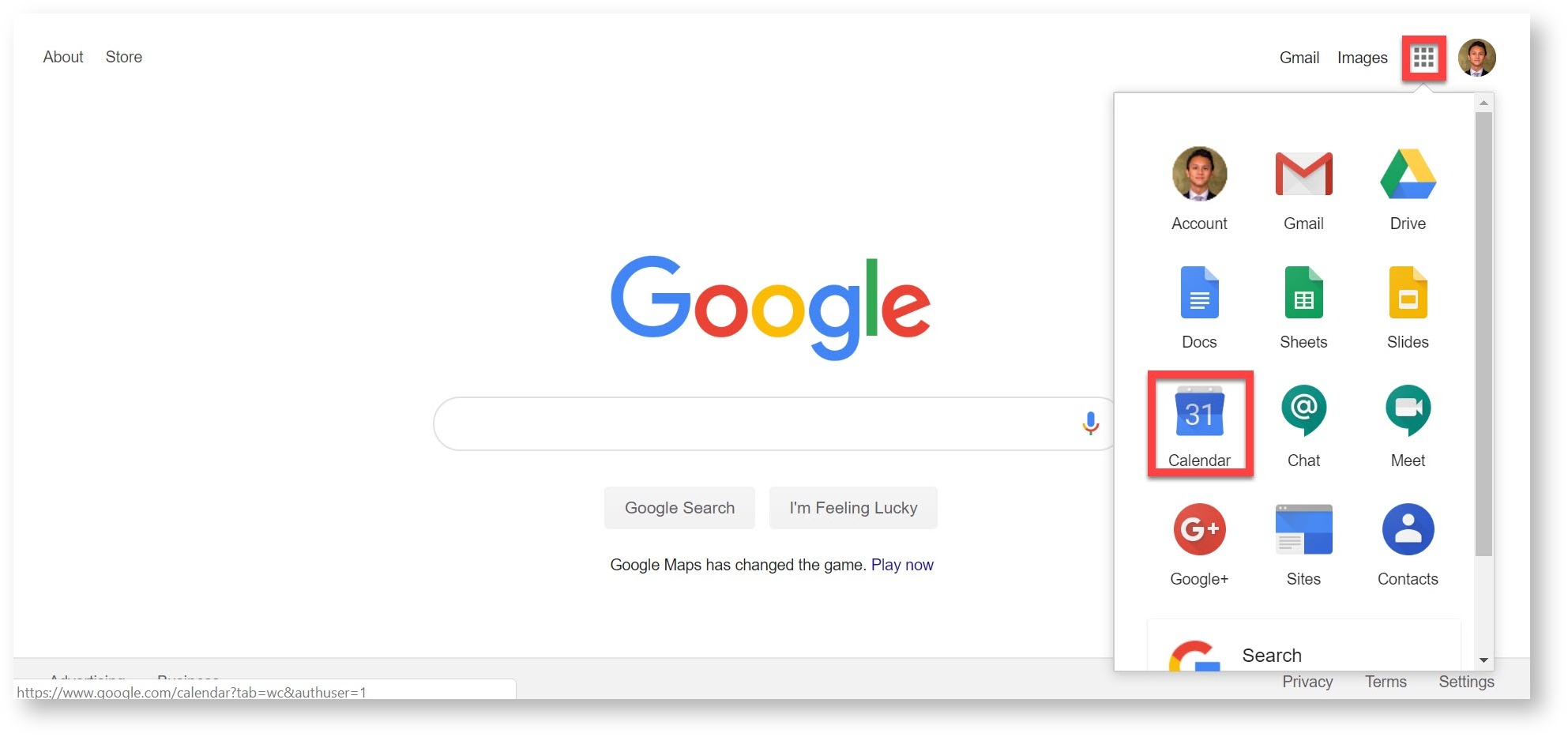
Log into Google
Go to Google Calendar

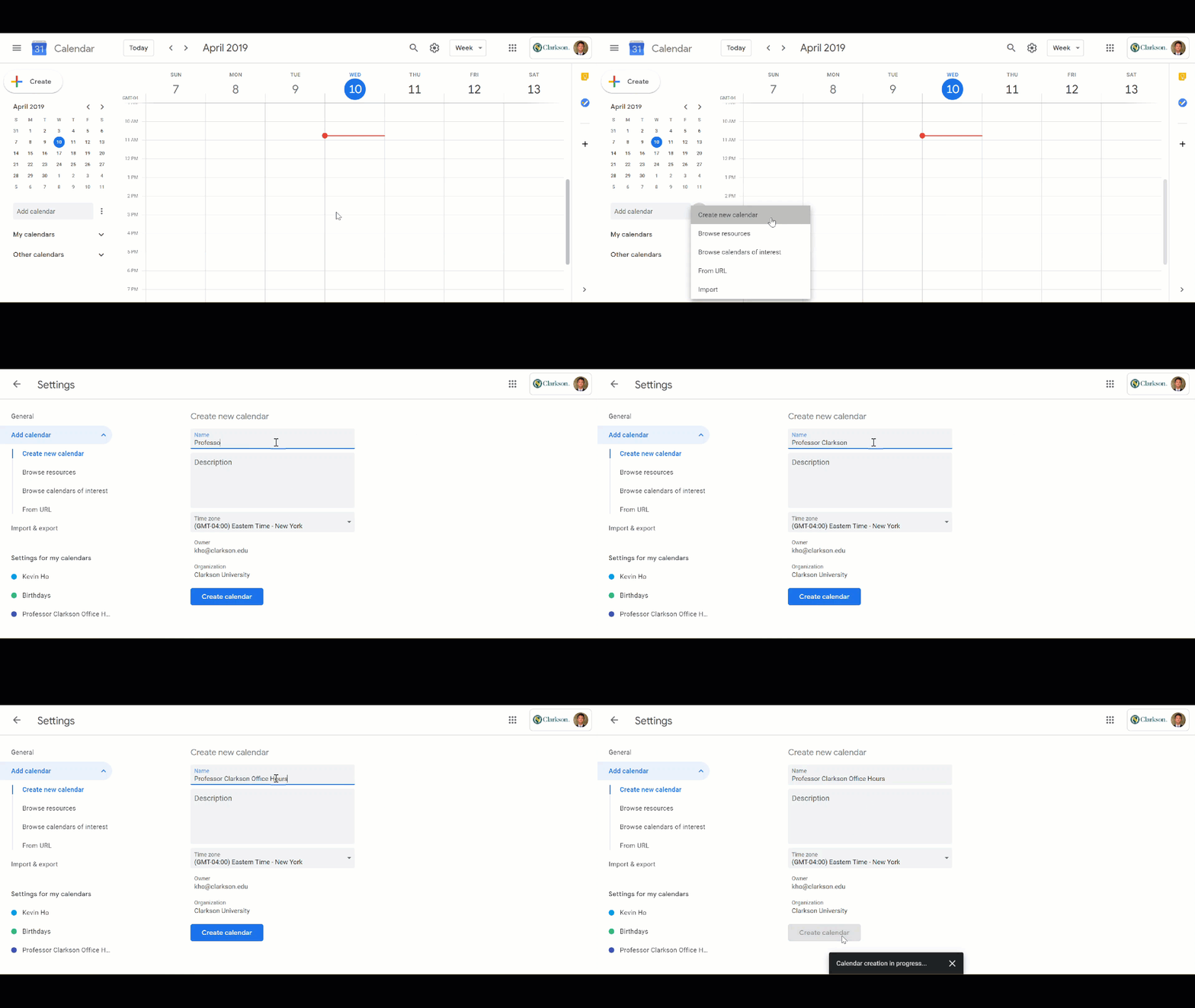
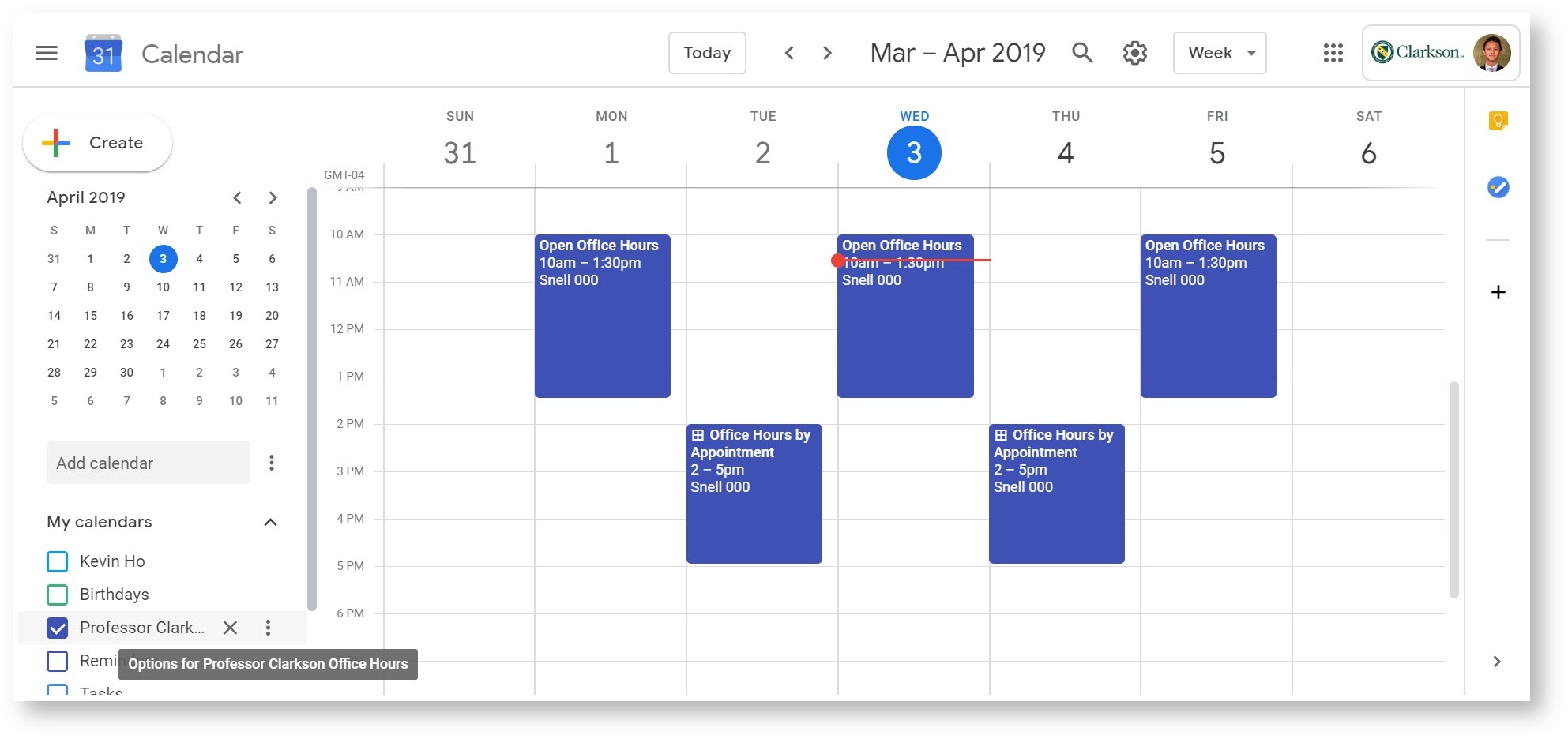
Next to “Add Calendars”, and select Create a new calendar i.e “Professor ____ Office Hours”

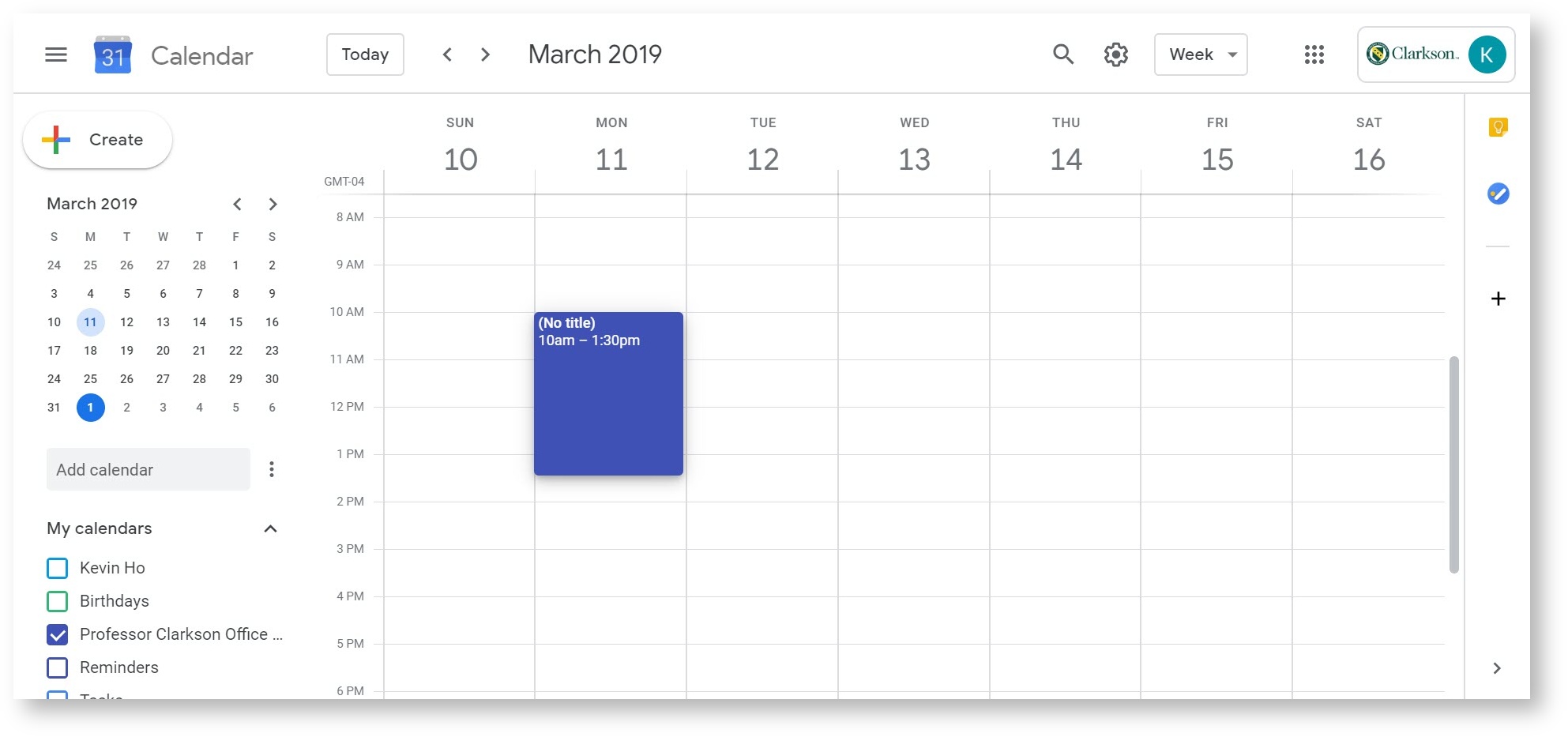
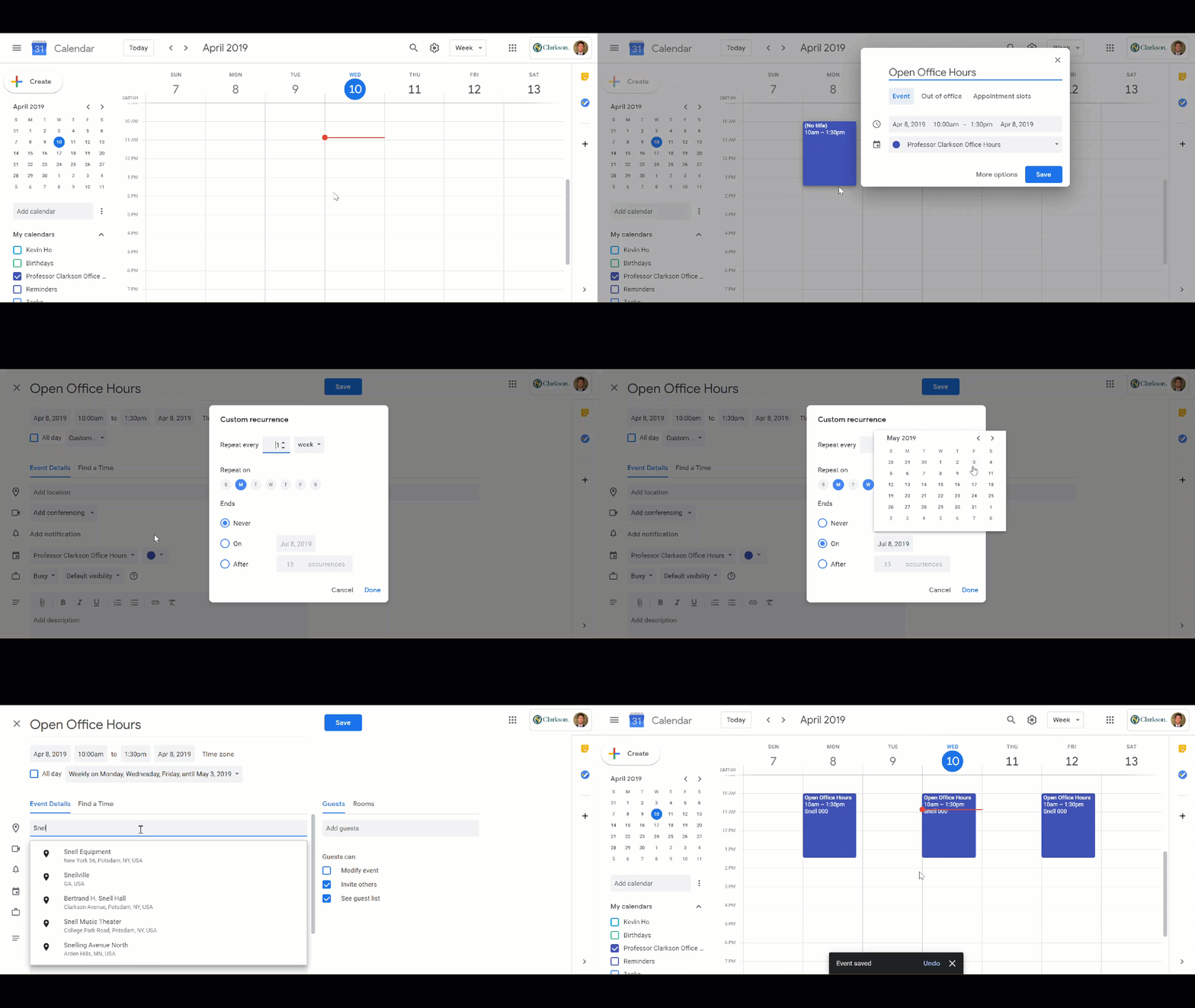
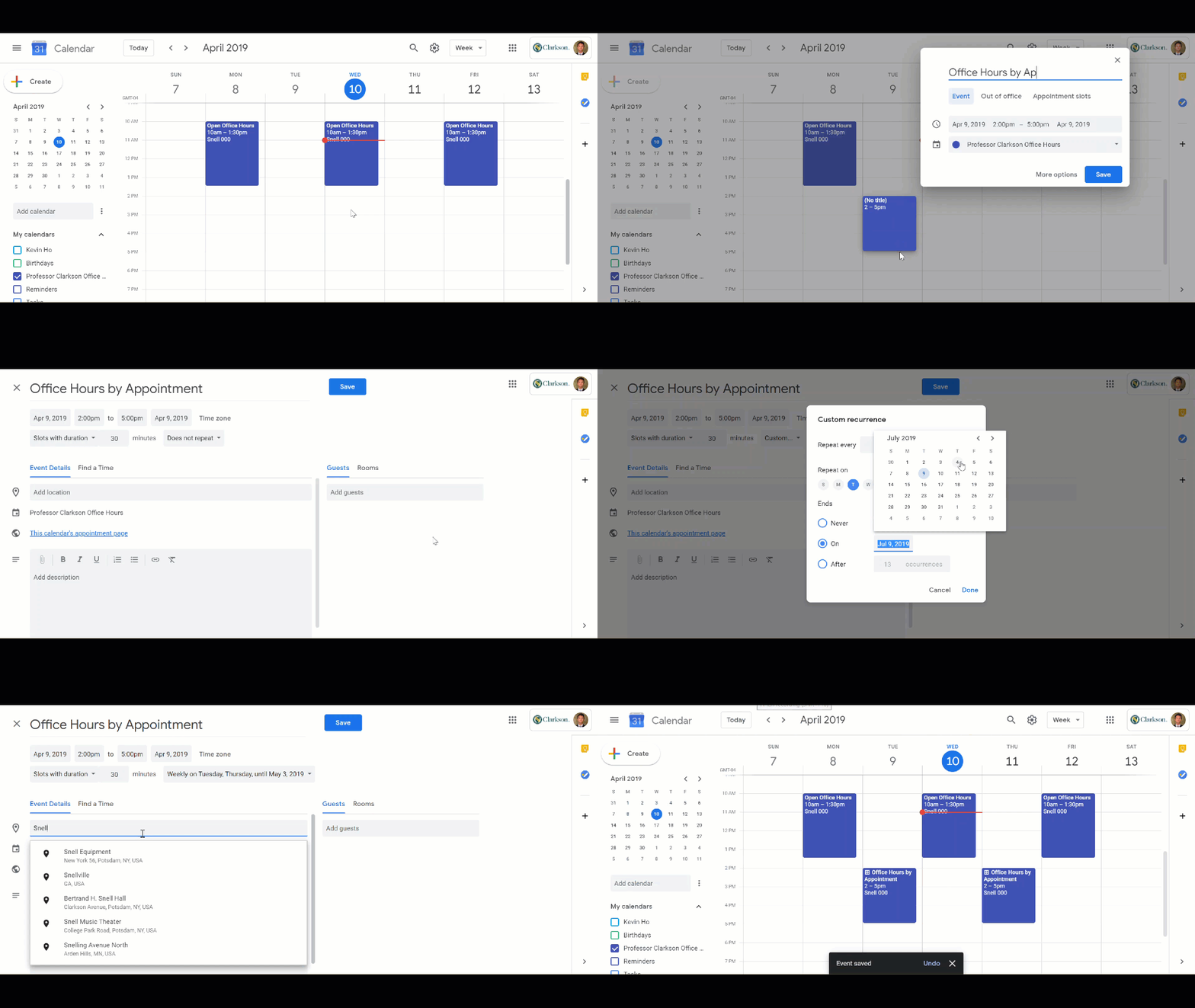
Clicking on the calendar itself, open office hours can be made.

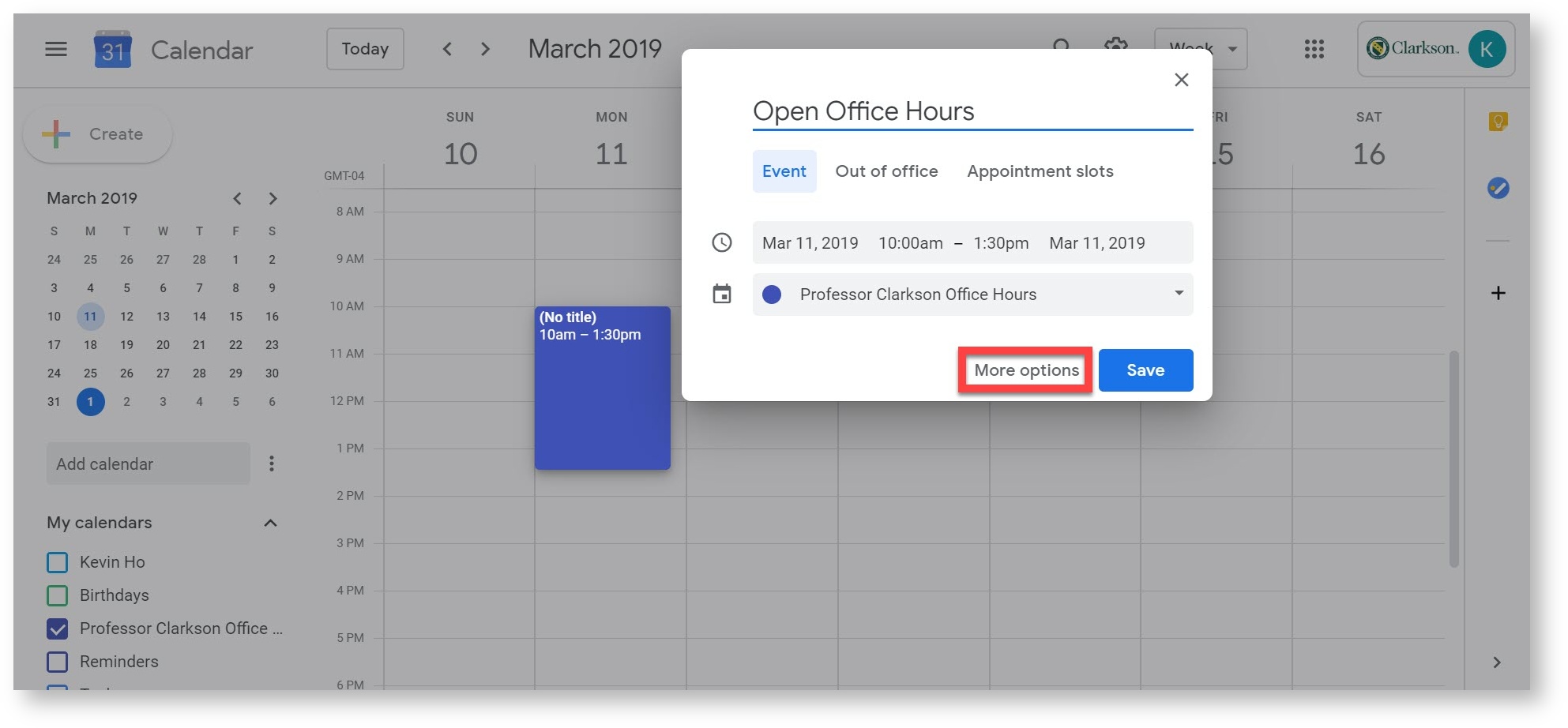
Select "More Options" to add more details to the event
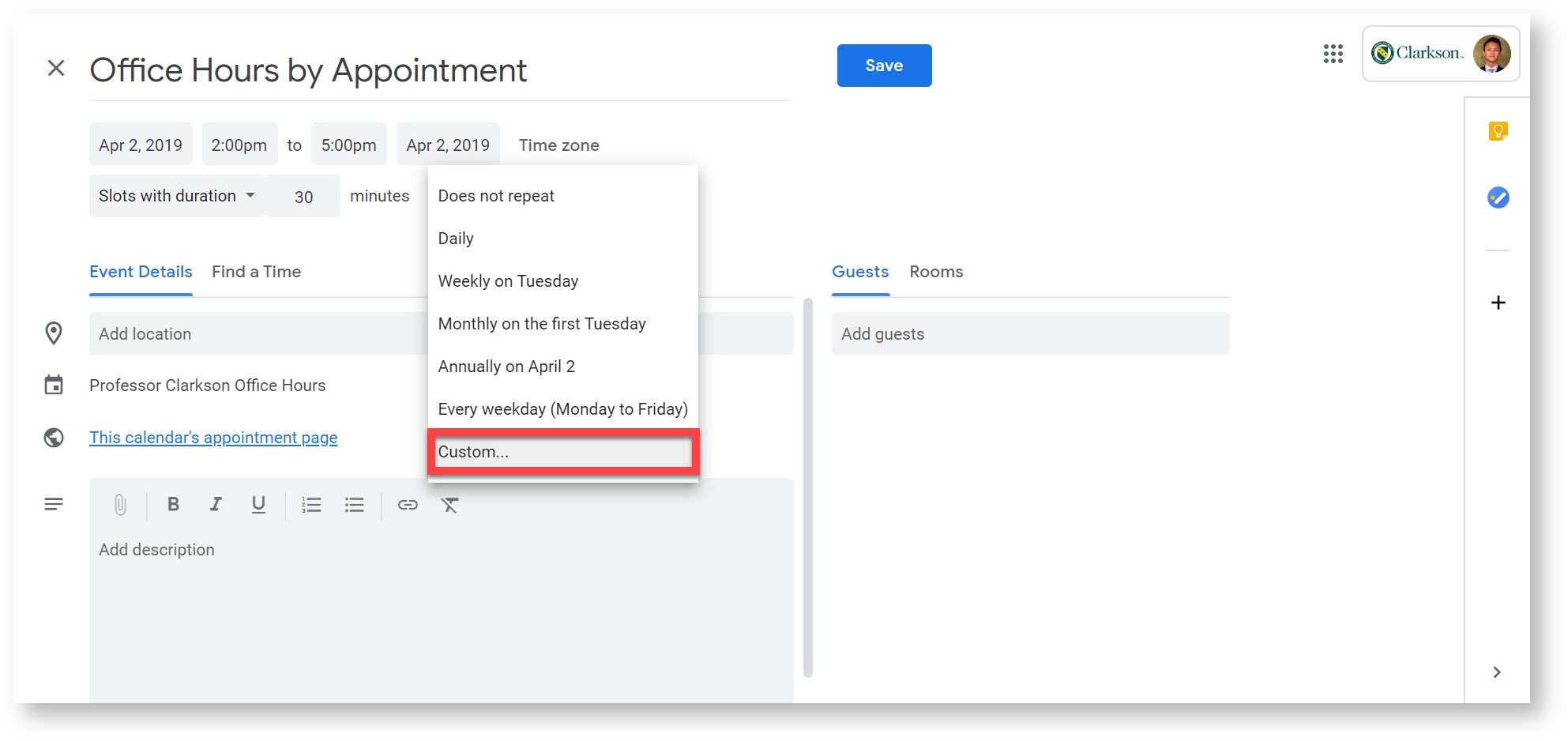
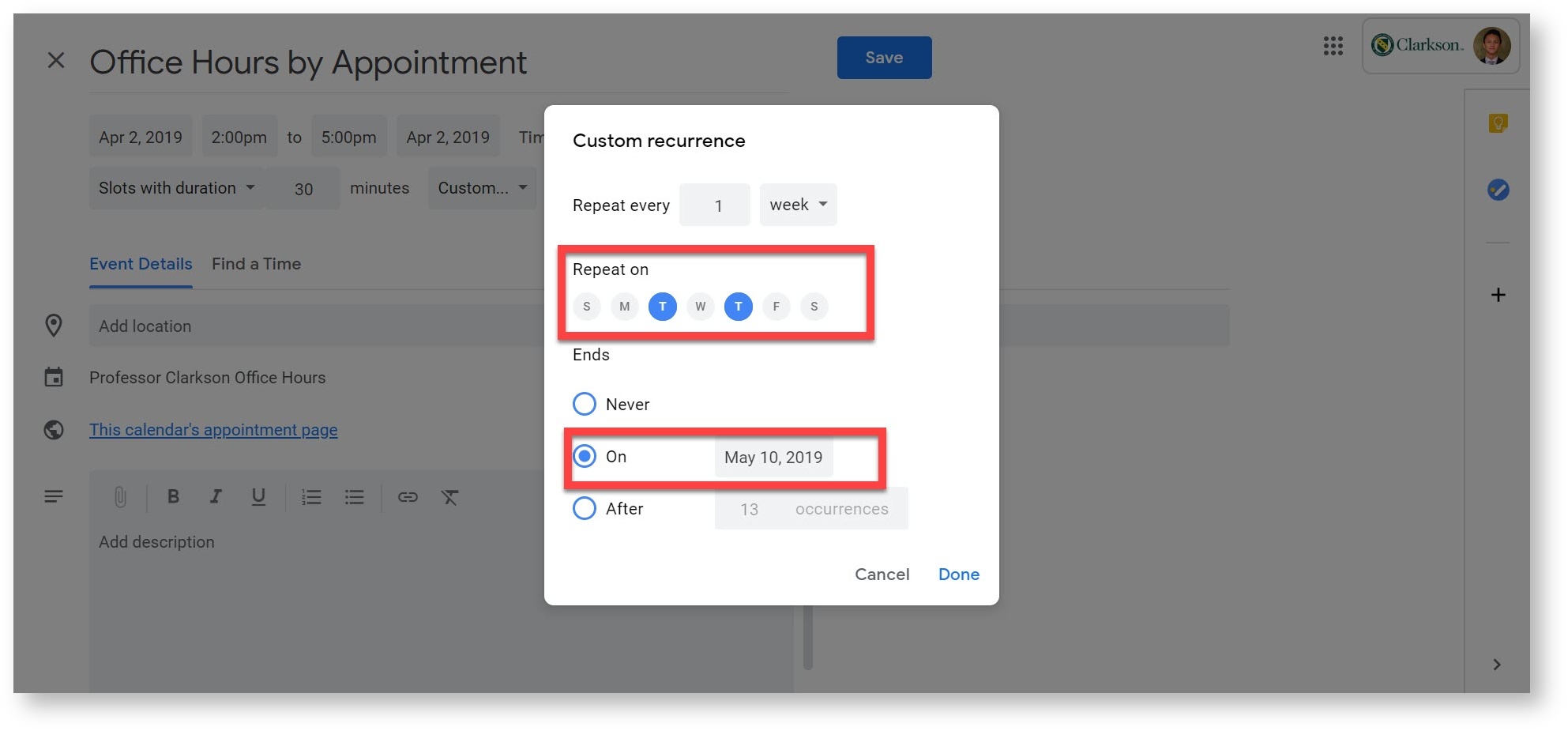
Click on "Does not Repeat", to select whether or not the event is reoccurring, then click on "Custom"
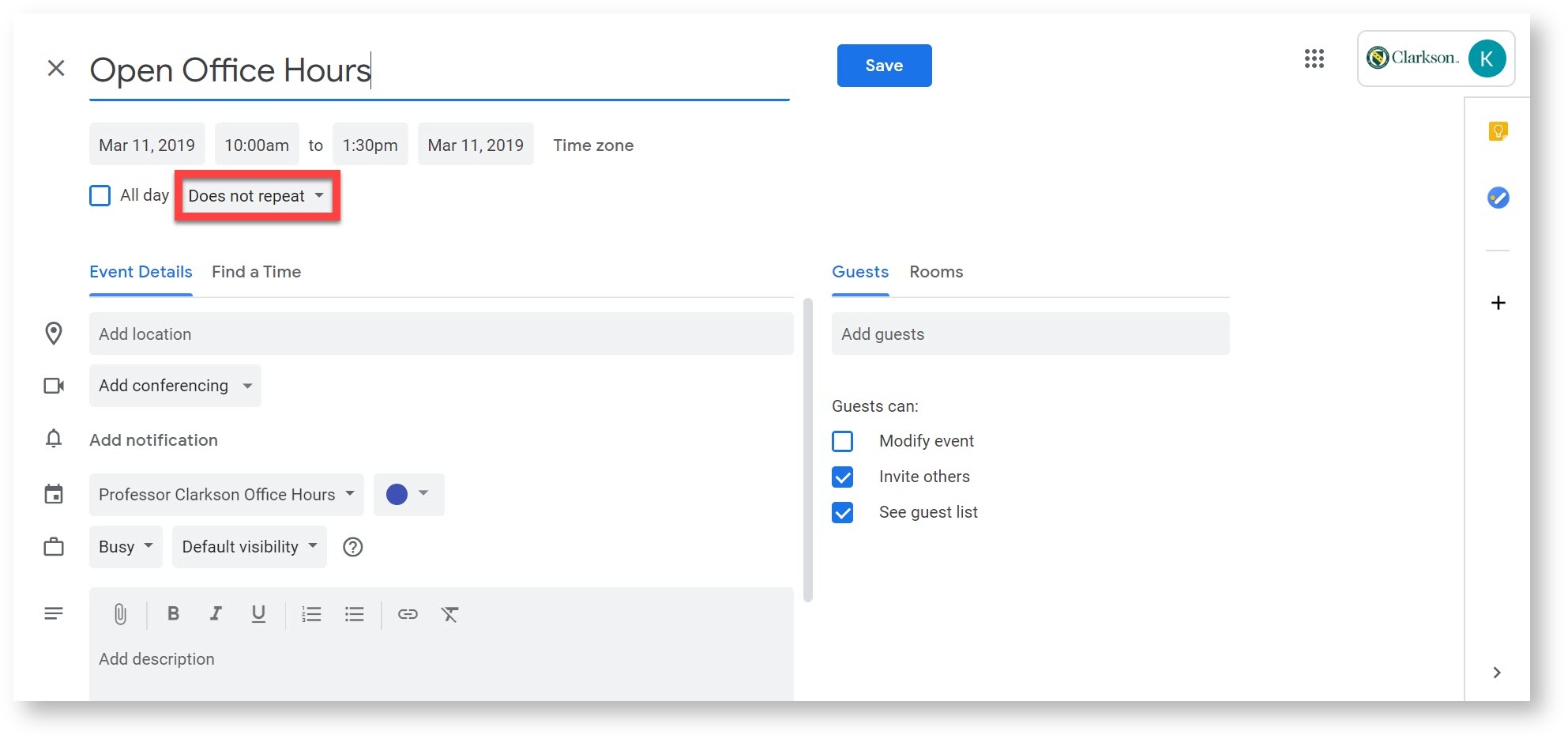
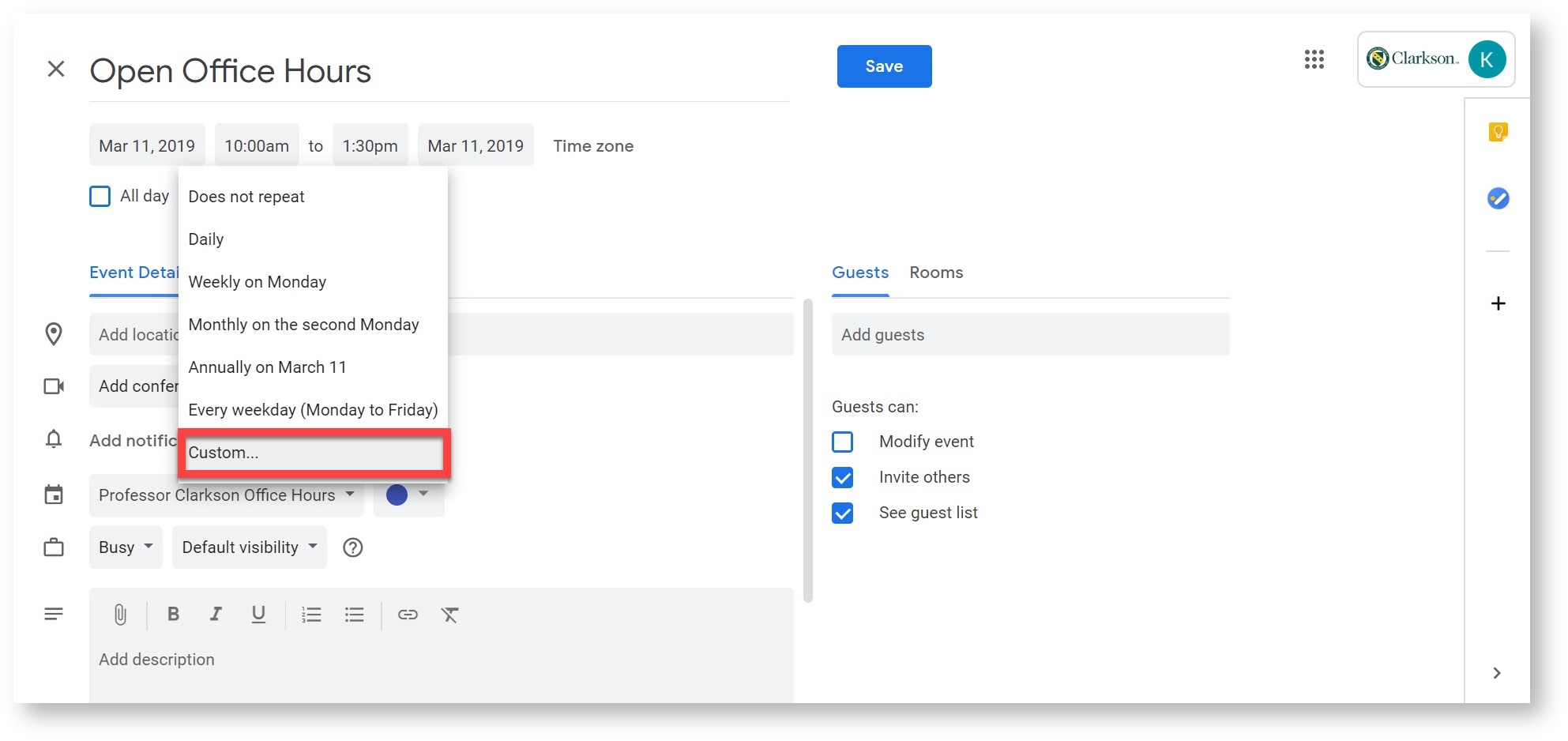

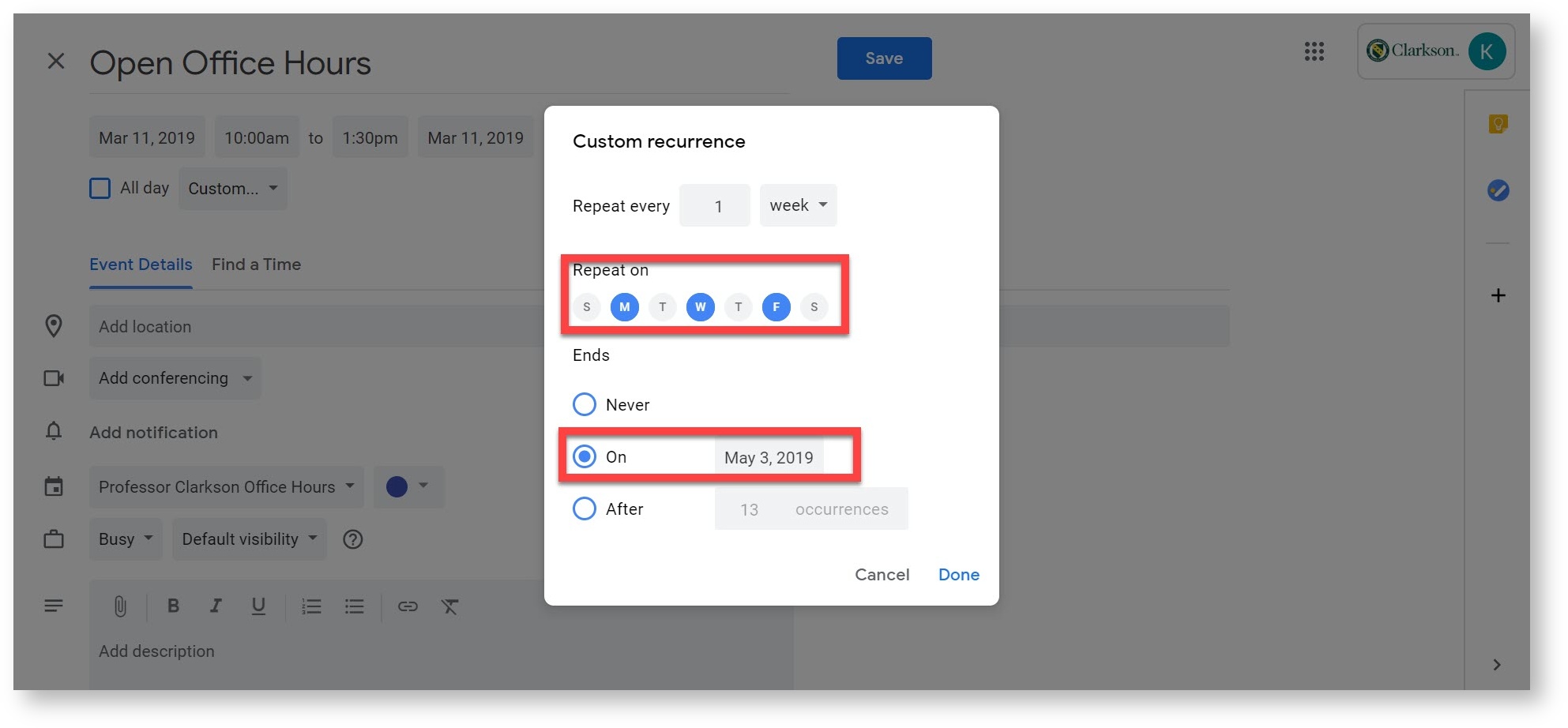
Select the frequency of when the event reoccurs. Also make sure if the event is reoccurring, that the re-occurrence ends by the end of the semester. 
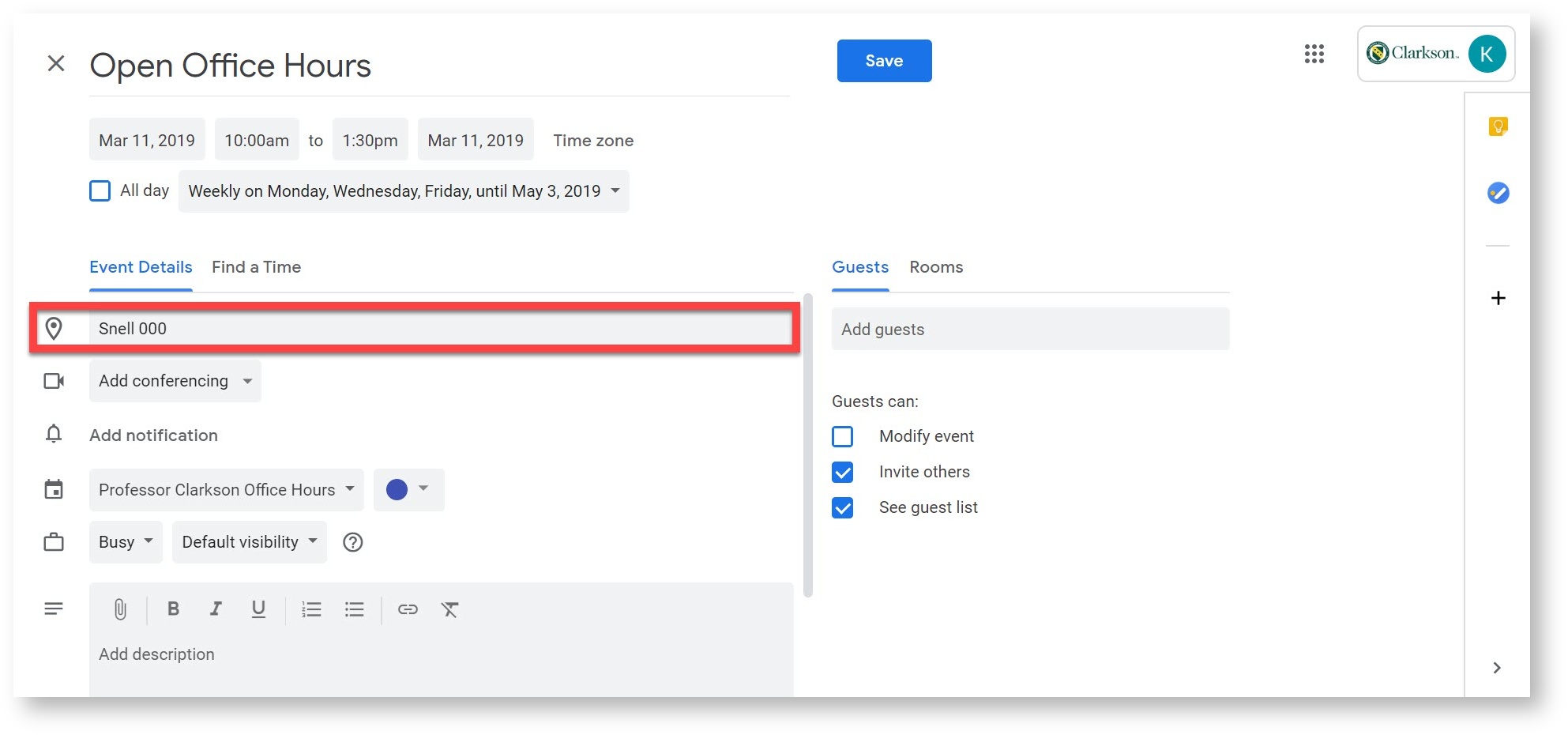
After clicking on "Done", make sure to add a location. Then select "Save".

Creating Appointment Slots
Click on the Calendar itself, and create a new event
Select Appointment slots
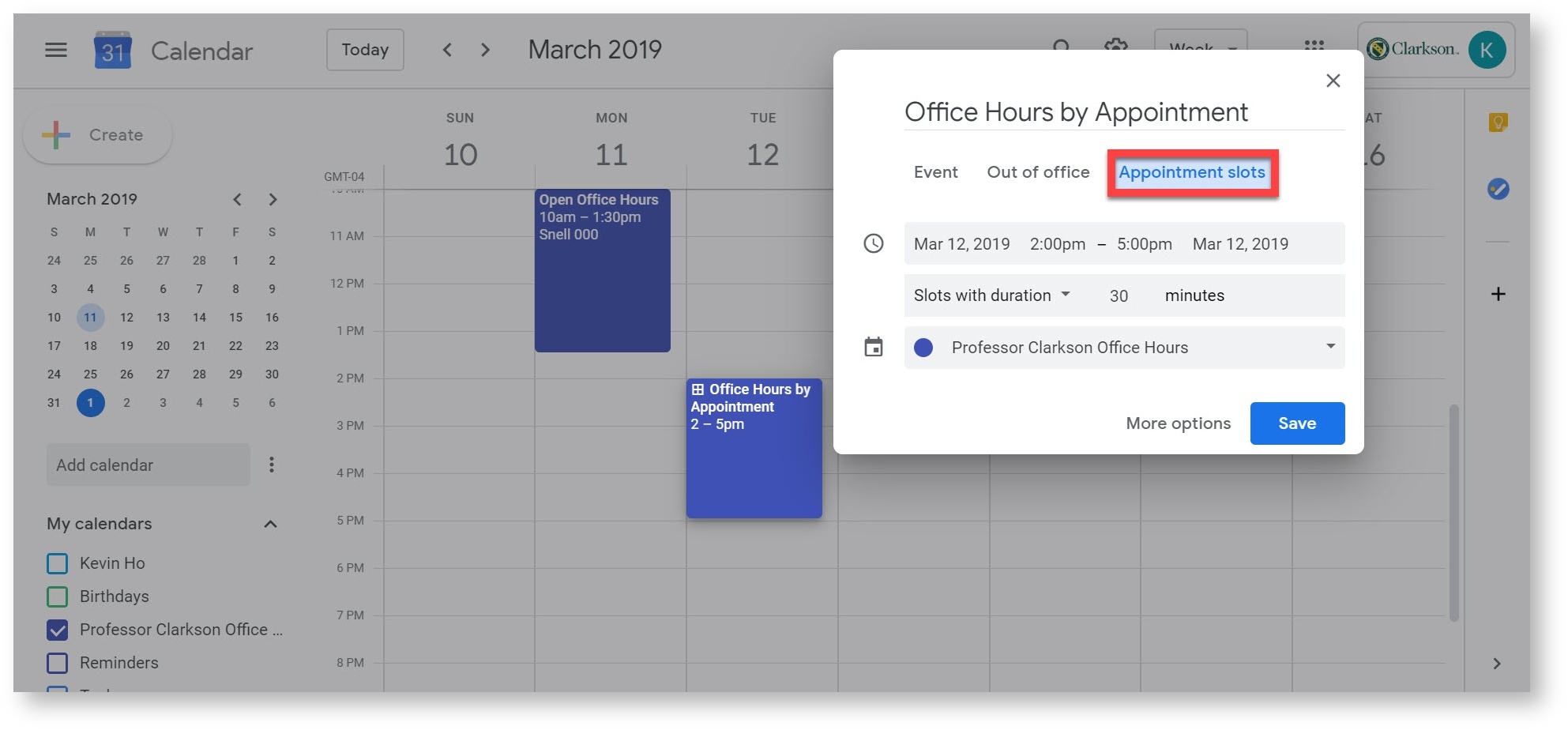
Select how long your appointment slots would be
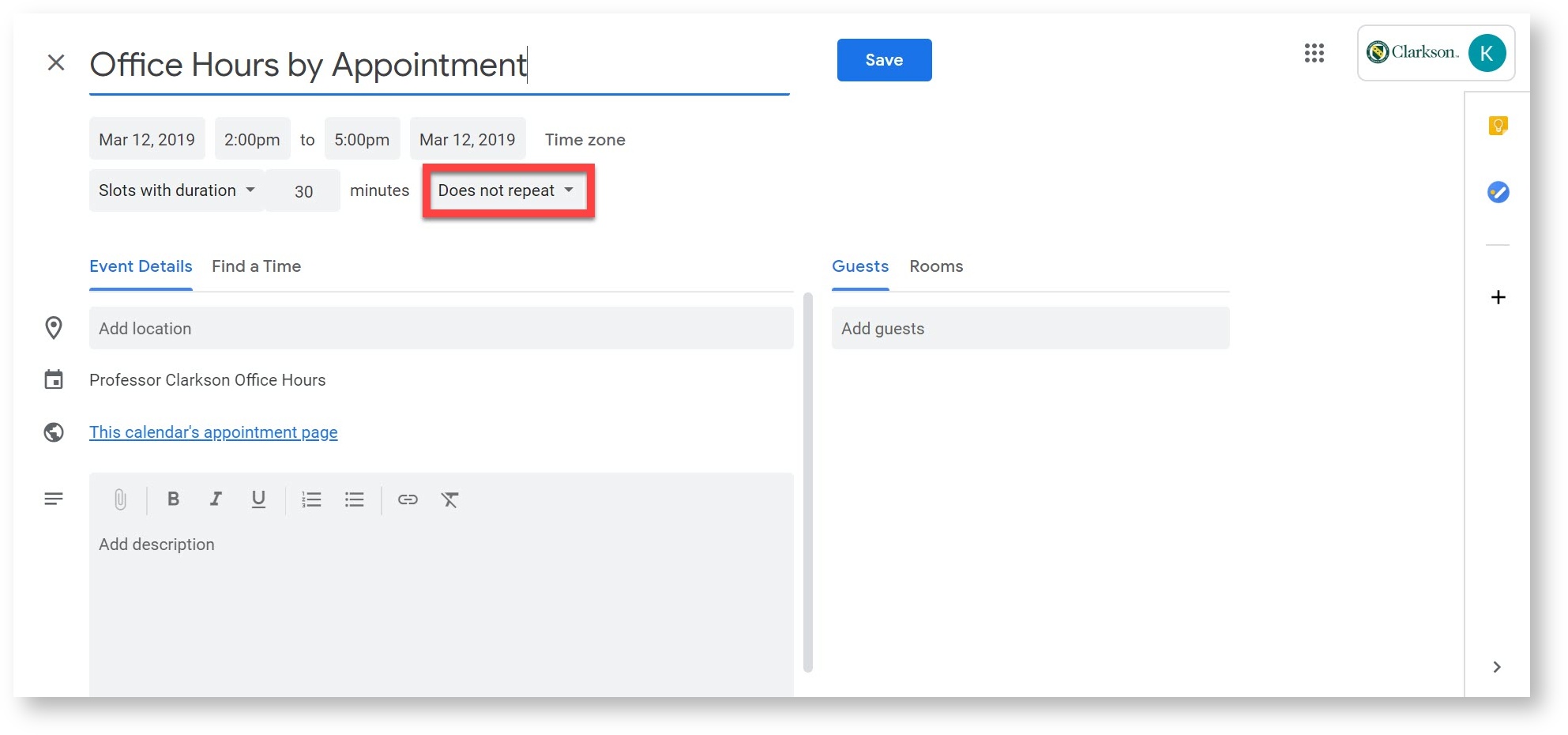
Then Select "More Options"
By selecting on “Does not repeat”, you can set what days appointment slots are and when they reoccur. (Make sure to stop the recurrence of office hours at the end of the semester)



Sharing A Calendar via Link
The Google Calendar can be shared via a link and can be posted in a Moodle Course as well as a digital copy of a syllabus for students to have and view.

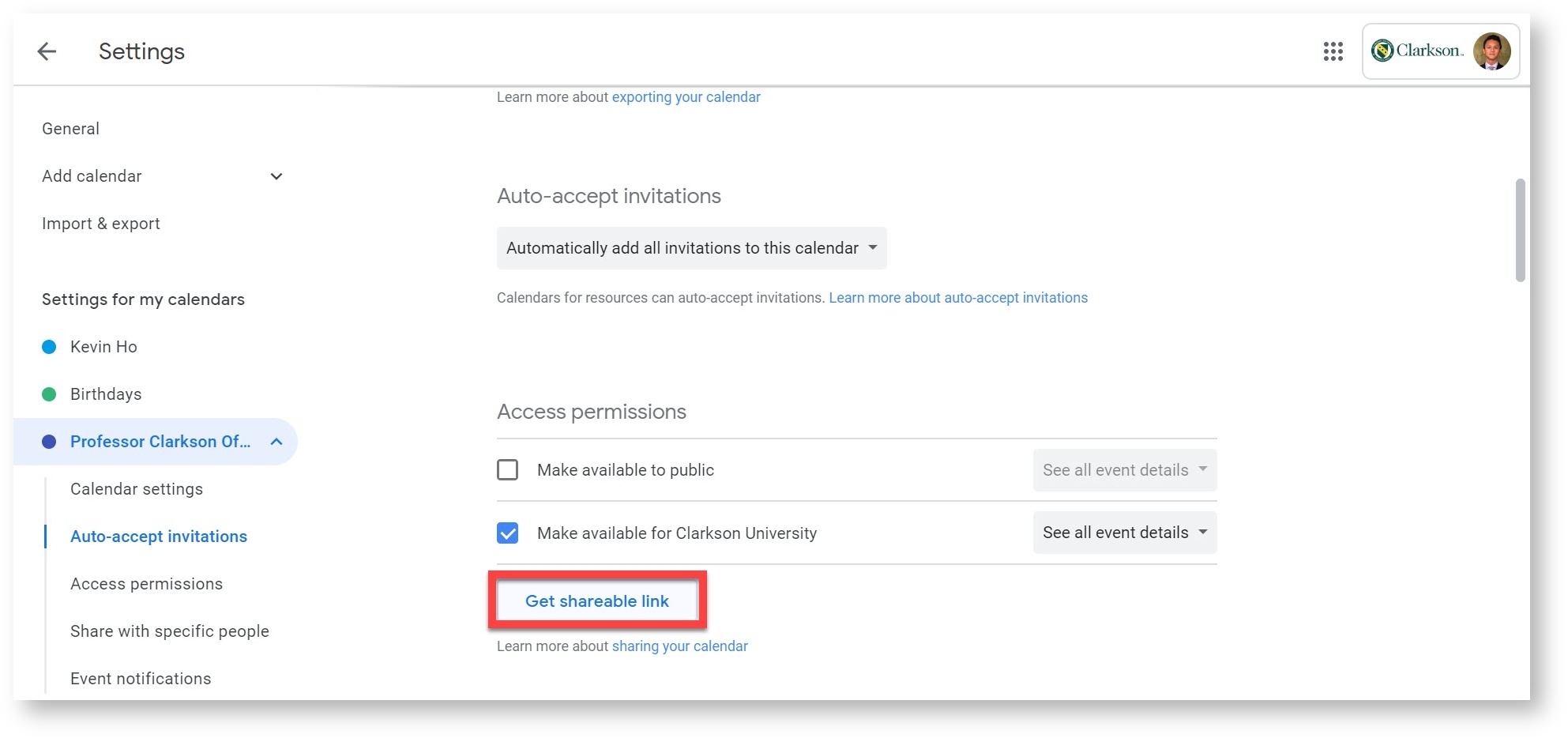
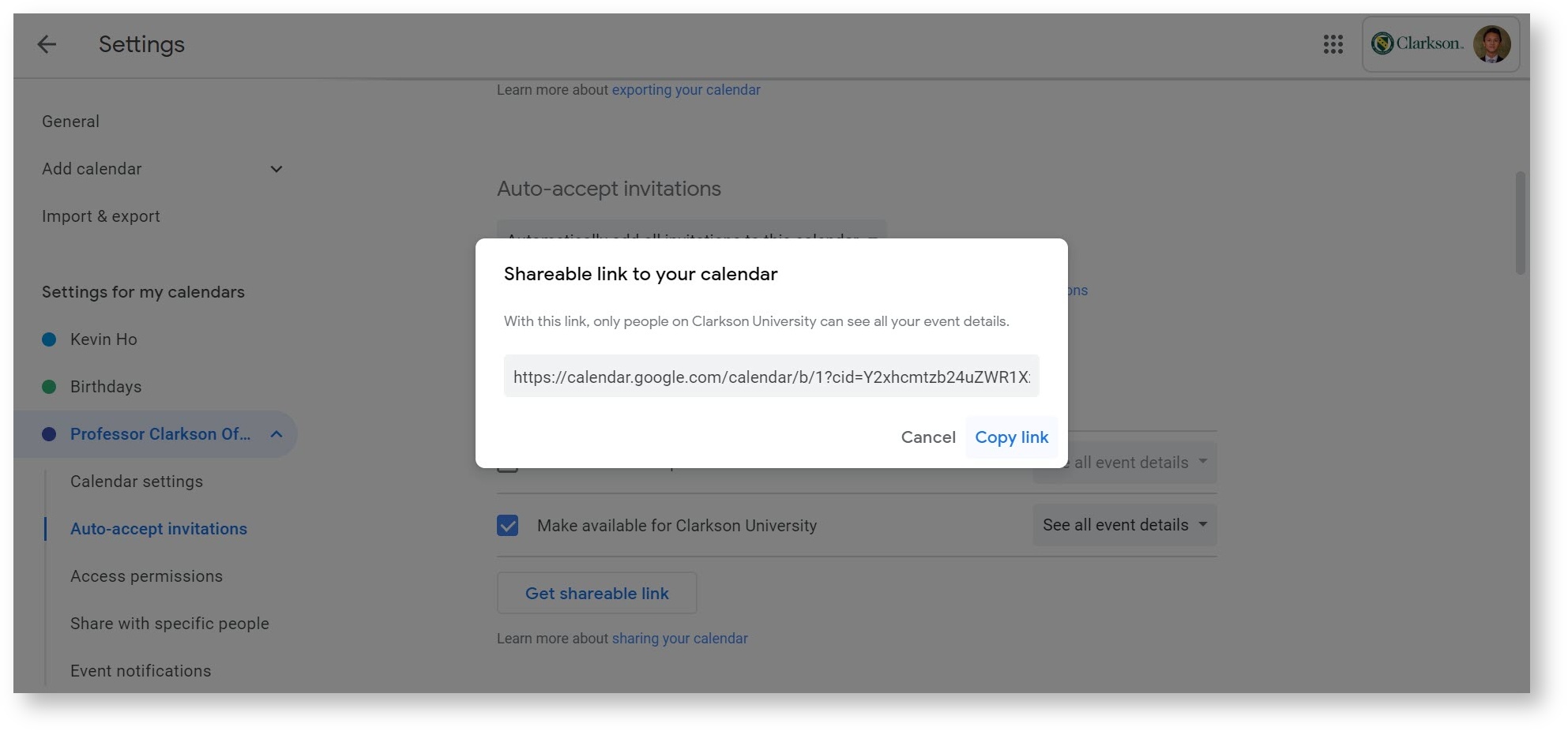
 Scroll down the page to "Access Permissions", and then click on "Get shareable link"
 Click on "Copy Link"
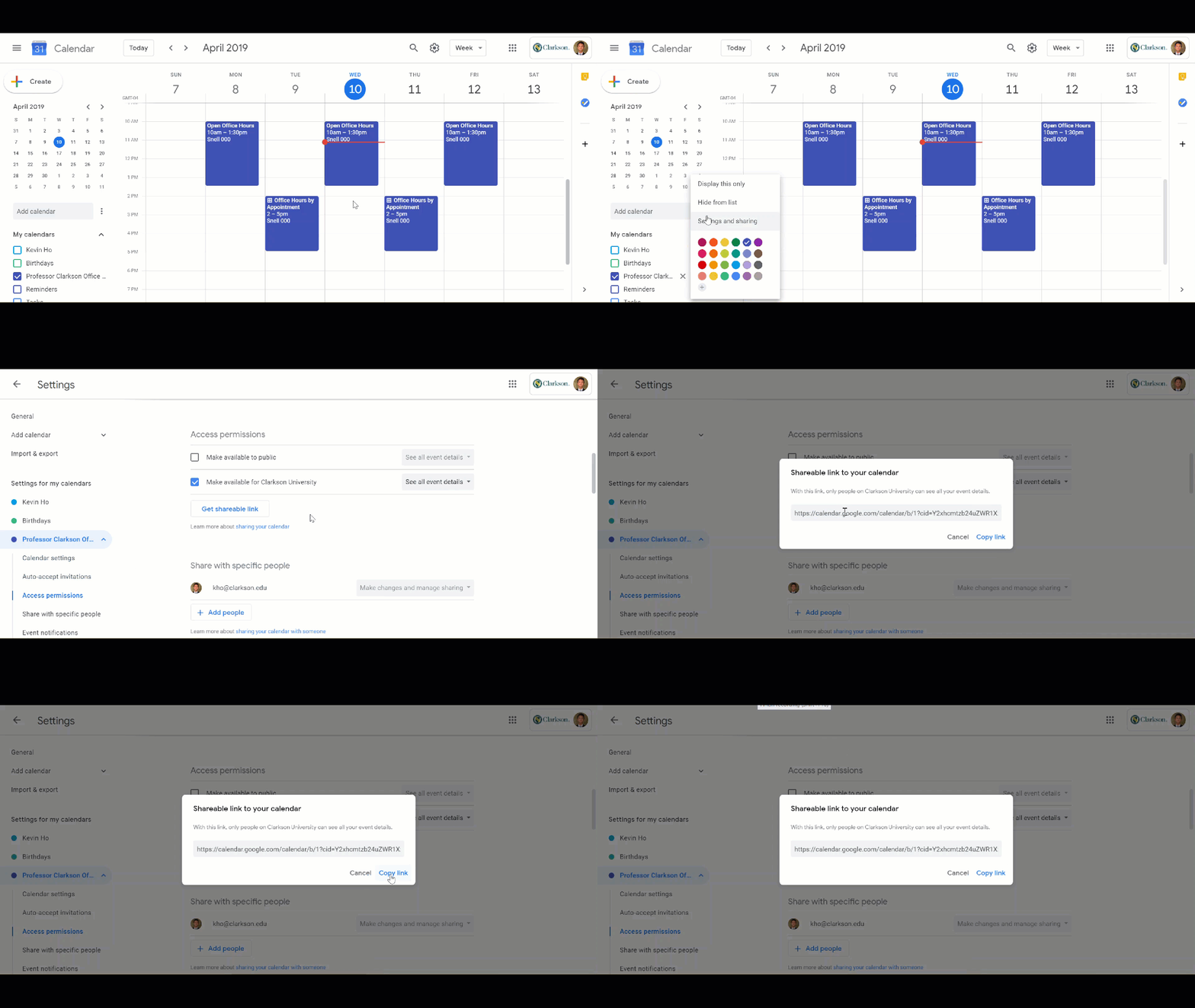
 The link can then be pasted and embedded into your syllabus and/or the Moodle course page for students to view office hours and set up appointments.