
Clearing Browser Cache in Google Chrome
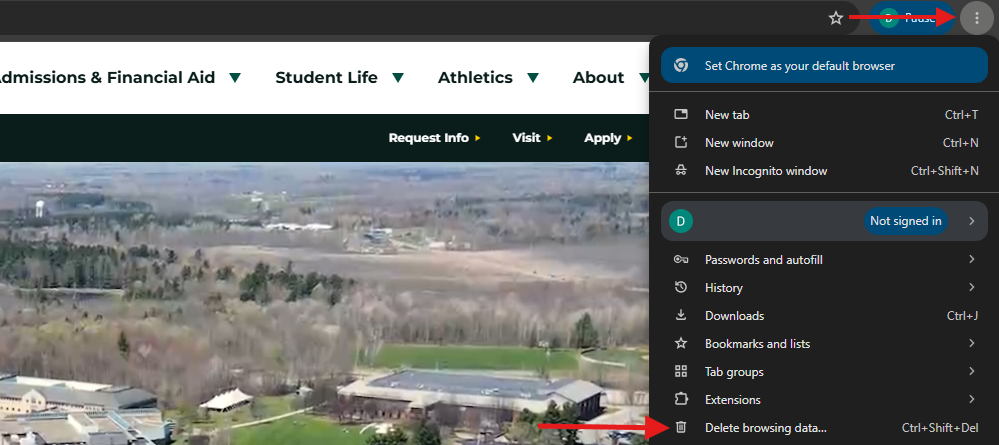
- Click on the 3 vertical dots in the upper right corner of the browser. In that menu, select Delete browsing data...
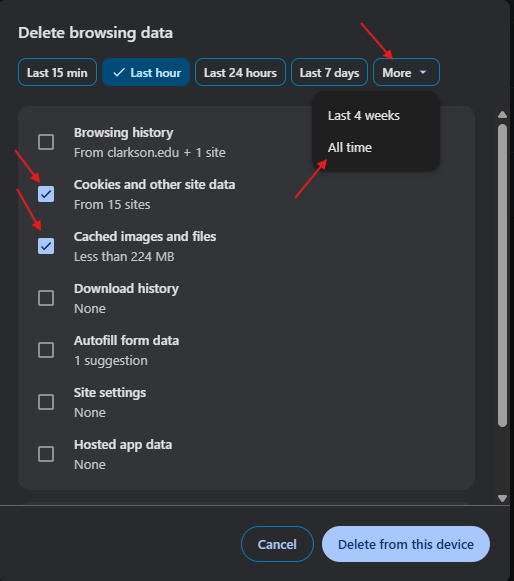
2. For time range click More⬇ and select All time. Make sure "Cookies and other site data" and "Cached images and files" are checked. Everything else can be left unchecked. Click Delete from this device.
3. It may take a few moments to clear the cache if it has been a while. Once done, close all open Google Chrome browsers and re-launch. It is important to do this step.