
Clearing Browser Cache in Google Chrome
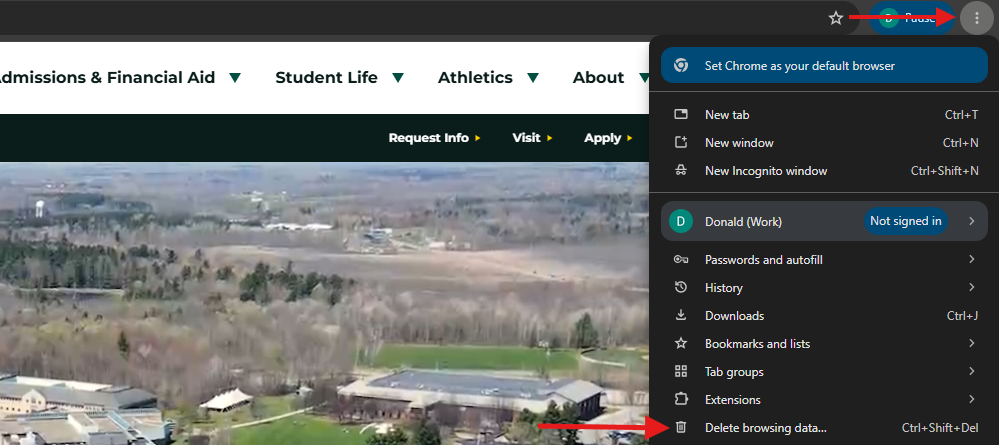
- Click on the 3 vertical dots in the upper right corner of the browser.
Hover your cursor onHistorythen clickHistoryfromIn thesub-menuonthattheopens,left.Delete browsing data...

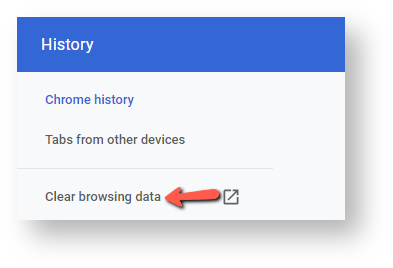
2. ClickFor Clear browsing data on the left side.

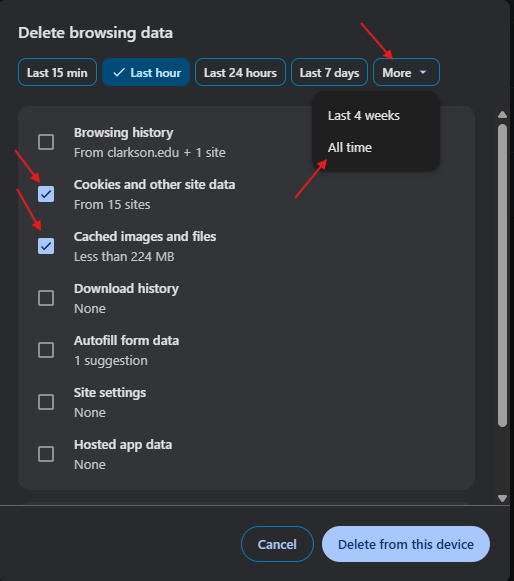
3. In the Clear browsing data window, Click the Advanced ab > in the Timetime range drop-down,click More⬇ and select All time. >Make checksure all the boxes. Uncheck the "PasswordsCookies and other sign-insite datadata" and "Cached images and Autofillfiles" formare datachecked. boxesEverything ifelse youcan usebe those.left unchecked. Click ClearDelete datafrom this device.

4.3. It may take a few moments to clear the cache if it has been a while. Once done, close all open Google Chrome browsers and re-launch. It is important to do this step.