
Clarkson VPN Installation Instructions
Clarkson VPN Installation
To access some Clarkson IT resources while not on the Clarkson wired or eduroam wireless networks, you will need to install and login to the Clarkson VPN.
If you have a Clarkson-owned Windows computer and do not have the FortiClient icon in the taskbar, please contact the HelpDesk for assistance.
Installing on Windows 10 or 11
Note: you will need an Administrator-level account to complete this process.
- Download the Fortinet Client from here: https://getvpn.clarkson.edu/FortiClientSetup_7.2.4_x64.exe
CopyRun theclientFortinet Client installer
Installing on MacOS
- Download the Fortinet Client from here: https://getvpn.clarkson.edu/FortiClient_7.2.4.dmg
- INSERT OTHER STEPS HERE
Installing on iOS and Android Devices
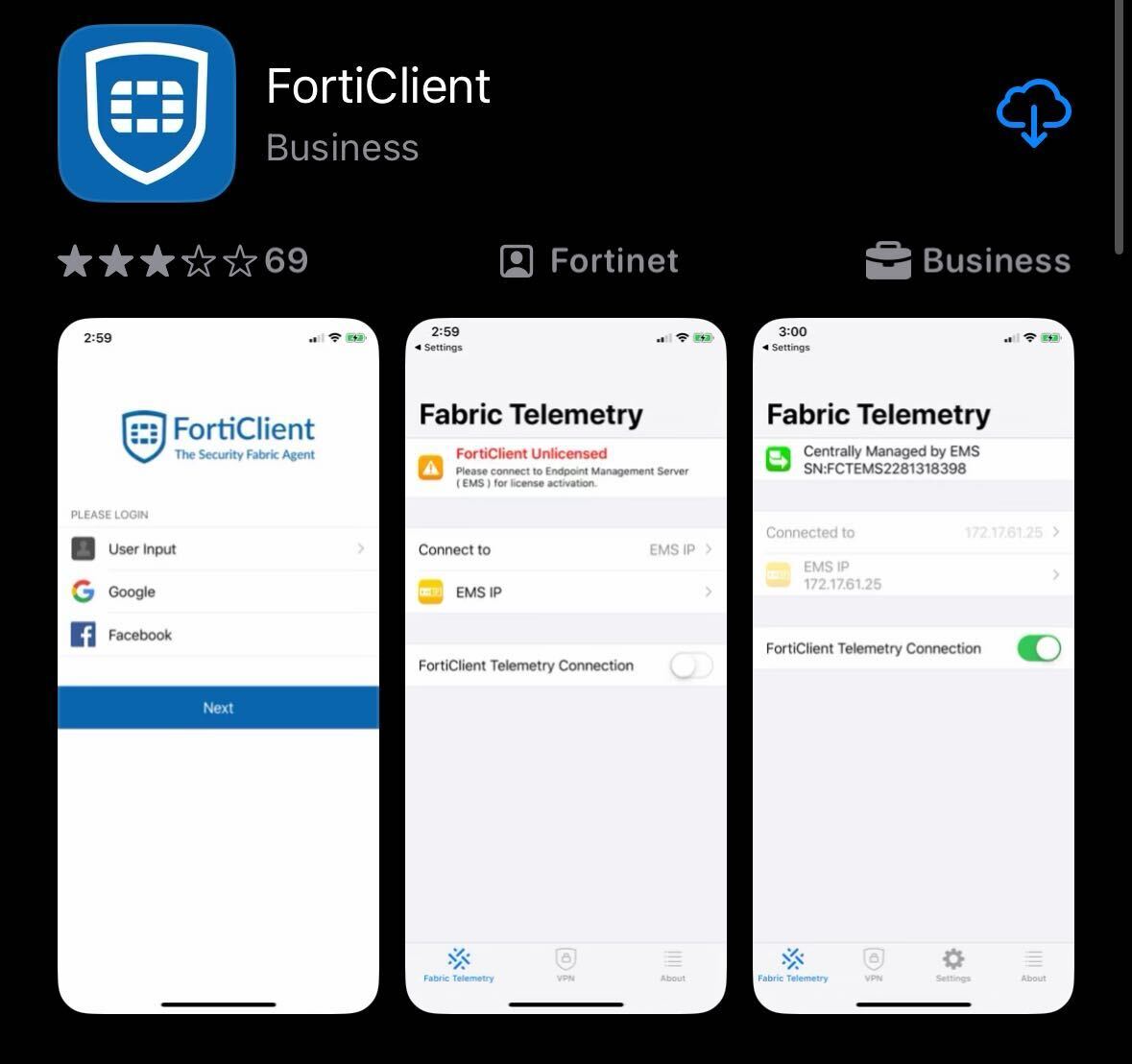
- Install the FortiClient from
your device'sthe App Store - note that you should not install the FortiClient VPN.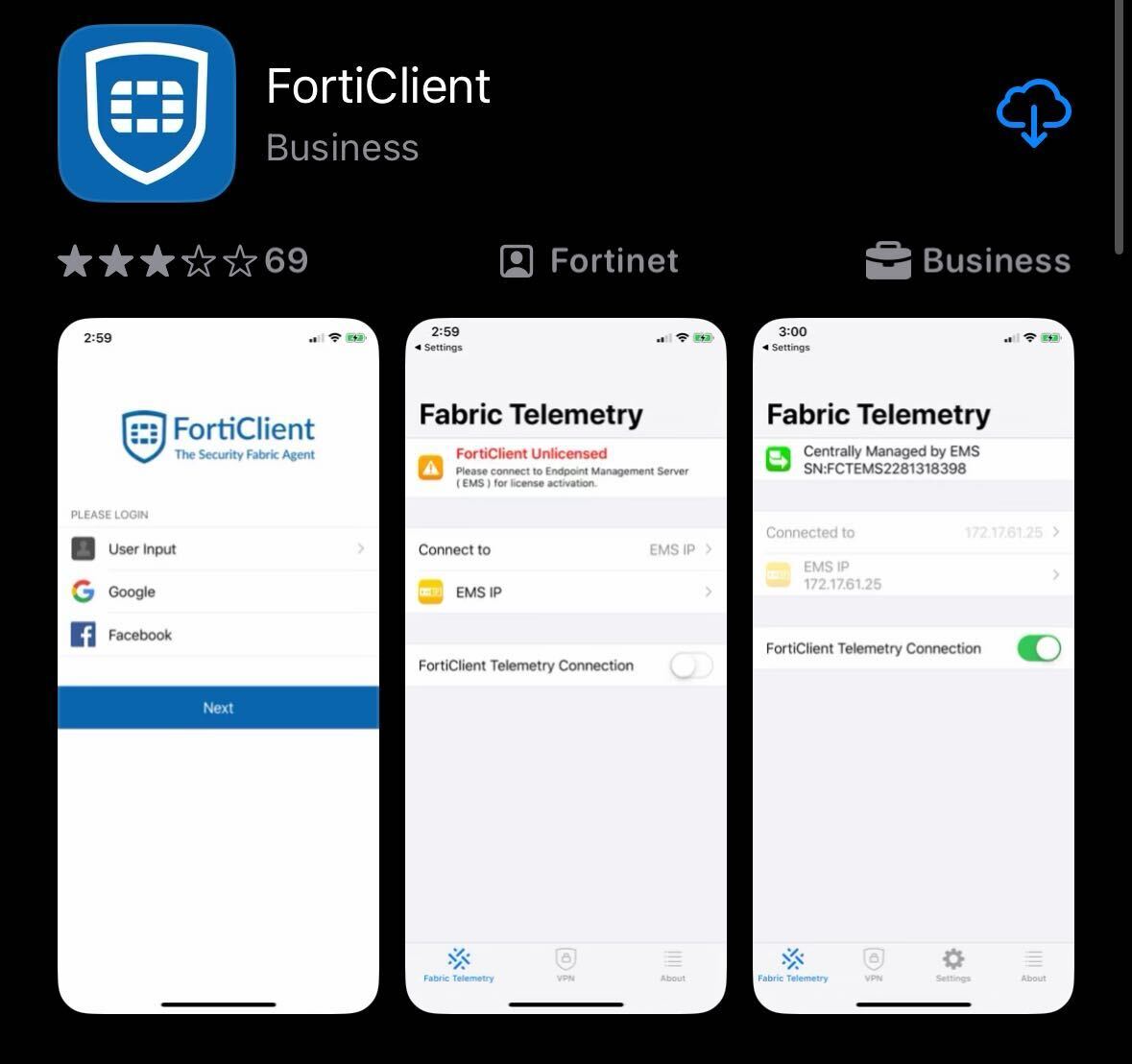
- Once installed, launch the FortiClient app. When prompted, permit notifications, accept the privacy policy and tap "Next" to bypass the login screen.
- When prompted, allow FortiClient to add VPN configurations
- Tap "Connect to EMS IP"
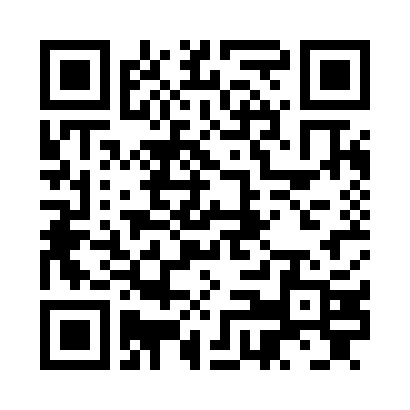
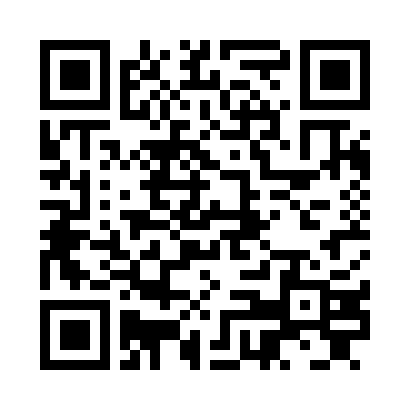
- Tap Scan QR Code, allow FortiClient to access your device's camera and use this QR Code:
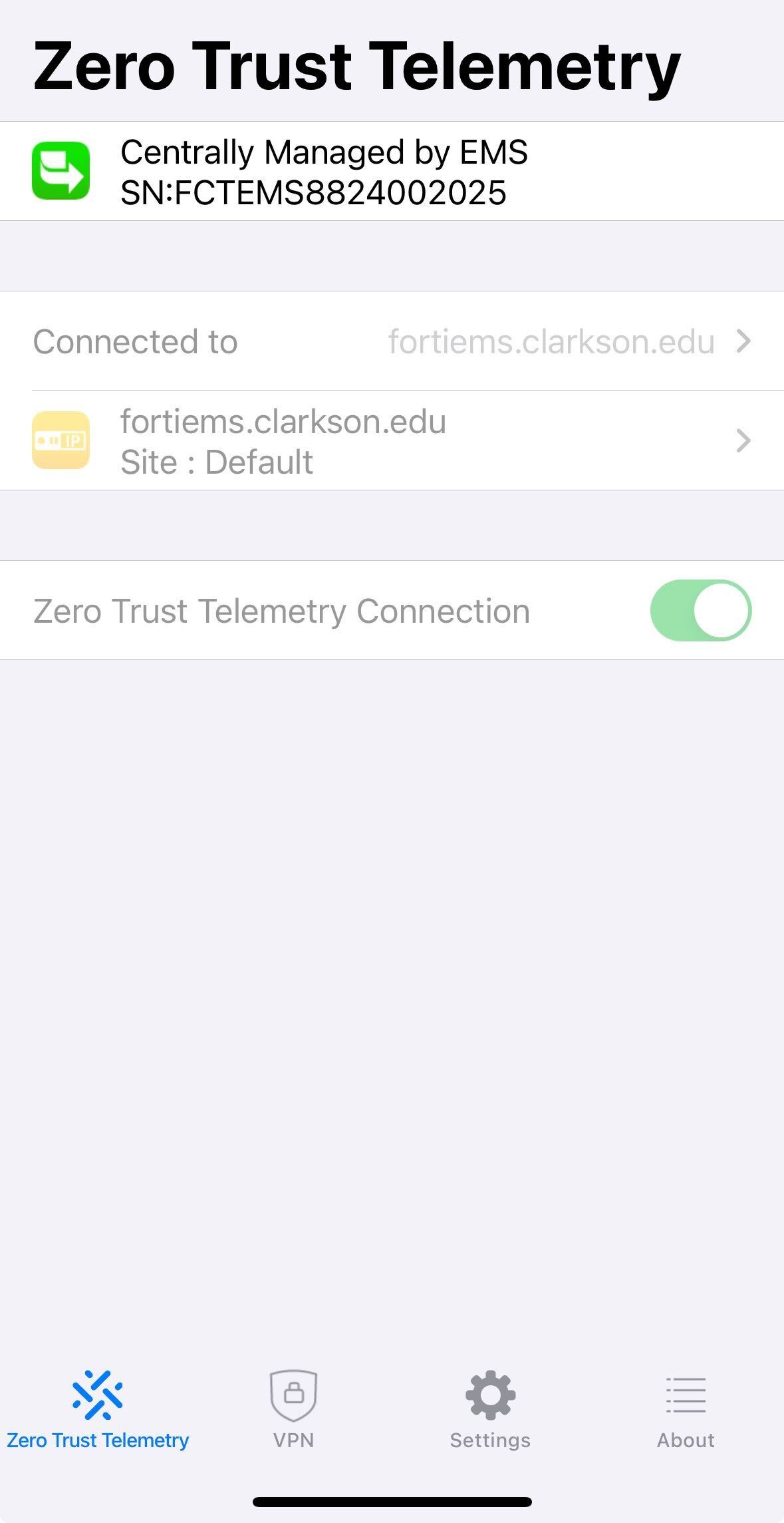
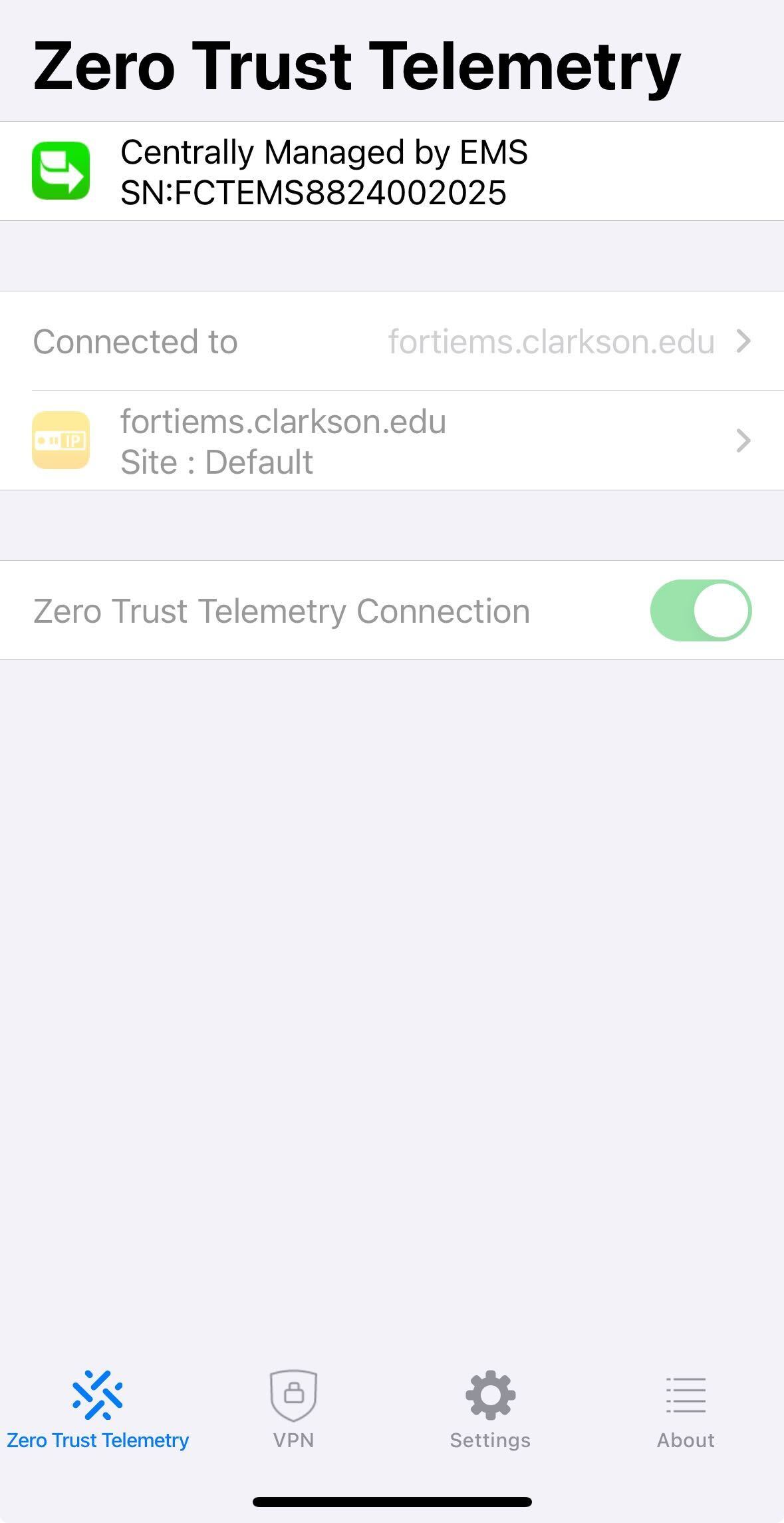
- FortiClient should indicate it was connected successfully and receive its configuration:
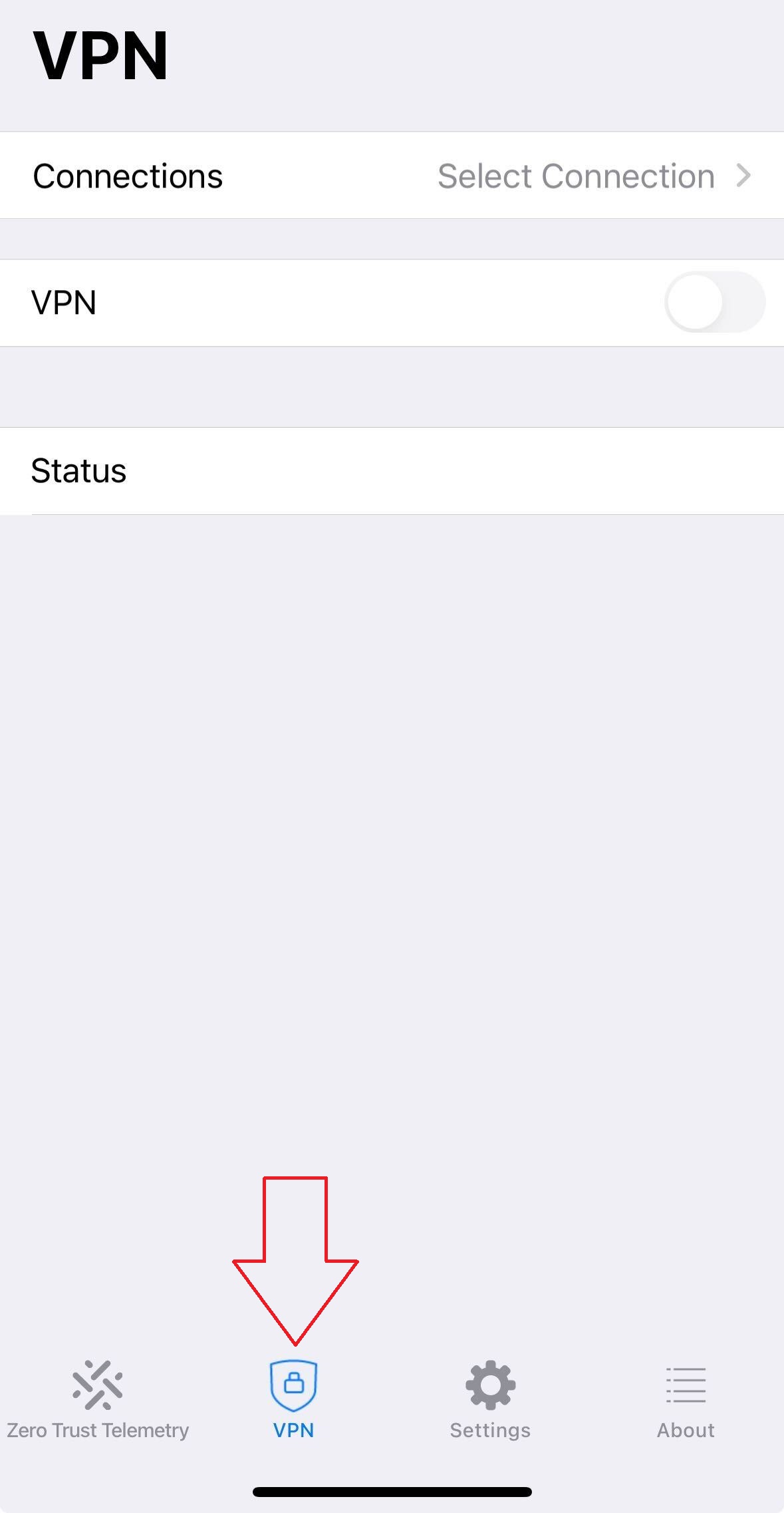
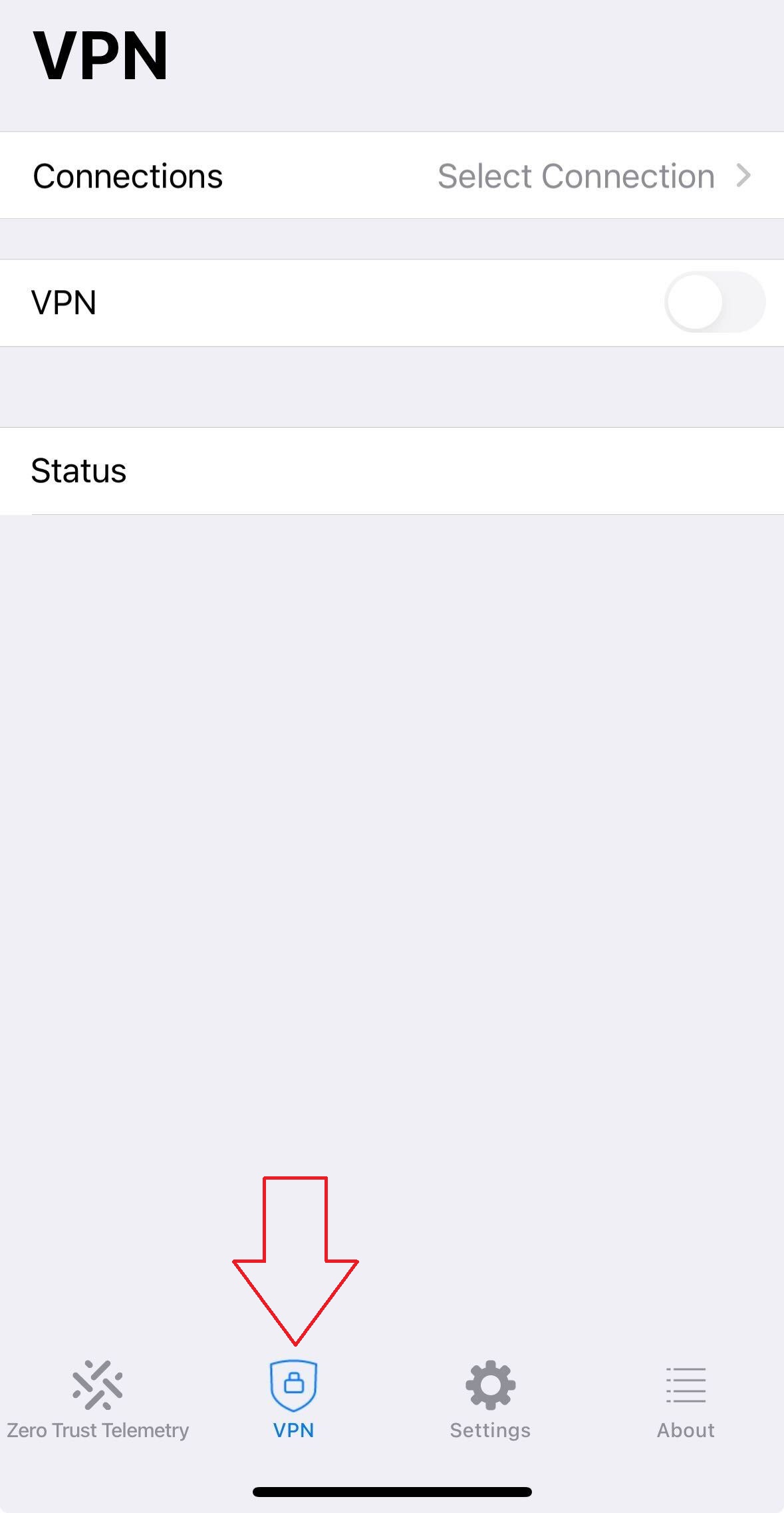
- Select the "VPN" tab at the bottom of the app:
- Tap "Connections" and select the "Clarkson VPN" profile
- Tap the "VPN" tab at the bottom of the app
- Setup complete! To connect, see the Connection Instructions here: https://bookstack.clarkson.edu/books/general-knowledge-base/page/clarkson-vpn-connection-instructions
Installing on Android
NOTE: NEEDS REVISIONS FOR ANDROID SPECIFIC STEPS AND SCREENSHOTS
When prompted, permit notifications, accept the privacy policy and tap "Next" to bypass the login screen. When prompted, allow FortiClient to add VPN configurations Tap "Connect to EMS IP" Tap Scan QR Code, allow FortiClient to access your device's camera and use this QR Code:
FortiClient should indicate it was connected successfully and receive its configuration:
Select the "VPN" tab at the bottom of the app:
Tap "Connections" and select the "Clarkson VPN" profile Tap the "VPN" tab at the bottom of the app Setup complete! To connect, see the Connection Instructions here: https://bookstack.clarkson.edu/books/general-knowledge-base/page/clarkson-vpn-connection-instructions