Clarkson VPN Connection Instructions
To access some Clarkson IT resources while not on the Clarkson wired or eduroam wireless networks, you will need to install and connect to the Clarkson VPN. If you think you need VPN access and have not previously requested it from the HelpDesk, please call (315)268-4357 or email the Helpdesk at helpdesk@clarkson.edu for assistance.
IfBefore connecting, you havemust not already installedinstall the Clarkson VPN clientclient. Read here for steps to install Clarkson VPN Client.
Connecting on Windows 10 or 11
Connect Before Login
First time logging into your laptop? You must connect to VPN before logging in.
Connect Before Login
 Enter your username and password as usual
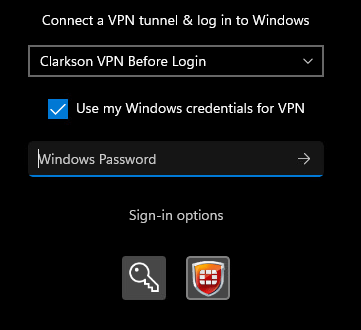 Respond to the Duo prompt on your device
Connecting on Windows 10 or 11
You can connect to the Clarkson VPN either before logging into your laptop or after. If this is your first time logging into your laptop, you must connect before logging in.
Connect Before Login
- Press CTRL-ALT-DEL to bring up the Windows login screen
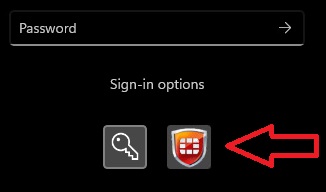
- Below the password box, select "Sign-in options"
- Click the FortiClient icon
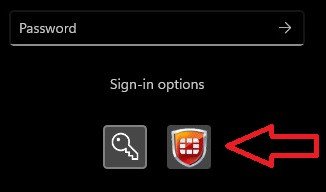
- Enter your username and password as usual
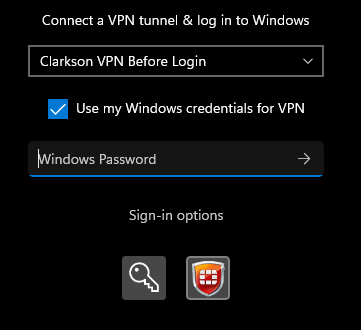
- Respond to the Duo prompt on your device
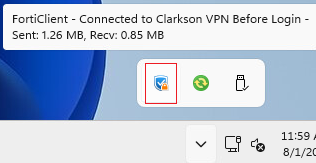
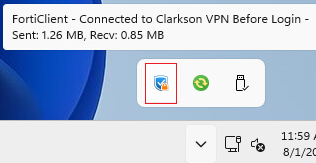
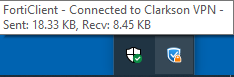
- When your Windows login has completed, you will also be connected to the Clarkson VPN. You can confirm by hovering over the FortiClient icon in the taskbar
Connect After Login
If you have recently changed networks (wired to WiFi, work to home, etc.) or your laptop has recently been opened or started from hibernation, you may experience a delay in connecting to the VPN. If this occurs, please wait two minutes with the laptop on and connected to a network and retry the process below.
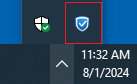
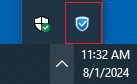
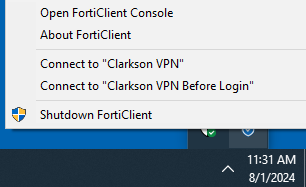
- Click the FortiClient icon in your taskbar
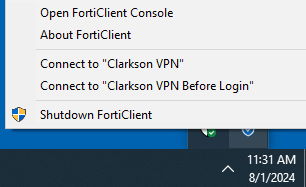
- Select Connect to "Clarkson VPN"
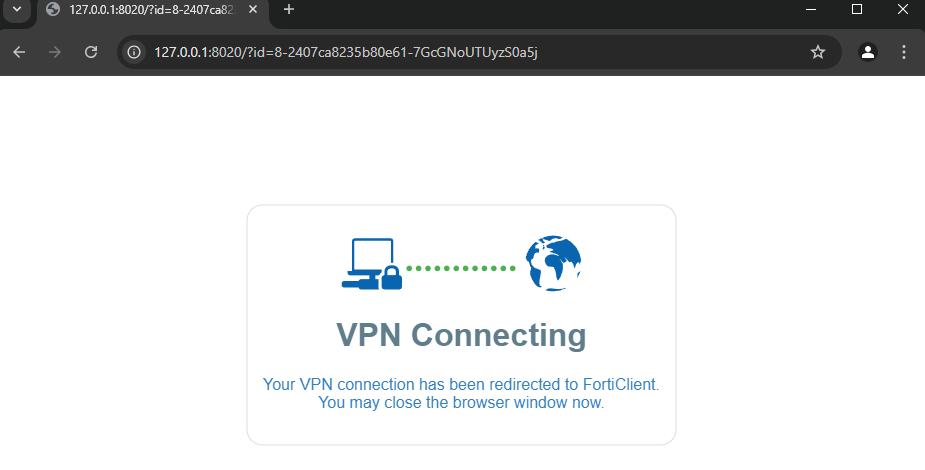
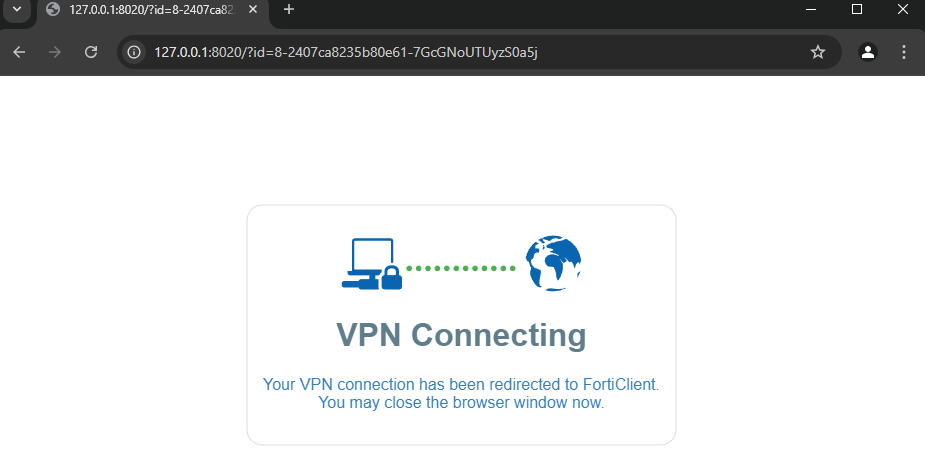
- Your default browser will open or open a new tab. If you do not already have a CAS login session, you will be prompted to login
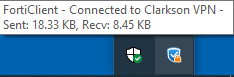
- Once your login is complete, the FortiClient will complete your connection, then minimize itself. You can confirm you are connected by hovering over the FortiClient icon in the taskbar
- You can close the browser tab that FortiClient opened
Connecting on iOS Devices
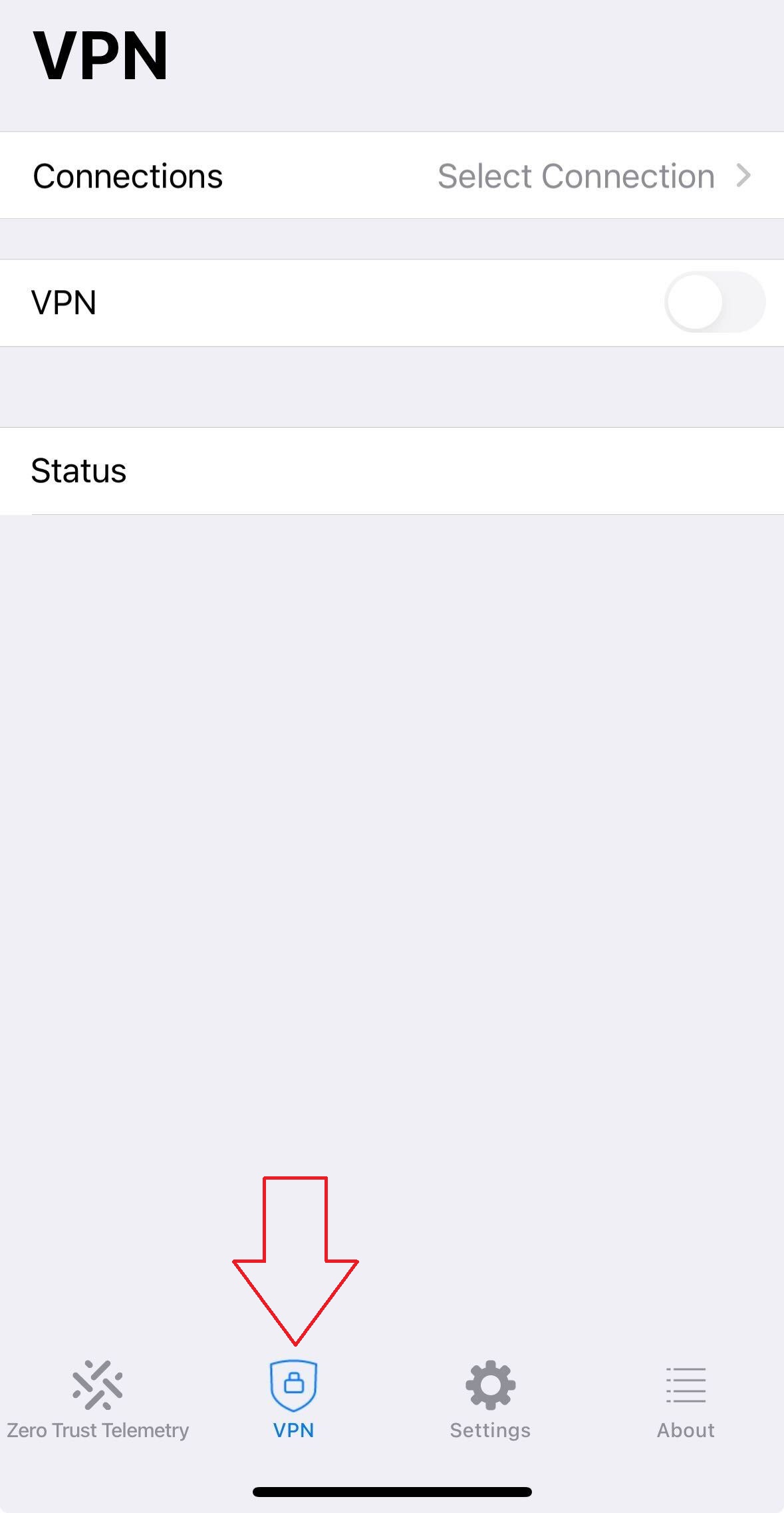
- Launch the FortiClient app and tap the "VPN" tab at the bottom
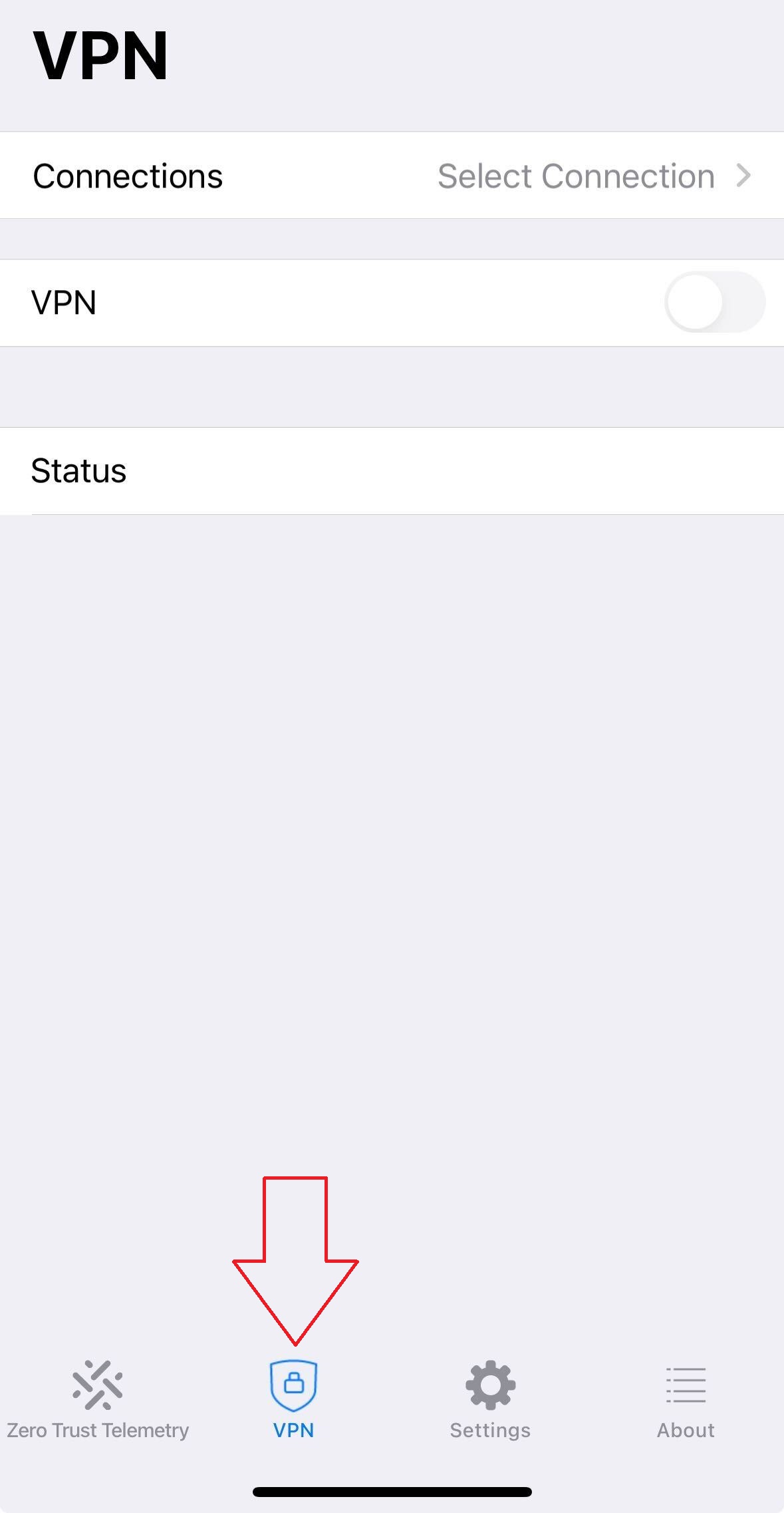
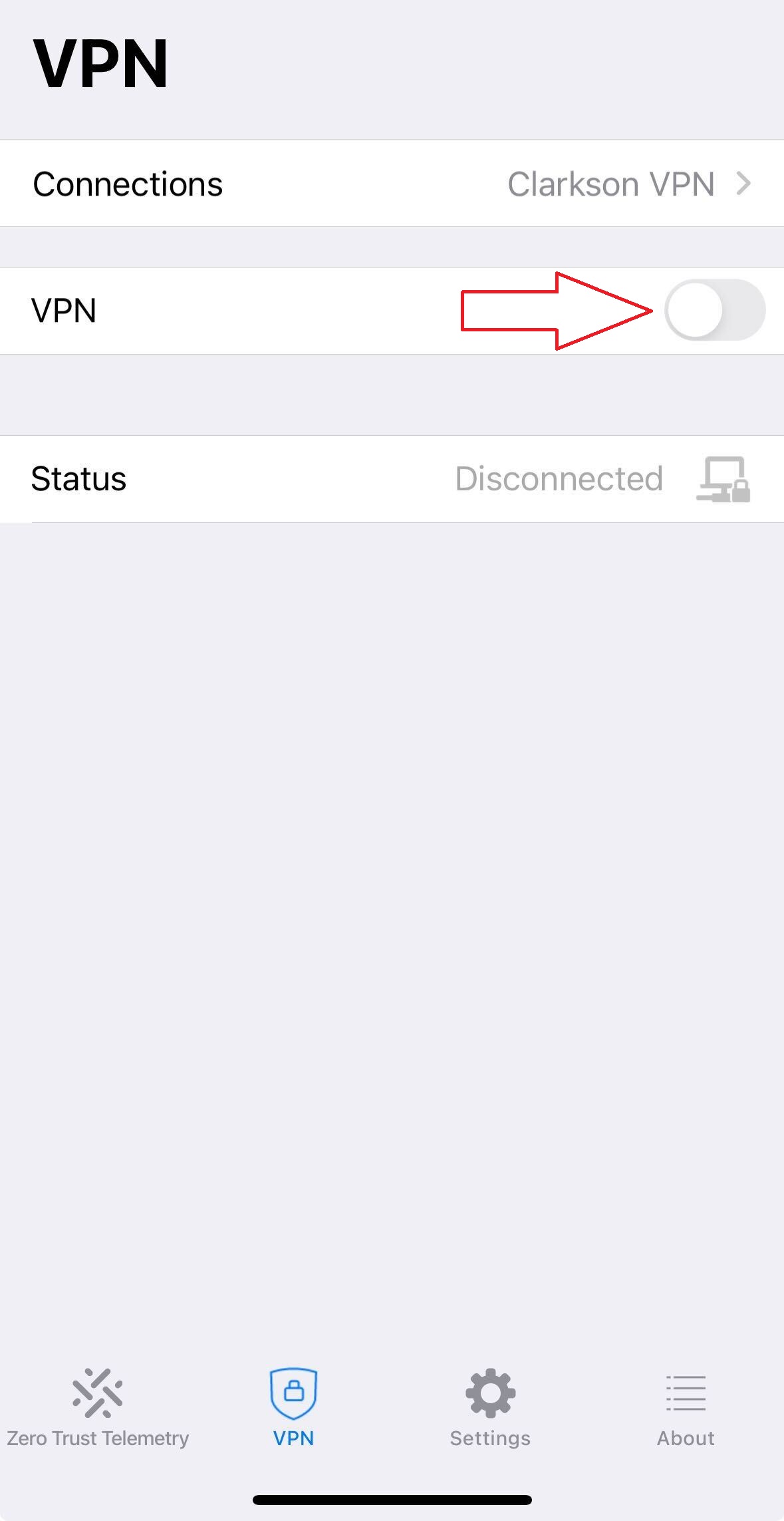
- Confirm your "Connections" indicates "Clarkson VPN". If it does not, please see https://bookstack.clarkson.edu/books/general-knowledge-base/page/clarkson-vpn-installation-instructions before proceeding
- Tap the switch on "VPN"
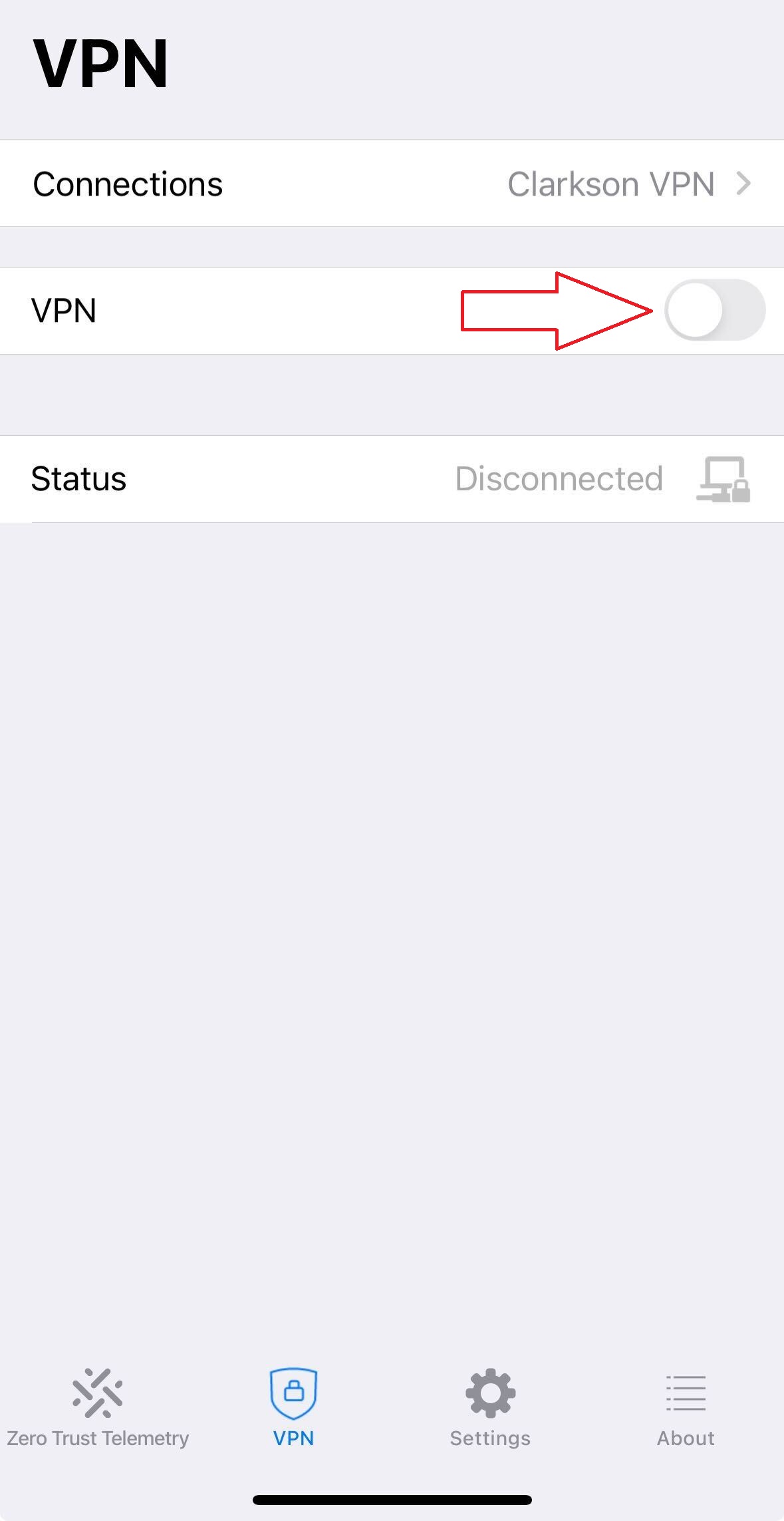
- You will be switched to a browser to login with your usual Clarkson login
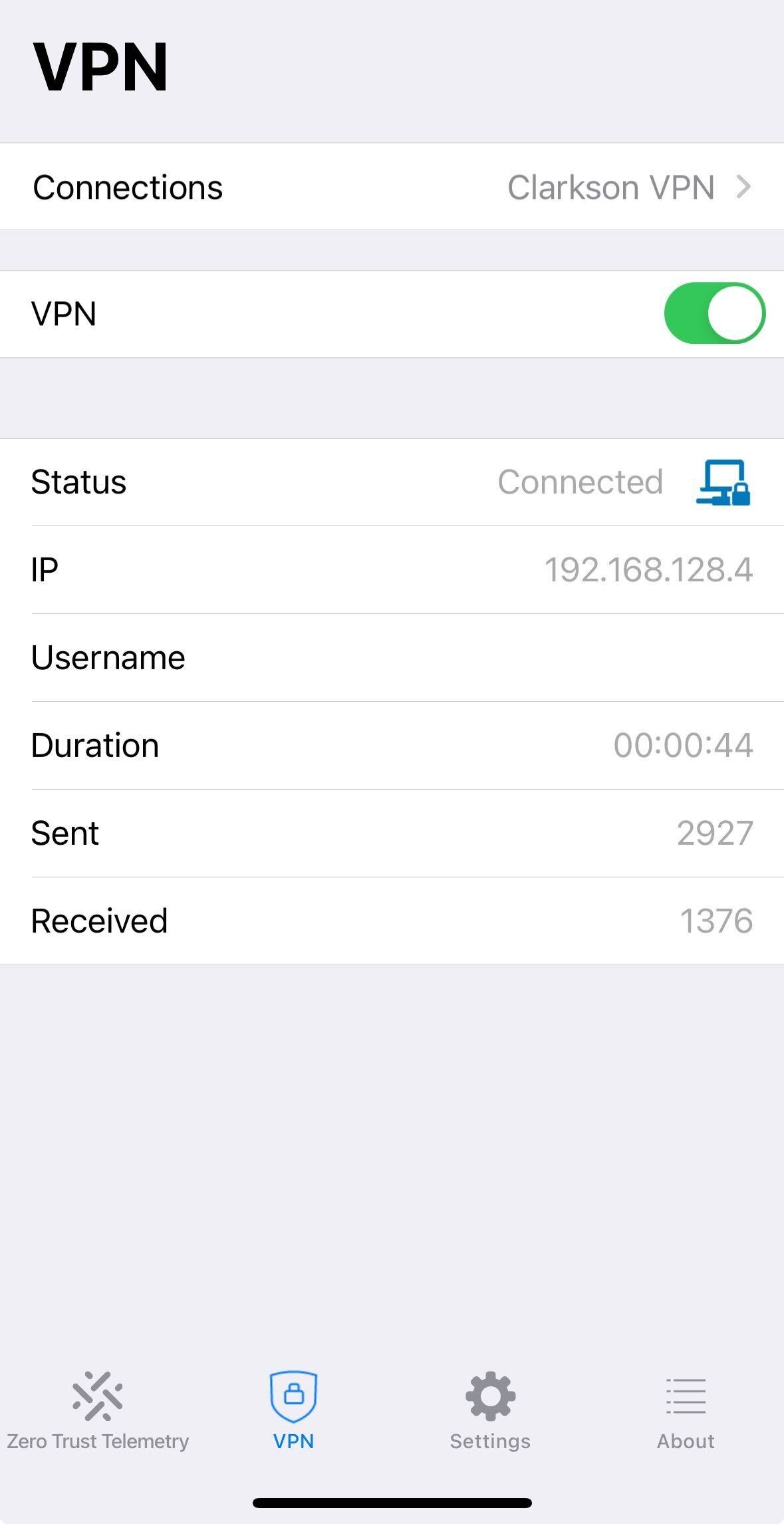
- After completing the login process, you will be returned to the FortiClient app and should see you are connected
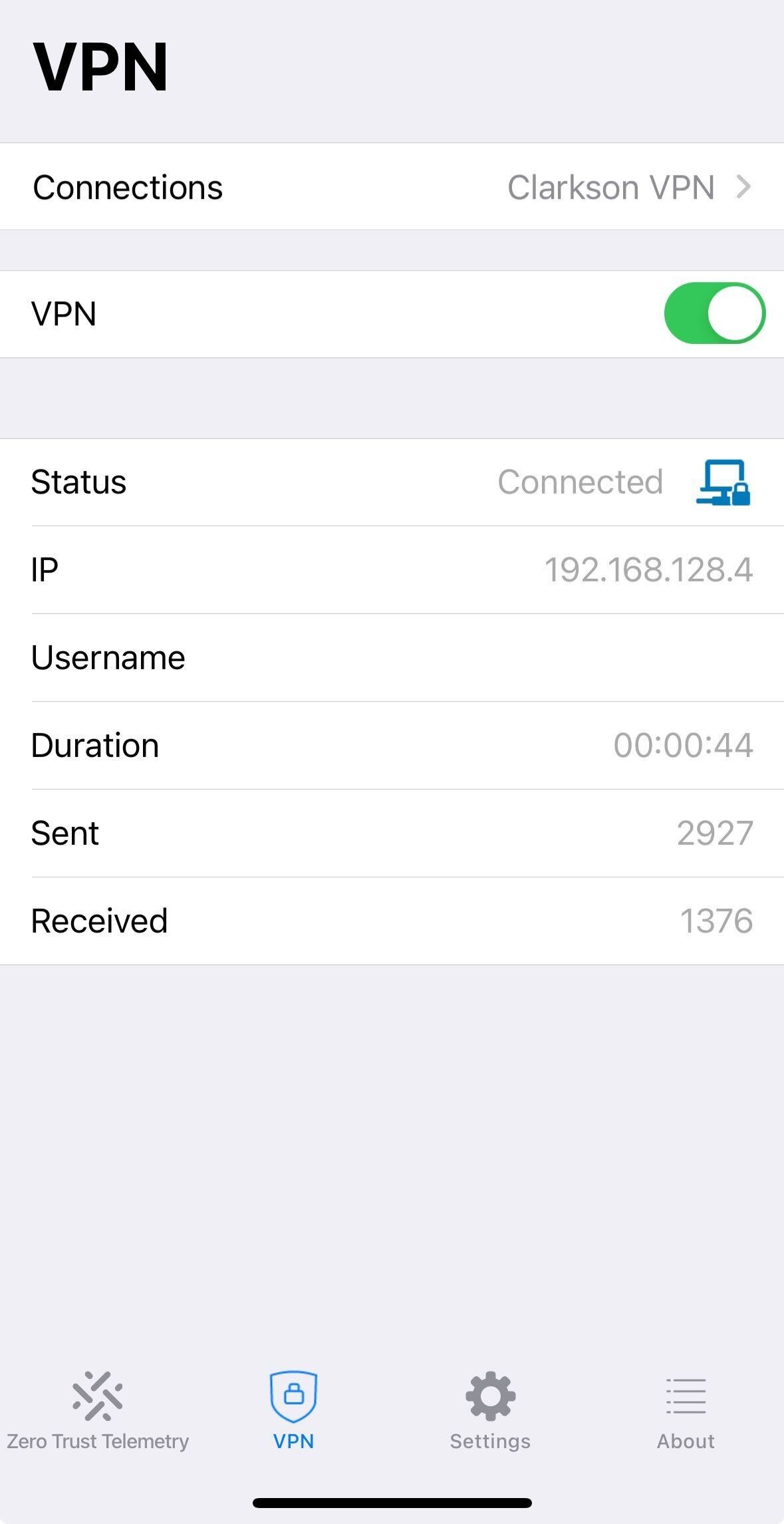
- To disconnect, tap the VPN switch again to turn off.