
Fixing Application Data Errors between Slate and PeopleSoft
Quick Links
-
- Admit Term Mis-match
- Recruiting Mis-match
- Major Mis-match
- Admit Type Mis-match
- Notification Plan Mis-match
- School Missing CEEB
- Admit Date is before Application Date
Admit Term Mis-match
-
- Student Already Matriculated, PeopleSoft Incorrect
- Put in a ticket to helpdesk@clarkson.edu asking for the Administrative Computing team to update the correct Admit Term for the student within PeopleSoft. Include the Student's PeopleSoft ID, and the PeopleSoft Application Number and what the correct Admit Term and Expected Graduation Term values should be.
- Contact registrar@clarkson.edu indicating the student might have the wrong starting term for them to manually fix the student. Send them the same information provided to the helpdesk ticket.
- Student Already Matriculated, Slate Incorrect
- Follow the steps below under the "Slate Value Wrong, PeopleSoft Correct"
- Slate Value Wrong, PeopleSoft Correct
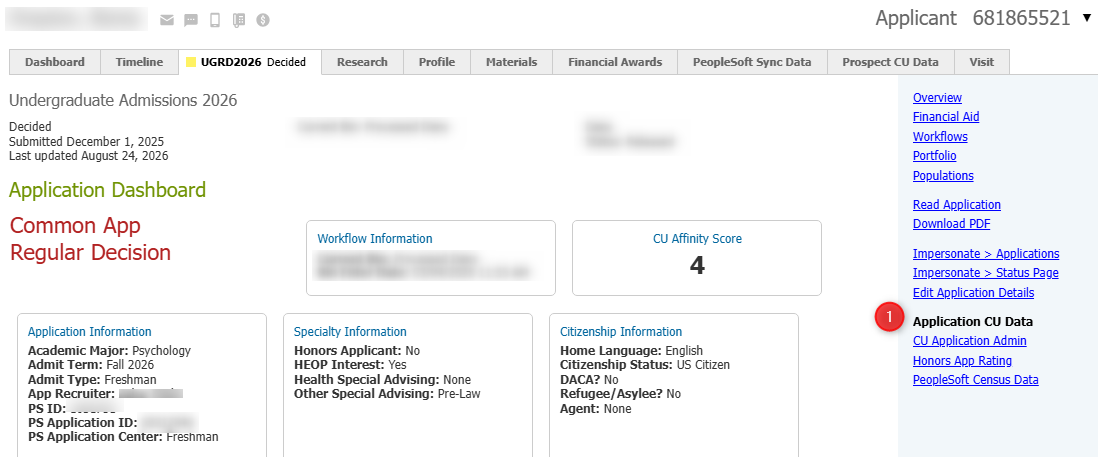
- Click the "Slate App ID" URL in the mailing, which should take you directly to the students application in Slate. On the right hand navigation, click the "Application CU Data" link.
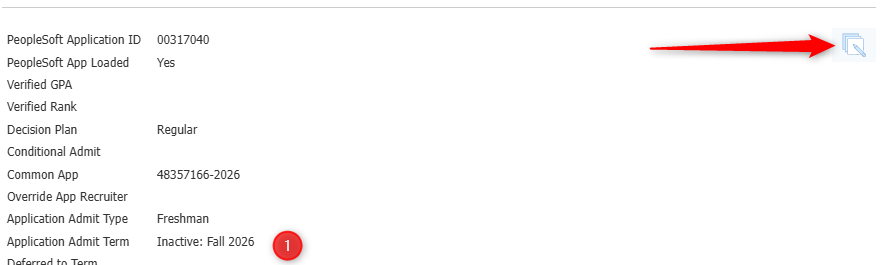
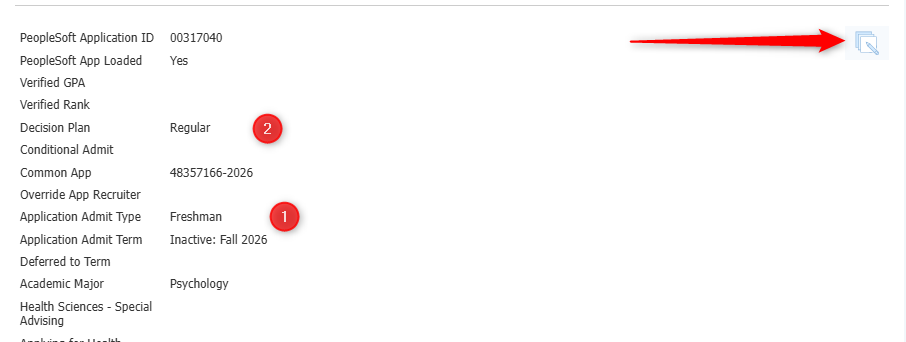
- Scroll to the bottom of the screen and click the "Edit" icon. Change the Application Admit Term value and hit save.
- Click the "Slate App ID" URL in the mailing, which should take you directly to the students application in Slate. On the right hand navigation, click the "Application CU Data" link.
- PeopleSoft Value Wrong, Slate Correct
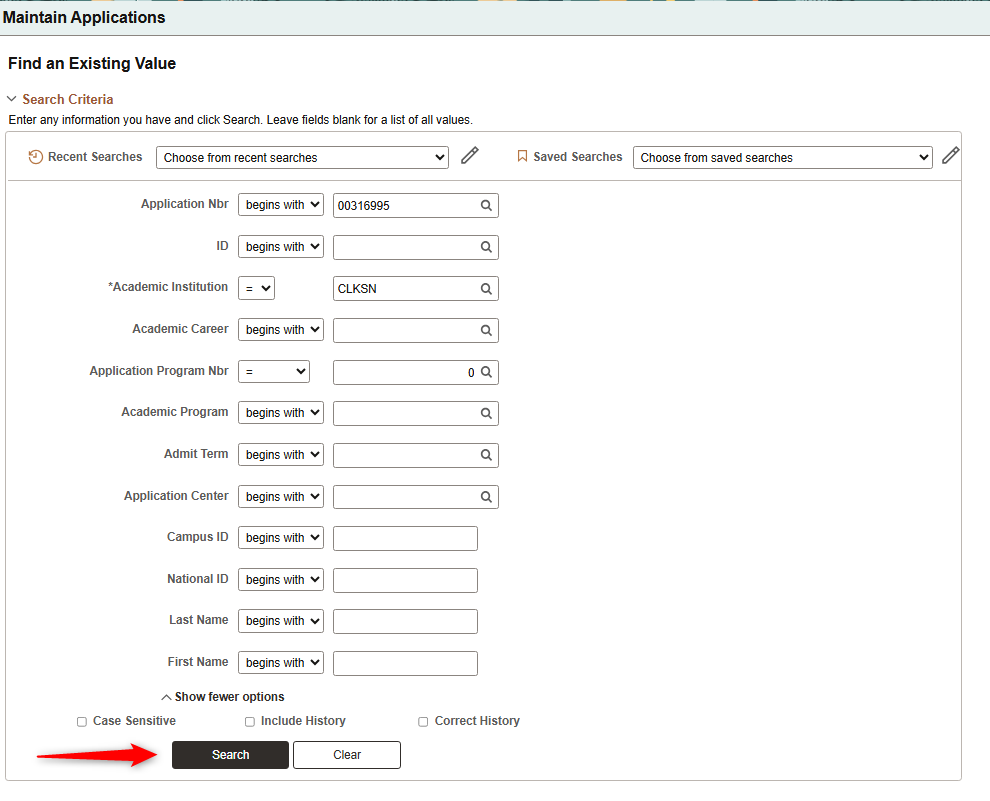
- Click on the "PS App ID" link in the mailing, which should take you directly to Maintain Applications in PeopleSoft with the PeopleSoft ID already filled in. Hit Search.
- Navigate to "Application Program Data" at the top of the screen.
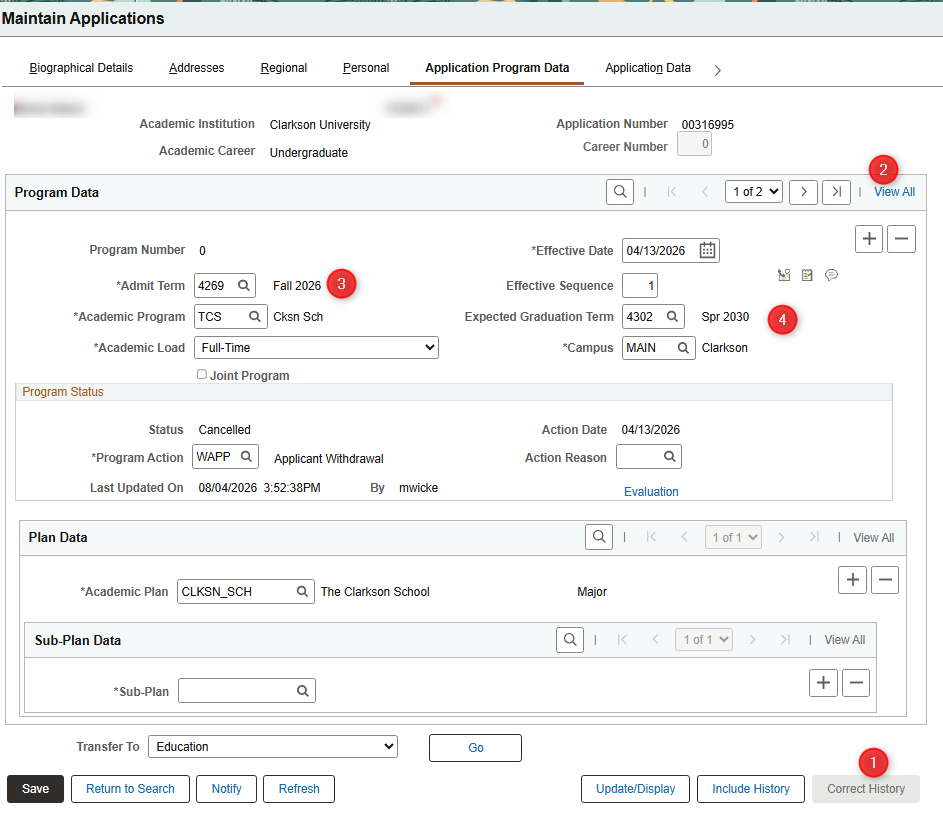
- NOTE: Do not change the Effective Date value, that will cause issues with the decision interface from Slate.
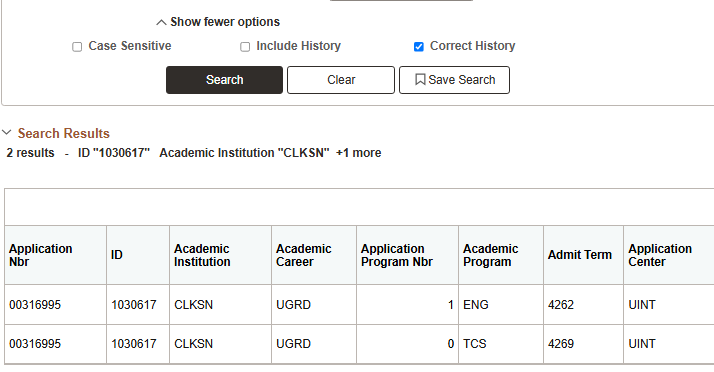
- NOTE: If student is a TCS Student, you will have to update both Application Row Numbers. On the main search screen in PeopleSoft, remove the value in the "Application Program Nbr" row if its filled in and hit your search. This should return multiple rows. You will need to repeat all the steps below for both.
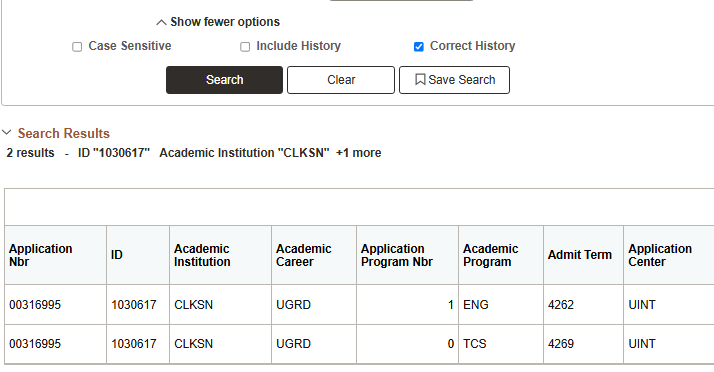
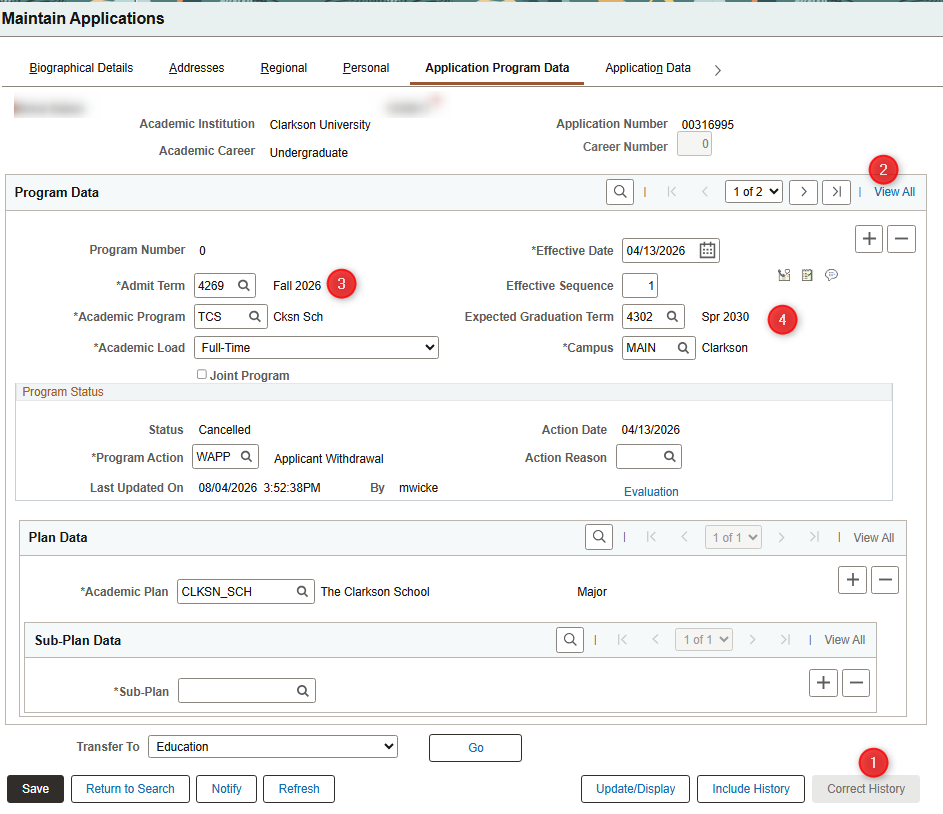
- 1 - Click "Correct History" at the bottom of the screen to update all of their rows to the correct value
- 2 - Click the "View All" link at the top of the screen. You should see it telling you how many rows there are to update to the left of that link (1 of 2 in this example)
- 3 - Update the Admit Term to match the correct value
- 4 - Update the Expected Graduation Term to the correct value
- Repeat this for how many rows of decisions there are on a student.
- Click on the "PS App ID" link in the mailing, which should take you directly to Maintain Applications in PeopleSoft with the PeopleSoft ID already filled in. Hit Search.
- Student Already Matriculated, PeopleSoft Incorrect
Major Mis-match
-
- Student Already Matriculated, PeopleSoft Incorrect
- Put in a ticket to helpdesk@clarkson.edu asking for the Administrative Computing team to update the correct Admit Term for the student within PeopleSoft. Include the Student's PeopleSoft ID, and the PeopleSoft Application Number and what the correct Major Code should be.
- Contact registrar@clarkson.edu indicating the student was matriculated to the wrong major for them to manually fix the student. Send them the same information provided to the helpdesk ticket.
- Student Already Matriculated, Slate Incorrect
- Follow the steps below under the "Slate Value Wrong, PeopleSoft Correct"
- Slate Value Wrong, PeopleSoft Correct
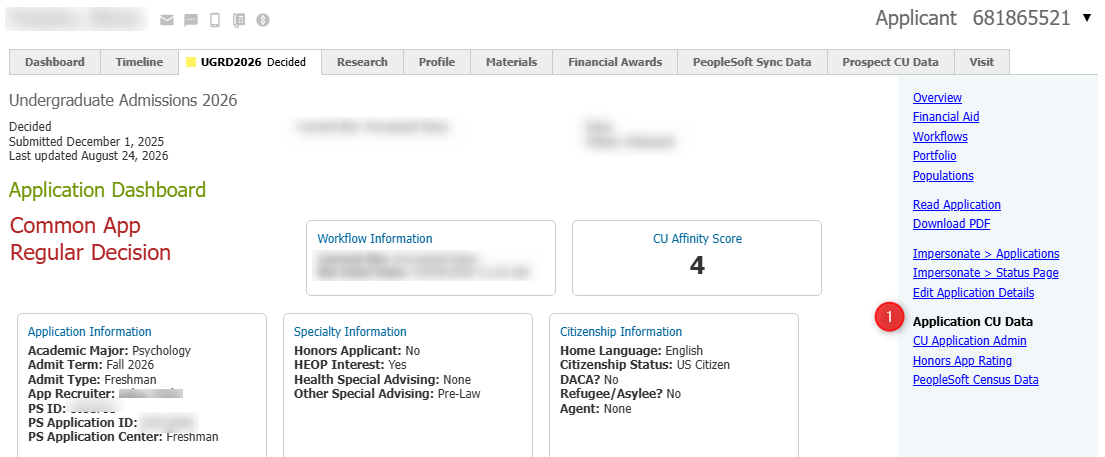
- Click the "Slate App ID" URL in the mailing, which should take you directly to the students application in Slate. On the right hand navigation, click the "Application CU Data" link.
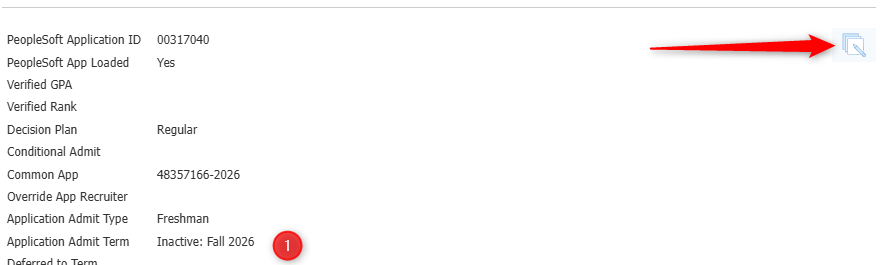
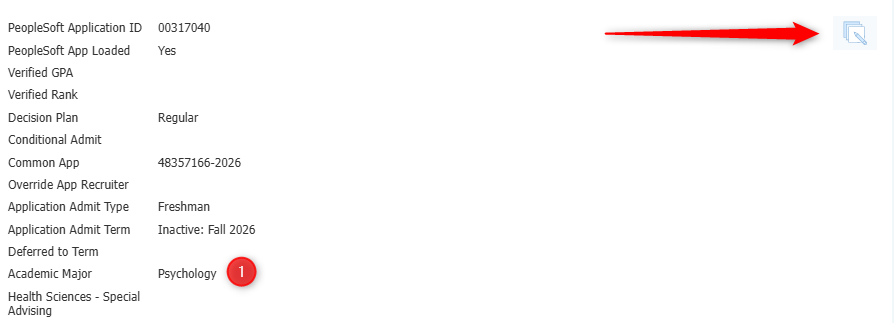
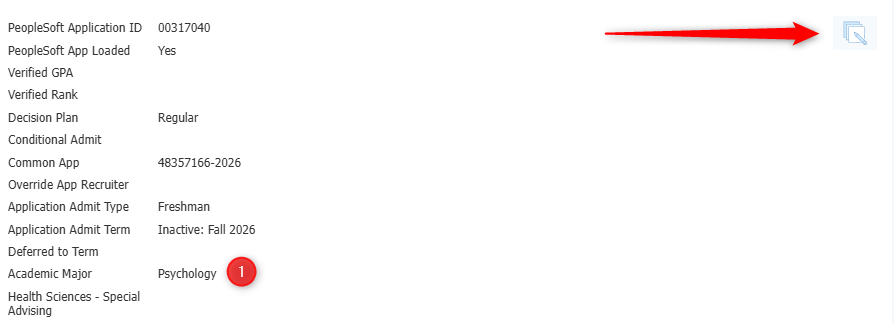
- Scroll to the bottom of the screen and click the "Edit" icon. Change the Academic Major value and hit save.
- Click the "Slate App ID" URL in the mailing, which should take you directly to the students application in Slate. On the right hand navigation, click the "Application CU Data" link.
- PeopleSoft Value Wrong, Slate Correct
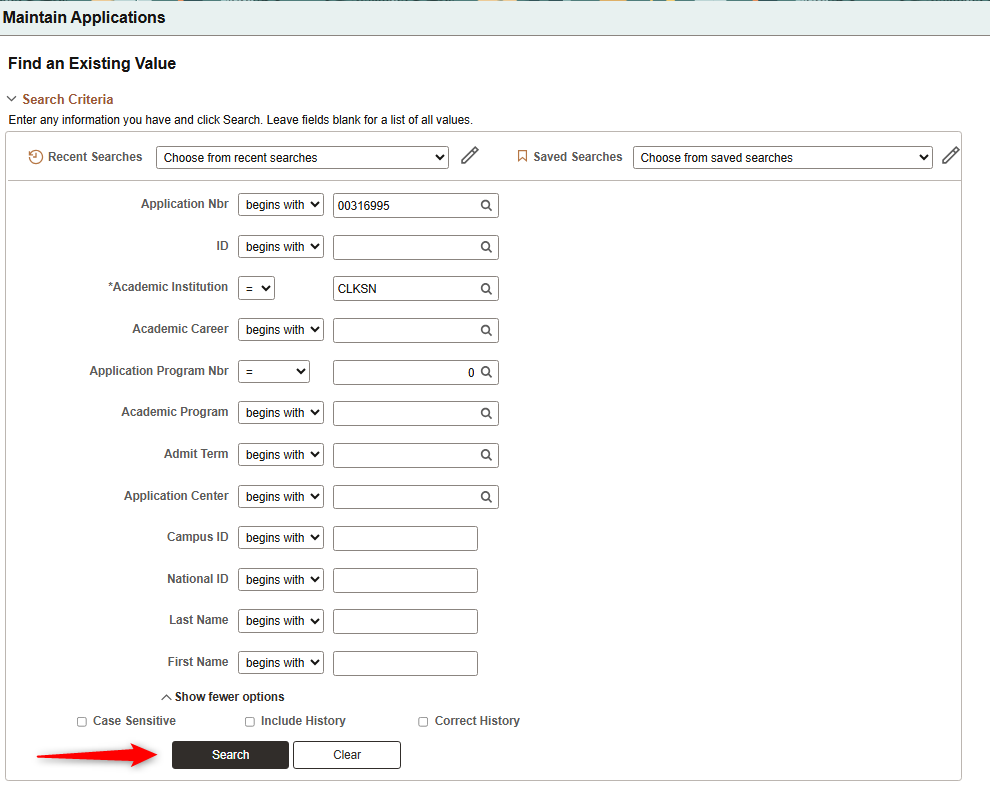
- Click on the "PS App ID" link in the mailing, which should take you directly to Maintain Applications in PeopleSoft with the PeopleSoft ID already filled in. Hit Search.
- Navigate to "Application Program Data" at the top of the screen.
- NOTE: Do not change the Effective Date value, that will cause issues with the decision interface from Slate.
- NOTE: If student is a TCS Student, you only want to update the Application Program Nbr = 1. On the main search screen in PeopleSoft, remove the value in the "Application Program Nbr" row if its filled in and hit your search. This should return multiple rows. Choose the non-TCS row.
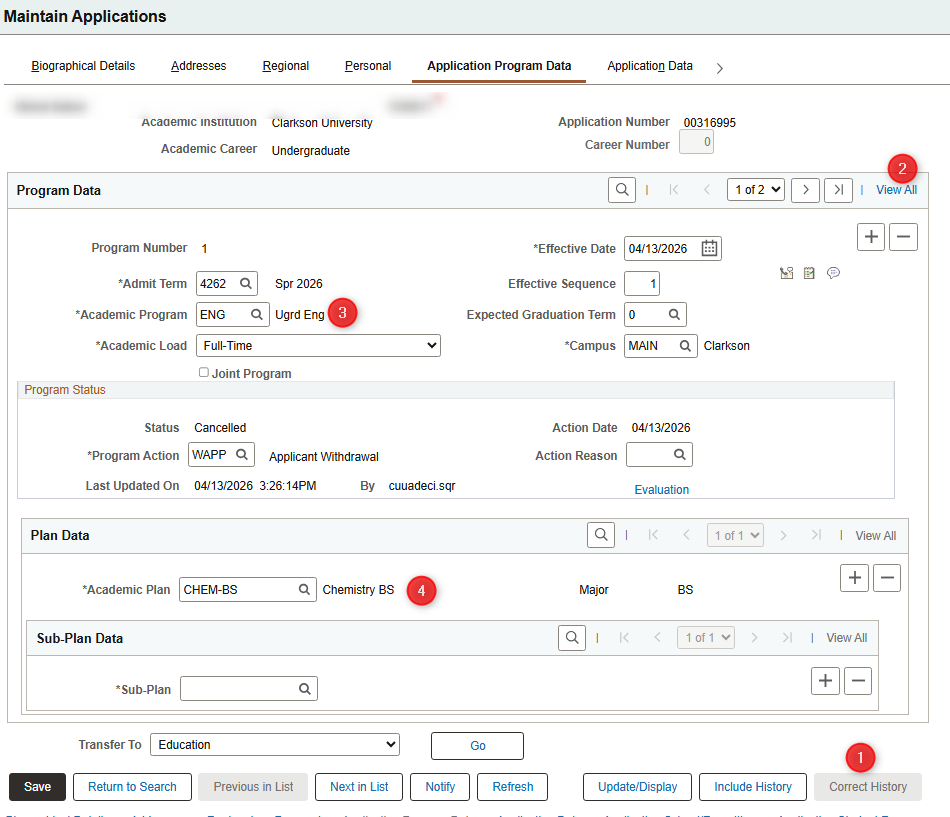
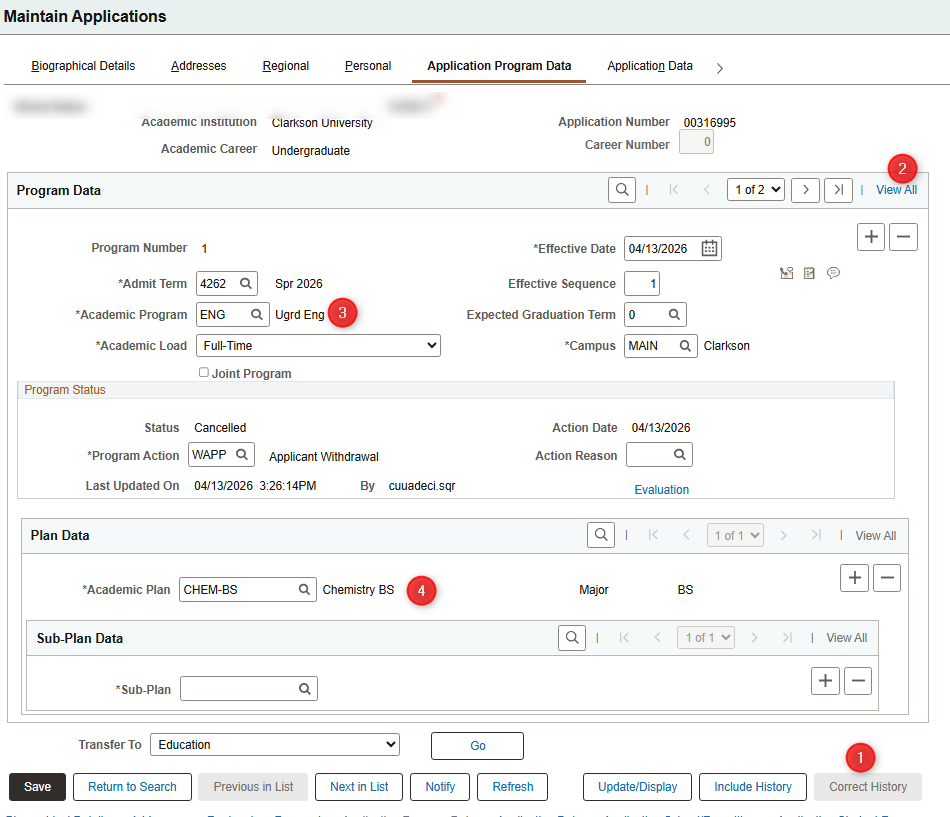
- 1 - Click "Correct History" at the bottom of the screen to update all of their rows to the correct value
- 2 - Click the "View All" link at the top of the screen. You should see it telling you how many rows there are to update to the left of that link (1 of 2 in this example)
- 3 - If the major is in a different Academic Program, you will need to change this value first. If its the same, leave this alone.
- 4 - Update the Academic Plan to the correct major code.
- Repeat this for how many rows of decisions there are on a student.
- Click on the "PS App ID" link in the mailing, which should take you directly to Maintain Applications in PeopleSoft with the PeopleSoft ID already filled in. Hit Search.
- Student Already Matriculated, PeopleSoft Incorrect
Recruiting Center / Admit Type / Notification Plan Mis-match
-
- Student Already Matriculated, PeopleSoft Incorrect
- Put in a ticket to helpdesk@clarkson.edu asking for the Administrative Computing team to update the correct Recruiting Center / Admit Type / Notification Plan for the student within PeopleSoft. Include the Student's PeopleSoft ID, and the PeopleSoft Application Number and what the correct values for the application.
- Put in a ticket to helpdesk@clarkson.edu asking for the Administrative Computing team to update the correct Recruiting Center / Admit Type / Notification Plan for the student within PeopleSoft. Include the Student's PeopleSoft ID, and the PeopleSoft Application Number and what the correct values for the application.
- Student Already Matriculated, Slate Incorrect
- Follow the steps below under the "Slate Value Wrong, PeopleSoft Correct"
- Slate Value Wrong, PeopleSoft Correct
- Click the "Slate App ID" URL in the mailing, which should take you directly to the students application in Slate. On the right hand navigation, click the "Application CU Data" link.
- Scroll to the bottom of the screen and click the "Edit" icon. Change the following depending on the data issue
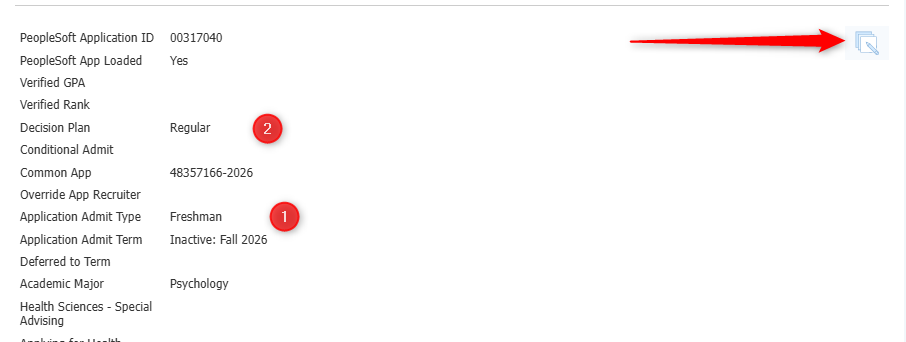
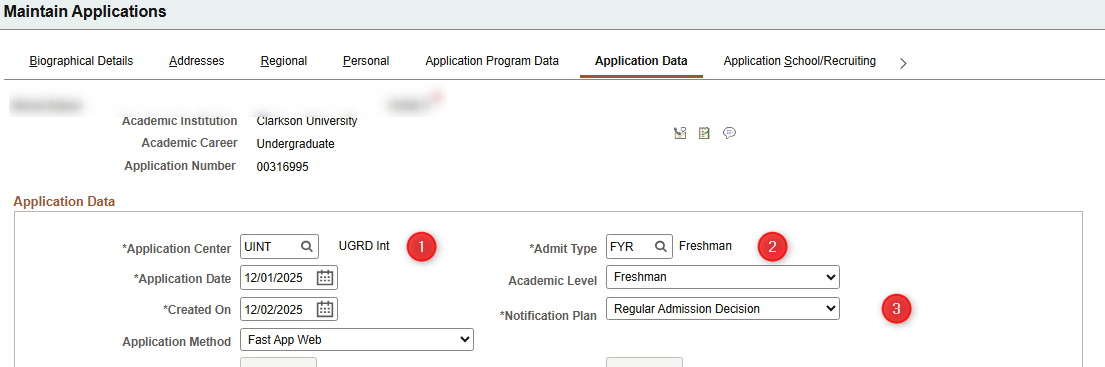
- If Admit Type is incorrect - Update the field "Application Admit Type"
- If Notification Plan is incorrect -
- If Recruiting Center is incorrect
- Click the "Slate App ID" URL in the mailing, which should take you directly to the students application in Slate. On the right hand navigation, click the "Application CU Data" link.
- PeopleSoft Value Wrong, Slate Correct
- Click on the "PS App ID" link in the mailing, which should take you directly to Maintain Applications in PeopleSoft with the PeopleSoft ID already filled in. Hit Search.
- Navigate to "Application Data" at the top of the screen.
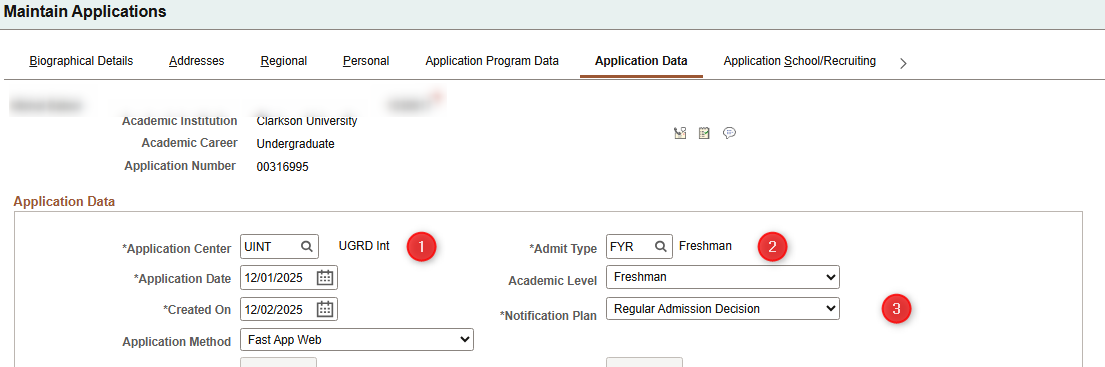
- Click "Correct History" at the bottom of the screen to update all of their rows to the correct value
- 1 - If Recruiting Center is incorrect, update this field to match the correct value.
- 2 - If Admit Type is incorrect, update this field to match the correct value.
- 3 - If Notification Plan is incorrect, update this field to the correct value.
- Click on the "PS App ID" link in the mailing, which should take you directly to Maintain Applications in PeopleSoft with the PeopleSoft ID already filled in. Hit Search.
- Student Already Matriculated, PeopleSoft Incorrect
School Missing CEEB
-
- This section will only report on deposited students whose Rank 1 High School is not connected to an Organization in Slate, which in turn means its missing a CEEB code. We are only reporting on schools we have some sort of transcript attached to, as without a transcript it will be hard to determine any information about the school. These should only need to be resolved within Slate, and they will move over to PeopleSoft automatically.
- Step 1: Verify School Doesn't Exist in Slate under Different Name
- Go to the students material's tab and open up the transcript attached to the school so you have additional context in the next instructions.
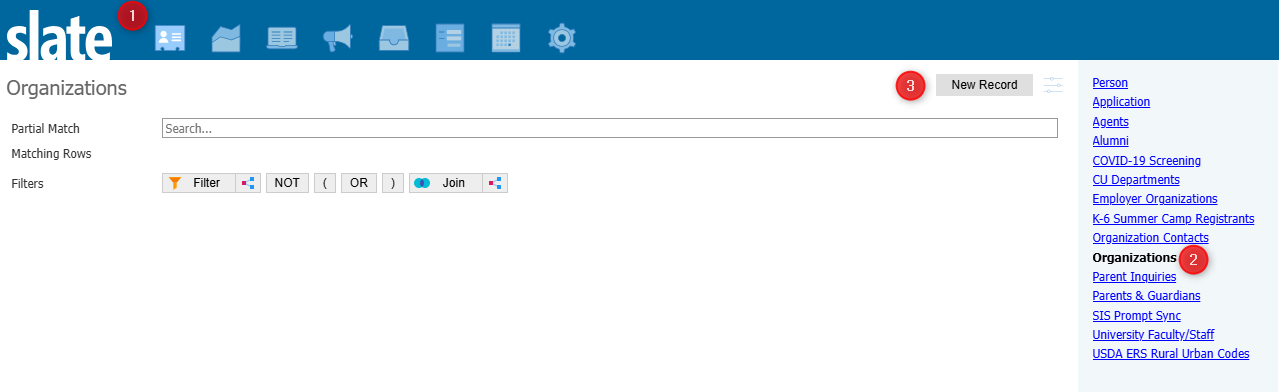
- Verify the school doesn't already exist by another name by searching in Organizations using the CEEB Code. If they do but under a different name, please verify with the school of the name change. You can also search by name, if School Name is available but missing CEEB.
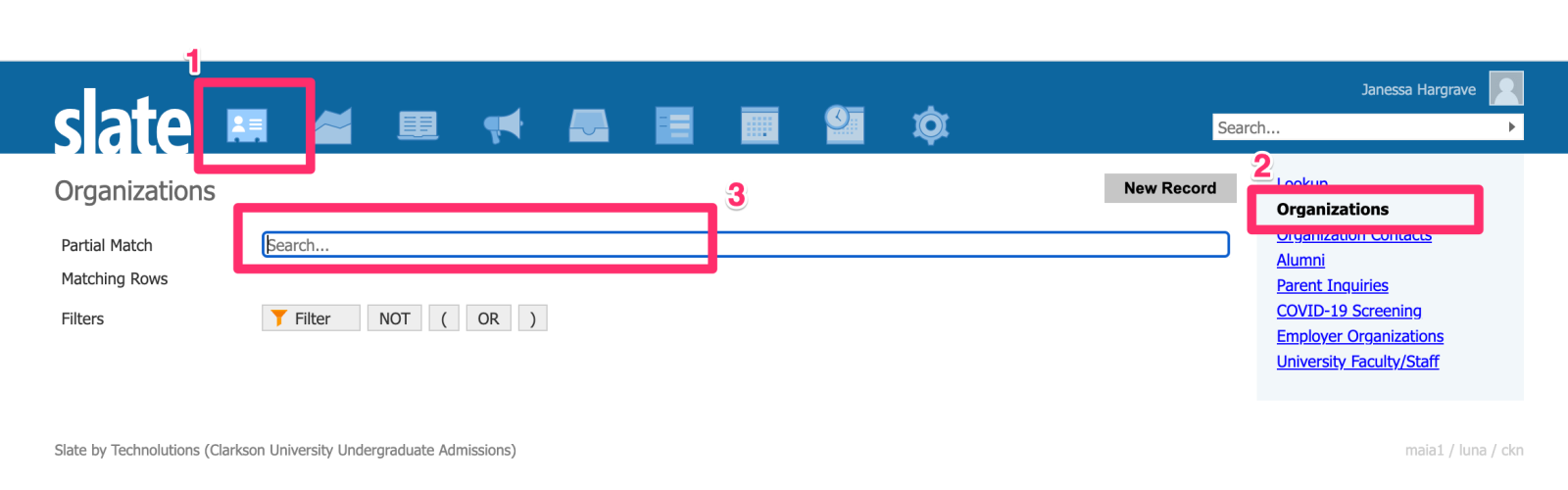
- School Exists: If the school exists, you can go back to the students Profile -> School record and type in the CEEB or name as it was found in your search to connect the school to the student correctly.
- School Doesn't Exist: Follow the instructions below based on if the school is US or International Based.
- Step
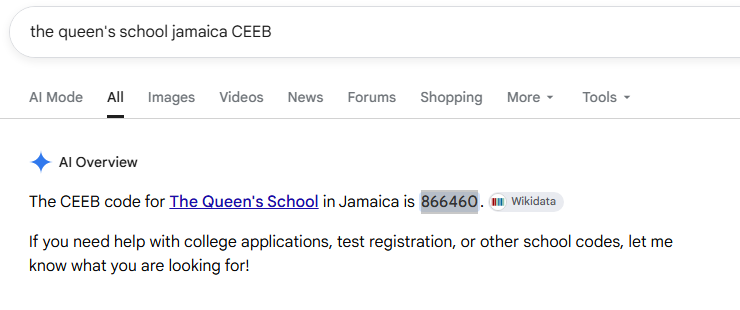
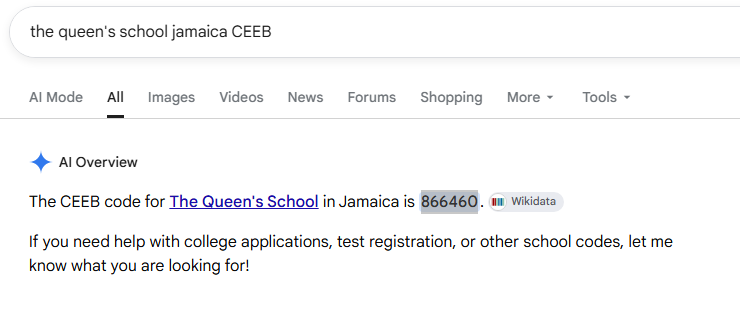
2a: US Based2: Organization Doesn't Exist in Slate- Google Search: Google the School Name + CEEB in Google. This might return the result the fastest.
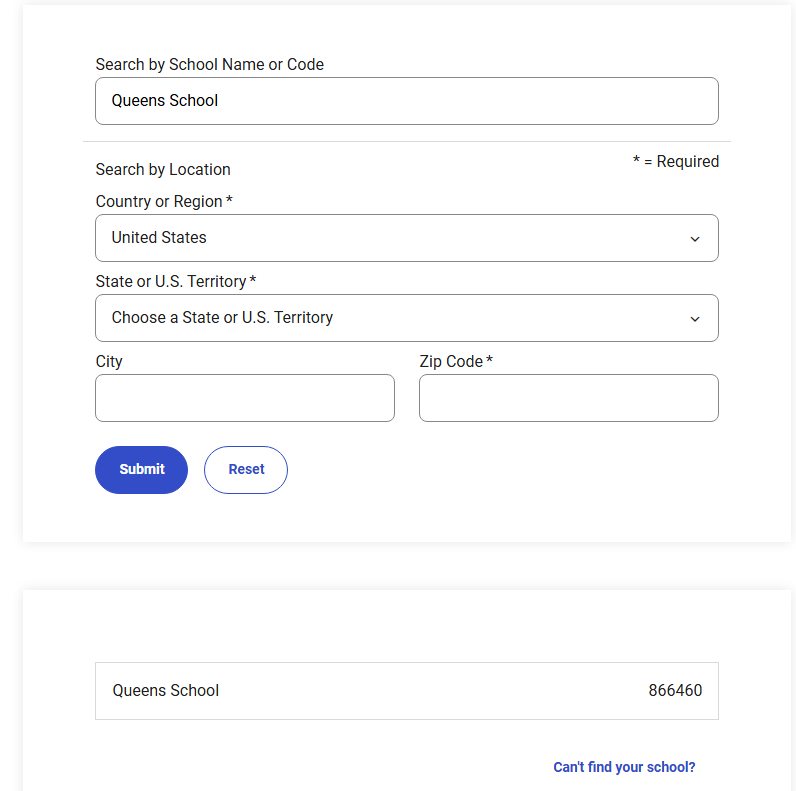
- CollegeBoard
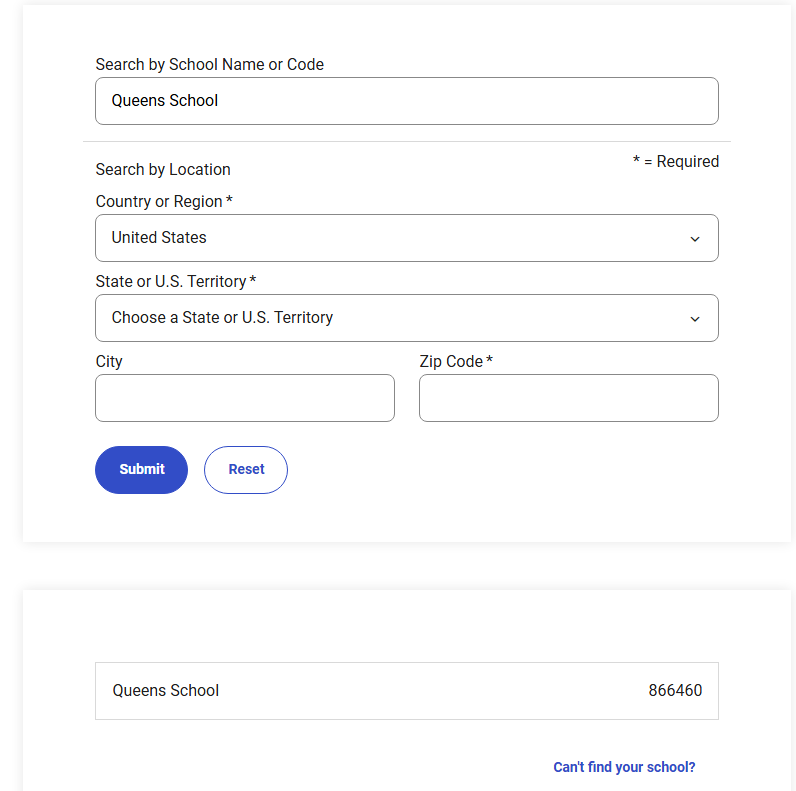
Search:Search (US Based School): You can also search CollegeBoard's official list here: https://satsuite.collegeboard.org/k12-educators/tools-resources/school-codes/k12-school-code-search
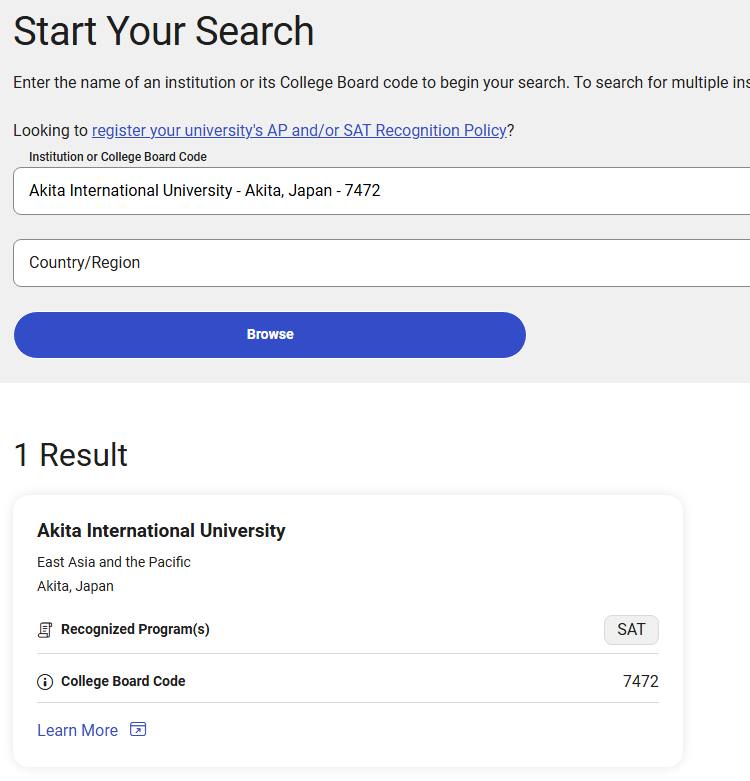
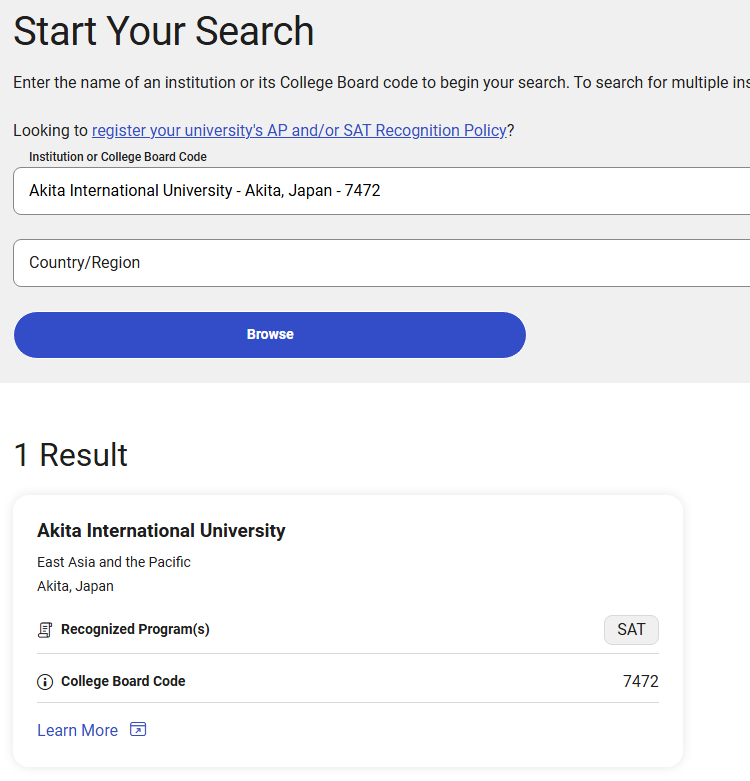
- CollegeBoard Search (International Based School) : You can also search CollegeBoards international based list here: https://international.collegeboard.org/find-universities-that-recognize-ap-sat
- Google Search: Google the School Name + CEEB in Google. This might return the result the fastest.
- If you get a CEEB code from either Google or
If this returns a CEEB,CollegeBoard, go back to "Step 1" and see if that CEEB existed, just was under a name you couldn't find before. If note, go to "Step 3"
- Step 1: Verify School Doesn't Exist in Slate under Different Name
- This section will only report on deposited students whose Rank 1 High School is not connected to an Organization in Slate, which in turn means its missing a CEEB code. We are only reporting on schools we have some sort of transcript attached to, as without a transcript it will be hard to determine any information about the school. These should only need to be resolved within Slate, and they will move over to PeopleSoft automatically.
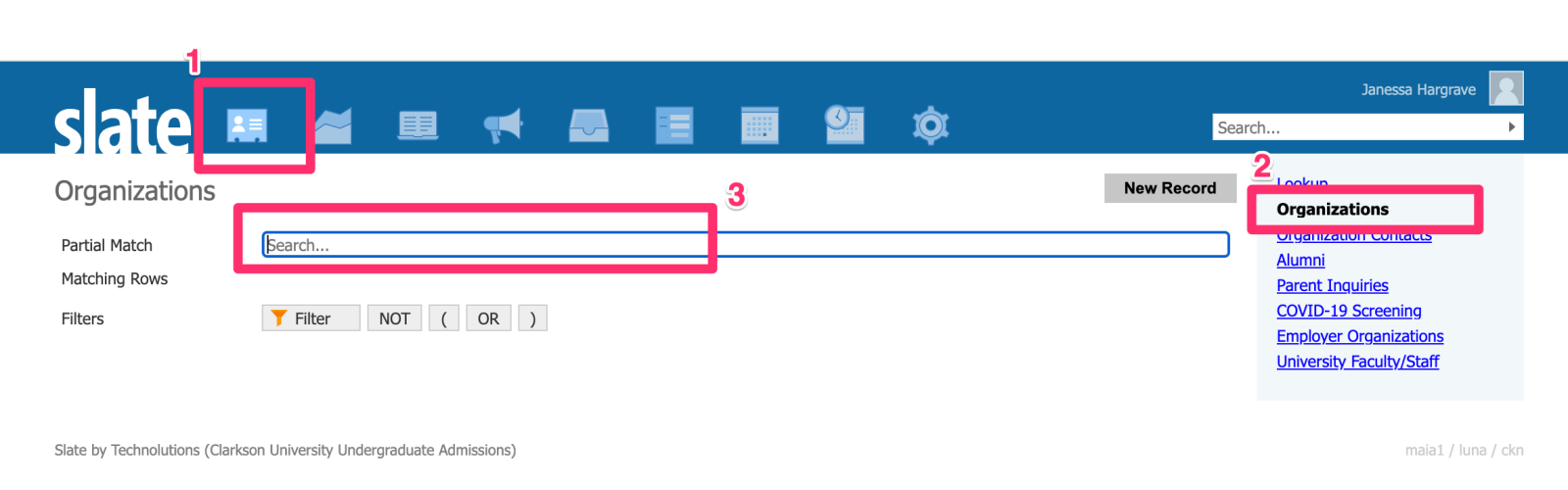
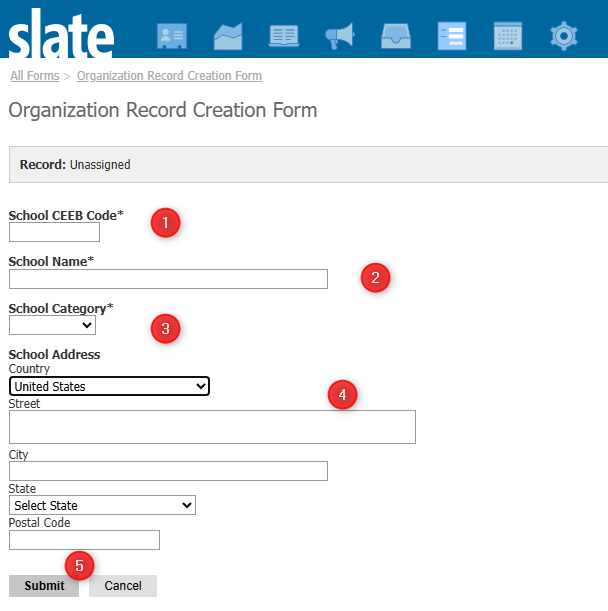
- School CEEB: Enter the CEEB Code you found for the school. This is required to submit the form.
- School Name: Enter the name of the school. This is required to submit the form.
- School Category: Choose High School or College. This is required to submit the form.
- School Address: If you can find an address for the school, enter it in this box. This is not required to submit the form, but the address is important in down-stream processes.
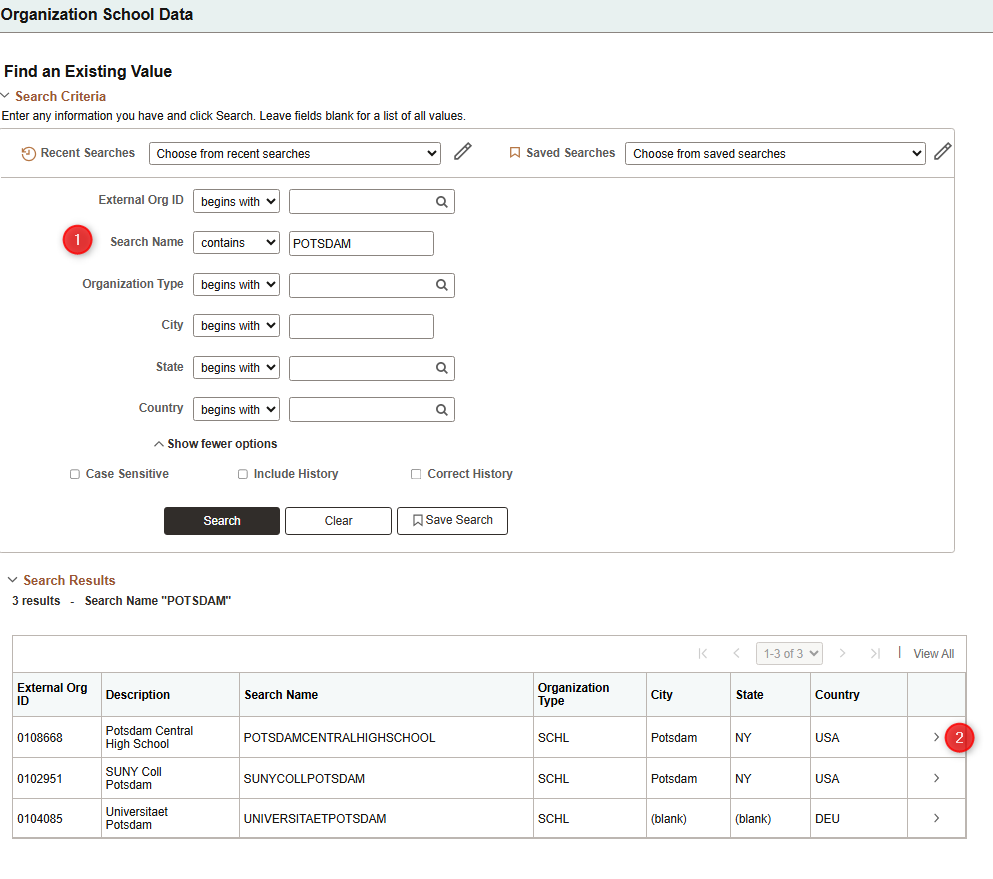
On the next screen, note if ATP Code exists or not.
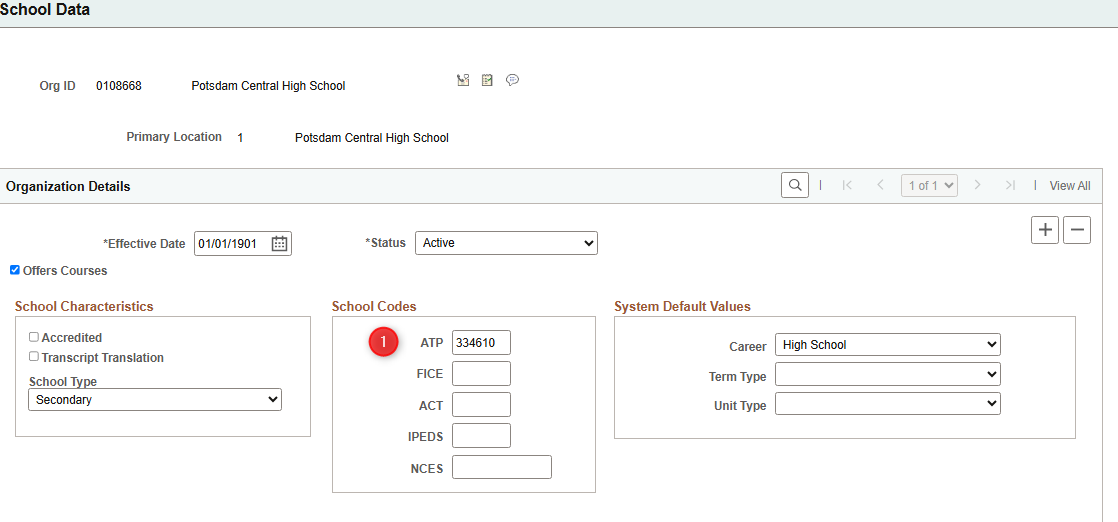
If ATP Code Exists: This is the code you will use as the CEEB Code when creating the record in Slate. If ATP Code Doesn't Exist: Leave this window open, as you will add the CEEB Code you generate in Slate to update this record in PeopleSoft to ensure we don't make duplicate records.
Step 5: Create the School
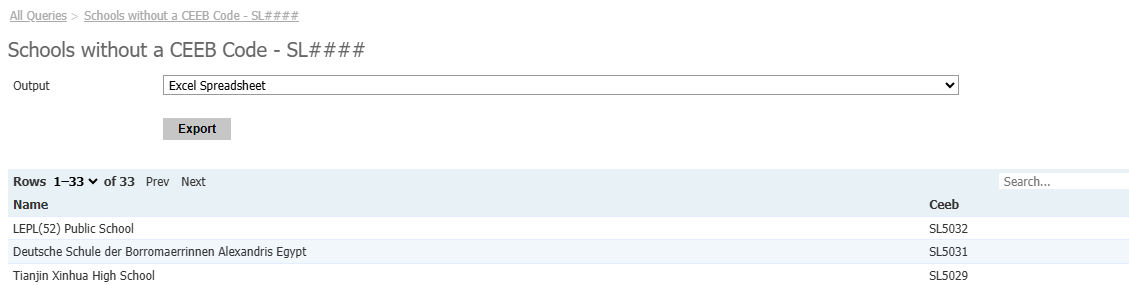
On the PeopleSoft Screen for that School, add the SLXXXX Code you generated to ATP Code Column and hit Save. This will ensure Slate and PeopleSoft match those schools together and a dupe isn't created. School Not Found in PeopleSoft, ATP Code Existed