Fixing Application Data Errors between Slate and PeopleSoft

    • Admit Term Mis-match
    • Recruiting Mis-match
    • Major Mis-match
    • Admit Type Mis-match
    • Notification Plan Different
    • Admit Date is before Application Date
Admit Term Mis-match
    • Student Already MatriculatedMatriculated, PeopleSoft Incorrect
      • Put in a ticket to helpdesk@clarkson.edu asking for the Administrative Computing team to update the correct Admit Term for the student within PeopleSoft. Include the Student's PeopleSoft ID, and the PeopleSoft Application Number and what the correct Admit Term and Expected Graduation Term values should be. 
      • Contact registrar@clarkson.edu indicating the student might have the wrong starting term for them to manually fix the student. Send them the same information provided to the helpdesk ticket. 
Student Already Matriculated, Slate Incorrect
    Follow the steps below under the "Slate Value Wrong, PeopleSoft Correct" Slate Value Wrong, PeopleSoft Correct
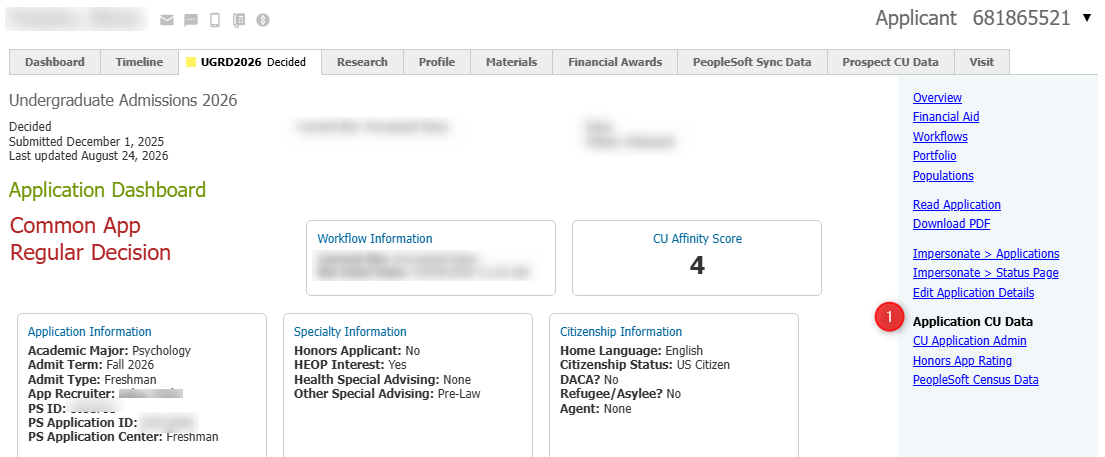
    • Click the "Slate App ID" URL in the mailing, which should take you directly to the students application in Slate. On the right hand navigation, click the "Application CU Data" link.  
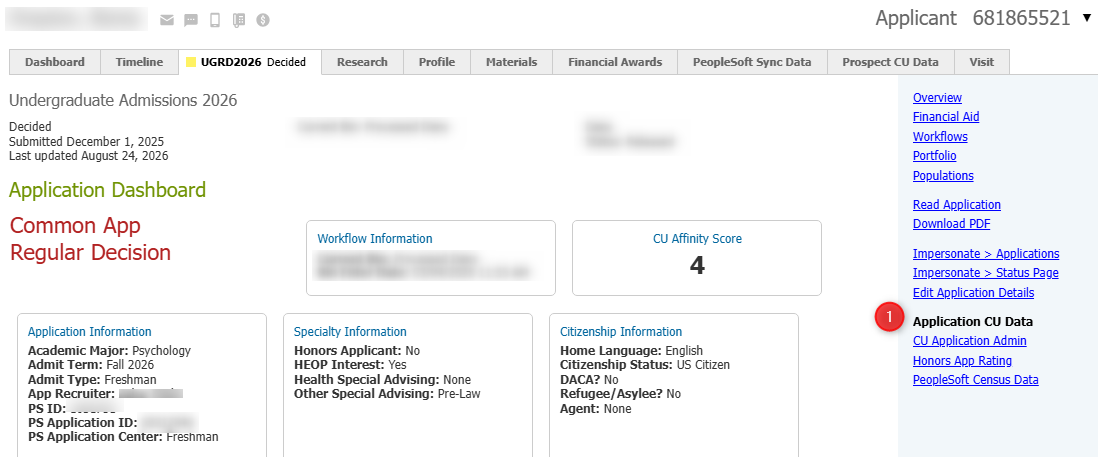
      image.png


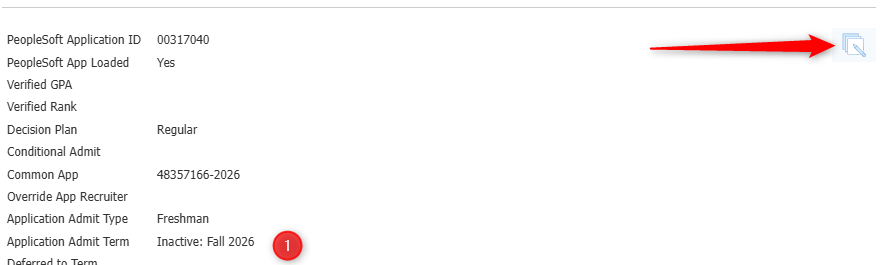
    • Scroll to the bottom of the screen and click the "Edit" icon. Change the Application Admit Term value and hit save. 
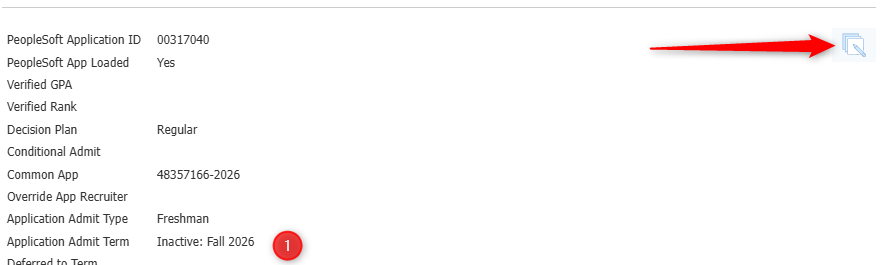
      image.png

    PeopleSoft Value Wrong, Slate Correct
    • Click on the "PS App ID" link in the mailing, which should take you directly to Maintain Applications in PeopleSoft with the PeopleSoft ID already filled in. Hit Search. 
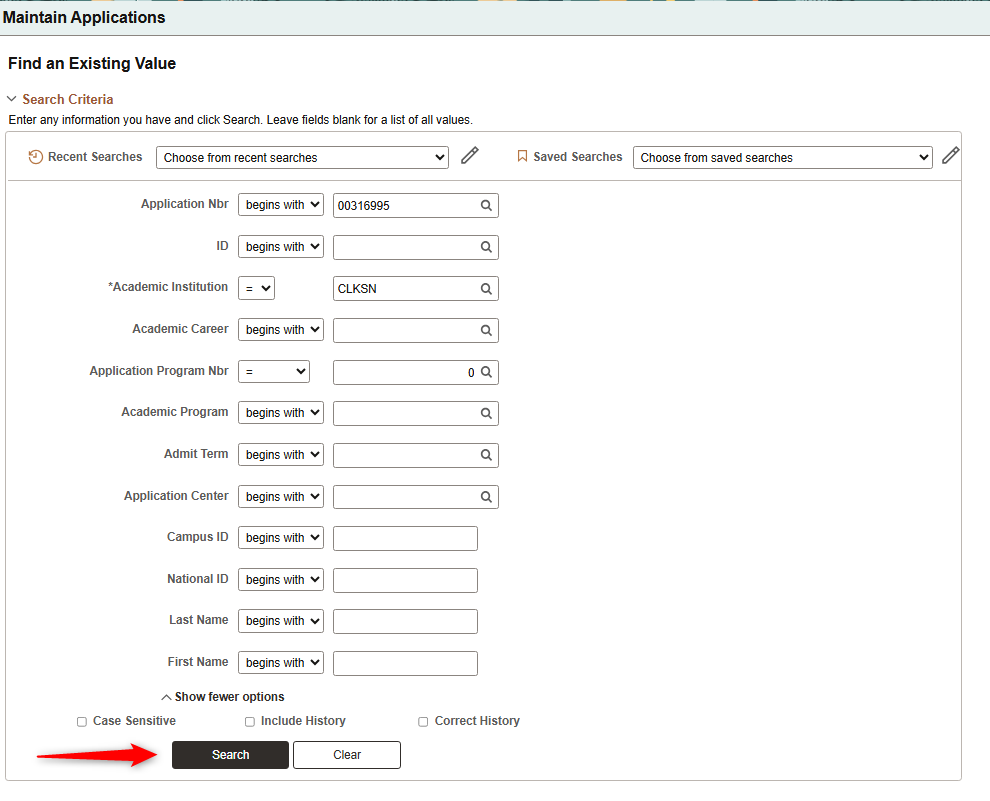
      image.png


    • Navigate to "Application Program Data" at the top of the screen. 
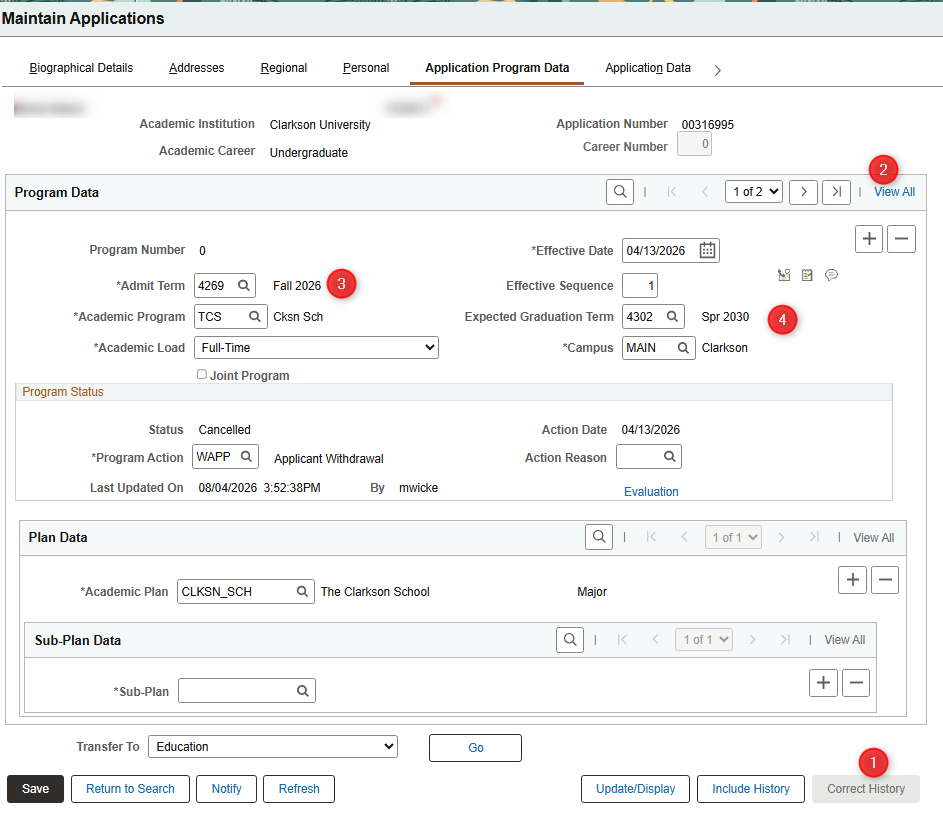
      image.png


    • NOTE: Do not change the Effective Date value, that will cause issues with the decision interface from Slate. 
    • NOTE: If student is a TCS Student, you will have to update both Application Row Numbers. On the main search screen in PeopleSoft, remove the value in the "Application Program Nbr" row if its filled in and hit your search. This should return multiple rows. You will need to repeat all the steps below for both. 
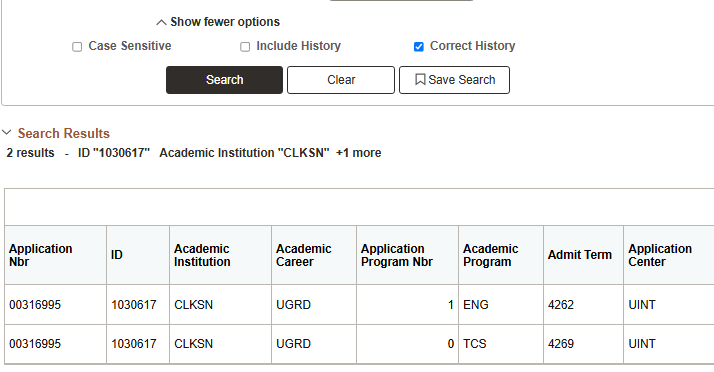
      image.png

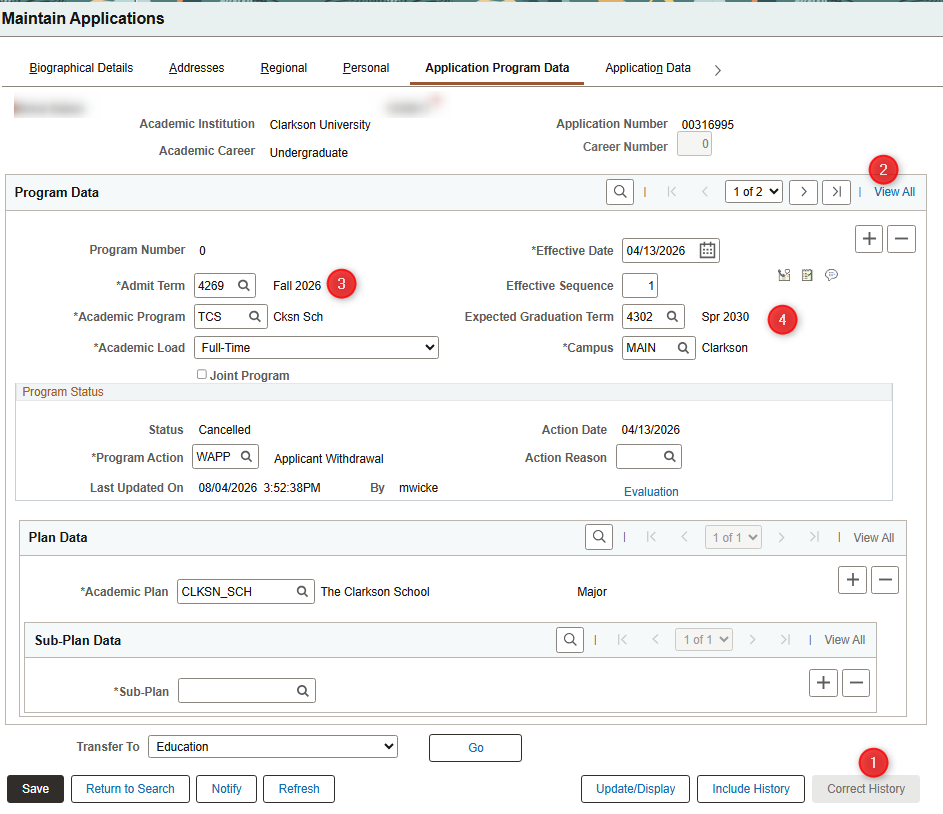
    • 1 - Click "Correct History" at the bottom of the screen to update all of their rows to the correct value
    • 2 - Click the "View All" link at the top of the screen. You should see it telling you how many rows there are to update to the left of that link (1 of 2 in this example)
    • 3 - Update the Admit Term to match the correct value
    • 4 - Update the Expected Graduation Term to the correct value
    • Repeat this for how many rows of decisions there are on a student. 
    Major Mis-match
        Student Already Matriculated, PeopleSoft Incorrect
          Put in a ticket to helpdesk@clarkson.edu asking for the Administrative Computing team to update the correct Admit Term for the student within PeopleSoft. Include the Student's PeopleSoft ID, and the PeopleSoft Application Number and what the correct Major Code should be.  Contact registrar@clarkson.edu indicating the student was matriculated to the wrong major for them to manually fix the student. Send them the same information provided to the helpdesk ticket.  Student Already Matriculated, Slate Incorrect
            Follow the steps below under the "Slate Value Wrong, PeopleSoft Correct" Slate Value Wrong, PeopleSoft Correct
              Click the "Slate App ID" URL in the mailing, which should take you directly to the students application in Slate. On the right hand navigation, click the "Application CU Data" link.  

              image.png


              Scroll to the bottom of the screen and click the "Edit" icon. Change the Academic Major value and hit save. 
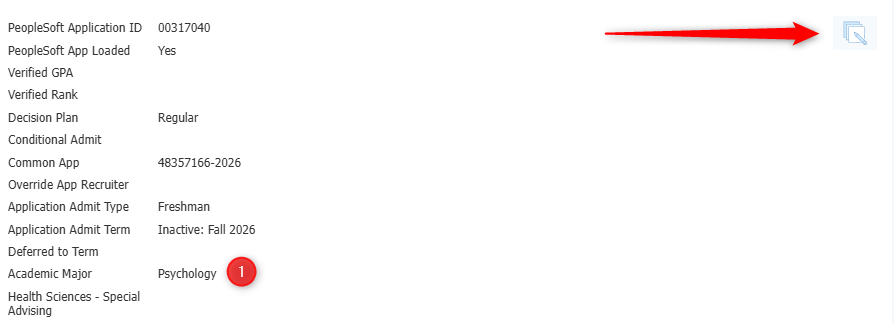
              image.png


              PeopleSoft Value Wrong, Slate Correct
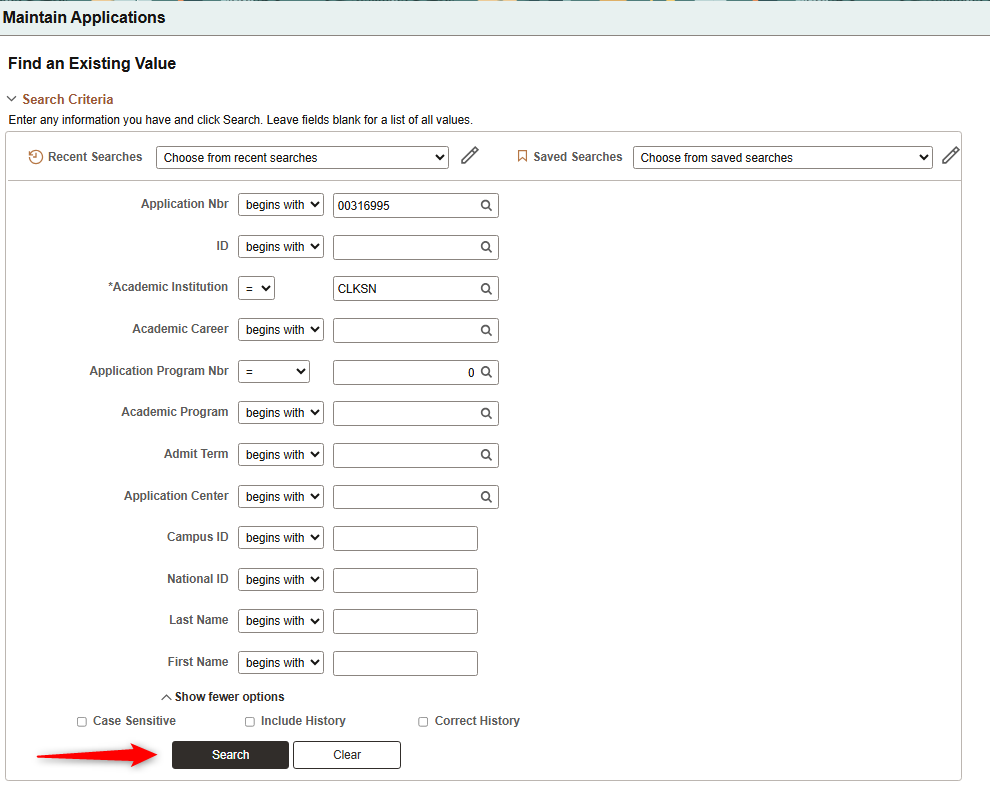
                Click on the "PS App ID" link in the mailing, which should take you directly to Maintain Applications in PeopleSoft with the PeopleSoft ID already filled in. Hit Search. 

                image.png


                Navigate to "Application Program Data" at the top of the screen. 
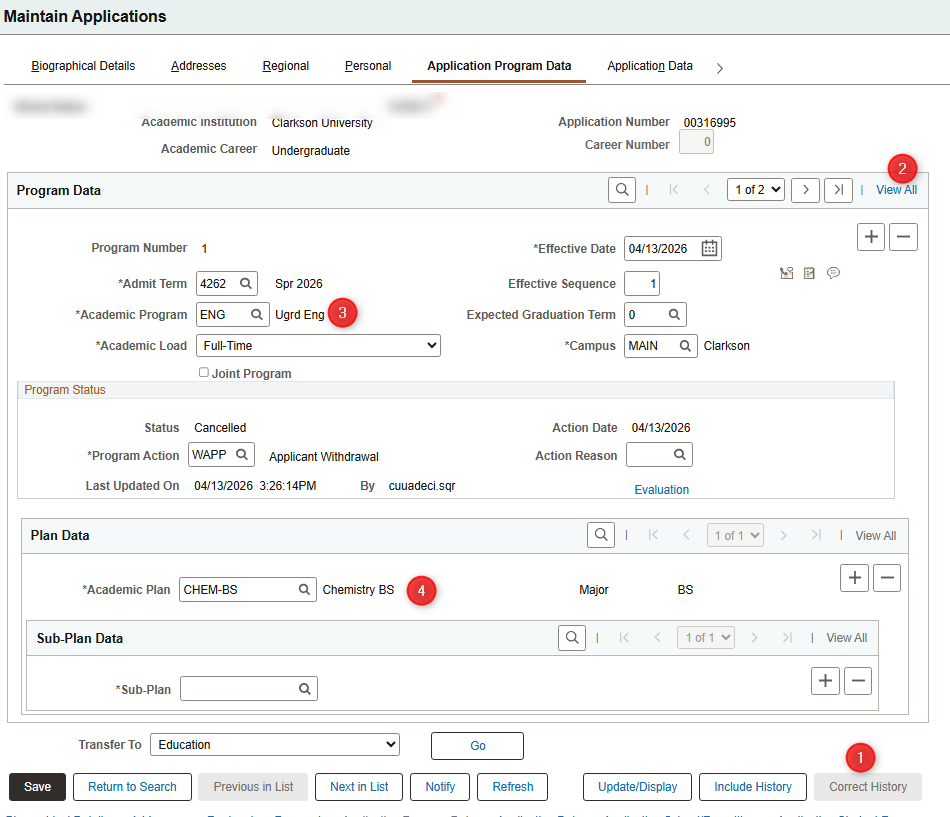
                image.png


                NOTE: Do not change the Effective Date value, that will cause issues with the decision interface from Slate.  NOTE: If student is a TCS Student, you only want to update the Application Program Nbr = 1. On the main search screen in PeopleSoft, remove the value in the "Application Program Nbr" row if its filled in and hit your search. This should return multiple rows. Choose the non-TCS row. 
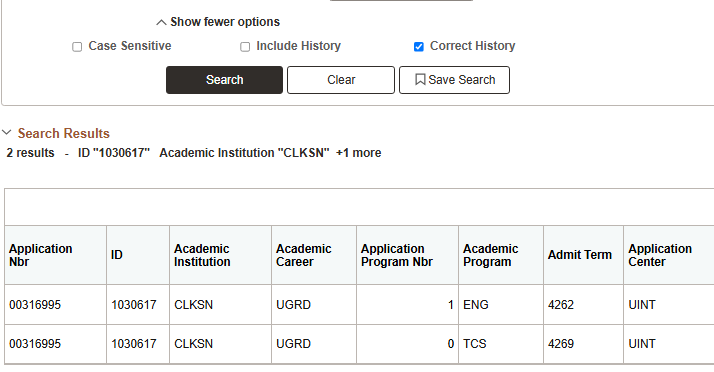
                image.png

                1 - Click "Correct History" at the bottom of the screen to update all of their rows to the correct value 2 - Click the "View All" link at the top of the screen. You should see it telling you how many rows there are to update to the left of that link (1 of 2 in this example) 3 - If the major is in a different Academic Program, you will need to change this value first. If its the same, leave this alone.  4 - Update the Academic Plan to the correct major code.  Repeat this for how many rows of decisions there are on a student. 
                Recruiting Center / Admit Type / Notification Plan Mis-match
                    Student Already Matriculated, PeopleSoft Incorrect
                      Put in a ticket to helpdesk@clarkson.edu asking for the Administrative Computing team to update the correct Recruiting Center / Admit Type / Notification Plan for the student within PeopleSoft. Include the Student's PeopleSoft ID, and the PeopleSoft Application Number and what the correct values for the application. 
                      Student Already Matriculated, Slate Incorrect
                        Follow the steps below under the "Slate Value Wrong, PeopleSoft Correct" Slate Value Wrong, PeopleSoft Correct
                          Click the "Slate App ID" URL in the mailing, which should take you directly to the students application in Slate. On the right hand navigation, click the "Application CU Data" link.  

                          image.png


                          Scroll to the bottom of the screen and click the "Edit" icon. Change the following depending on the data issue

                          Major Differentimage.png
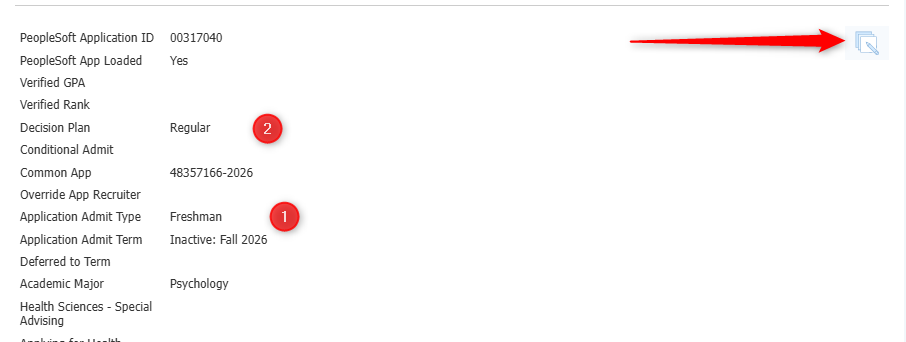


                            If Admit Type is incorrect - Update the field "Application Admit Type" If Notification Plan is incorrect -  If Recruiting Center is incorrect  PeopleSoft Value Wrong, Slate Correct
                              Click on the "PS App ID" link in the mailing, which should take you directly to Maintain Applications in PeopleSoft with the PeopleSoft ID already filled in. Hit Search. 

                              image.png


                              Navigate to "Application Data" at the top of the screen. 
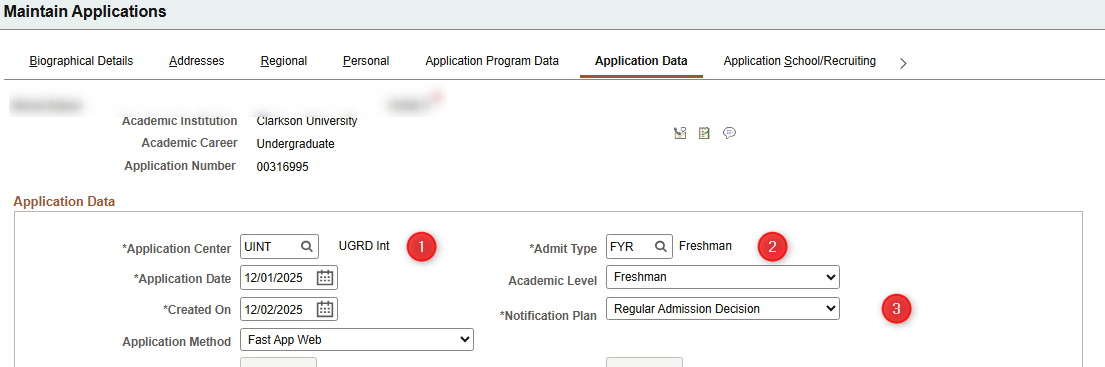
                              image.png


                              Click "Correct History" at the bottom of the screen to update all of their rows to the correct value 1 - If Recruiting Center is incorrect, update this field to match the correct value. 2 - If Admit Type is incorrect, update this field to match the correct value. 3 - If Notification Plan is incorrect, update this field to the correct value. 
                              Application Date is beforeAfter ApplicationDeposit Date

                              Notification Plan Different

                              Recruiting Center Different