Fixing Application Data Errors between Slate and PeopleSoft
Below is the list of errors being generated from the report found in [SQR Name] and how you fix each one.
For each of the issues listed below, start by opening the application in both Slate and Peoplesoft.
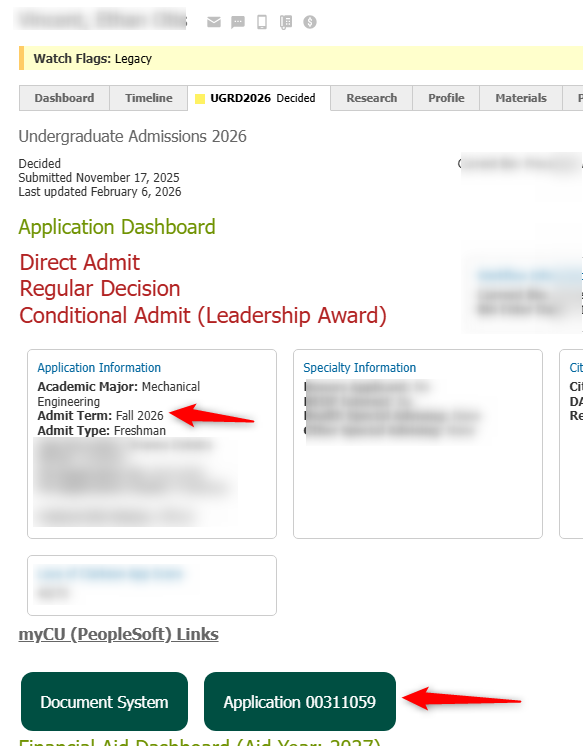
Using the link provided in the email, go to the application in Slate. This link should take you directly to the application in question if the person has multiple applications.
NOTE: If person has multiple applications for the same Application Round, clean that up first, as the error reported might be a false positive if a person has multiple applications with the same PeopleSoft App ID.
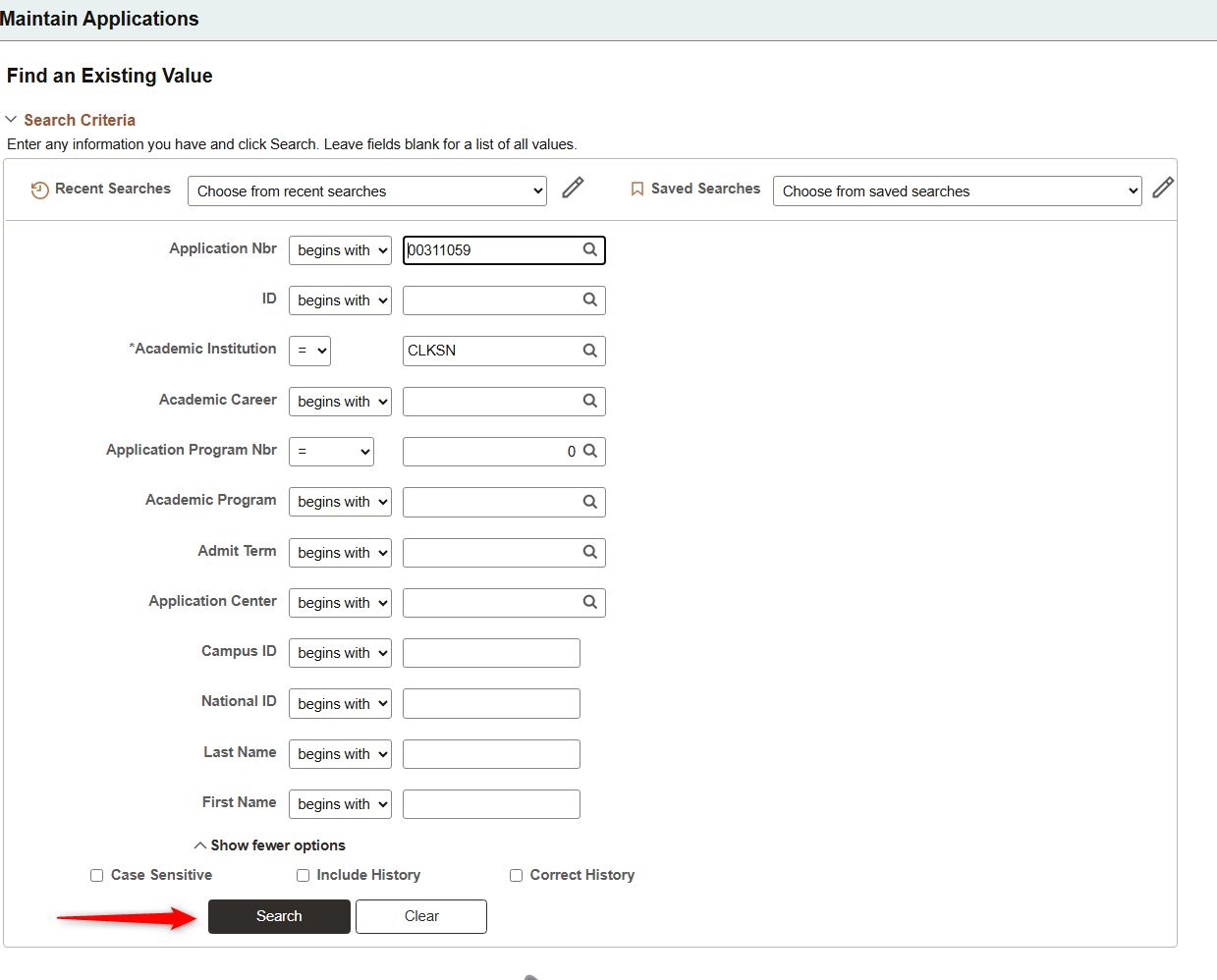
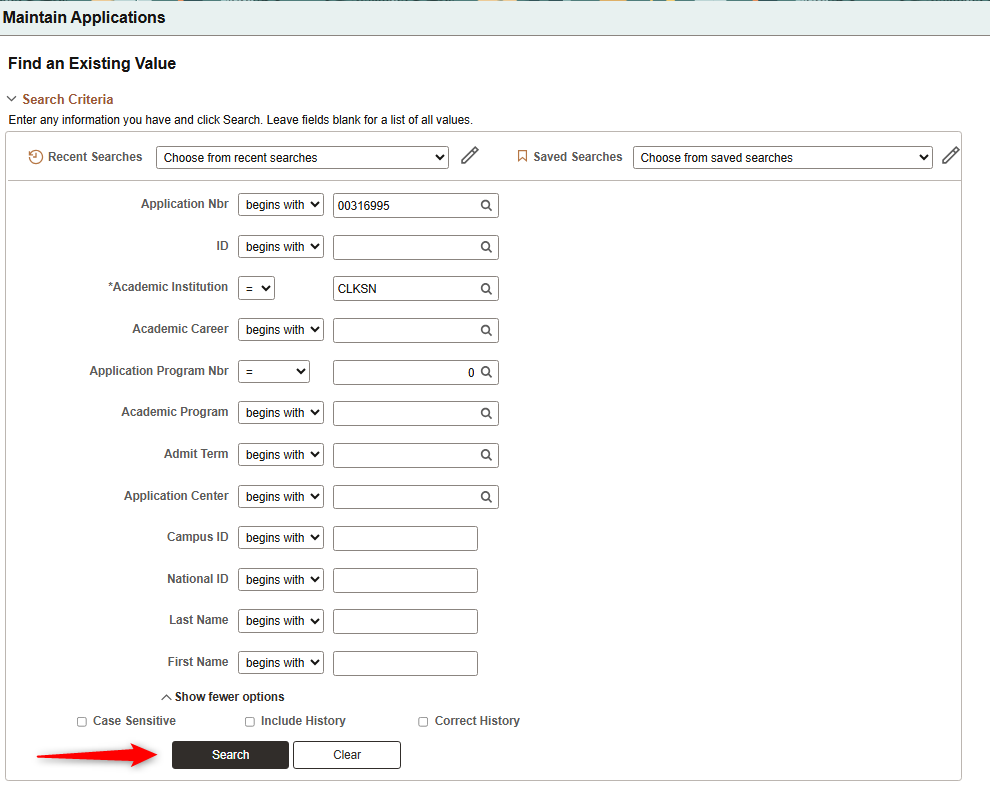
Once there, find the right application tab that matches the PeopleSoft Application ID in the email. Click the Button that takes you to PeopleSoft and click search to bring up the application.
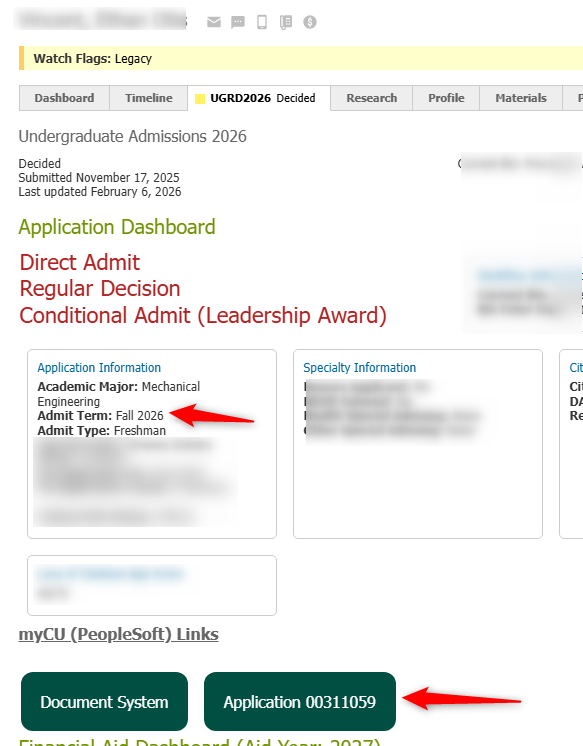
Note: If you haven't logged into PeopleSoft for the day, clicking that link will take you to your PeopleSoft Home Page. Once that happens, click the button again, and it will take you directly to the Maintain Application Screen.
Click Search
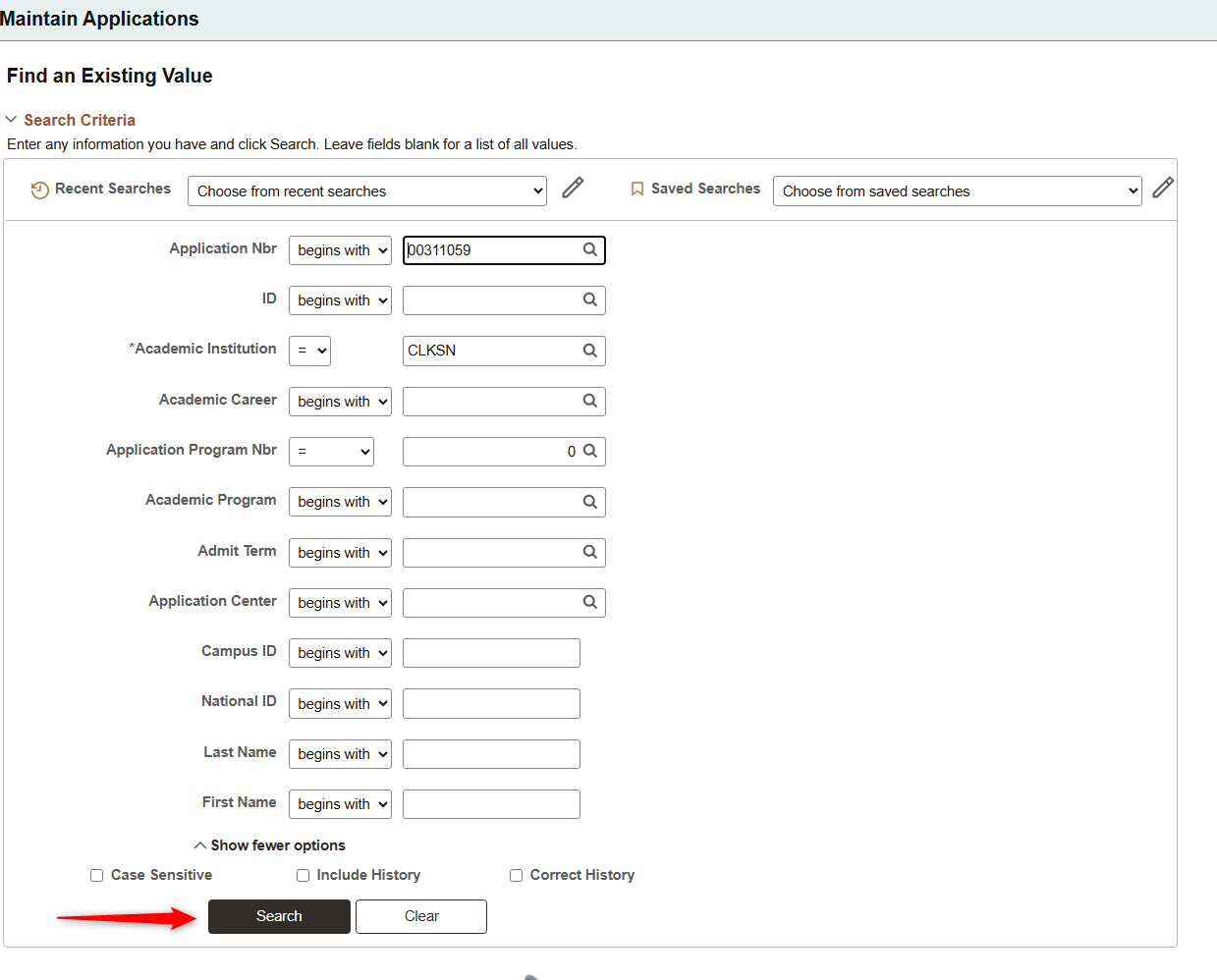
Follow the steps for each issue below.
Quick Links
-
- Admit Type Mis-
Matchmatch
- Admit Term
DifferentMis-match
- Notification Plan Different
- Recruiting Center Different
- Major Different
- Admit Date is before Application Date
Admit TypeTerm Mis-Matchmatch
-
OnStudent Already Matriculated
- Put in a ticket to helpdesk@clarkson.edu asking for the Administrative Computing team to update the correct Admit Term for the student. Include the Student's PeopleSoft ID, and the PeopleSoft
MaintainApplication ApplicationsNumber Screen,and gowhat the correct Admit Term and Expected Graduation Term values should be.
Slate Value Wrong, PeopleSoft Correct
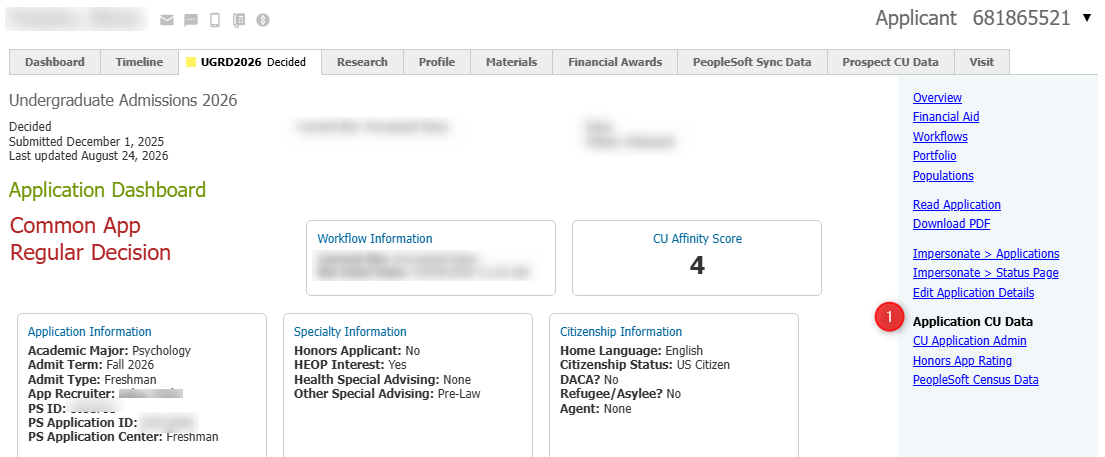
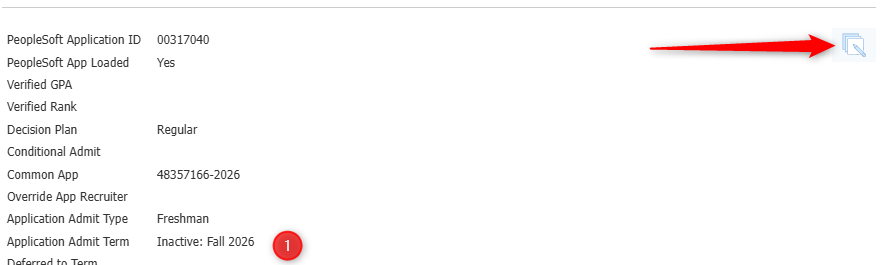
Click the "Slate App ID" URL in the mailing, which should take you directly to the
Applicationstudents Dataapplication Tabin andSlate. reviewOn the
Admitright Typehand fieldnavigation, click the "Application CU Data" link.
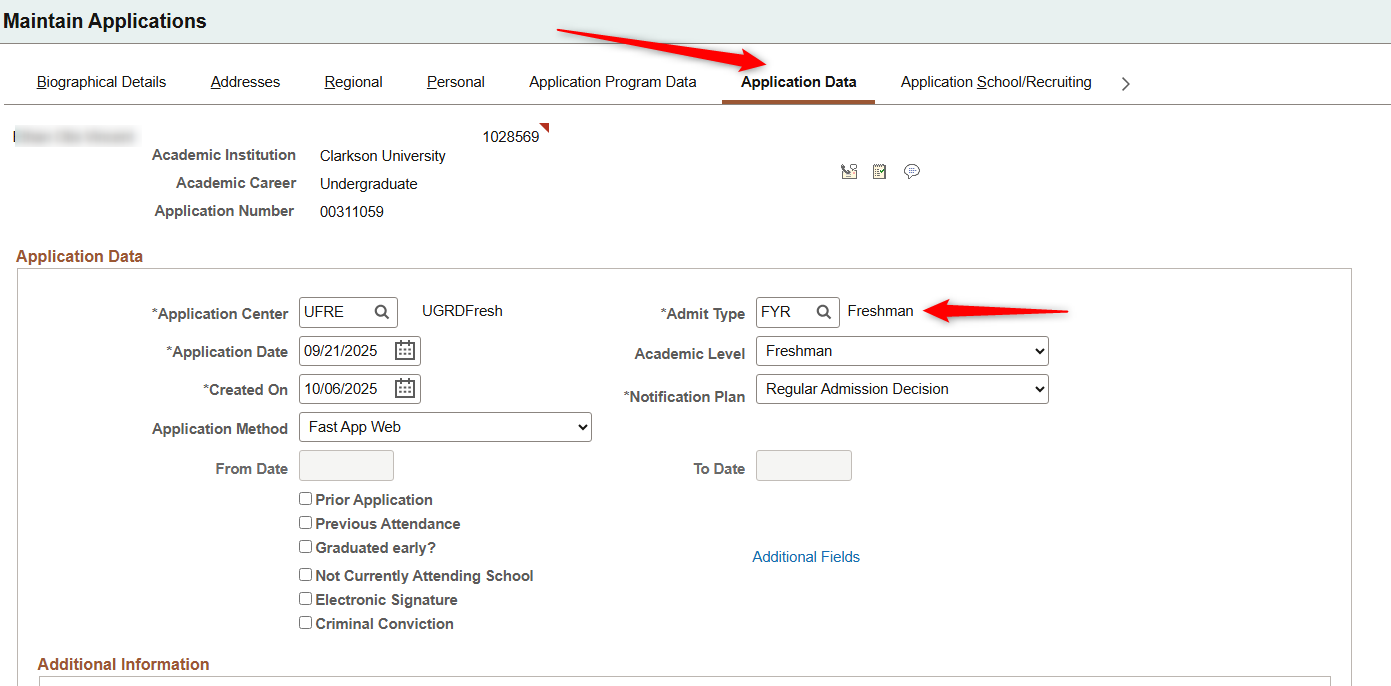
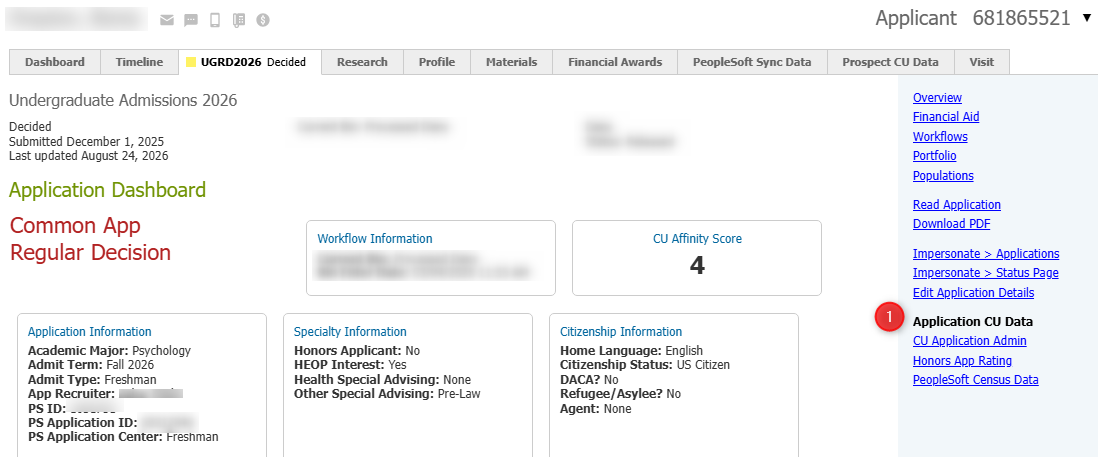
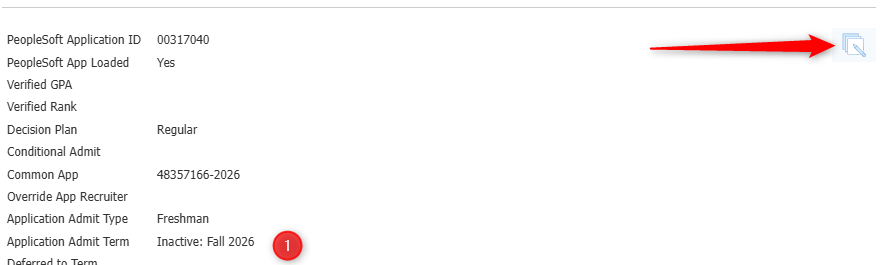
Compare the value in Slate highlighted above,Scroll to the
value in PeopleSoft and determine which one needs to be updated.
If updating Slate
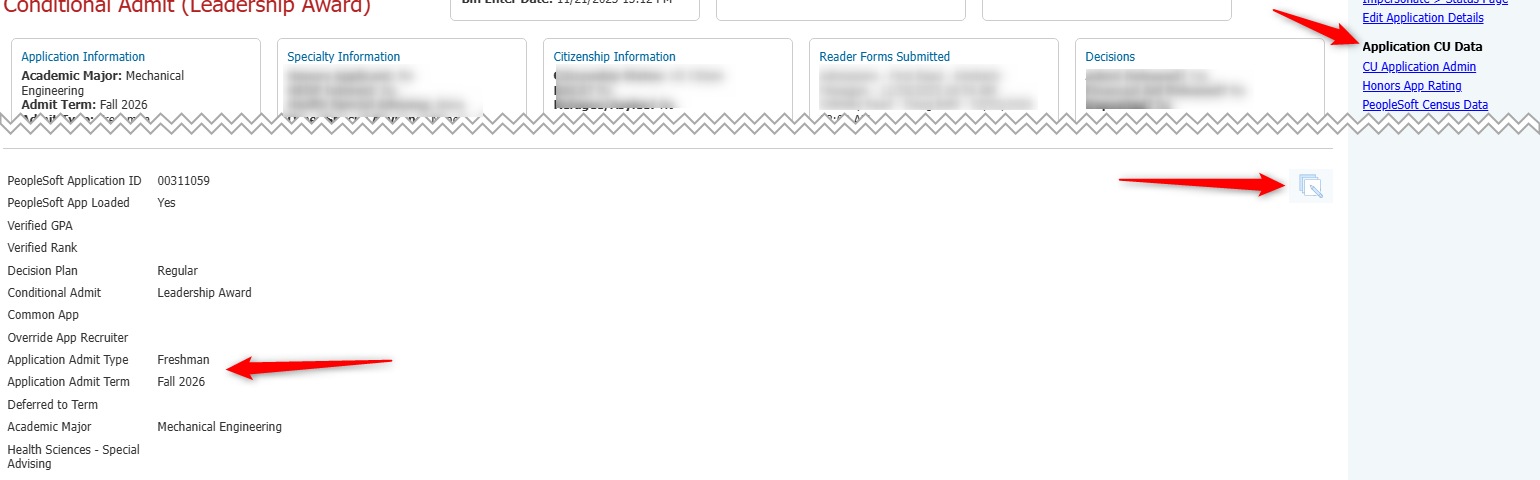
Click Application CU Data on the right hand navigationbottom of the
application
Scroll downscreen and click the "Edit"
buttonicon. Change the Application Admit
TypeTerm Clickvalue saveand hit save.
PeopleSoft Value Wrong, Slate Correct
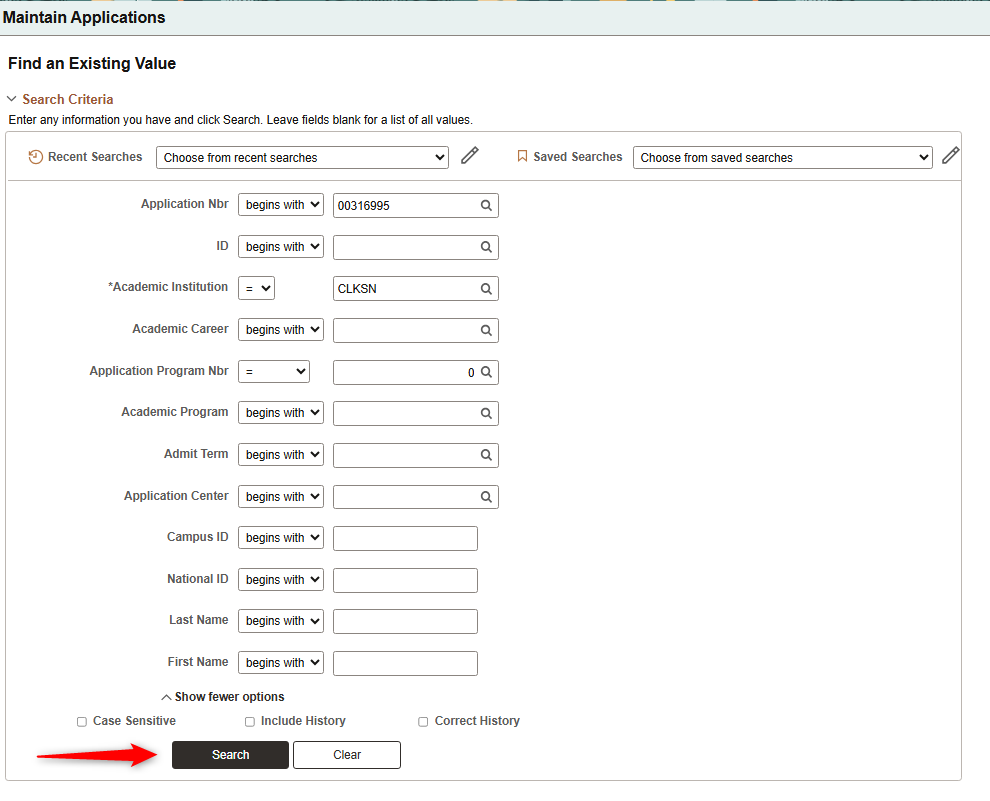
Click on the "PS App ID" link in the mailing, which should take you directly to Maintain Applications in PeopleSoft with the PeopleSoft ID already filled in. Hit Search.
Navigate to "Application Program Data" at the top of the screen.
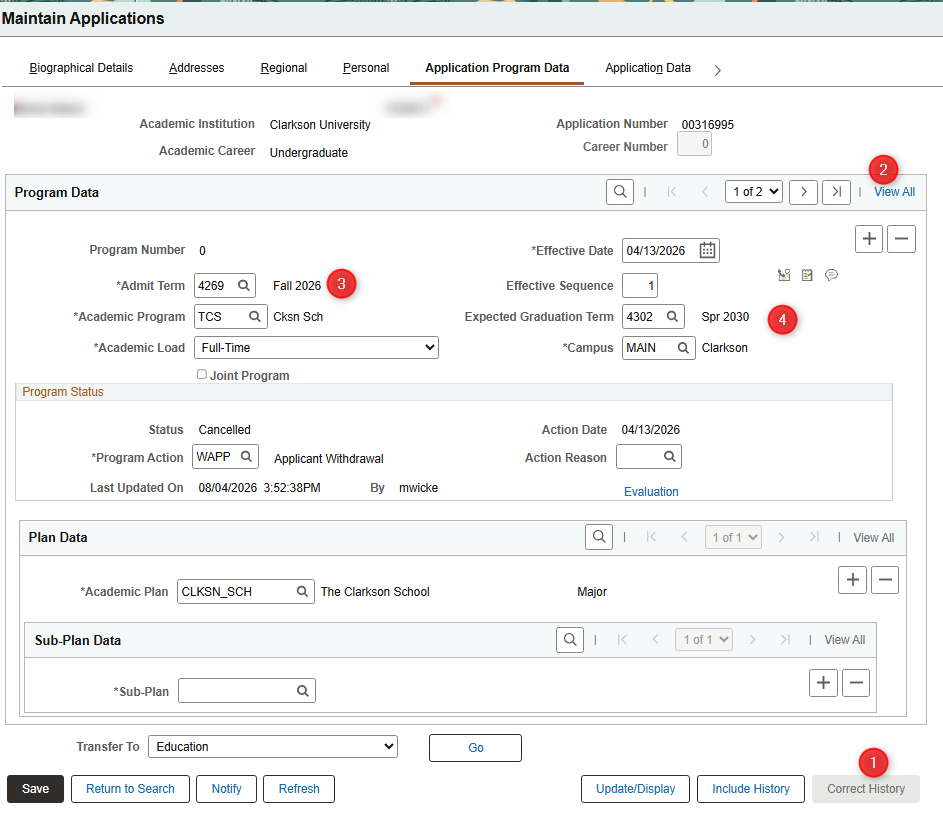
NOTE: Do If updating PeopleSoft,not change the
AdmitEffective TypeDate boxvalue, that will cause issues with the decision interface from
theSlate. Maintain
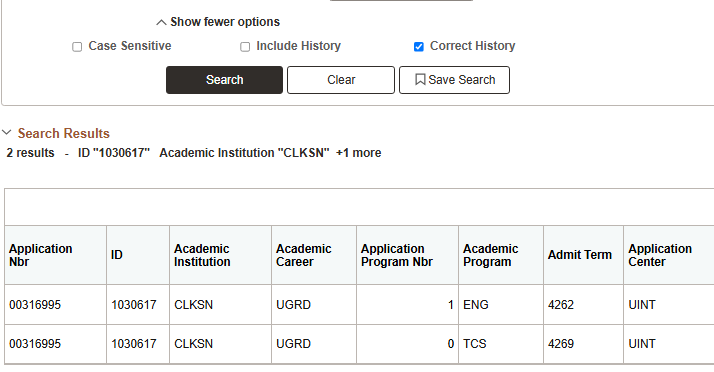
ApplicationsNOTE: ->If student is a TCS Student, you will have to update both Application DataRow Numbers. On the main search screen youin navigatedPeopleSoft, remove the value in the "Application Program Nbr" row if its filled in and hit your search. This should return multiple rows. You will need to earlierrepeat all the steps below for both.
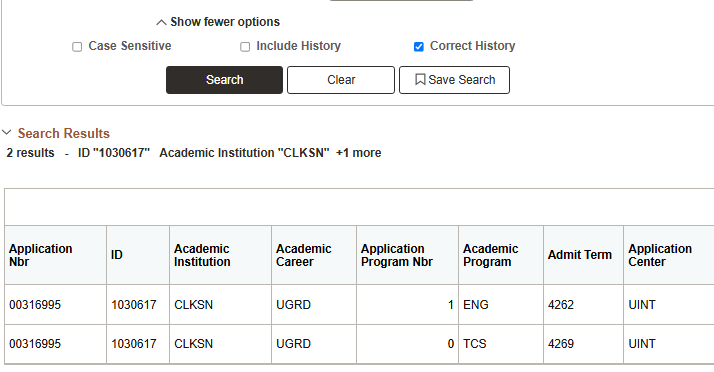
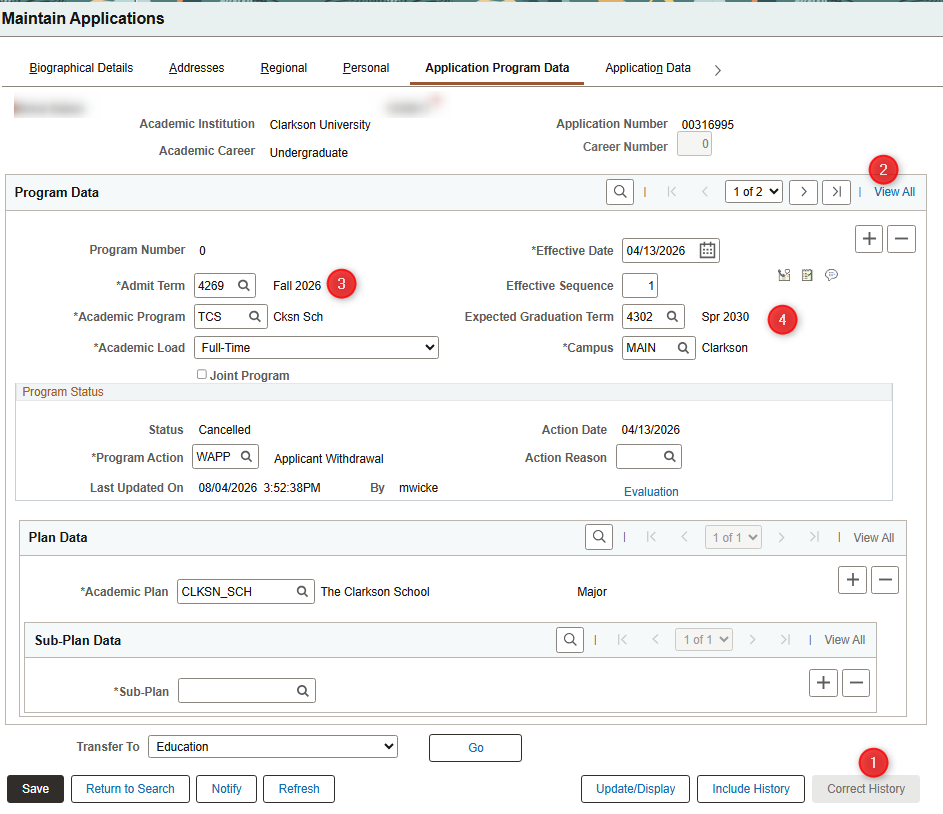
1 - Click "Correct History" at the bottom of the screen to update all of their rows to the correct value
2 - Click the "View All" link at the top of the screen. You should see it telling you how many rows there are to update to the left of that link (1 of 2 in this
step.example)
3 - Update the Admit Term to match the correct value
4 - Update the Expected Graduation Term to the correct value
Repeat this for how many rows of decisions there are on a student.
Admit TermType DifferentMis-match
Major Different
Admit Date is before Application Date
Notification Plan Different
Recruiting Center Different