Market Value File Preparation and Upload Instructions
Purpose
This document outlines the process of generating, receiving, manipulating, and uploading Fund Market Values into Slate.
Process
- Email Reminder: Email reminder sent on 1st of the month to DAR and Budget & Planning out of
SlateSlate. - Generate Market Value Files: Budget & Planning generates the market value files and provides them to DAR staff
- Manipulating File for Slate: DAR or IT Staff edit the file so Slate can process
- Uploading File to Slate: DAR or IT Staff upload manipulated file to the Slate Source Format
- Verify Data Load: Check data is appearing in Research under funds
- Check For Unlinked Funds: Check unmatched rows in file to determine if fund should exist for uploading.
Email Reminder
Responsible Party: Slate IT Staff.
- On the first of every month, a reminder is sent to [ ADD HOW ITS SENT]
- Mailing is located here [ADD LINK]
Generating Market Value Files
Responsible Party: Budget & Planning.
- Files are generated from the Budget & Planning Department.
- They generate the file by [Get Instructions From Tasha]
Manipulating File for Slate
Responsible Party: DAR Staff (Primary), Slate IT Staff (Secondary)
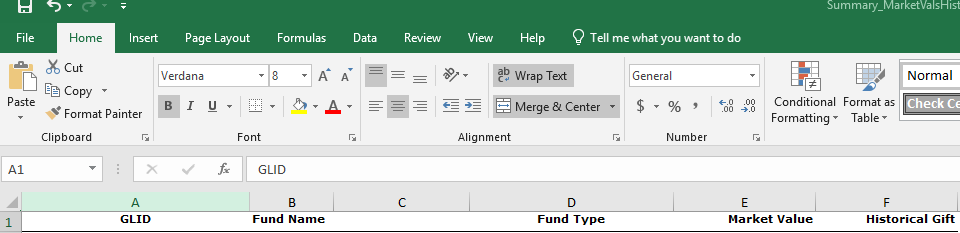
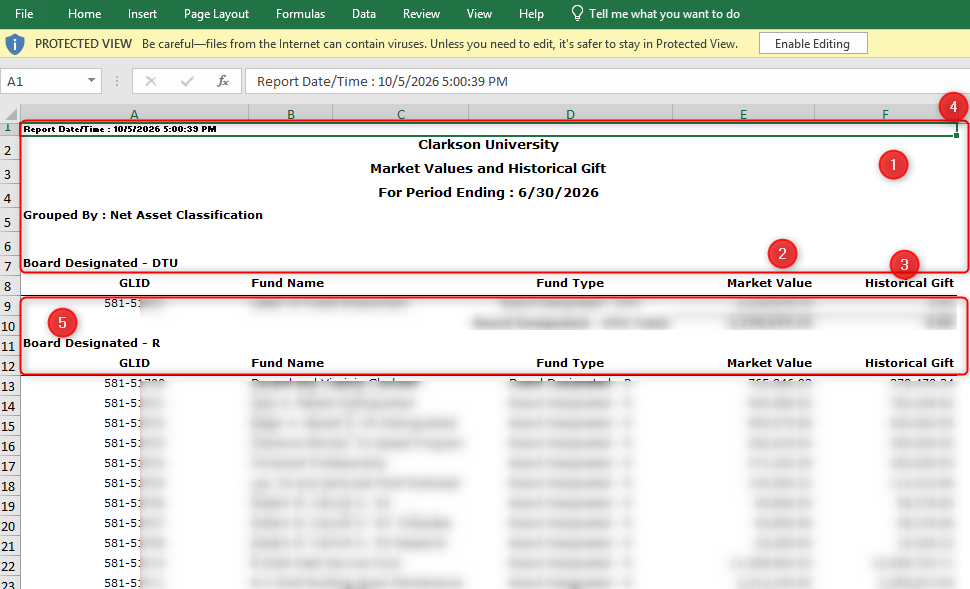
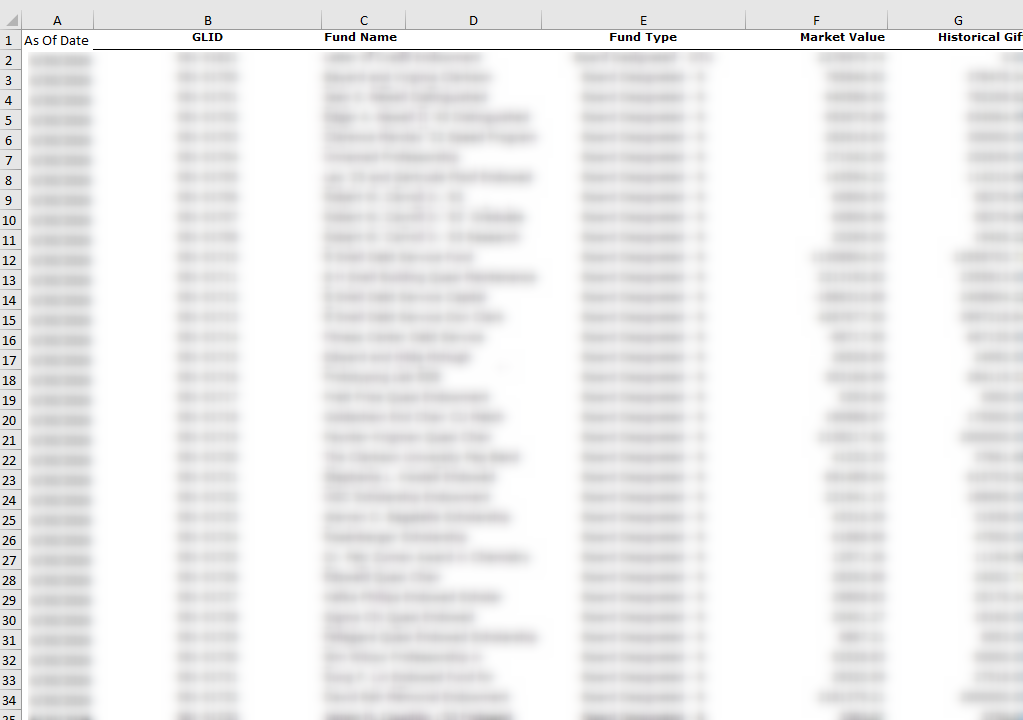
- Open the file in Excel. It will look something like this. Items indicated in red are the items that need to get manipulated. This is so Slate can read the rows directly, and the data matches the expected inputs in Slate.
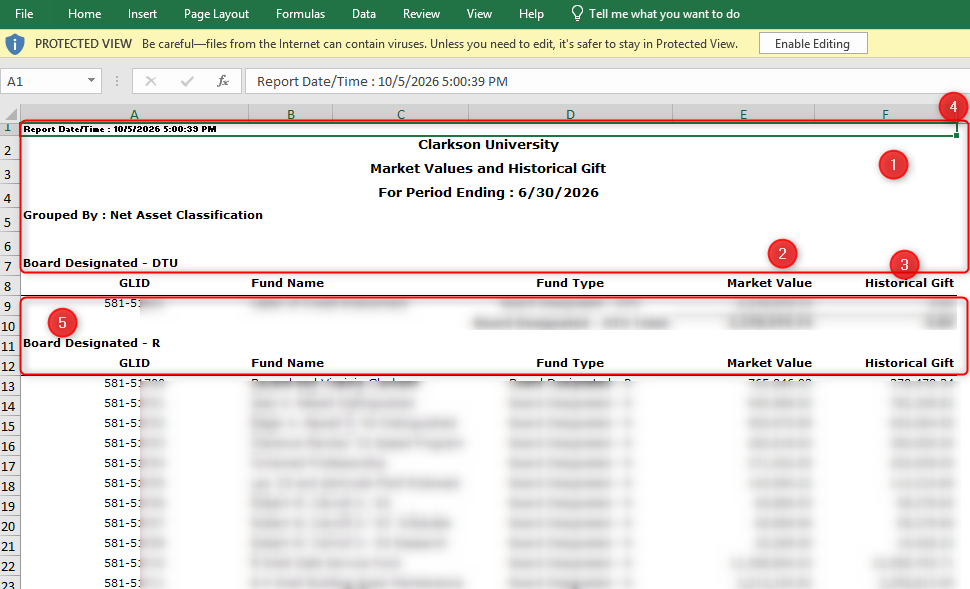
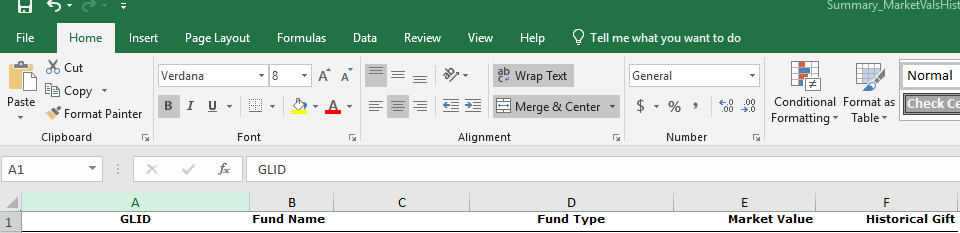
- Make note of the "For Period Ending" date in the header, as we will need that for step 4. We need to remove all the header rows up until the column headers. There should be no rows above column headers. The file should have the column headers in Row 1 after you delete the headers from the file.
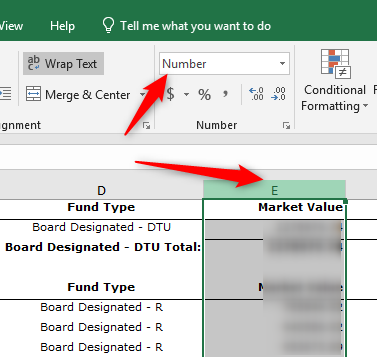
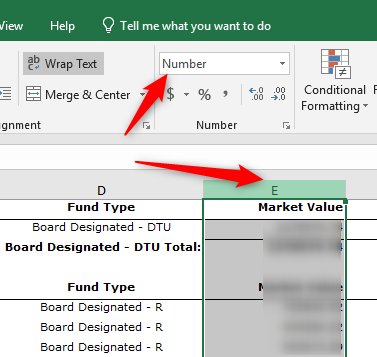
- Click Column E so it highlights the whole column, and change the format to "Number".
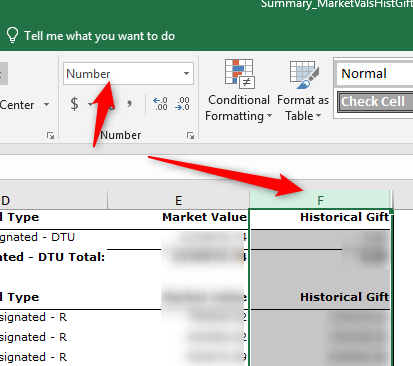
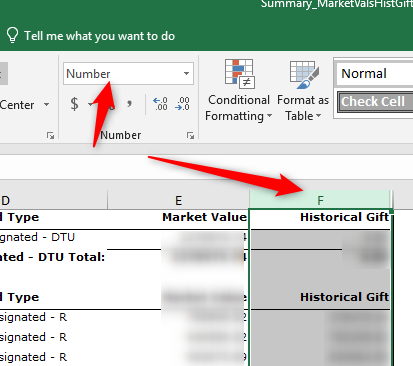
- Click Column F so it highlights the whole column, and change the format to "Number"
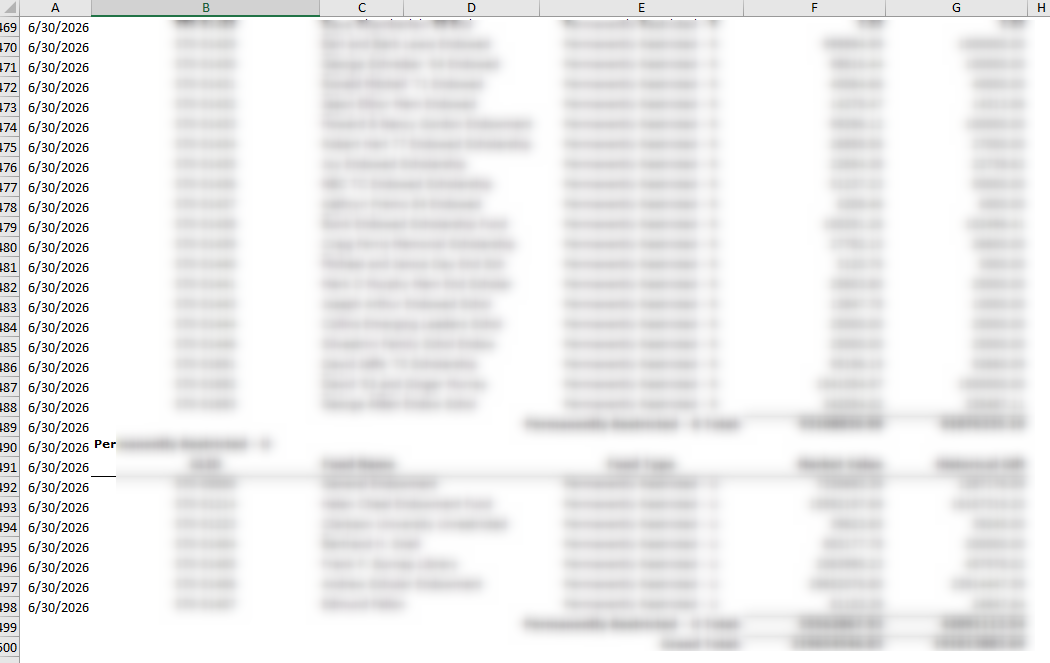
- Click Column A so it highlights the whole column, right click and choose "Insert". Add "As Of Date" as the column header. Spelling and letter case need to match, so ensure the column is exactly "As Of Date". Add the "For Period Ending" Date into the column and copy/paste it into every row with Fund data in it.
NOTE: Ensure the date is the same for all rows. If you drag the column down, Excel may add a day to each row, and the dates will all be different.

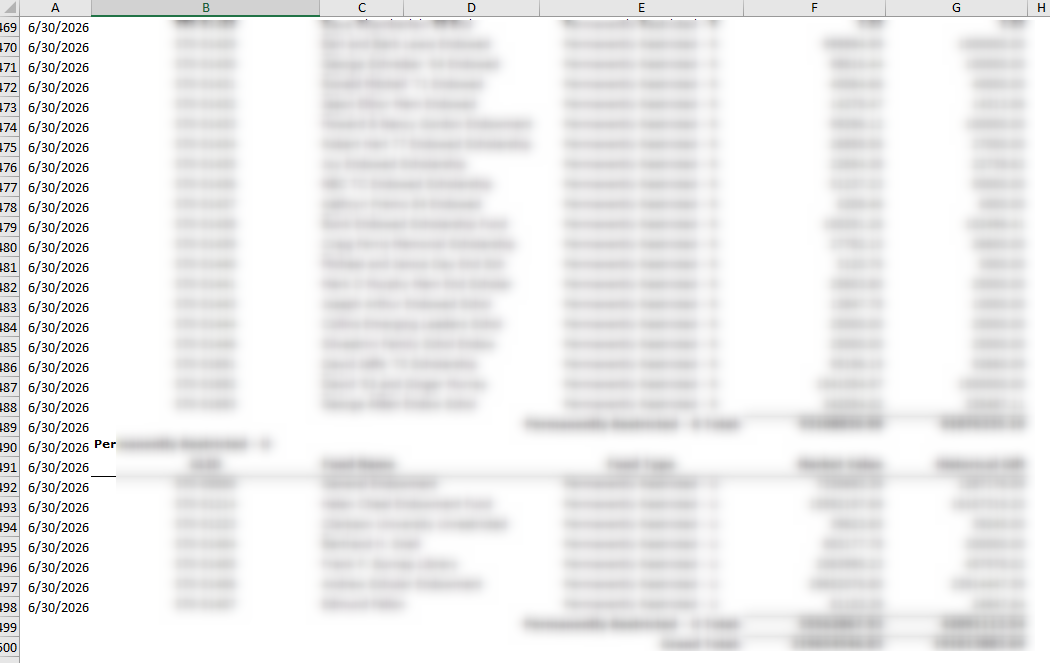
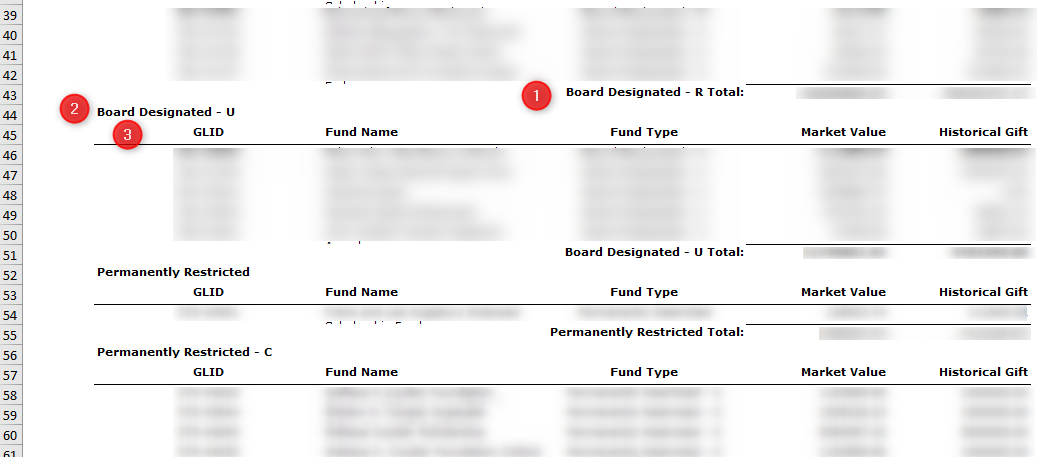
- The file has multiple groupings and sets of headers. We need to scroll through the file and remove any additional headers/column labels in the file. Delete any row that is a Category Total, Category Heading, and additional Column Headers. Repeat for any groupings that exist in the file.
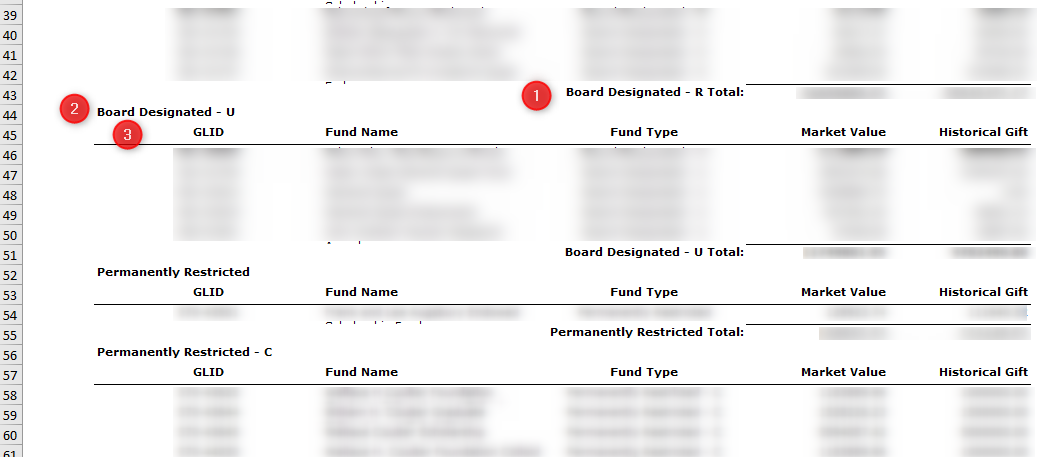
When you are complete, you should have no breaks between fund rows, and no summation/total rows.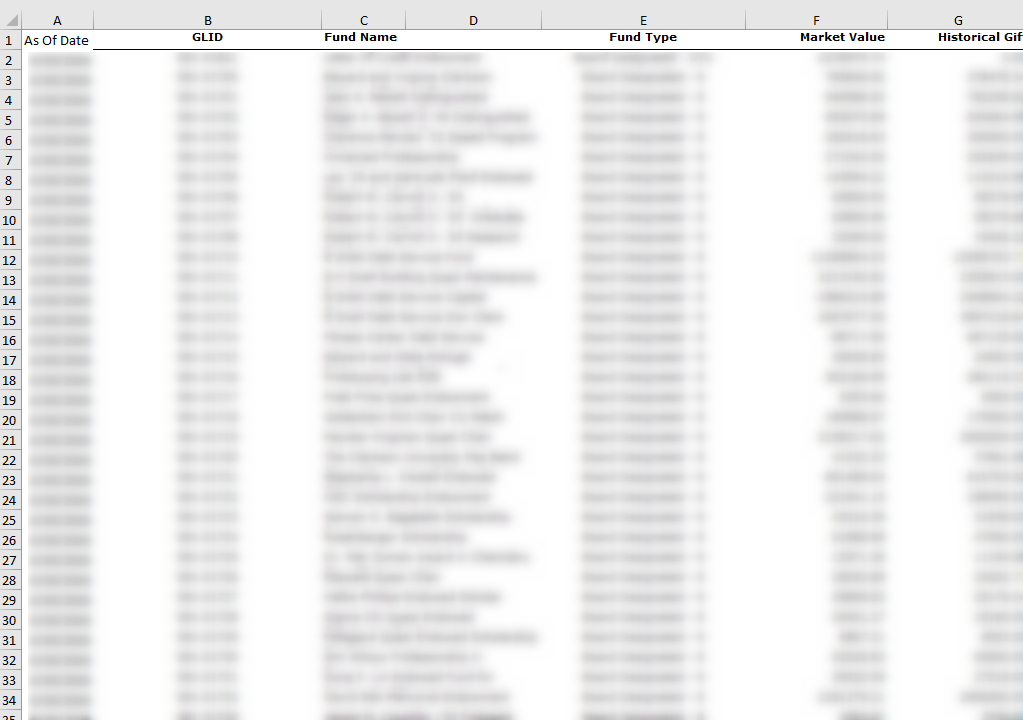
- Make note of the "For Period Ending" date in the header, as we will need that for step 4. We need to remove all the header rows up until the column headers. There should be no rows above column headers. The file should have the column headers in Row 1 after you delete the headers from the file.

Uploading File to Slate
Responsible Party: DAR Staff (Primary), Slate IT Staff (Secondary)
- Find the Source Format
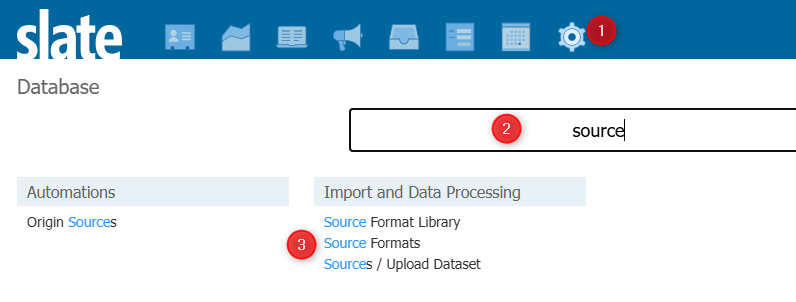
- Log into the Slate for Advancement System.
- You can click the link directly here or you can follow the other instructions to learn how to get to the item directly. : https://connect.clarkson.edu/manage/import/format?id=352606ba-47a8-4c47-800a-b6f7d52af18c
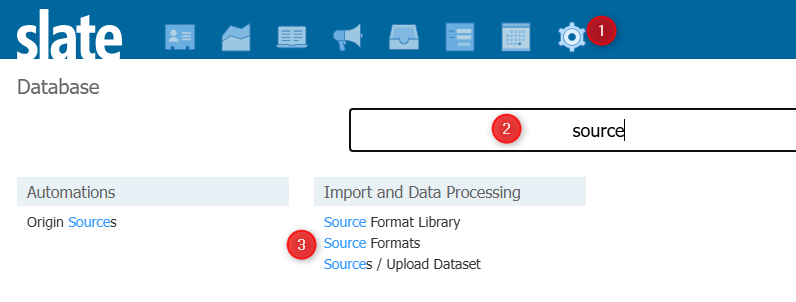
- Navigate to Database in the system.
- Start typing "source" in the search bar
- Click the "Source Formats" item.
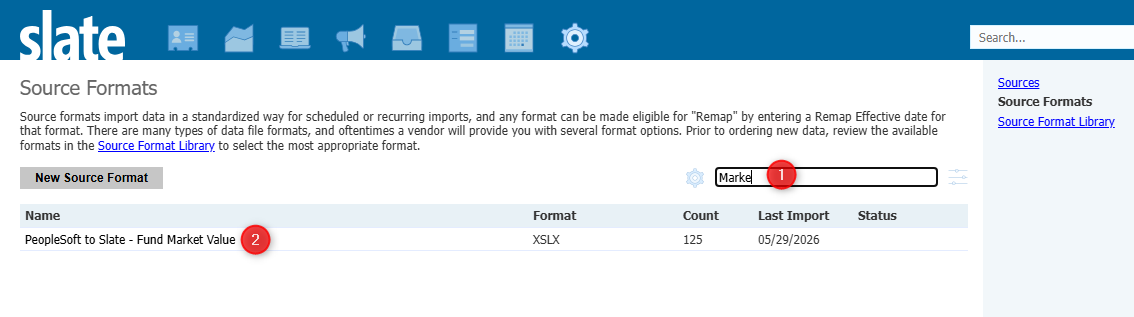
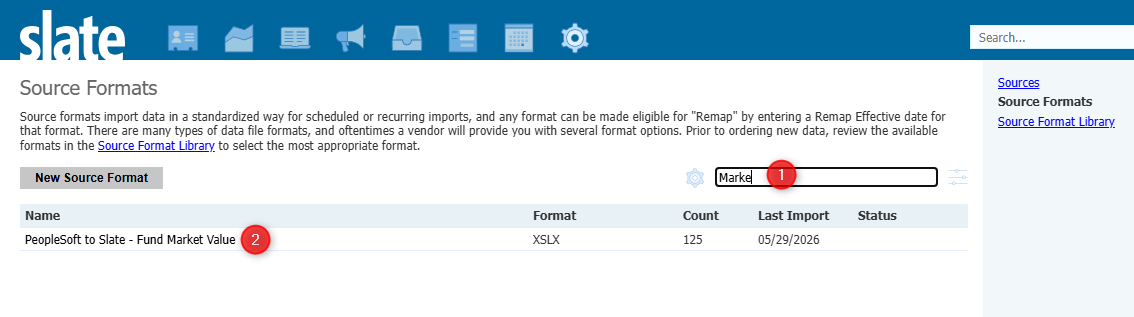
- Search for "Market" in the new window, and click the source format PeopleSoft to Slate - Fund Market Value"
- Upload the File
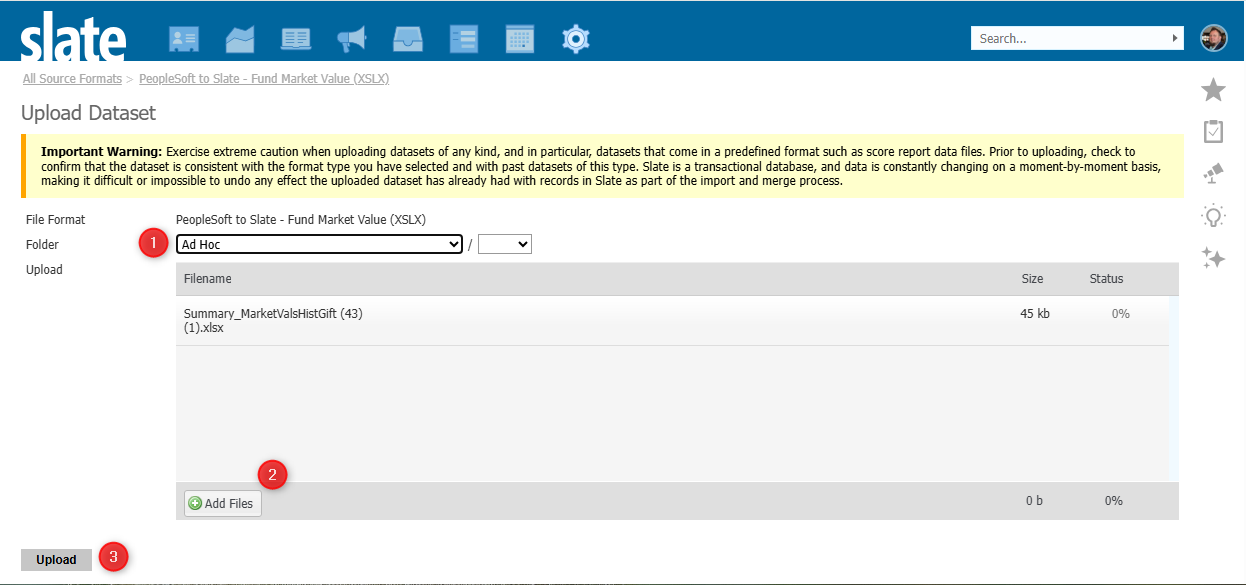
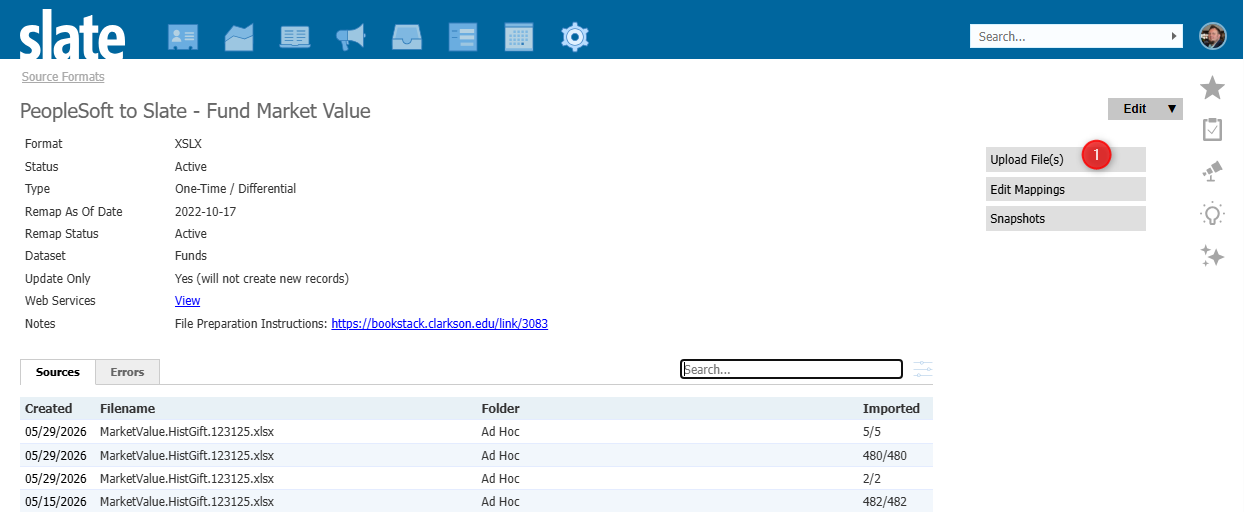
- Click the "Upload File(s)" button.
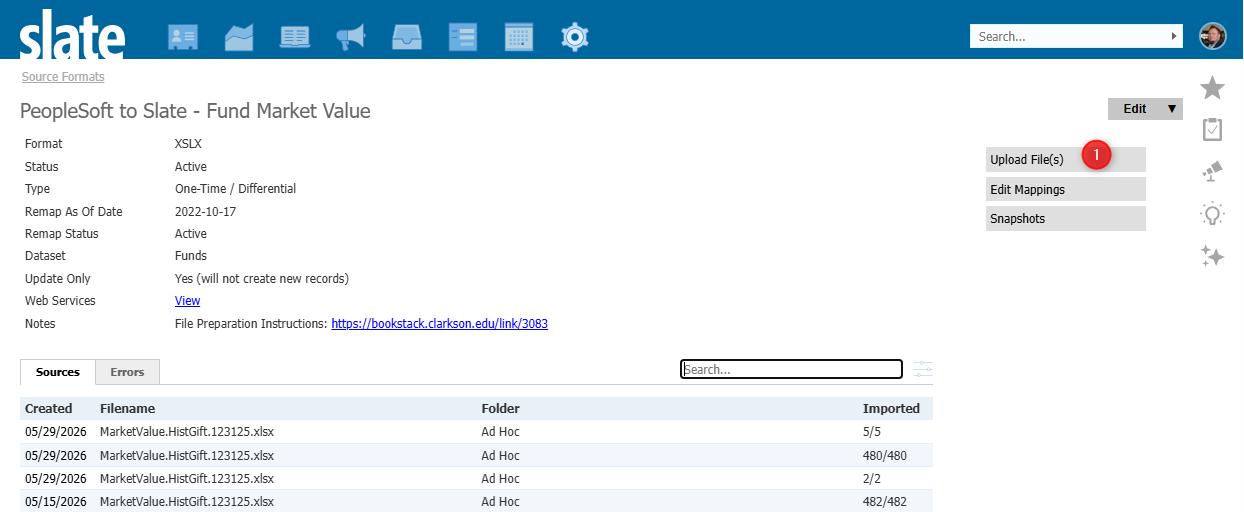
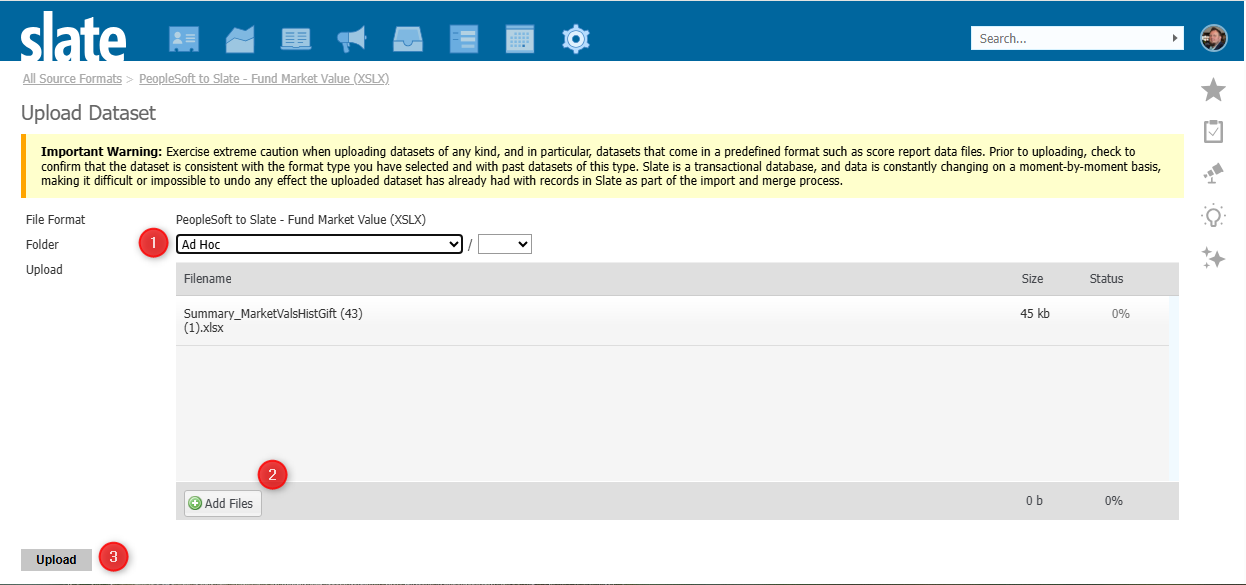
- Change the folder to "Ad Hoc"
- Drag the file onto the screen, or click the "Add Files" button and navigate to your file.
- Click Upload
- Click the "Upload File(s)" button.
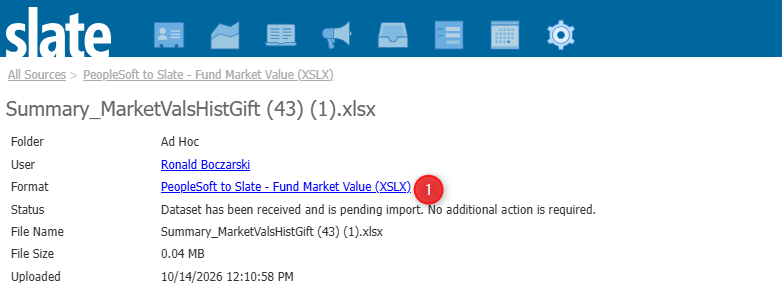
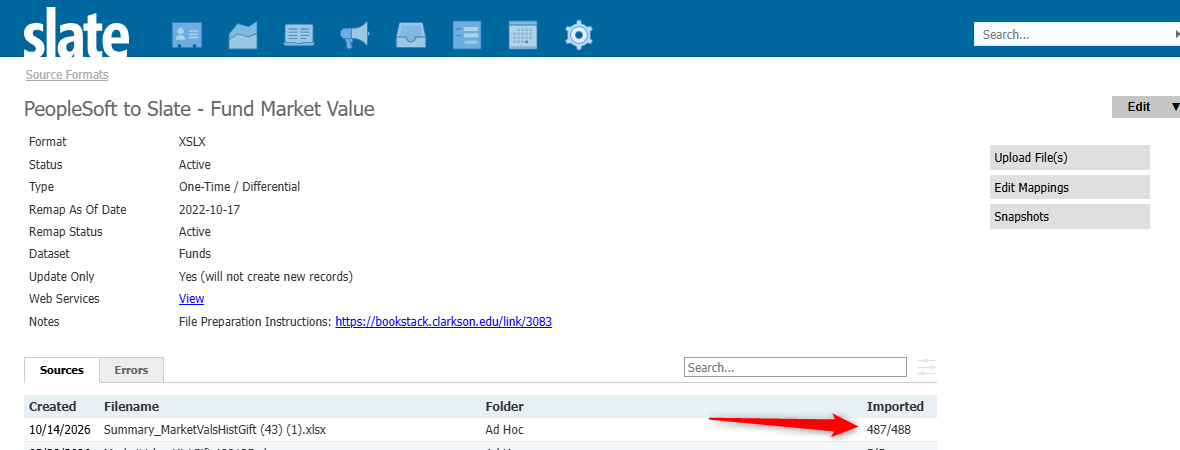
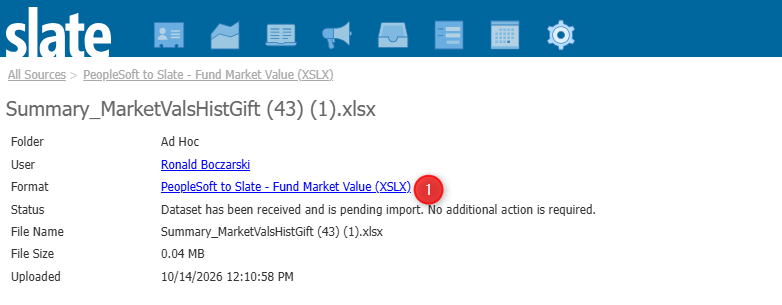
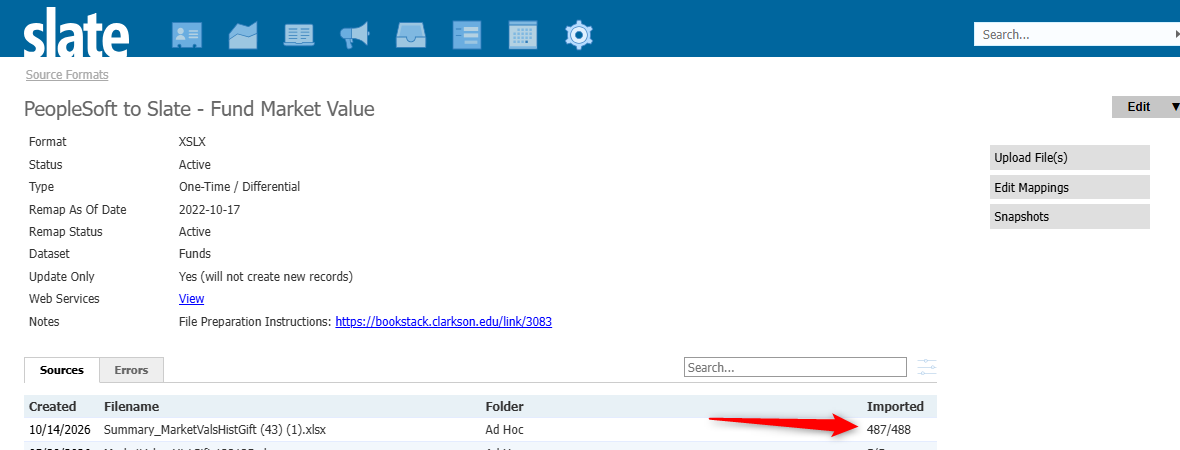
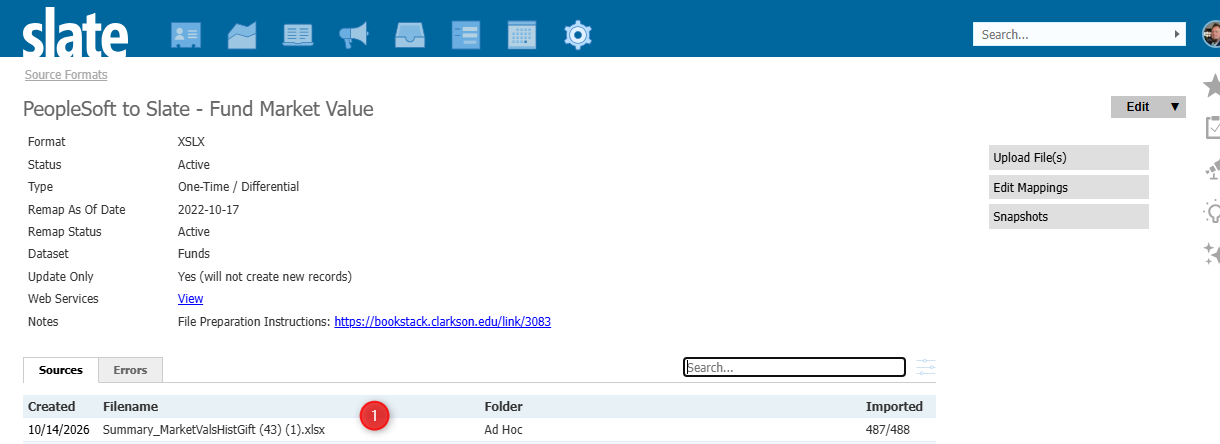
- After you upload, you'll be taken back to screen indicating the file needs to process. Slate will look for new files and process them every 15 minutes automatically. So Click the Format URL and wait until you see its the file has been processed.
Verify Data Load
Responsible Party: DAR Staff (Primary), Slate IT Staff (Secondary)
The purpose of this step is to ensure data in Excel was changed correctly in the above steps. Issues that could arise if not done correctly could include the following: Data not loaded, values don't look like numbers, date associated with data is incorrect.
- Check to ensure rows matched, and data loaded for the date expected in the file, as that the values show up.
- After you see the file finished loading in the step above. Click the file name
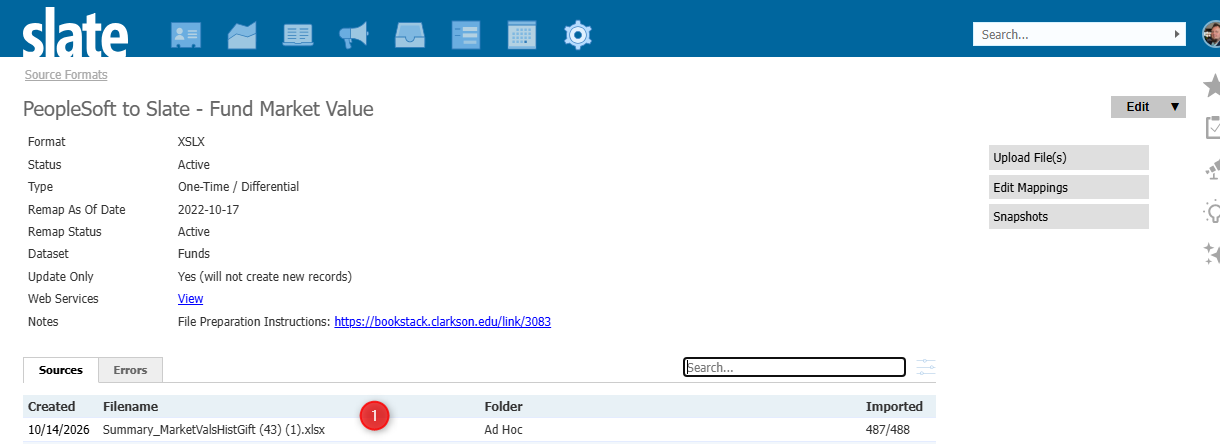
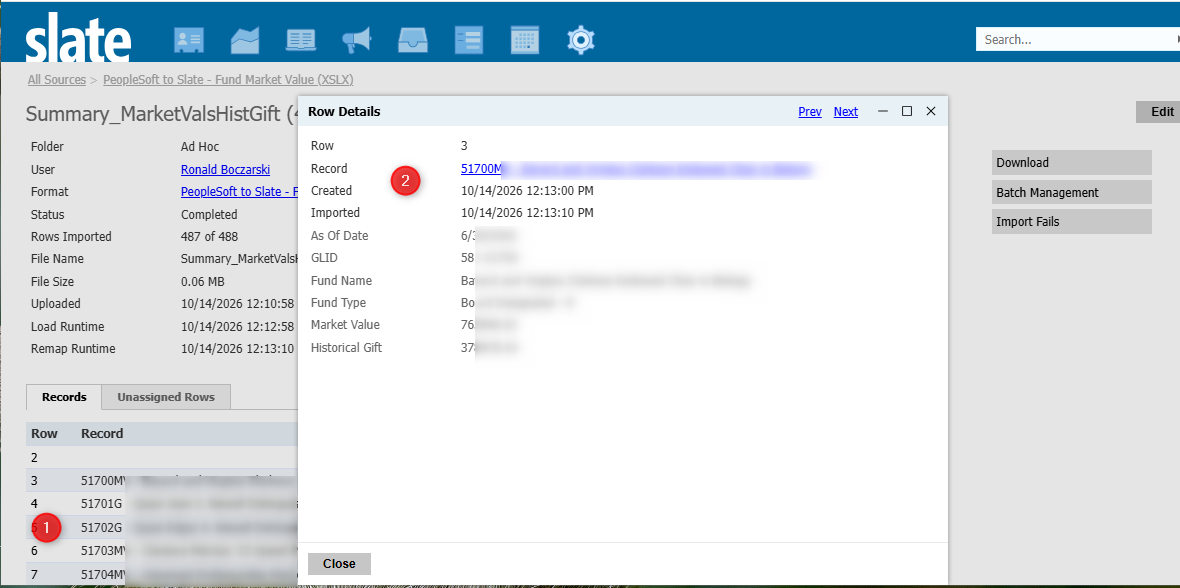
- After you see the file finished loading in the step above. Click the file name
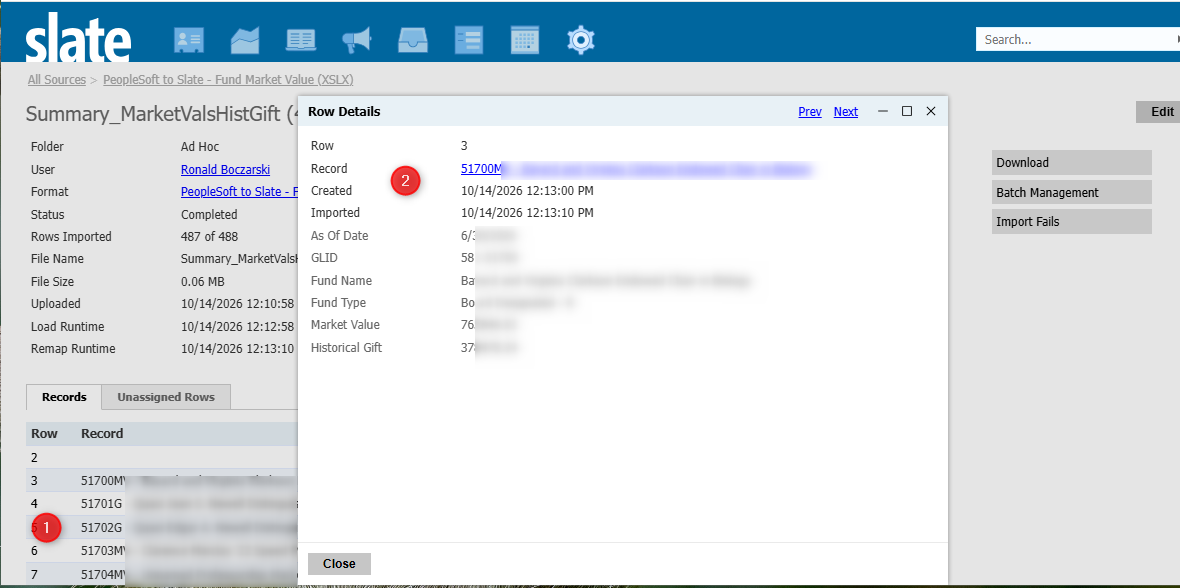
- If you see names of funds inside the file, then the file matched to rows successfully. Click one of the rows, and click the linked name to go directly to the record.
- Check data loaded with the correct date, and values.
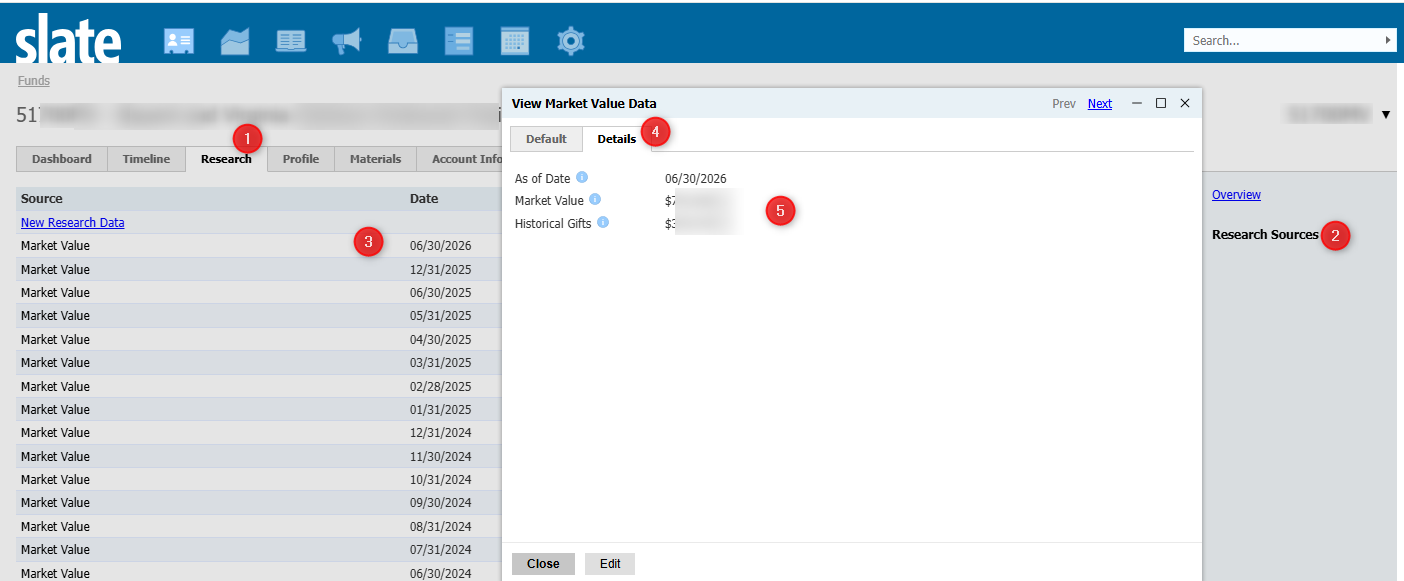
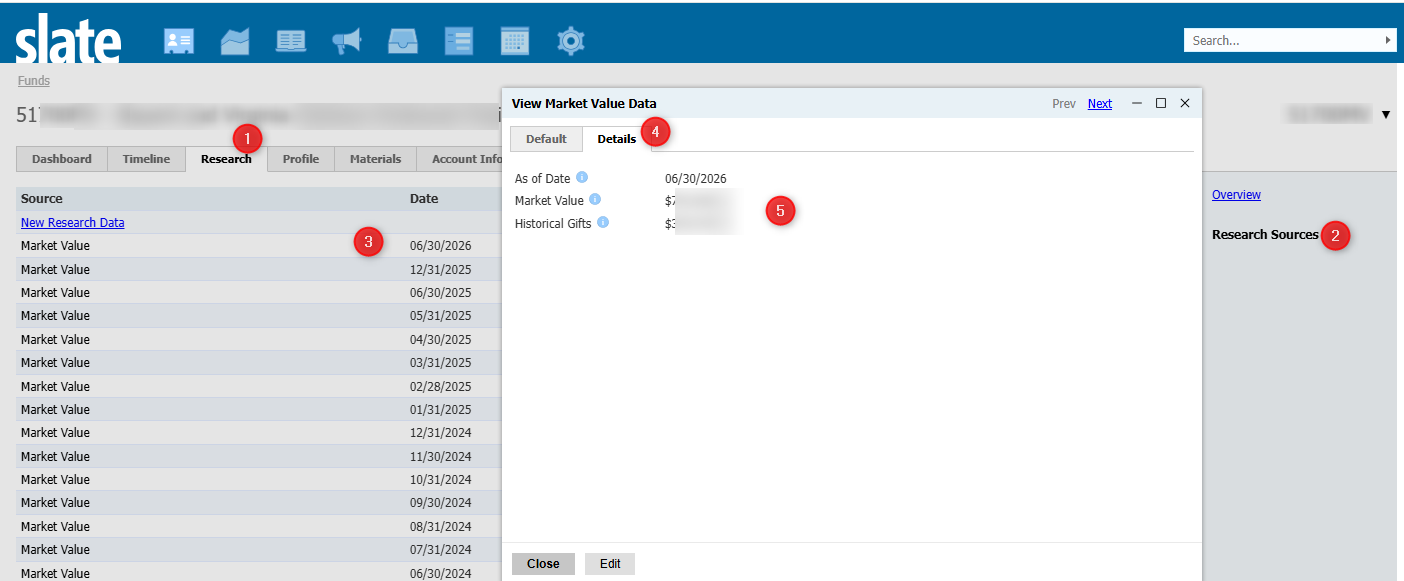
- Click the Research Tab
- Click Research Sources
- If data loaded for the correct date, you should see a row with the Date you entered into the As Of Date field in the file. Click that row
- In the popup, click the Details Tab
- Check that the As of Date, Market Value and Historical Gifts have the correct values in them.
Check for Unassigned Rows
Responsible Party: DAR Staff (Primary), Slate IT Staff (Secondary)
Unassigned Rows exist when the GLID value in the file doesn't match a Fund with a GLID already set up on it. This could be for a new Fund that was never in the file previous to this month, or for Market Values being generated that don't directly belong to a Fund in Slate. Here you will review if it should connect to Slate or not. It could be valid that the row doesn't exist in Slate, and shouldn't.
- The tab should still be open from the step above. If its not, follow the steps to get back to the Source Format, and click the file you loaded.
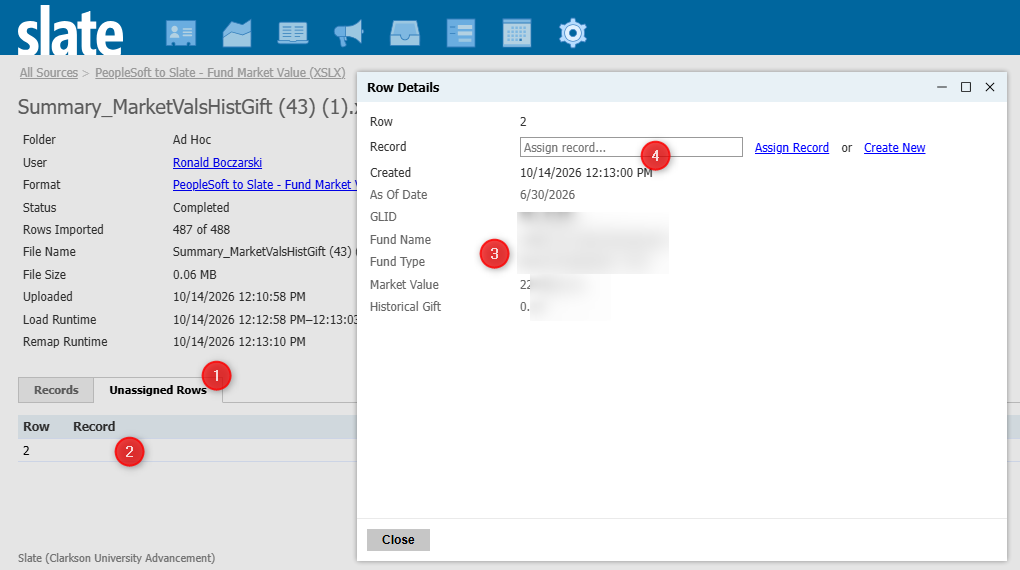
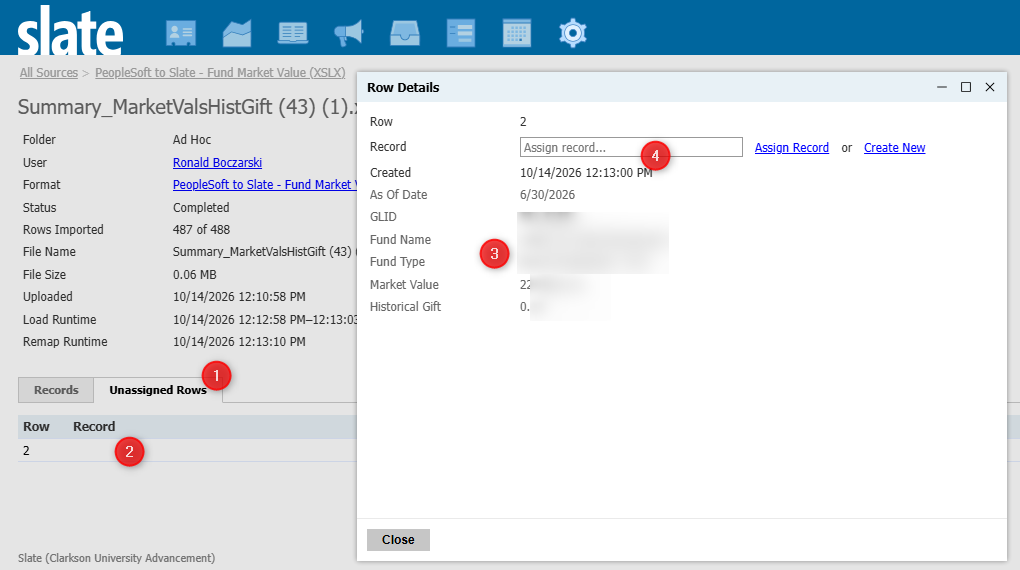
- Click Unassigned Rows
- Click the first row in the file that is unassigned
- Review the data and determine if that is an individual fund managed in Slate
- If it is, you can search for the fund name in the assign record and click it. That will assign the row, set the GLID on that fund, and add the market values. This GLID value will now always be assigned to that fund, and your next data load it should automatically match.
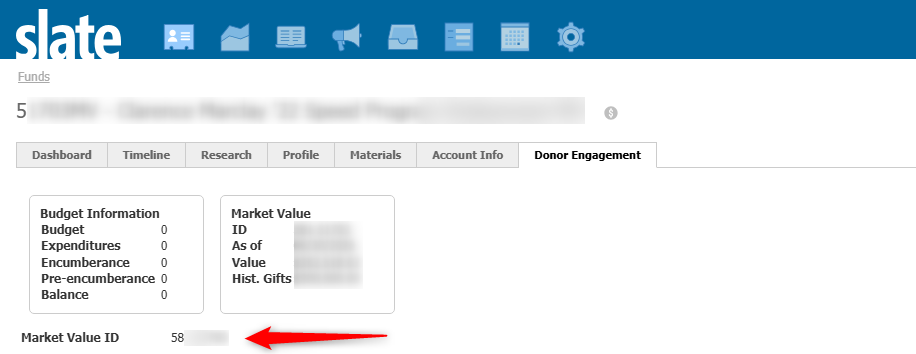
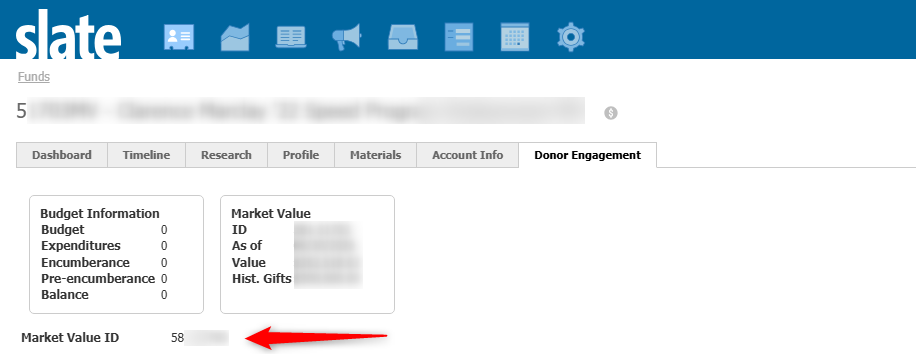
NOTE: Check the fund doesn't already have a value set, and determine if its set in correctly, if the file is generating two different answers for the same fund. To see if they already have a value set, search for the fund you think that row should belong to. Go to the Donor Engagement Tab, and see if there is a value in the "Market Value ID" field. If there is, that means we have already associated an ID there, and likely its in the file under that GLID.